

Wink Filter
One gentle wink, with the rest of your expression kept.
Drop a photo
or paste with ⌘V · JPG · PNG · WebP · up to 8 MB
No photo handy? Try one of ours.
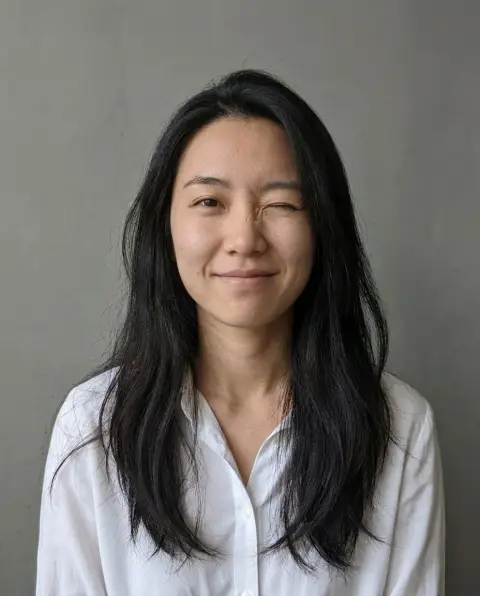
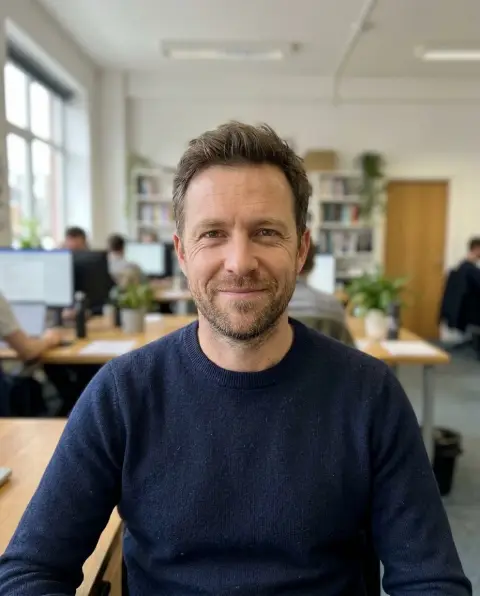
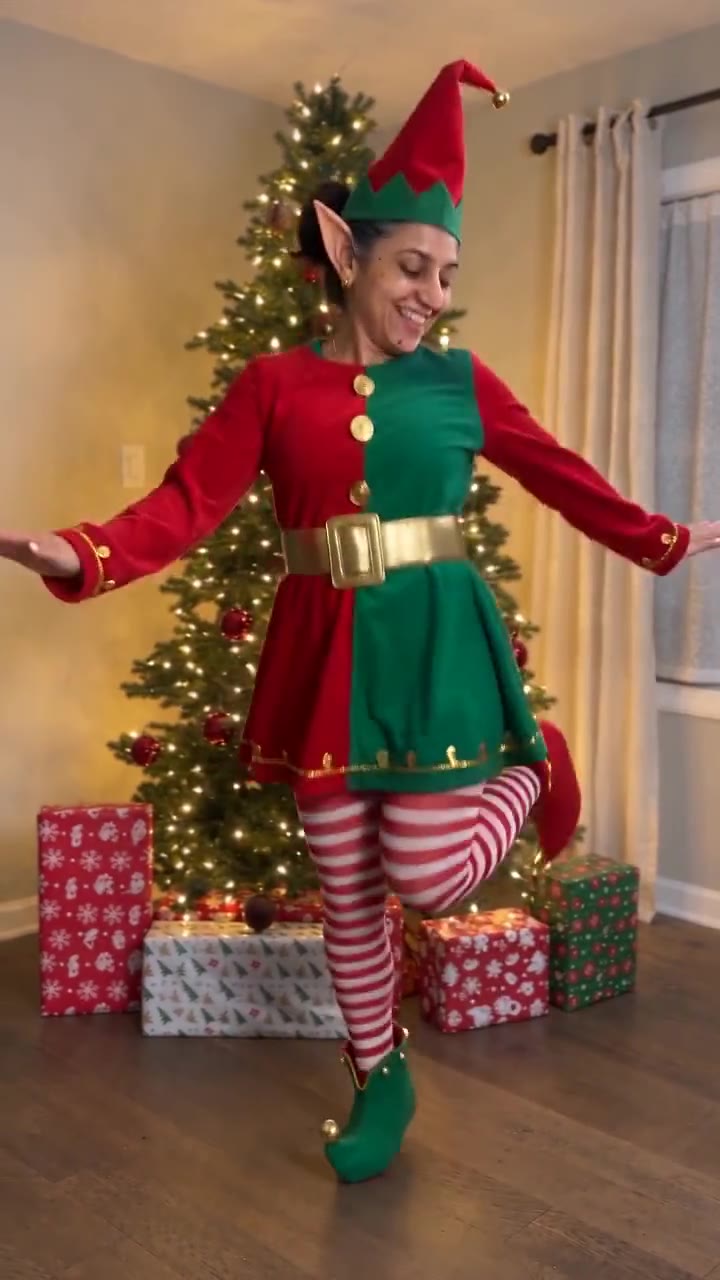
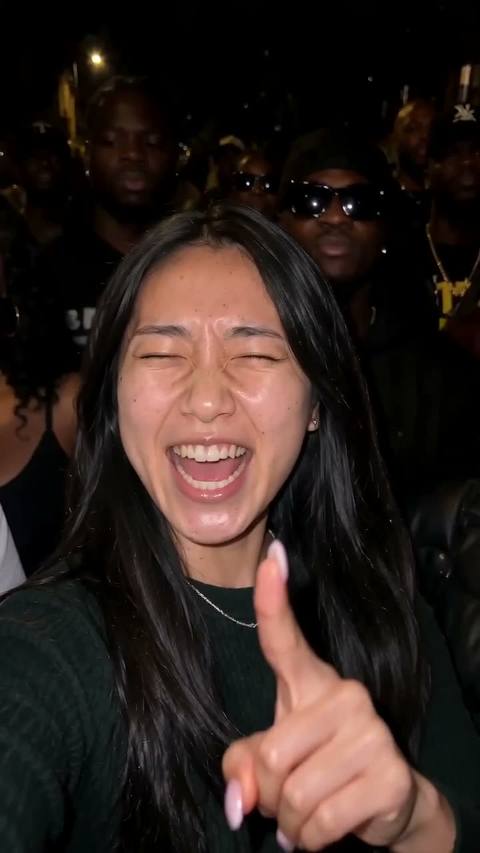
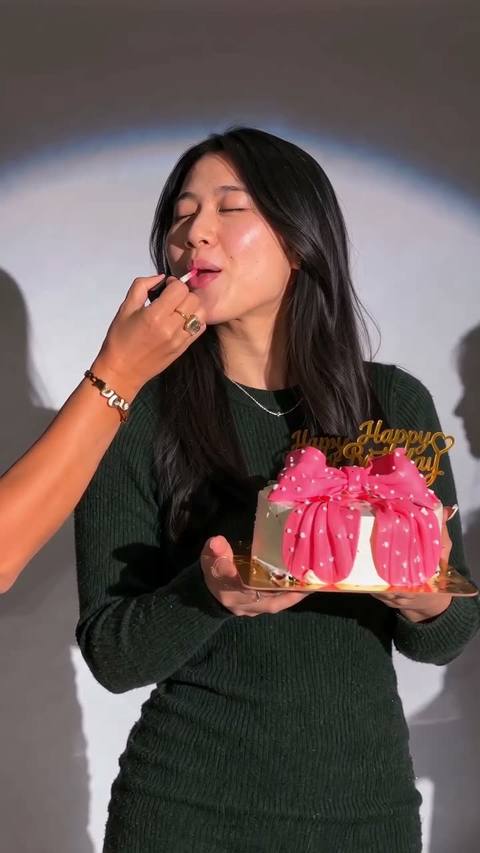
Wink Filter examples.
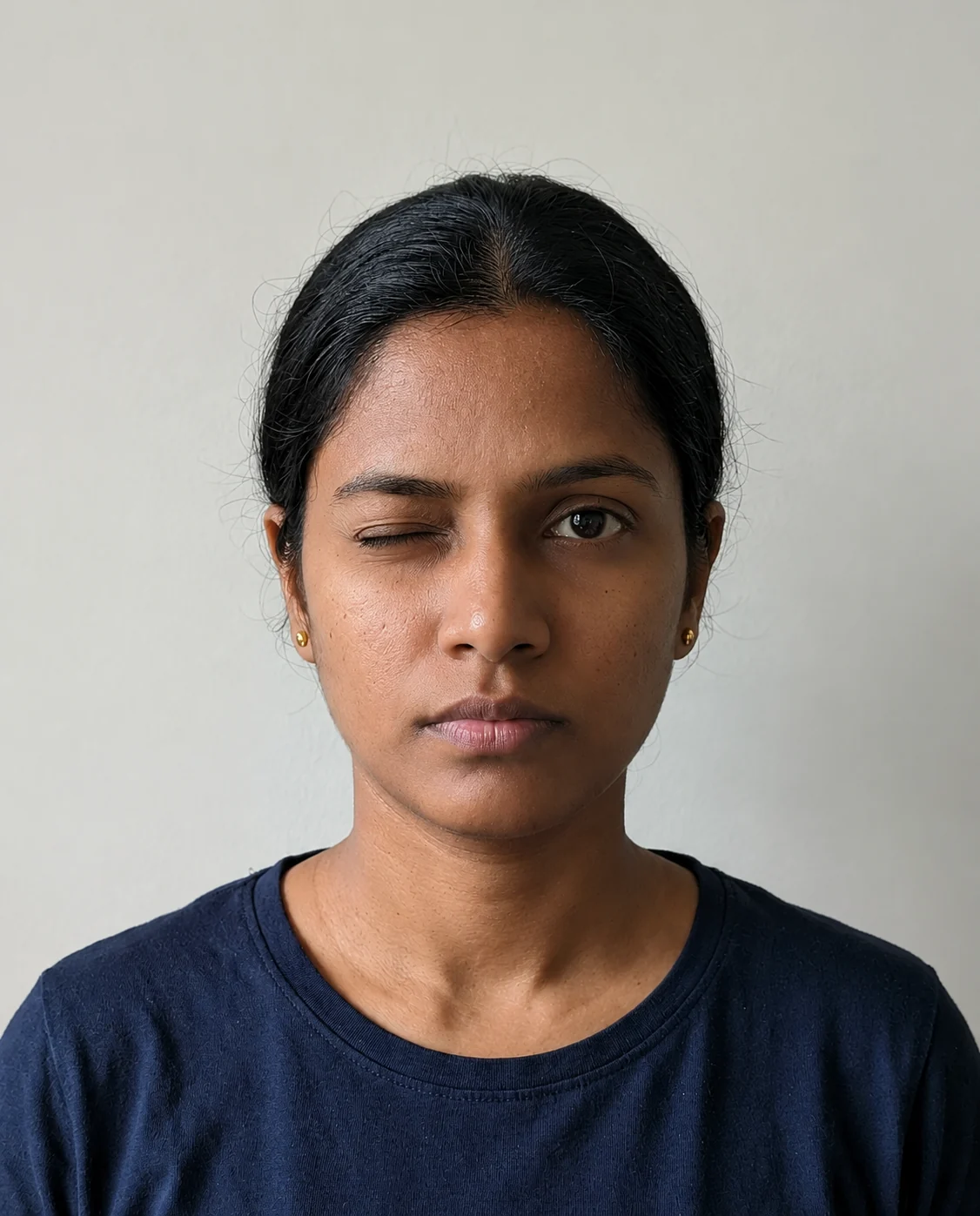
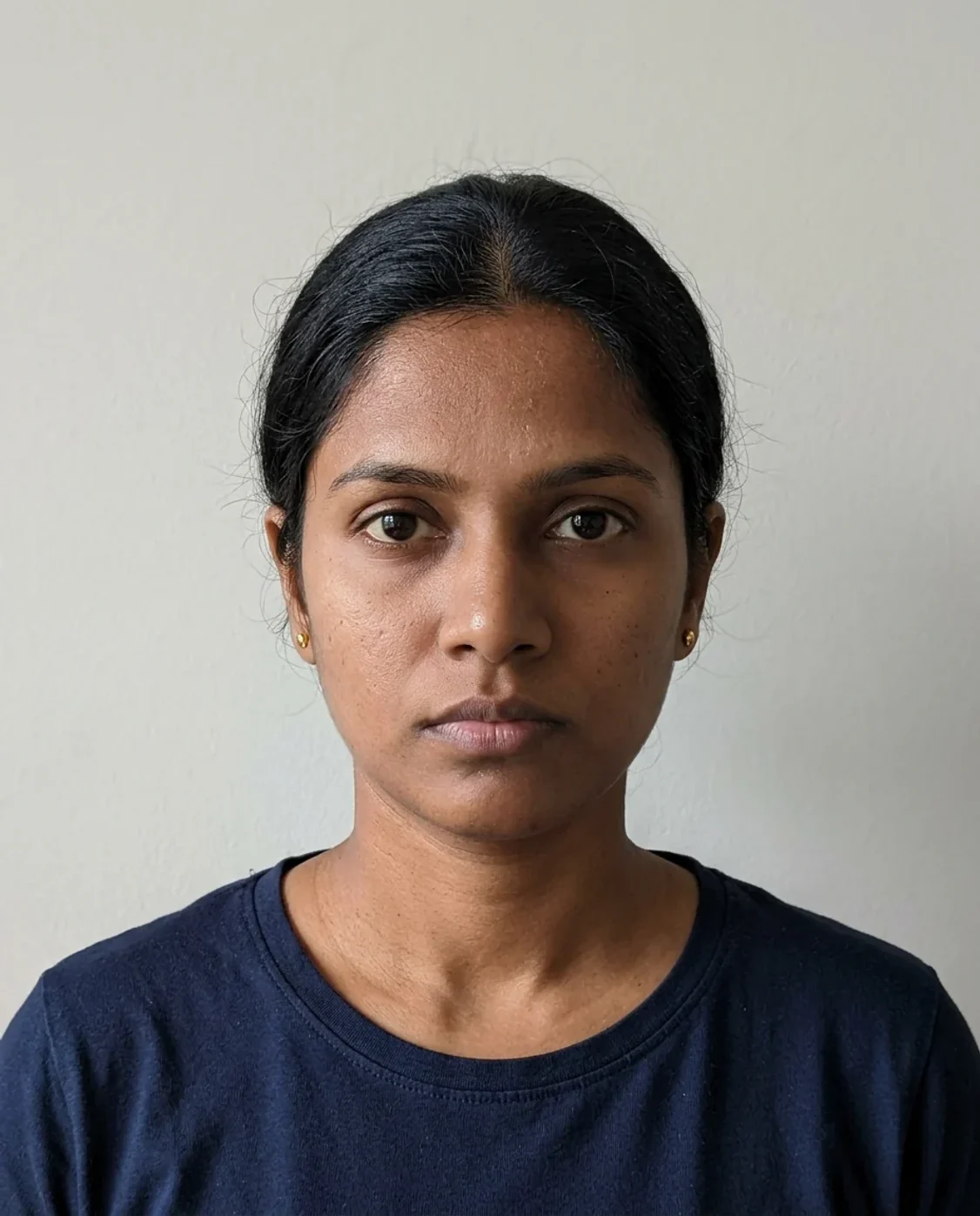
Left in photo: portrait 1
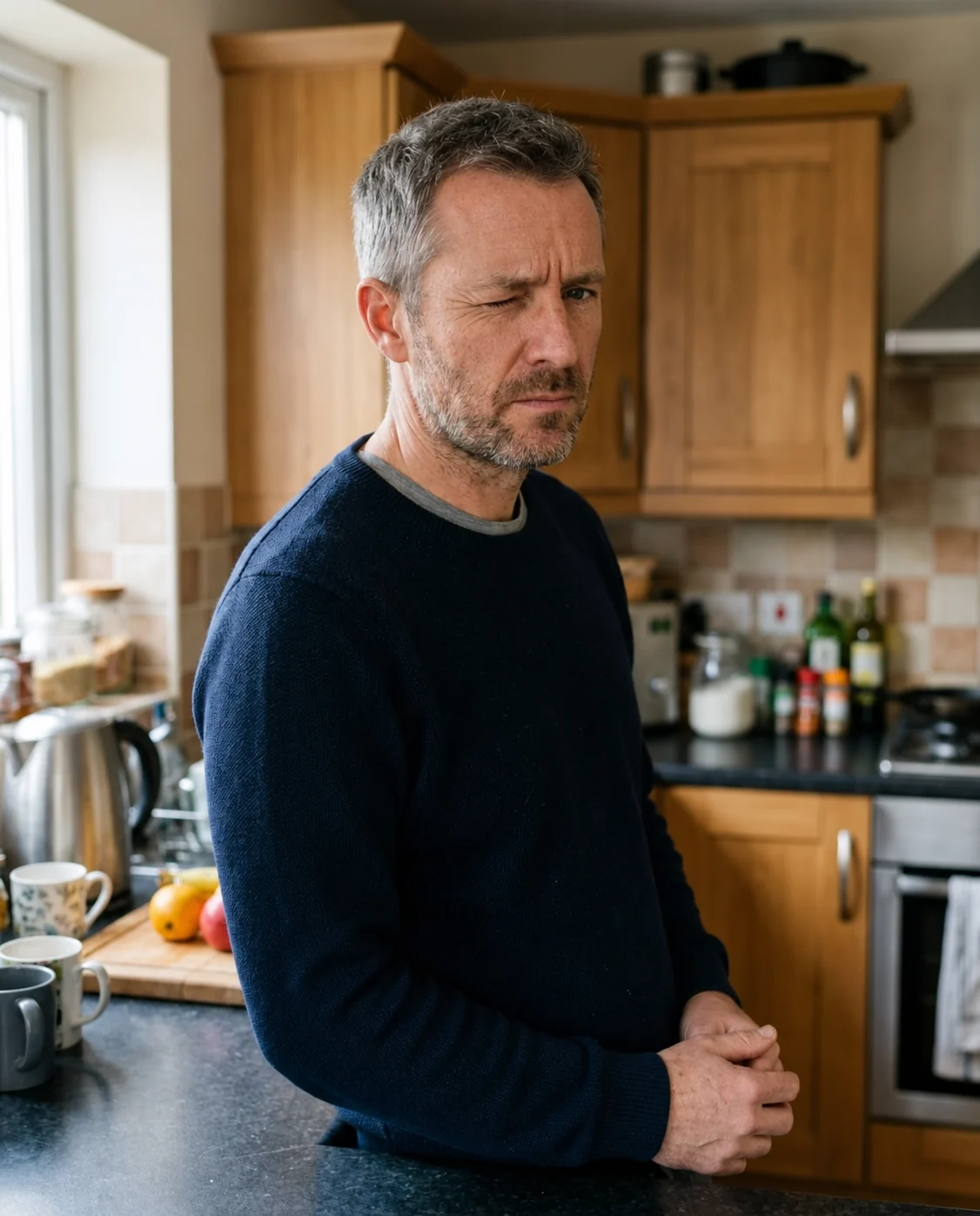
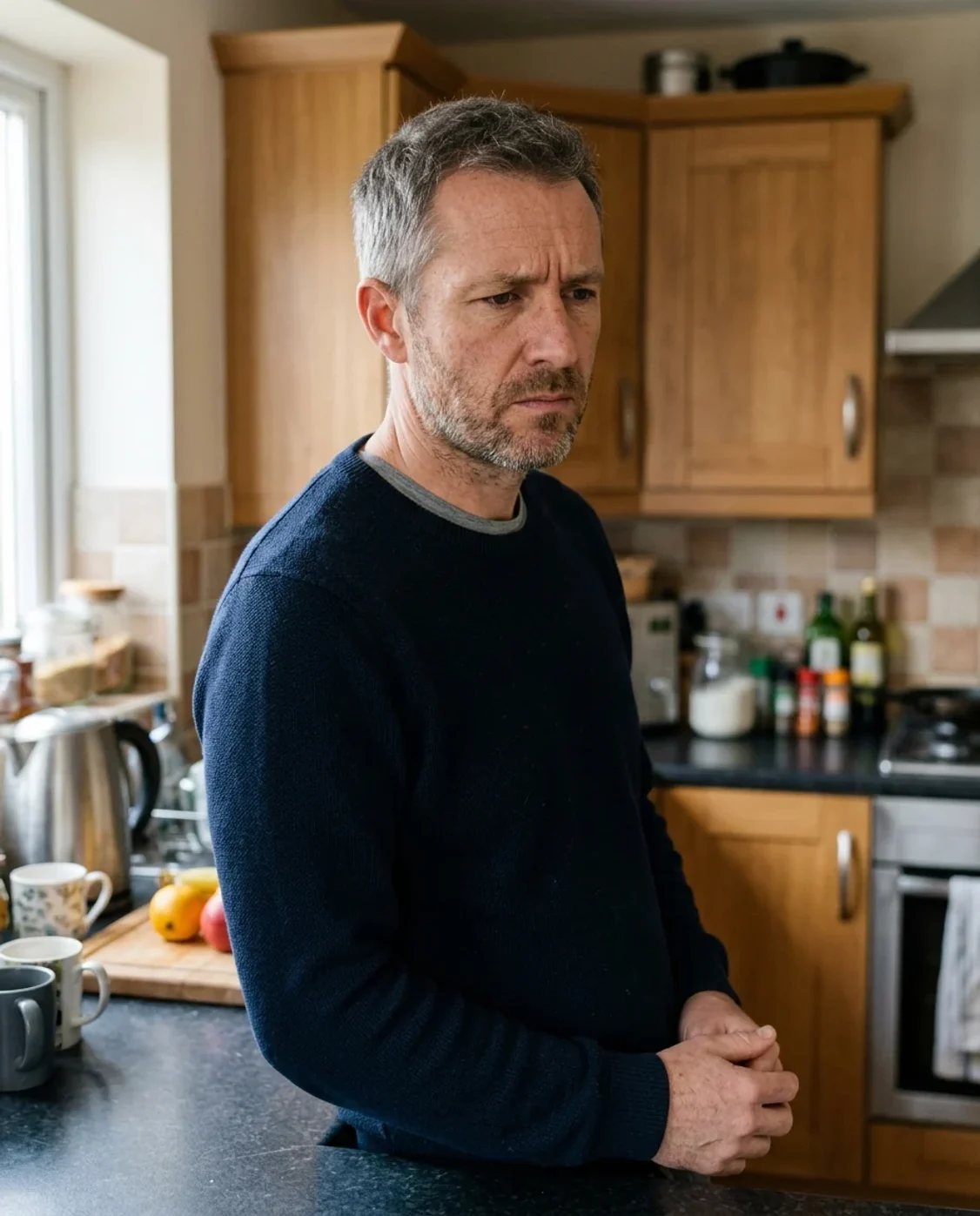
Left in photo: portrait 2
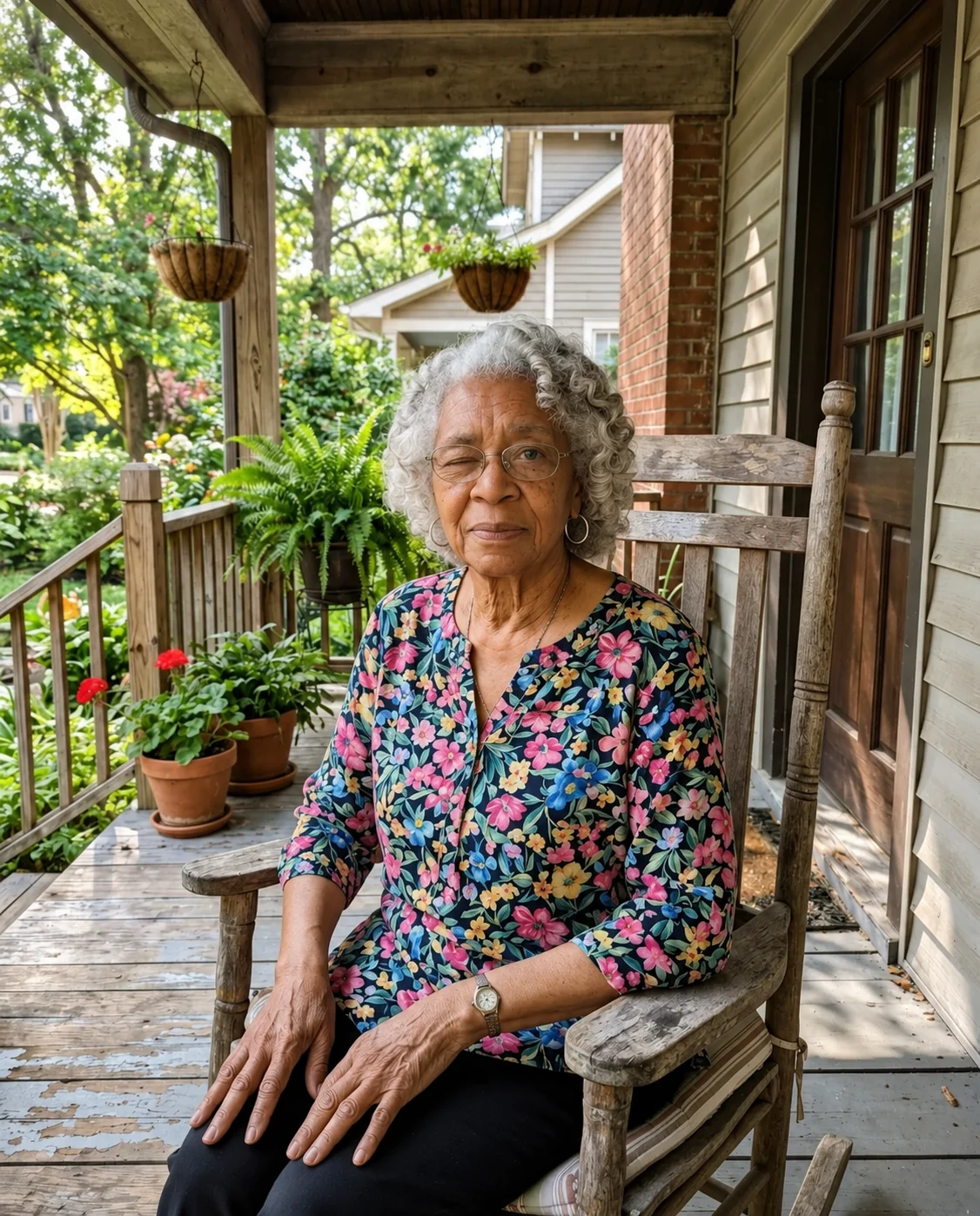
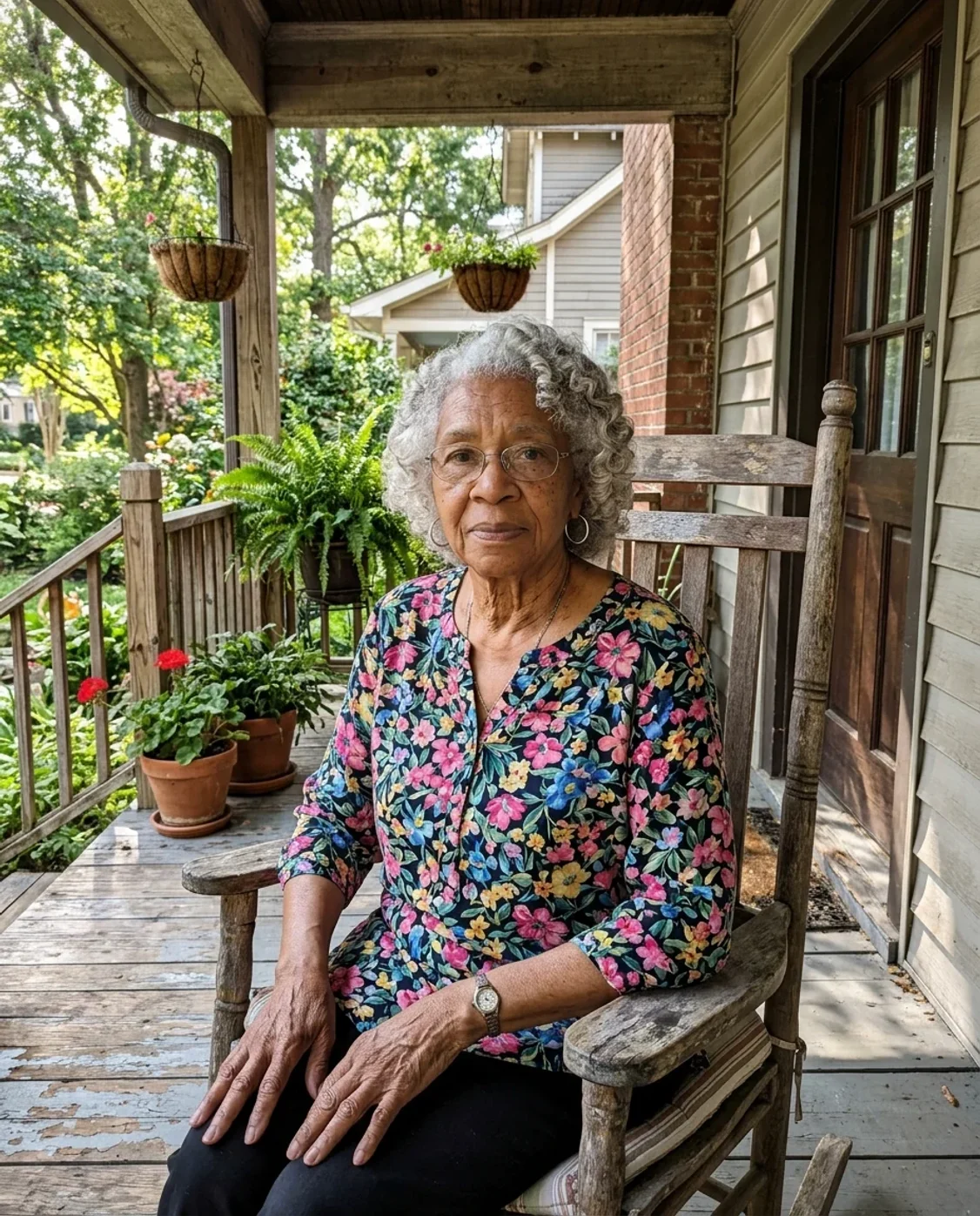
Left in photo: portrait 3
Wink Filter features.
Choose the eye in the photo
Left in photo and Right in photo refer to the sides of the image you see on screen. They do not refer to the person's anatomical left or right. This makes the choice easier to check even when your selfie was mirrored by a camera app.
A localized expression edit
The preset closes one eyelid and asks for the other eye, mouth and overall expression to remain unchanged. It also preserves the face shape, skin tone, hair, clothes and background. Check the result: a generated eyelid is an interpretation, not a measured reconstruction.
A still image to download
The output is a single photograph with a wink. There is no animated blink, live camera effect or video export on this page. Use it for a playful profile picture, a reaction image or a portrait where one small expression change is enough.
Wink Filter, step by step.
01
Upload one clear portrait
Choose a photo of a single person with both eyes visible and open. A front-facing or slightly turned head is easier to edit than a strong side profile. Use the original image so the eyelid and eyelashes have enough detail.
02
Pick the visible side
Keep Left in photo for the default, or select Right in photo. Look at the image as it appears in the tool when making the choice. Optional instructions can ask for a gentler eyelid crease or preservation of glasses and mouth expression.
03
Check both eyes
After generation, verify that the selected eye is closed and the other remains open. Compare the mouth, eyebrows and face outline with the original as well. Download the still image when the wink looks natural at the size where you plan to use it.
Wink Filter use cases.
- Playful profile photos
- Turn a straightforward portrait into a slightly more playful version while keeping the same crop, outfit and background. A close head-and-shoulders photo usually makes the wink readable in a small avatar. Avoid starting with a full-body photo where the face occupies very little space.
- Reaction and greeting images
- Add a wink to your own portrait for a personal reply, a casual announcement or a greeting. The filter does not add captions or change the mouth to a smile. If you want a broader expression change, use Face Expression Changer instead.
Wink Filter: best photos and fixes.
Make both eyelids easy to see
Start with a sharp portrait where the eyes are large enough to inspect. Hair across an eye, heavy motion blur or deep shadow can make the intended eyelid hard to locate. A soft window light and a mostly front-facing head are useful starting conditions. If you have several similar photos, choose the one with the clearest eyes rather than the most dramatic lighting. The original mouth expression can be neutral or smiling.
Understand left and right in a mirrored selfie
Some phone cameras save selfies mirrored and others reverse them after capture. The selector follows the displayed image, so Left in photo always means the eye you see on the left of that image. It does not try to infer the person's anatomical left side. Before generating, point to the desired eye in the uploaded preview and choose that side. Afterward, compare the same visible side in the result.
Use care with glasses
Clear lenses with limited reflections often leave enough information for an edit. Thick frames, sunglasses or a bright reflection directly over the eye can make a convincing wink more difficult. The preset asks to retain the glasses, but inspect the frame and lens edges after generation. If the eye is completely hidden, choose another source rather than expecting the tool to reconstruct the unseen eyelid accurately from the rest of the face.
Keep the mouth and brows consistent
A wink can look forced when it also pulls the mouth into a new grin or dramatically raises an eyebrow. The preset requests a gentle closure while preserving the existing expression. If the face seems different, compare the jawline, lips and brow position with the original at a larger size. A short instruction to keep the mouth exactly as it is can clarify your intent, but the result still needs visual checking.
Prefer one person and one simple edit
A group portrait gives the model more eyes to interpret, and a distant face provides fewer pixels for a natural crease. Crop a single person's portrait before uploading when you want reliable control over the subject. Avoid combining a wink with a new hairstyle, age change and background replacement in one request. Keeping the operation focused makes it easier to judge whether the chosen eye, identity and expression were handled correctly.
Wink Filter FAQ.
Is the Wink filter free?
New accounts get 15 free credits. At the default GPT Image 2 setting, a wink edit uses 9 credits. Sign in with your email to try it without a payment card. Downloads have no watermark. The cost can change if you choose a different model or resolution; check the generate button before running it.
Does this make an animated wink?
No. It edits a still photo and returns a still image. There is no timeline or repeated blinking effect. For motion, use a supported video tool rather than expecting this page to generate a GIF or clip.
Will both eyes close?
The preset asks for exactly one closed eye and the other to remain open. AI edits can still miss that instruction. Inspect the result before using it, especially when the original has partially closed eyes, glasses reflections or a strong head tilt.
Can this open an eye that was closed in the original?
That is a different edit. This page is designed to add a wink to a portrait with visible open eyes. A more general expression tool is a better starting point for other changes, and invented eye details should not be treated as a faithful recovery.