Face Cut Out
Just the head, cut out clean.
Drop a photo
or paste with ⌘V · JPG · PNG · WebP · up to 8 MB
No photo handy? Try one of ours.
Face Cut Out examples.
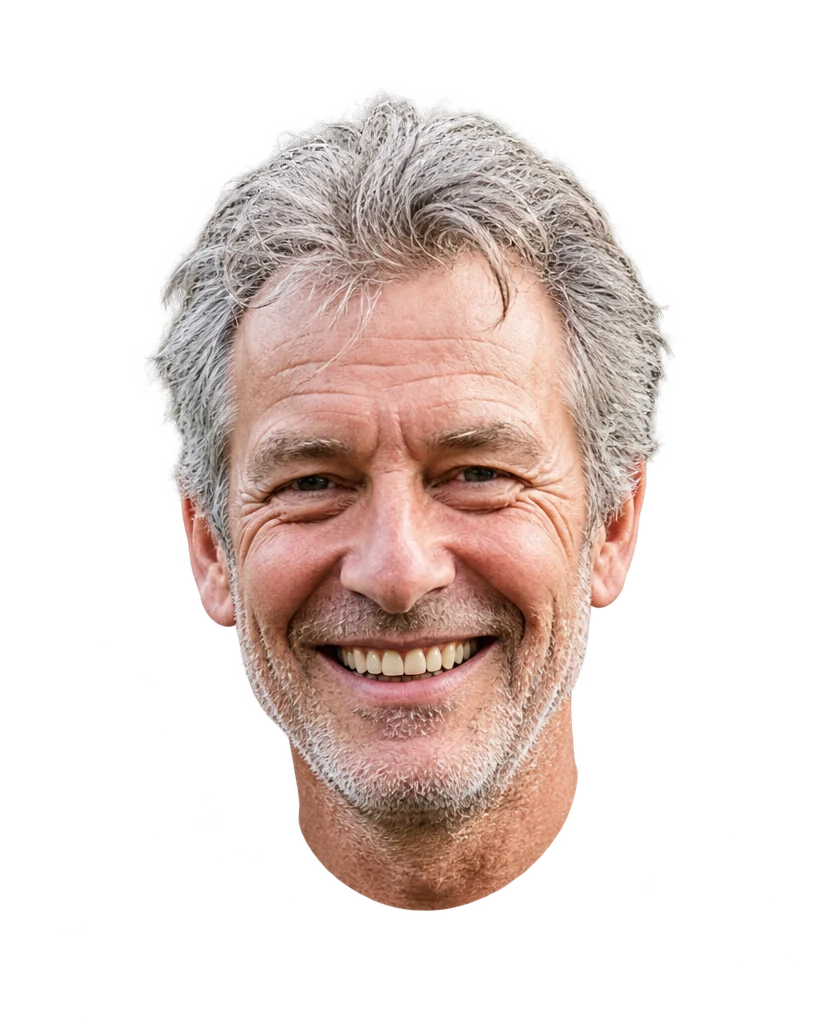

From a party photo
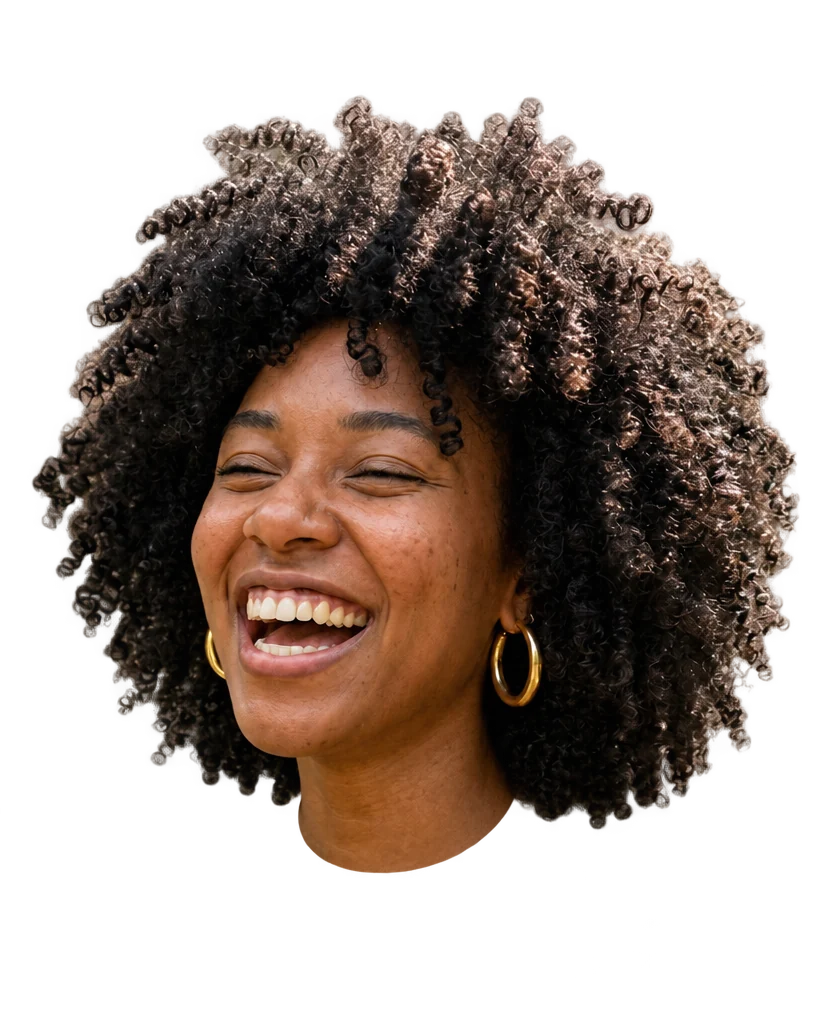

Curly hair edges
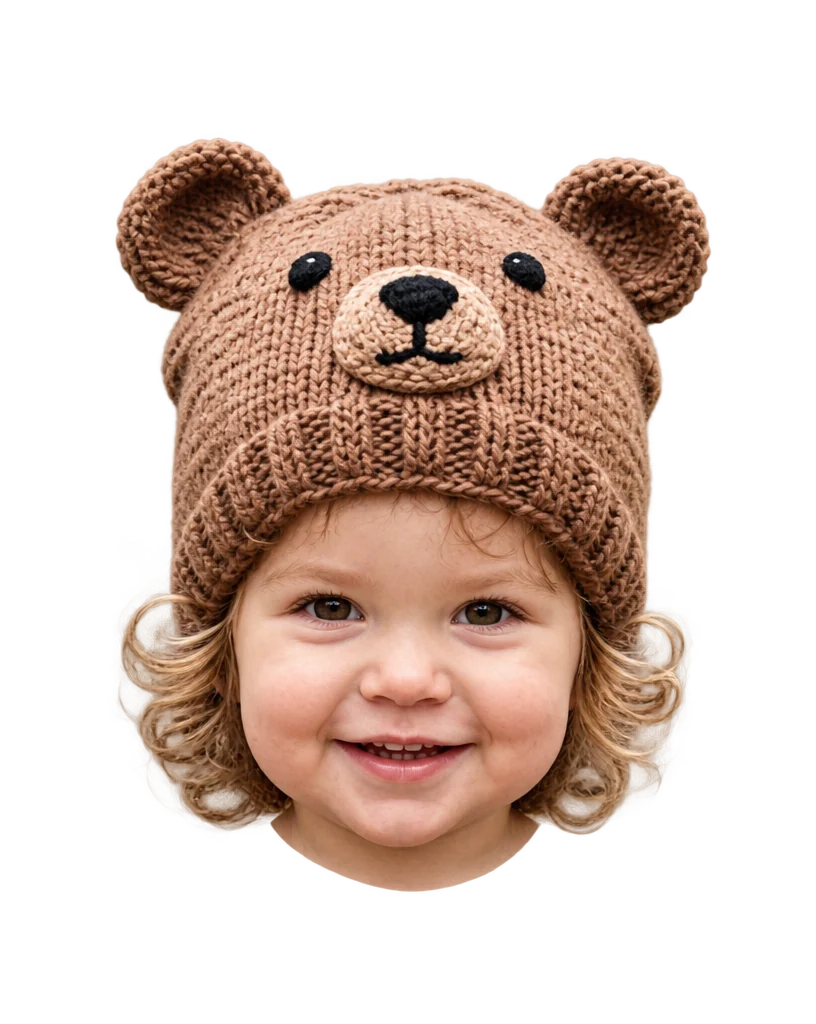

Hat included
Face Cut Out features.
Head only
Face, hair, ears and hat, without the body.
Clean hair edges
Curls and flyaways are kept.
Transparent or white
Ready for printing or collage.
Face Cut Out, step by step.
01
Upload a photo
One face, large and in focus.
02
Choose the output
Transparent or white.
03
Download
Print it or drop it into a design.
Face Cut Out use cases.
- Big head cutouts
- Print a giant face on a stick for a party or a game.
- Collages and memes
- Put a friend's face into a scene.
- Stickers and cards
- A cut-out face for a birthday card or sticker.
Face Cut Out: best photos and fixes.
Photos that cut out cleanly
A face that is large, sharp and lit from the front gives the cleanest edges. The background doesn't need to be plain, but a clear difference between hair and background helps, such as dark hair against a light wall. Group photos work if you say who to cut out; otherwise the most prominent person is chosen.
Hair, hats and glasses
The cut follows the hair, so curls, flyaways and buns are kept. Hats, headbands, glasses and earrings that are part of the head stay. If something should go, write it: "without the hat". Very fine hair against a busy background is the hardest case; check the edge at full size before printing large.
Big head cutouts for parties
For printed face cutouts, as used at birthdays, graduations and sports games, start from the highest resolution photo you have, because the face will be printed much larger than it appears on screen. A front-facing photo with a big smile reads best from a distance. Choose White for easy printing, or Transparent to place it on a colored board in a design app.
Choosing who to cut out
With several people in the photo, name them: "the man on the left", "the girl in the red hat". Only that head is kept. To cut out several faces from the same photo, run once per person. Faces turned well away from the camera are harder to cut cleanly, so front-facing photos work best.
The face isn't changed
The face, expression and hair are kept as they are, with no retouching or smoothing, so the cut-out looks like the original photo. If you want a cleaner face before cutting it out, run the blemish remover or the face editor first and upload the result here.
Related tools
The background remover cuts out the whole person or object rather than just the head. The sticker generator turns a photo into a die-cut sticker with a white border, and the head swap tool puts a head onto another body in a scene. Background changer places a whole person in a new setting.
Face Cut Out FAQ.
Can I edit someone else's photo?
Use photos of yourself, or of people who are happy for you to edit their picture. Don't use the result to mock, embarrass or deceive anyone.
Can I cut out the whole body?
This tool cuts out the head only. Use the background remover to keep the whole person.
Is the background transparent?
Yes, if Transparent is selected: you get a PNG with a transparent background. Choose White for printing.
Can I choose which face?
Yes. Name the person in the instructions, such as "the woman on the right".
Do I need an account?
Yes. Sign in with your email: new accounts get 15 free credits to use on any tool. One generation here uses 25 credits with the default model, or 13 with a lighter one. Plans add more credits each month, and credit packs never expire.