


GIF maker
Turn a set of photos into a looping GIF, right in your browser.
Drop images
or paste with ⌘V · JPG · PNG · WebP · HEIC · AVIF · SVG, up to 50 at once
No photo handy? Try one of ours.
 Unblur image →
GIF maker examples.
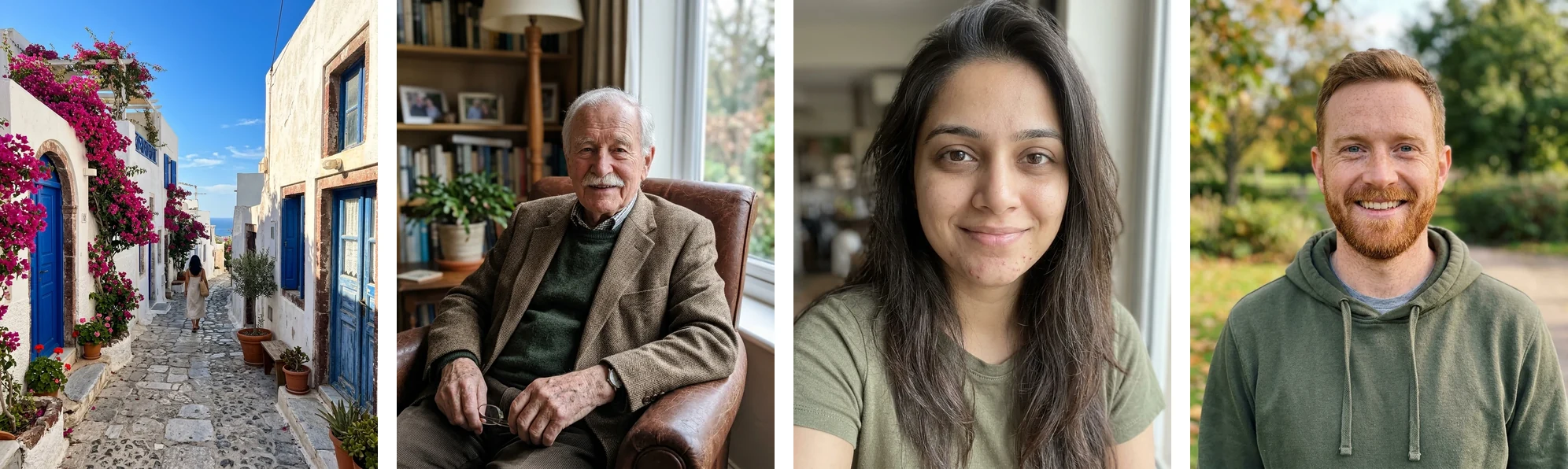
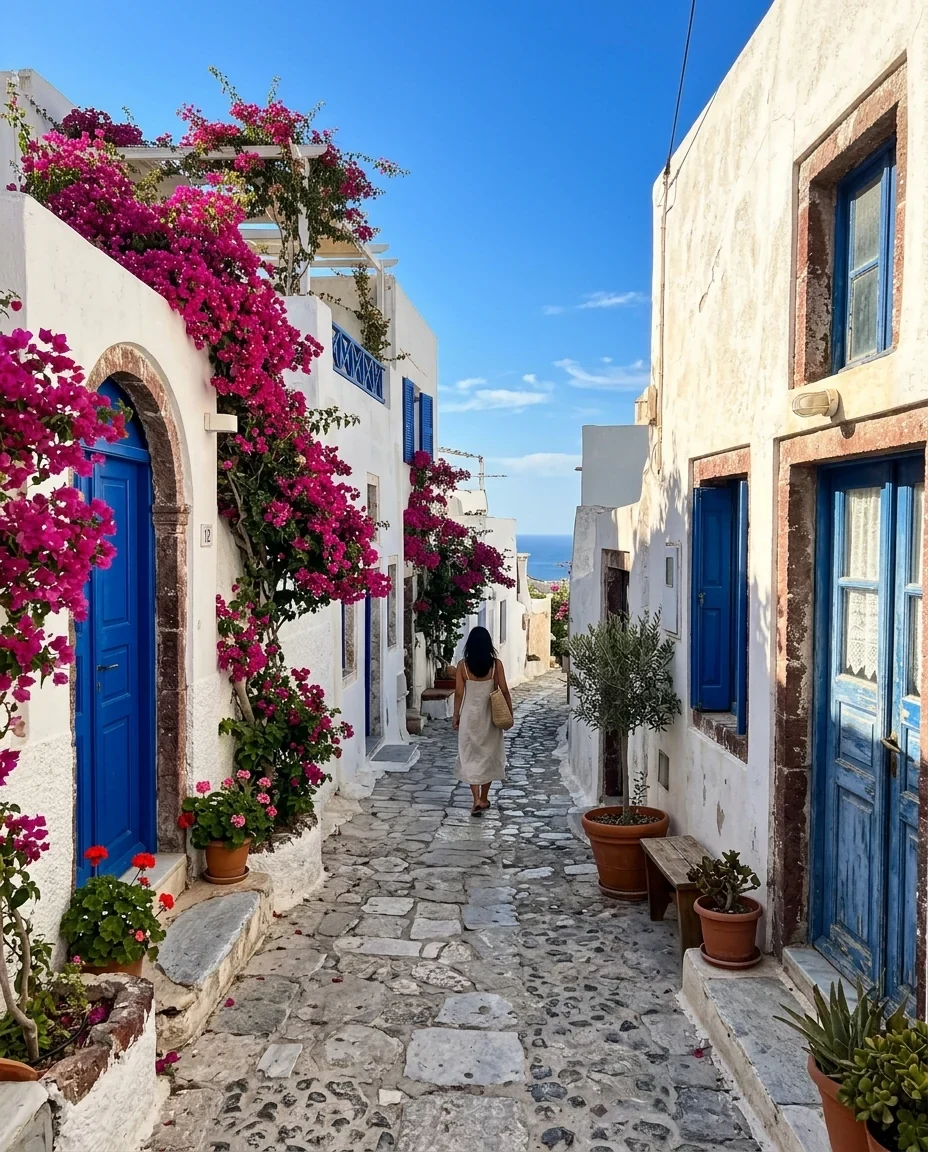
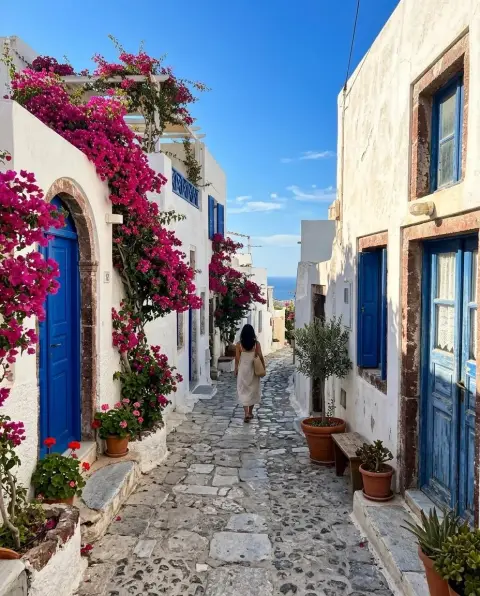
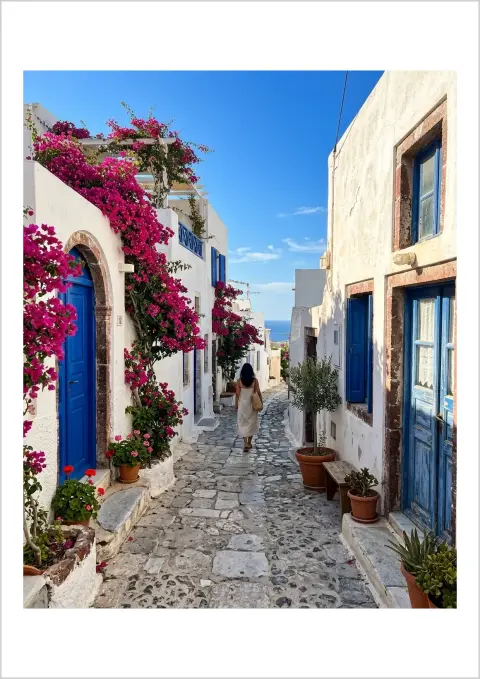
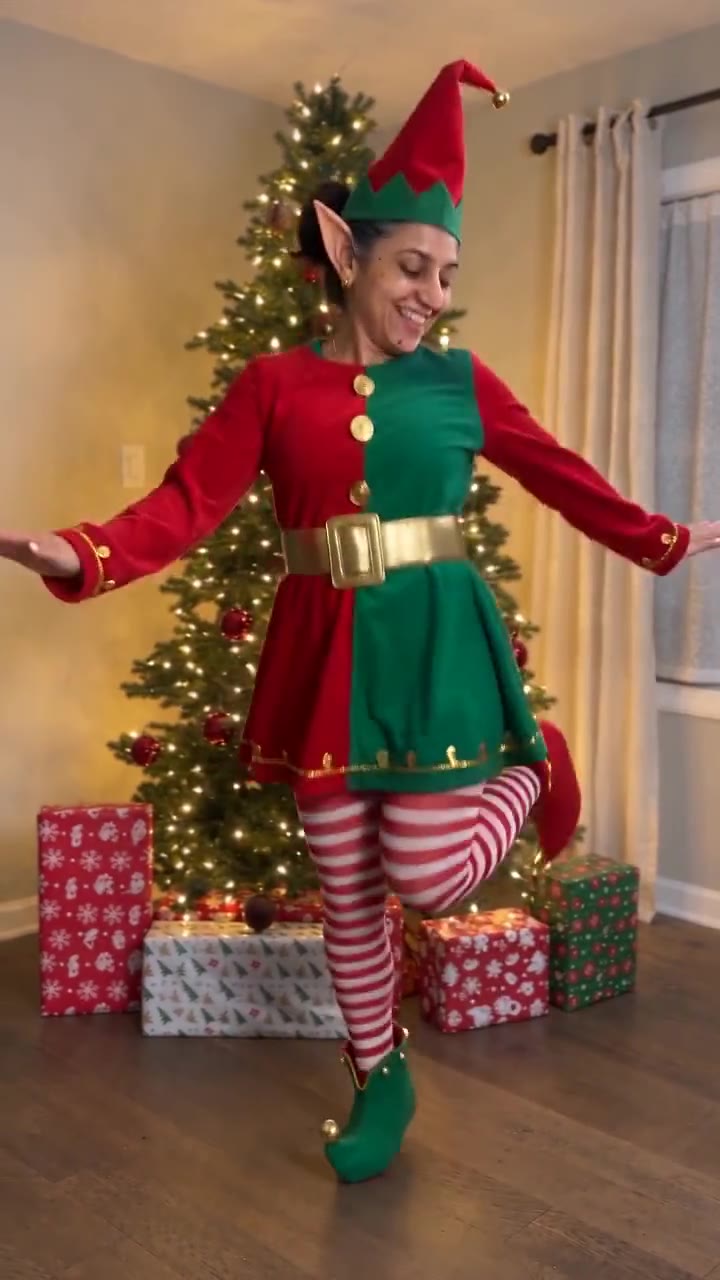
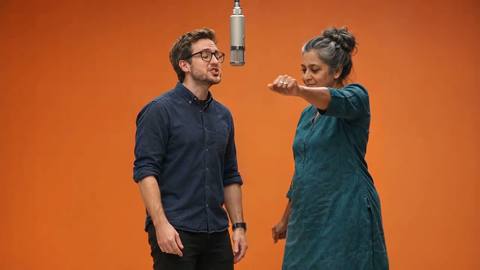
4 photos → looping GIF
GIF maker features.
Up to 50 frames
Add photos and reorder them with the arrows. They play in the order shown.
Timing and size
Set 0.1 to 2 seconds per frame, and a long side of 320, 480, 640 or 800 pixels.
Preview first
A live preview plays the loop before you download, so you can adjust the speed.
GIF maker, step by step.
01
Add your photos
Drop JPG, PNG, WebP or any other image. Put them in order with the arrows.
02
Set speed and size
Choose the time per frame and the size. Pick crop to fill or show whole.
03
Preview and download
Watch the loop, then save the GIF.
GIF maker use cases.
- Product spins and before and after
- Show a product from several angles, or switch between two versions of the same shot.
- Memes and reactions
- Put a few images in a quick loop for a chat or a post.
- Short sequences
- Steps in a recipe, a screen walkthrough or a stop-motion from photos.
GIF maker: best photos and fixes.
How a GIF works
A GIF is a stack of still pictures shown one after another, with a delay between them. This tool builds one from your photos: each photo is a frame, and the time per frame controls the pace. A frame that lasts 0.5 seconds gives two images per second, which feels like a slideshow. At 0.1 seconds you get ten per second, which feels like motion.
The 256-color limit
GIF can only use 256 colors in each frame. Flat graphics, logos and screenshots fit that easily. Photos have thousands of subtle shades, so the tool reduces them and the result shows a slight grain, especially in skies and skin. That is a limit of the format, not a fault in your photos. A GIF suits memes and quick loops better than finished portraits.
Frame timing
The time per frame runs from 0.1 to 2 seconds, with 0.5 as the default. Use 0.1 to 0.2 for animated motion, such as a spinning object. Use 0.5 to 1 for a slideshow of steps people need time to read. The preview plays the real timing, so you can change it and watch again before you save the file.
Size and file weight
The size sets the long side: 320, 480, 640 or 800 pixels. Every extra pixel and every extra frame adds weight, and GIFs get heavy quickly, because they store each frame rather than only what changed. For a chat or an email, 480 or 640 is plenty. Use fewer frames, or a smaller size, if a platform rejects the file.
Crop or show the whole image
The first image sets the shape of the GIF. Other photos with a different shape need handling. Crop to fill trims the edges so every frame fills the shape. Show whole keeps every photo complete, with white bars where the shapes differ. Crop gives a cleaner loop. Showing the whole image is safer when faces or text sit near the edge.
What this tool does not do
It makes a GIF from still images only. It does not accept video files and has no text or caption tool. The loop repeats forever, and you cannot set a number of repeats. If you start from a video, save a few stills from it first, then add those. If you need captions, add them to the photos before you build the GIF.
GIF maker FAQ.
How do I make a GIF from photos?
Add the photos, put them in order, set the time per frame and the size, check the preview and download the GIF. It loops automatically.
How many photos can I use?
Up to 50 frames. Fewer frames and a smaller size give a lighter file.
Why do my photos look grainy in a GIF?
GIF allows only 256 colors per frame, so photo colors are reduced and some grain appears. Flat graphics and screenshots look cleaner.
How fast should the frames be?
Try 0.1 to 0.2 seconds for motion like a spinning product, and 0.5 to 1 second for a slideshow people need to read.
Can I make a GIF from a video?
Not directly. The tool takes images only. Save stills from your video first and add them as frames.
Why is the GIF file so big?
GIF stores every frame in full. Lower the size to 480 or 320 pixels, or use fewer frames, and the file will shrink.
Is it free?
Yes. Quick tools are free, need no sign-in and use no credits; your images stay in your browser. The AI tools linked below need an account.