





PNG to PDF
Put screenshots and photos into one PDF, in the order you want.
Drop images
or paste with ⌘V · JPG · PNG · WebP · HEIC · AVIF · SVG, up to 50 at once
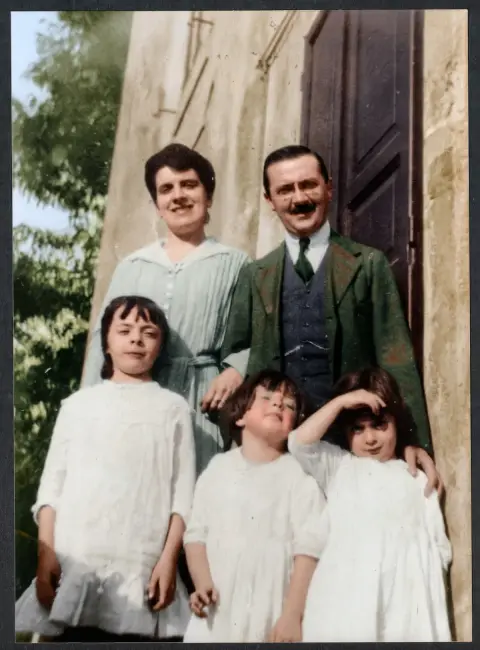
No photo handy? Try one of ours.
 White background →
PNG to PDF examples.
PNG → A4 PDF page
PNG to PDF features.
Up to 50 images, one PDF
Each image gets its own page. Reorder with the arrows before you save.
Fit image, A4 or Letter
Let the page take the image's shape, or use a standard paper size that follows each image's orientation.
No quality loss
PNG and JPG files go into the PDF unchanged, and PNG transparency is kept.
PNG to PDF, step by step.
01
Add your images
Drop up to 50 PNG, JPG or other photos, or paste them.
02
Set order and page
Move images with the arrows. Choose Fit image, A4 or Letter, and a margin.
03
Download the PDF
You get one PDF with one image per page.
PNG to PDF use cases.
- Screenshots as one document
- Send a chat, a receipt trail or a set of settings screens as a single file.
- Photographed pages
- Turn phone photos of paper pages into one PDF for a form or a claim.
- Printable sheets
- Make an A4 or Letter PDF from artwork or a set of printable images.
PNG to PDF: best photos and fixes.
One file instead of twenty
Sending a dozen separate screenshots is awkward: they arrive out of order, some get compressed, and the person on the other end has to open each one. A PDF holds them as numbered pages in the order you choose, opens on every phone and computer, and can be printed in one go. That is why many offices and portals ask for a single PDF.
Fit image, A4 or Letter
With Fit image, each page takes the shape of its image, with the long side set to roughly A4 length. That is best for screenshots and anything read on a screen. A4 and Letter use fixed paper sizes, so the PDF prints cleanly on standard paper. Landscape images get landscape pages, and portrait images get portrait pages. Check the preview of each page.
Margins
None puts the image edge to edge, which suits full-page scans and artwork. Small and Large leave a white border around each image. A border helps when printing, because many home printers cannot print right to the paper edge and would cut the image. If you are unsure, use Small for anything that will end up on paper. Pick whichever matches your paper.
What happens to your pixels
PNG and JPG files are embedded as they are. The tool does not recompress them, so a sharp screenshot stays sharp and a photo is not degraded a second time. Other formats, such as WebP, HEIC or BMP, are converted first. Large images are scaled down to 16 megapixels before that. Transparent PNGs keep their transparency on the page. Nothing is uploaded at any point.
Keeping the PDF small
A PDF holds the images at full size, so twenty phone photos can make a file of tens of megabytes, too large for many email systems and portals. If you need it smaller, shrink the images before you build the PDF, using a compress tool, and choose a lower dimension. Screenshots are usually much smaller than photos. Compare the final size before sending.
Order and checking
Pages follow the order shown in the list. Mixed shapes are fine, but one oddly shaped image will give one oddly shaped page when you use Fit image. A4 or Letter makes every page the same. Open the finished PDF once before you send it, and check the order, the orientation and that no page is missing. It takes a minute and saves a re-send.
PNG to PDF FAQ.
How do I combine several PNG images into one PDF?
Add the images, put them in the order you want with the arrows, choose a page size and download. Each image becomes one page.
How many images can I put in one PDF?
Up to 50. For more pages, make two PDFs. The order of pages is the order in the list.
Will the images lose quality?
No. PNG and JPG files are placed in the PDF unchanged. Only other formats are converted first.
Can I mix PNG and JPG in the same PDF?
Yes. You can mix them, and other formats too, such as WebP and HEIC. Each one becomes its own page.
Which page size should I choose?
Choose Fit image for screens. Choose A4 or Letter if the PDF will be printed or sent to an office that expects standard paper.
Is it safe to put private images in an online converter?
Here your browser builds the PDF on your own device, so the images are never uploaded. It suits IDs, contracts and receipts.
Is it free?
Yes. Quick tools are free, need no sign-in and use no credits; your images stay in your browser. The AI tools linked below need an account.