
GPT Image 2
OpenAI's image model, strong at text and layout. Create designs from a prompt or edit an uploaded photo.
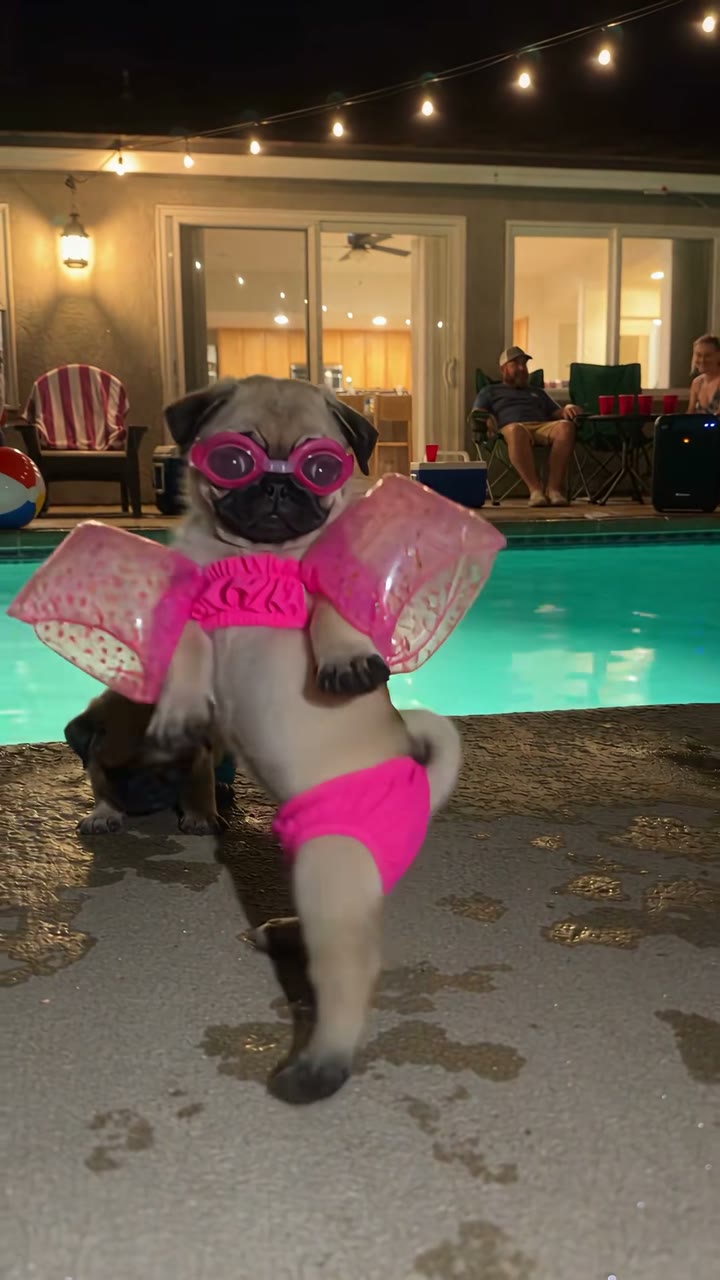
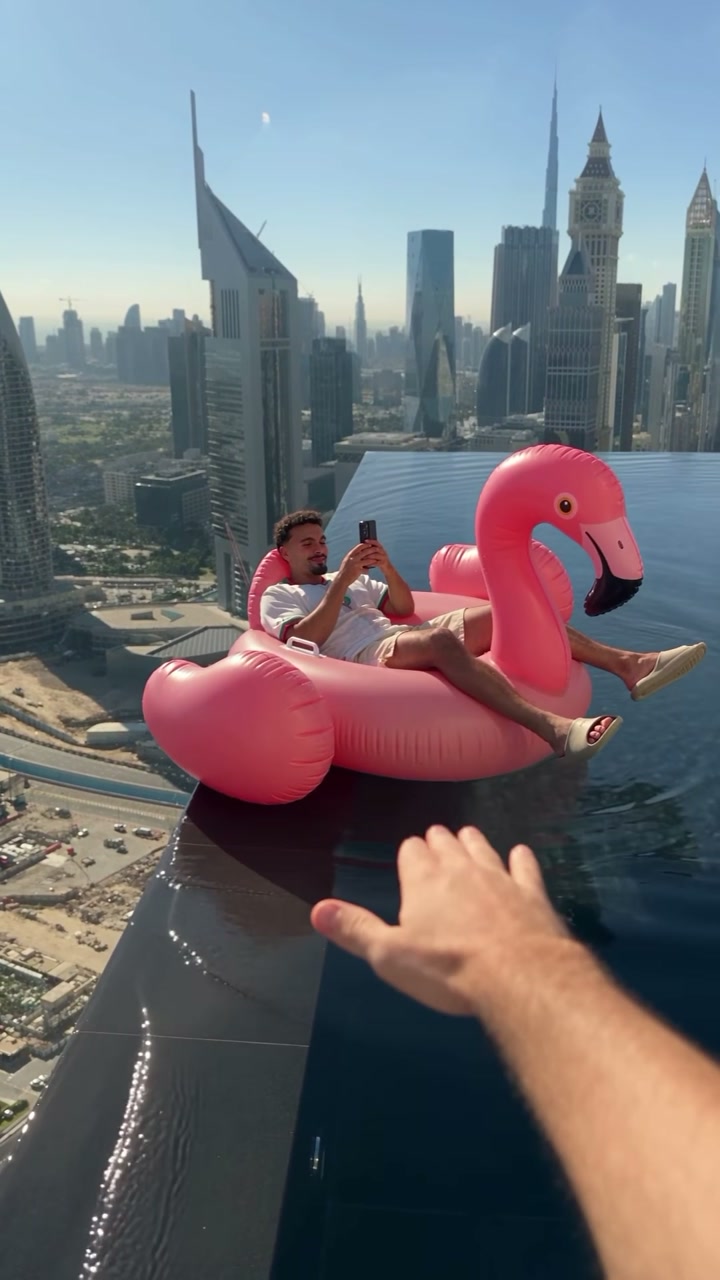
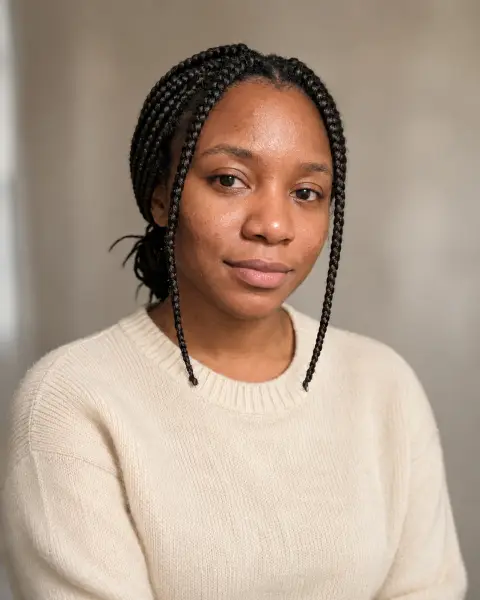
GPT Image 2 examples.

A recipe card for lemon pasta with a clear ingredient list

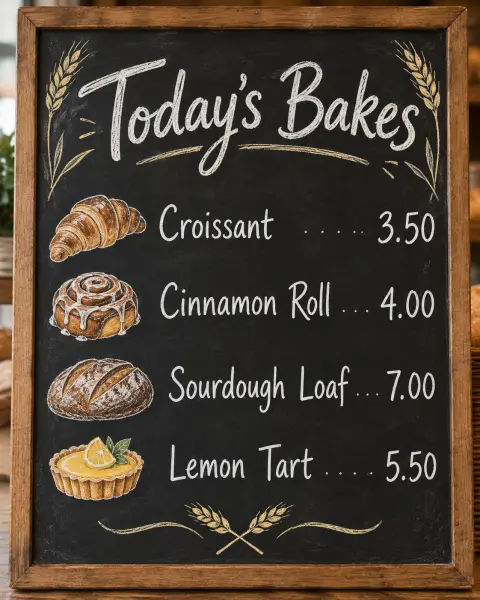
Bakery menu board with prices in hand-lettered chalk style

Infographic showing the four steps of making pour-over coffee
GPT Image 2 features.
Text and layout
Headlines, labels, menus and step-by-step graphics come out readable and well aligned.
Follows detailed prompts
Long instructions with many elements, positions and colors are followed closely.
Edits and references
Upload photos or sketches and describe what to make from them.
Up to 4K
1K, 2K or 4K output for print and large screens.
GPT Image 2 vs GPT Image 2.5.
| GPT Image 2 | GPT Image 2.5 | |
|---|---|---|
| Best for | Text-heavy designs | Cutouts, logos, stickers |
| Transparent background | No | Yes |
| Max resolution | Up to 4K | Up to 4K |
| Cost | Lower | Higher |
GPT Image 2, step by step.
01
Describe the design
List the text, layout and style. Put exact words in quotes.
02
Add photos if needed
Upload a product, logo or sketch to build the design around it.
03
Generate and adjust
Fix any wording in the prompt and generate again.
GPT Image 2 use cases.
- Posters and flyers
- Event posters, sale banners and announcements with readable headlines.
- Infographics and diagrams
- Simple explainers, recipe cards and step guides.
- Mockups and UI ideas
- App screens, packaging and signage concepts.
GPT Image 2: best photos and fixes.
Planning a poster or infographic
Sketch the layout in words before you write anything else: what goes at the top, in the middle and at the bottom, and how much space each part takes. "Top third: title. Middle: an illustration of a bike. Bottom: date and address in small type." Then fill in the text in quotes. A clear plan gives cleaner alignment than a long description of the mood.
Detailed prompts
It follows long, detailed prompts well, so write in full sentences. Name the subject, the setting, the light, the camera or art style and the mood. If a detail keeps being ignored, move it earlier in the prompt. If the image is too busy, remove details rather than adding instructions to leave things out.
Editing and references
Upload an image and describe the change: "replace the sky with a sunset", "change the text on the sign to 'OPEN'". Describe only what should change. You can also upload reference images, such as a product photo, and describe the scene it should appear in.
Diagrams and labels
For simple diagrams, flowcharts and labelled illustrations, keep labels to one or two words each and number the steps. The model arranges arrows and boxes well, but long labels crowd the space. Check that arrows point to the right parts; for anything technical, treat the result as a draft for a designer.
UI and app ideas
It can sketch app screens, websites and dashboards from a description, which is useful for quick ideas and pitches. Describe the screen type, the main sections and the color scheme. Treat the result as an idea board, not a design file: buttons, spacing and text sizes still need to be built properly in a design tool.
Editing text in an existing image
To change the words in a photo of a sign or a design, upload it and quote both the old and the new text: change "OPEN 9-5" to "OPEN 8-6". Keep the new text about the same length as the old so it fits the same space. For dedicated text edits, the edit text in image tool is set up for exactly this.
GPT Image 2 FAQ.
What is GPT Image 2?
GPT Image 2, sometimes written GPT Image 2.0, is OpenAI's image generation model. It is known for readable text, accurate prompt following, and well-structured layouts.
Is GPT Image 2 free?
Yes, you can try it free. New accounts get 25 free credits, and one generation here uses 9 credits. You sign in with your email; no card needed. Results have no watermark. After that, credit packs never expire, and your first one is half price.
Is the text in images always correct?
Short text is usually right. Long paragraphs can still contain mistakes, so check the result and rerun if needed.
Can it make transparent PNGs?
No. For a transparent background, use GPT Image 2.5.
Can I edit an existing image?
Yes. Upload it and describe the change.
Try these prompts
Guides on the blog.
 GPT Image 2 vs Nano Banana Pro: which model wins?Two of the strongest image models, both good at text. How OpenAI's GPT Image 2 and Google's Nano Banana Pro compare on layouts, edits, realism and cost.
 Midjourney alternatives: Nano Banana, GPT Image and SeedreamMidjourney is loved for its look. Other image models are better at text, editing your own photos or photoreal product shots. How they compare, and when to use each.