
GPT Image 2.6
OpenAI's newest image model, with transparent backgrounds, photo editing and an HD mode.
GPT Image 2.6 examples.
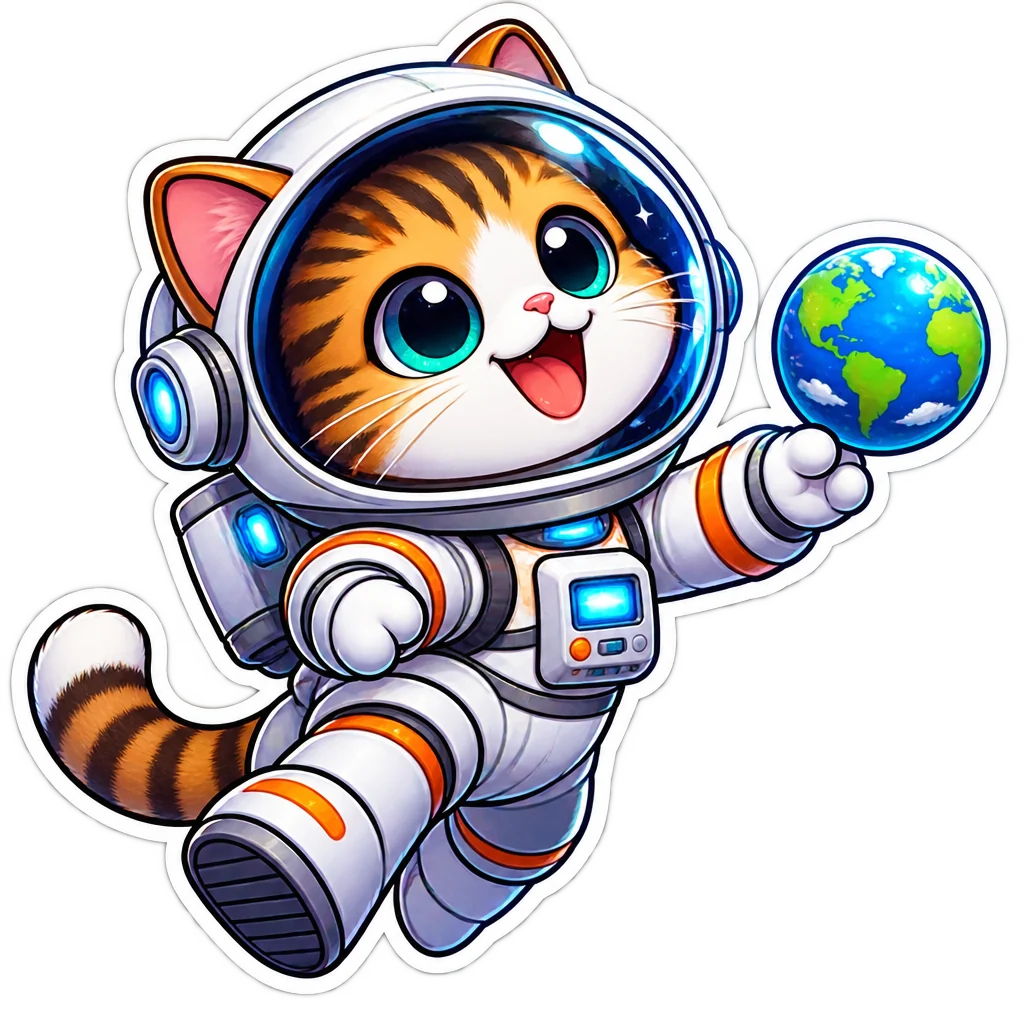
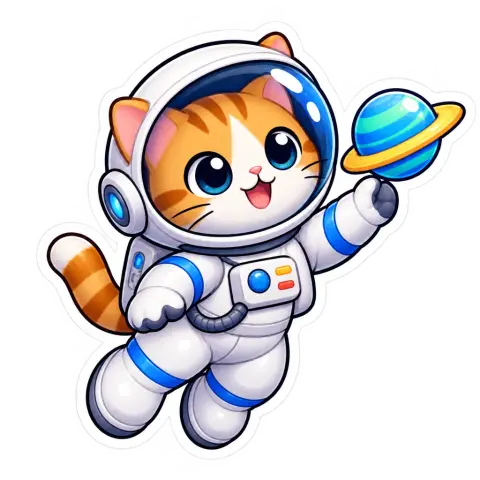
A cartoon cat astronaut sticker holding a small Earth, on a transparent background
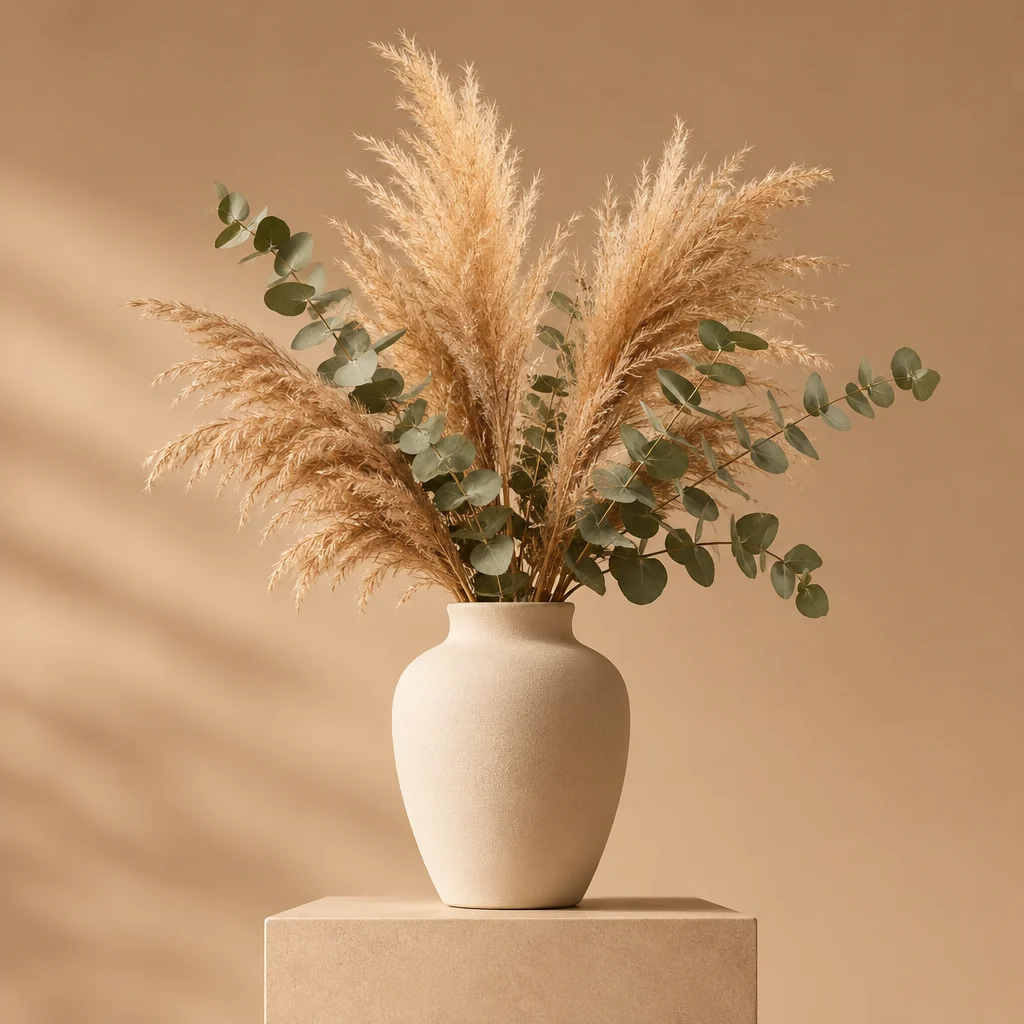
Matte ceramic vase with pampas grass and eucalyptus on a beige plinth
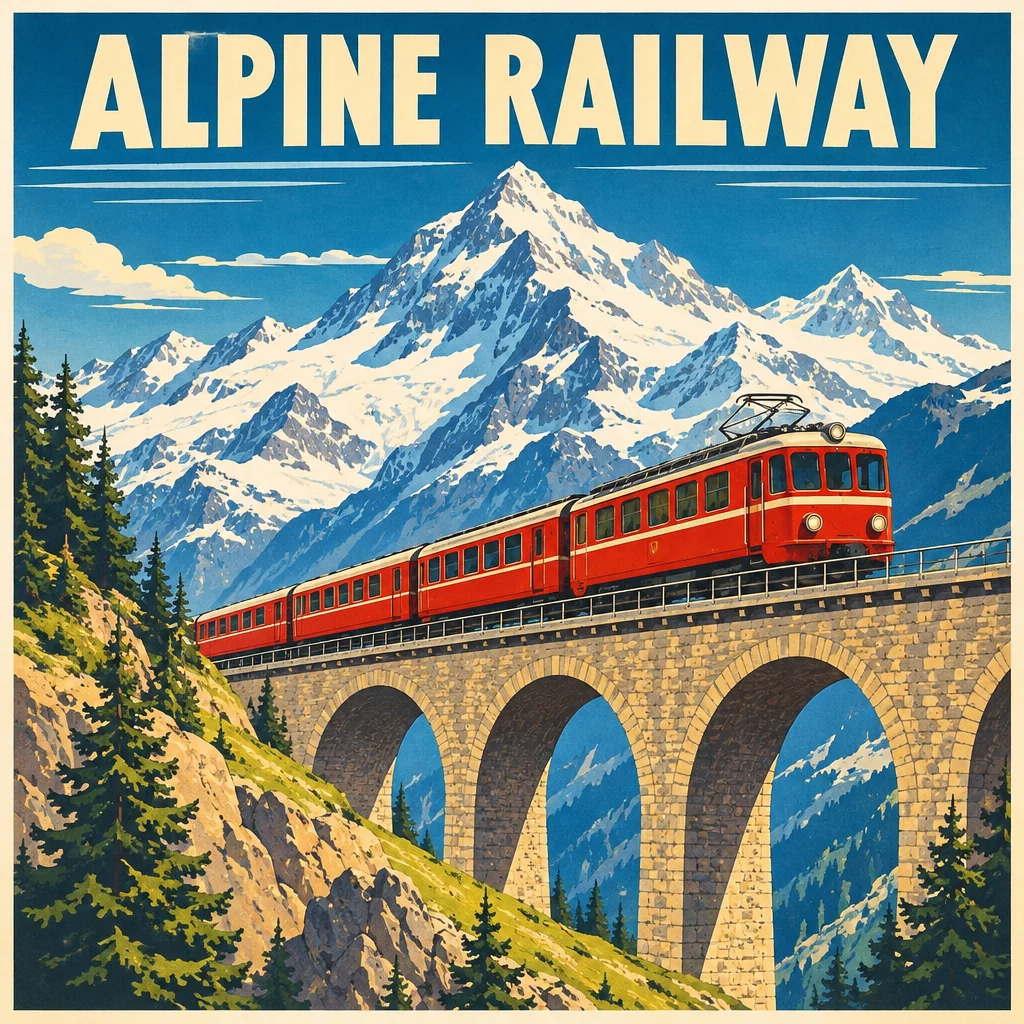
Retro mountain railway poster with a red train on a stone viaduct
GPT Image 2.6 features.
Same controls as 2.5
Prompt, optional photo, background and 1K to 4K resolution.
Transparent PNGs
A real alpha channel for stickers, logos and product cutouts.
HD mode
The same model at a higher quality level.
Edit by instruction
Upload a photo and describe the change in plain words.
GPT Image 2.6 vs GPT Image 2.5.
| GPT Image 2.6 | GPT Image 2.5 | |
|---|---|---|
| Detail (same prompt) | More | Less |
| Transparent background | Yes | Yes |
| HD mode | Yes | Yes |
| Max resolution | Up to 4K | Up to 4K |
| Credits per standard image | Higher | Lower |
GPT Image 2.6, step by step.
01
Write a prompt or upload a photo
Describe what to make, or add a photo and say what to change.
02
Choose standard or HD
HD uses more credits per image.
03
Generate and download
Transparent results download as PNG.
GPT Image 2.6 use cases.
- Posters and social graphics
- Layouts with short headlines and clear shapes.
- Product images
- Studio-style product shots, or cutouts on a transparent background.
- Photo edits
- Change colors, objects or backgrounds in your own photo by describing the change.
GPT Image 2.6: best photos and fixes.
Writing the prompt
Describe the subject first, then the setting, the light and the style: "a ceramic vase with dried grass on a beige plinth, soft window light, studio product photo". Add details in order of importance, and name colors and materials outright rather than leaving them to chance.
Text in images
Put each piece of text in quotes and say where it goes: "top: 'ALPINE RAILWAY'". The poster example on this page was made that way. Keep each piece short; if a word comes out wrong, shorten it or split it into separate lines and generate again instead of trying to fix one letter.
Transparent backgrounds
Choose Transparent and describe only the subject, with no background at all: "a cartoon cat astronaut sticker with a thick white border". Mentioning a backdrop can make the model draw one. The download is a PNG that sits cleanly on any color.
Editing your own photo
Add a photo and describe the change in one or two sentences: "make the vase glossy cobalt blue". Name what should stay the same if it matters, such as the face, the pose or the background. The result keeps the proportions of the photo you upload.
Standard or HD
A practical routine: settle the composition and the wording in standard, then run the final prompt once in HD. Each HD image costs more credits, so there is little point in drafting with it.
2.6 or 2.5
Both offer transparent output, HD and 1K to 4K. With the same prompts (compare these examples with the GPT Image 2.5 page), 2.6 drew more detail and texture. A standard 2.6 image costs more credits than a 2.5 one, so 2.5 stays the cheaper choice for simple images in bulk.
GPT Image 2.6 FAQ.
What is GPT Image 2.6?
GPT Image 2.6 is the OpenAI image model released after GPT Image 2.5. Here you can generate images from a prompt, edit a photo by instruction and make transparent PNGs.
Do I need an account?
Yes. Sign in with your email: new accounts get 15 free credits to use on any tool. One generation here uses 45 credits with the default model. Plans add more credits each month, and credit packs never expire.
What is the difference between GPT Image 2.6 and HD?
HD runs the same model at a higher quality setting and costs more credits per image. Standard is the default.
Can it make a transparent background?
Yes. Set Background to Transparent before you generate; the download is a PNG with a real alpha channel.
Can I still use GPT Image 2.5?
Yes. GPT Image 2.5 keeps its own page and stays in the model picker of the cutout and design tools, next to 2.6.