

AI Clothes Changer
Upload an outfit and see it on you.
Your photo
Clothing
or paste with ⌘V · JPG · PNG · WebP · up to 8 MB
More like this.
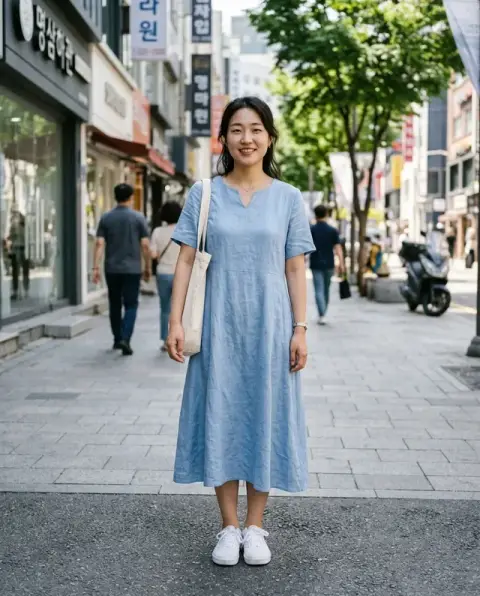
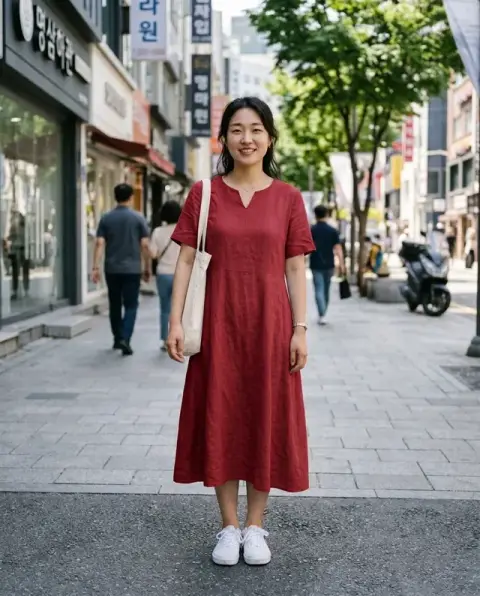
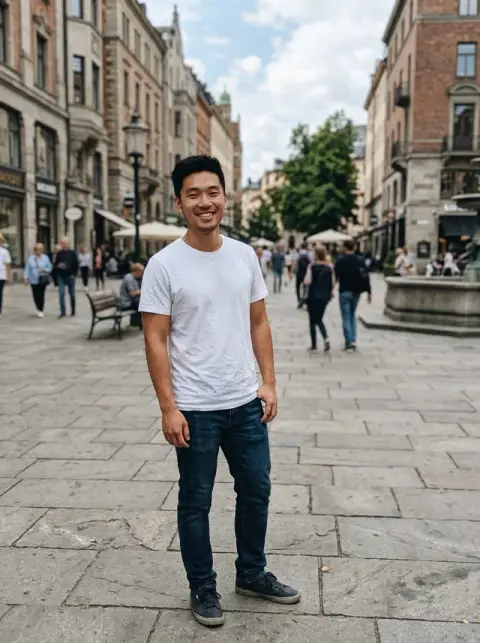
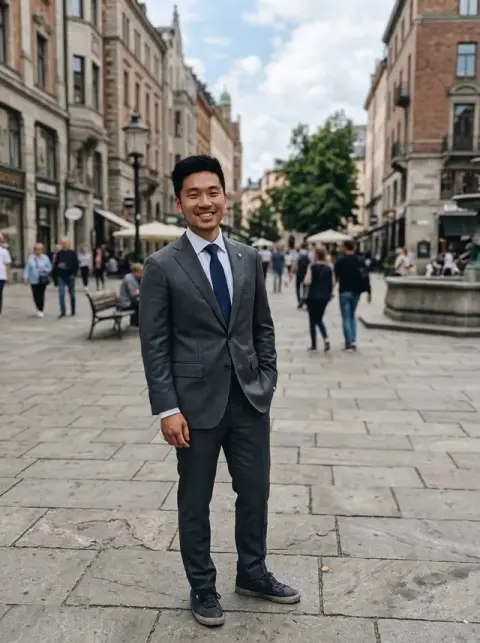
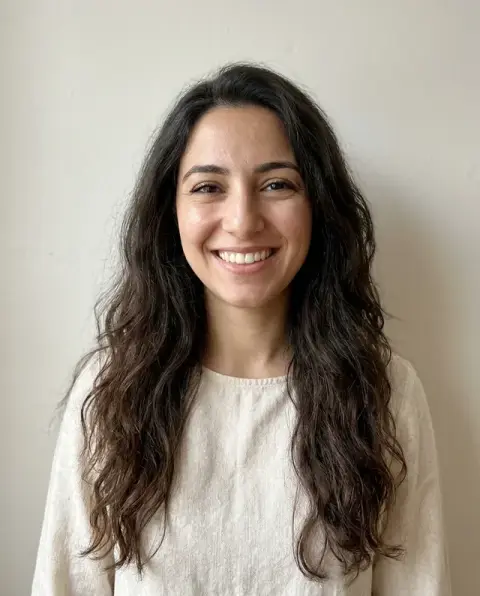
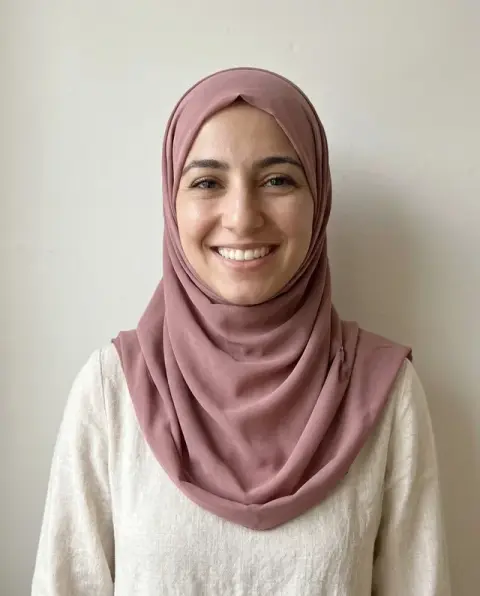
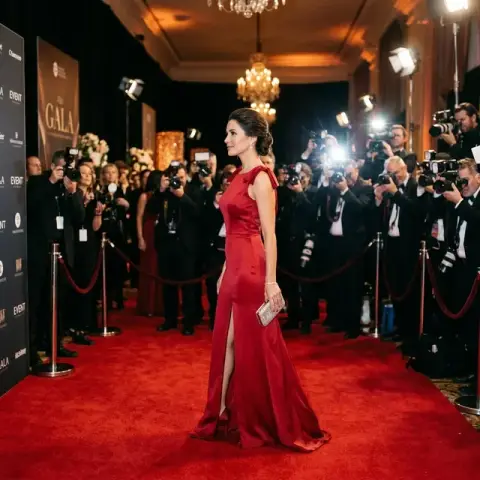
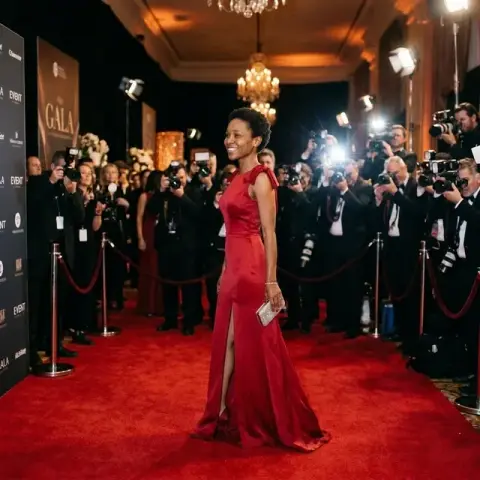
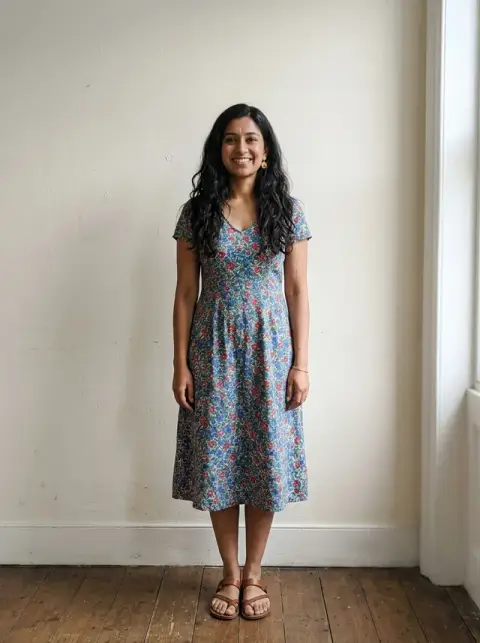
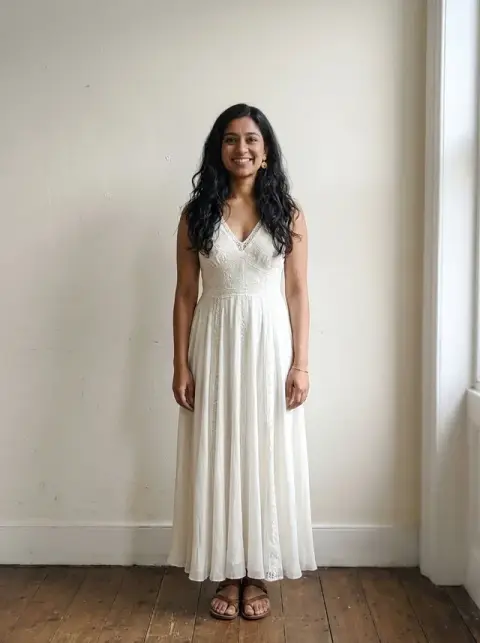
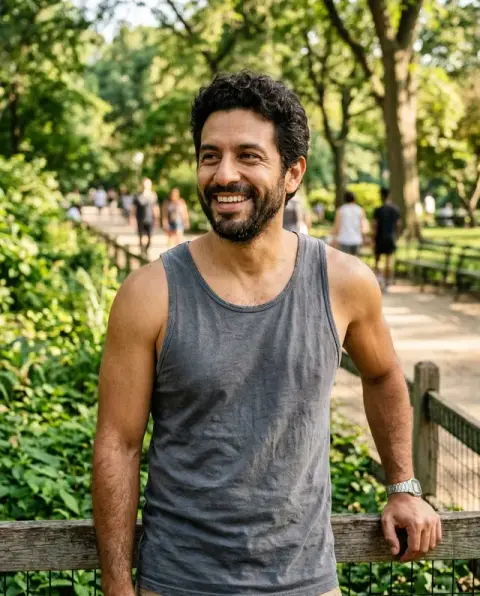
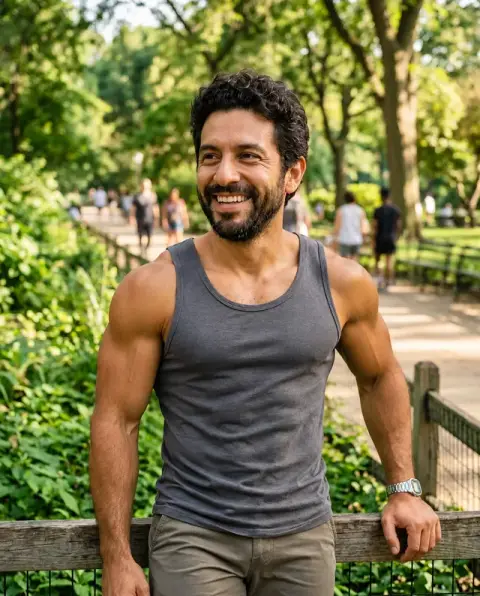
Outfits tried on with the AI clothes changer.
Real results from this page's default settings in one click, not retouched.How examples are made
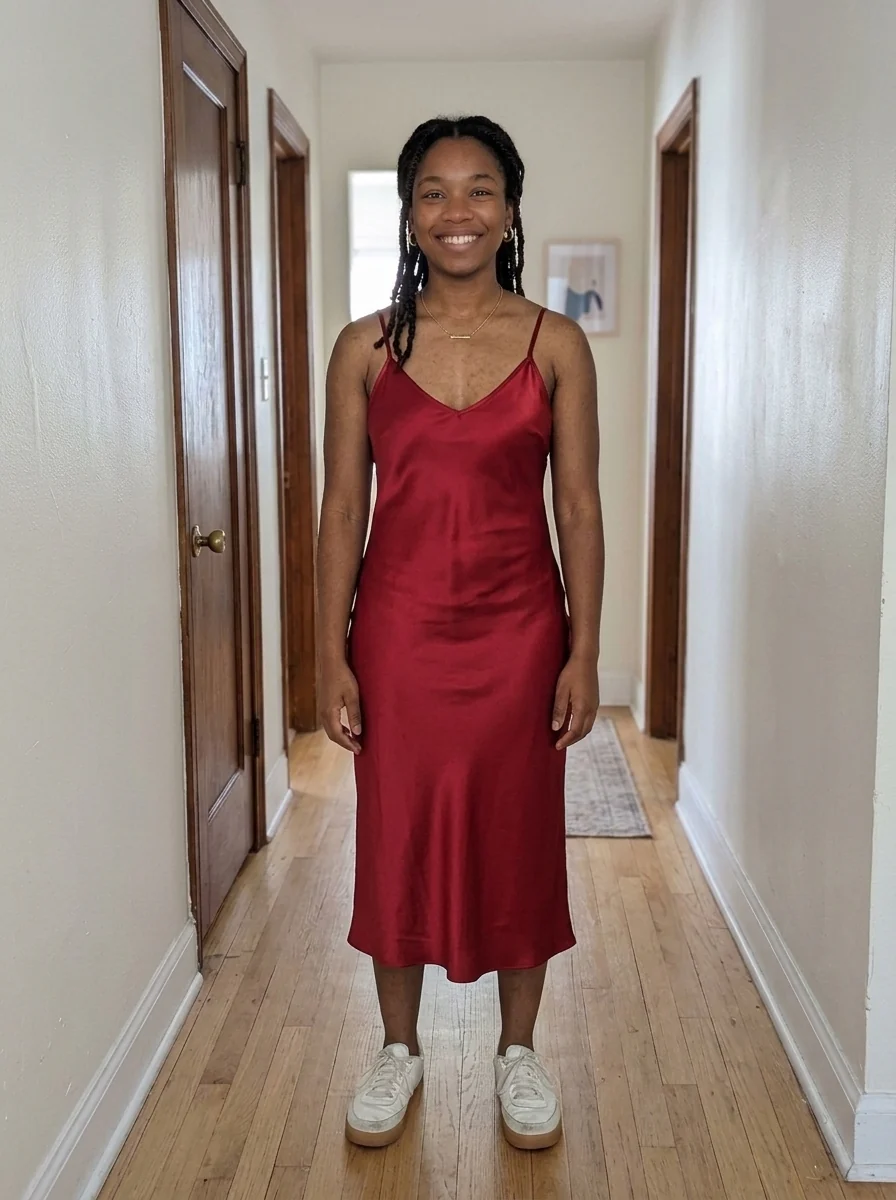
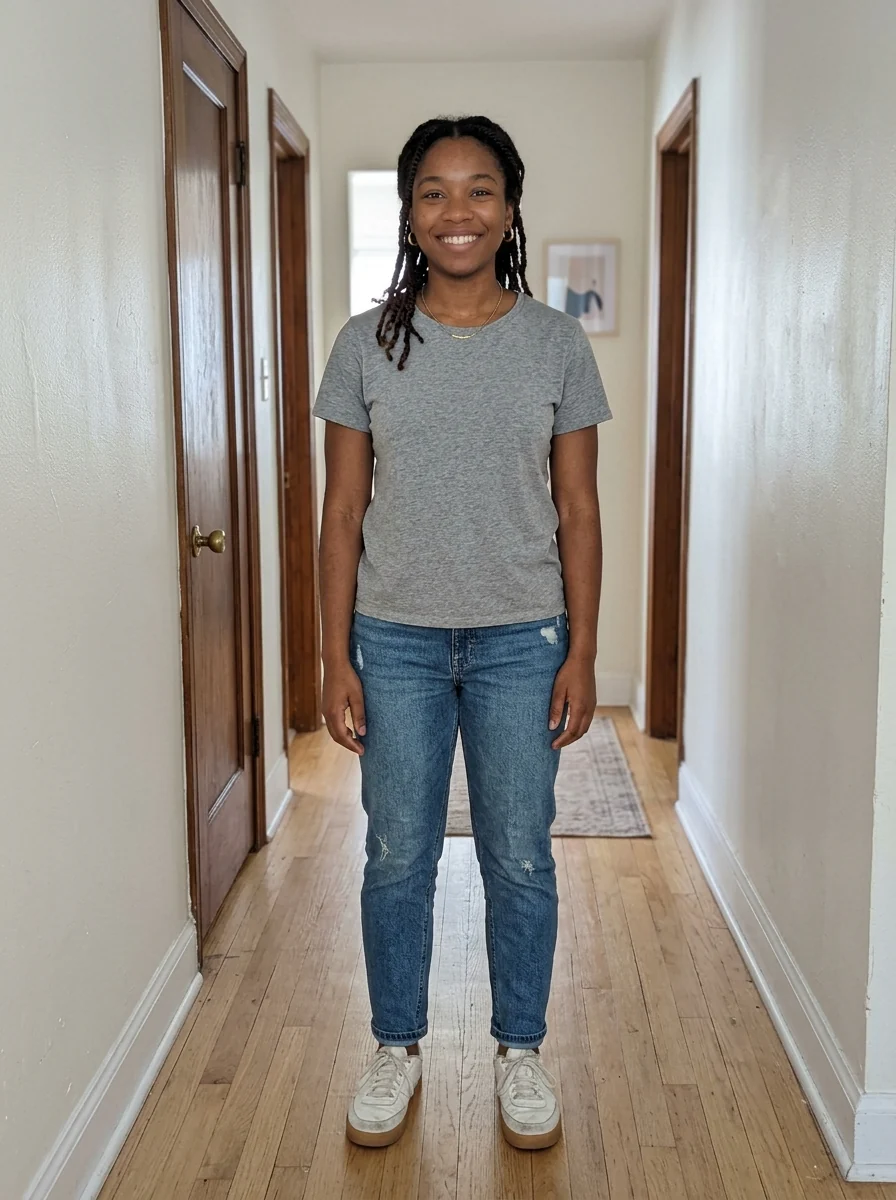
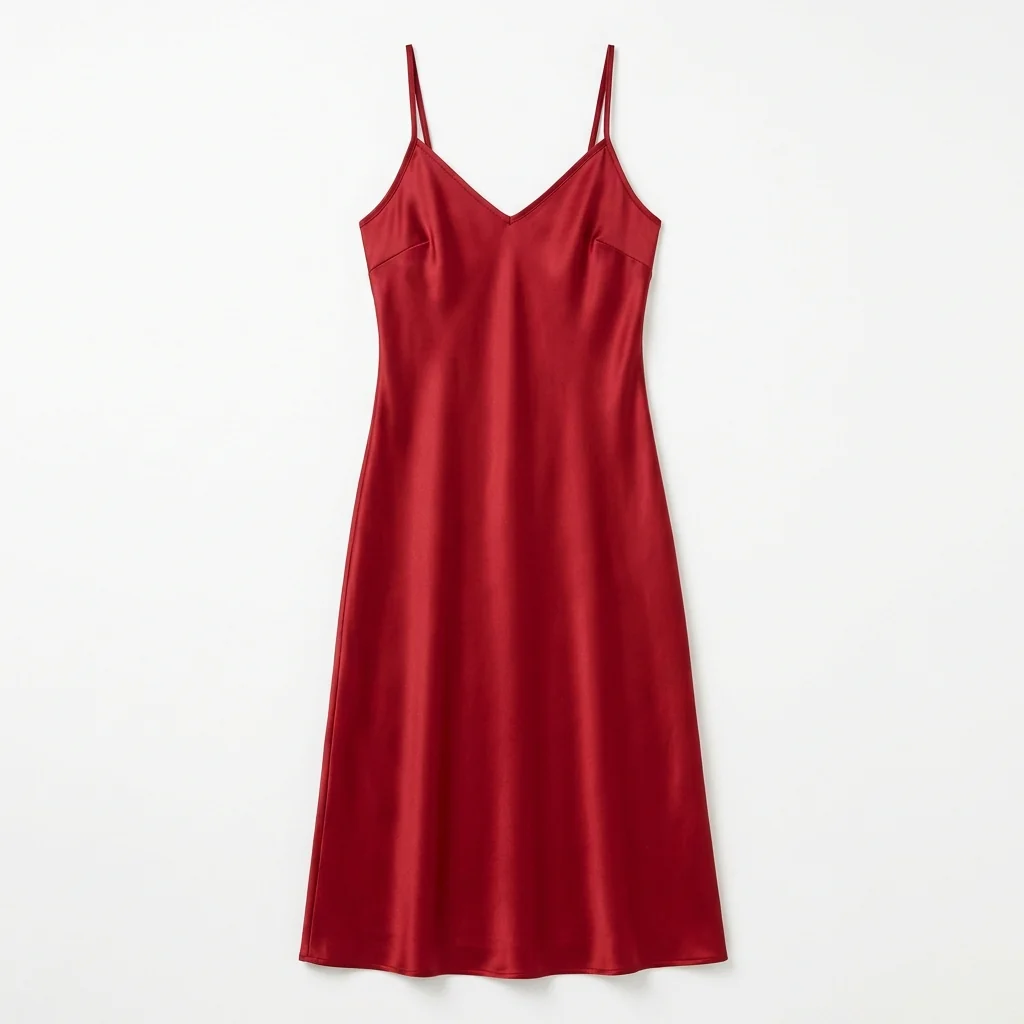
Red satin dress
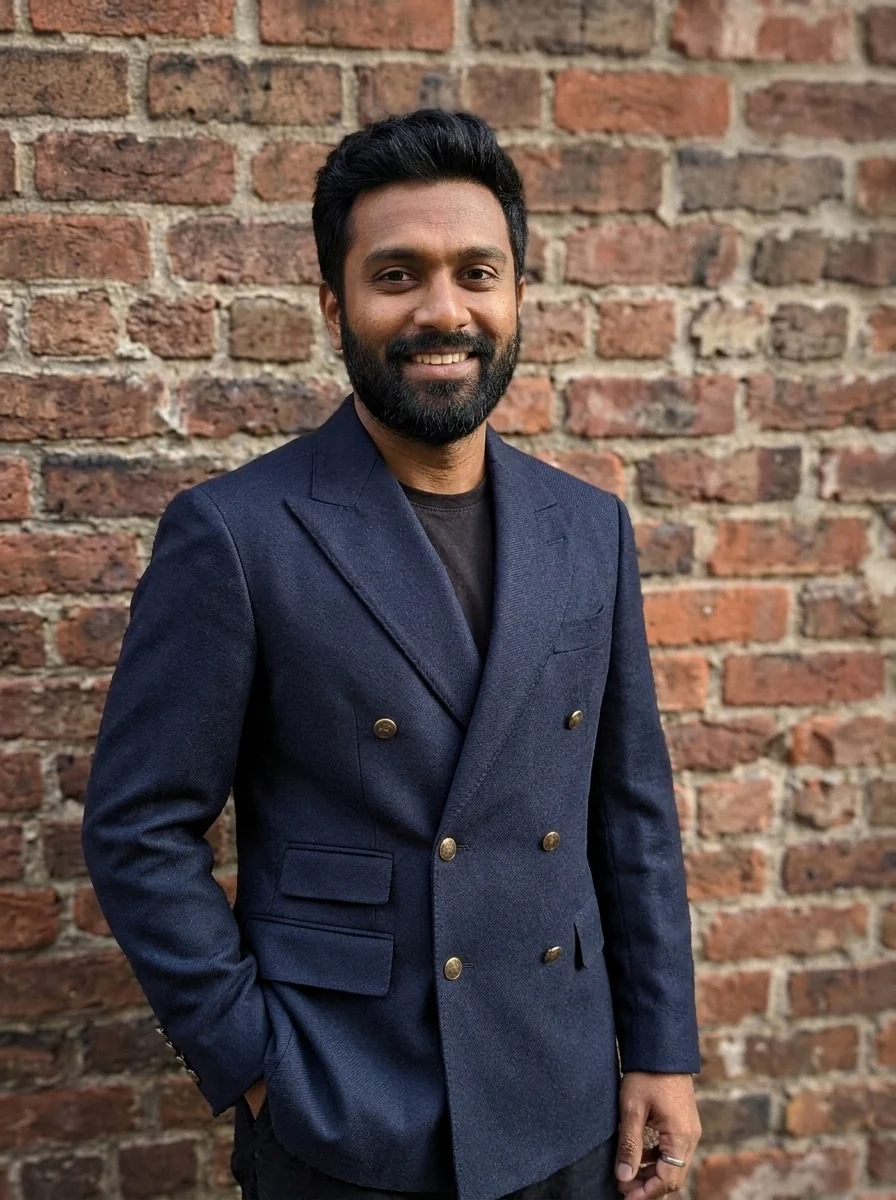
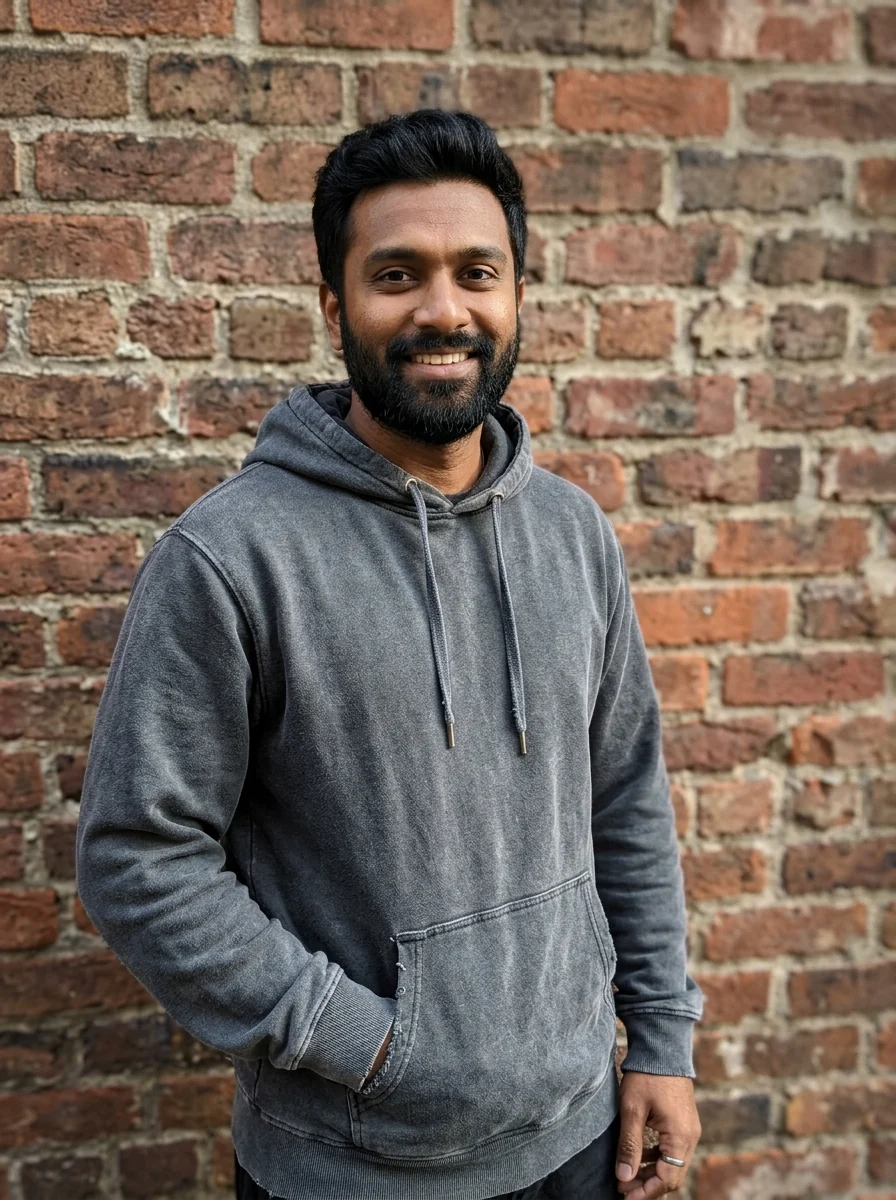
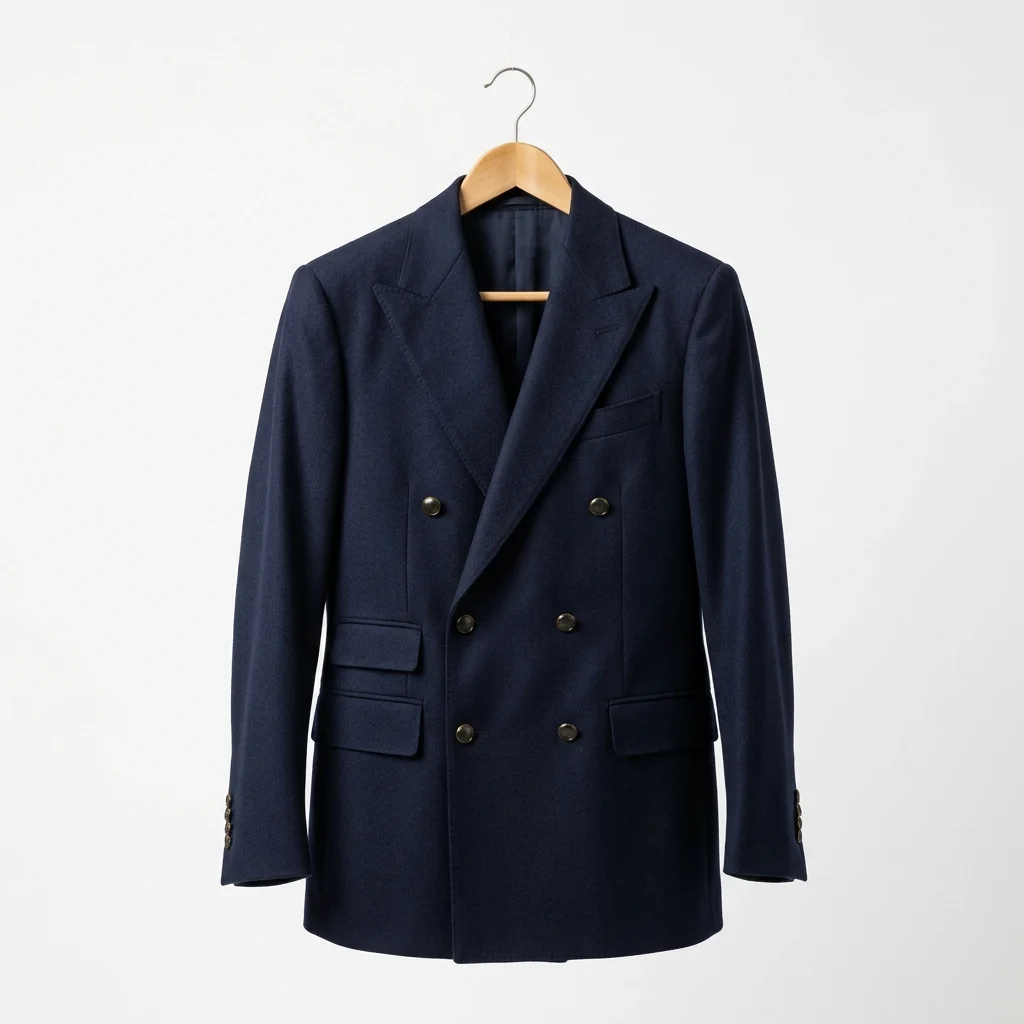
Navy double-breasted blazer
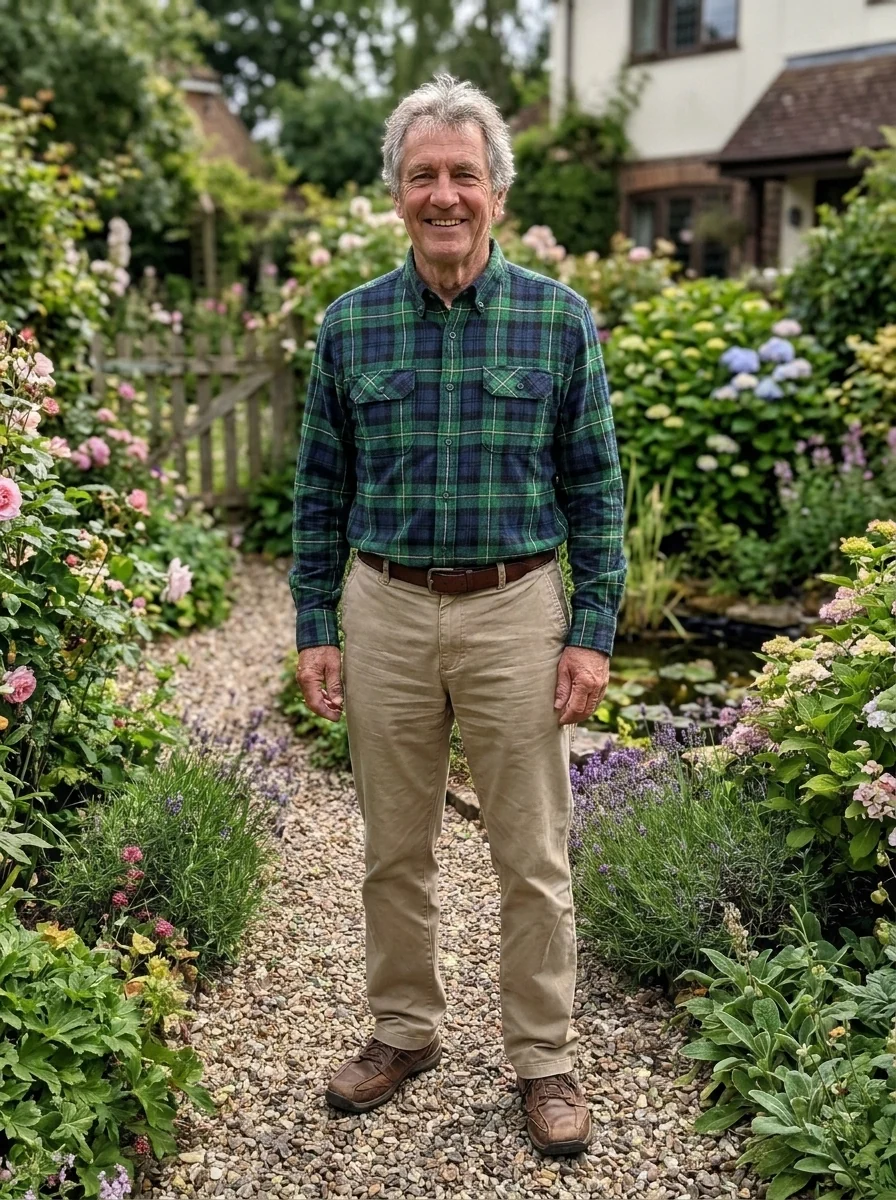
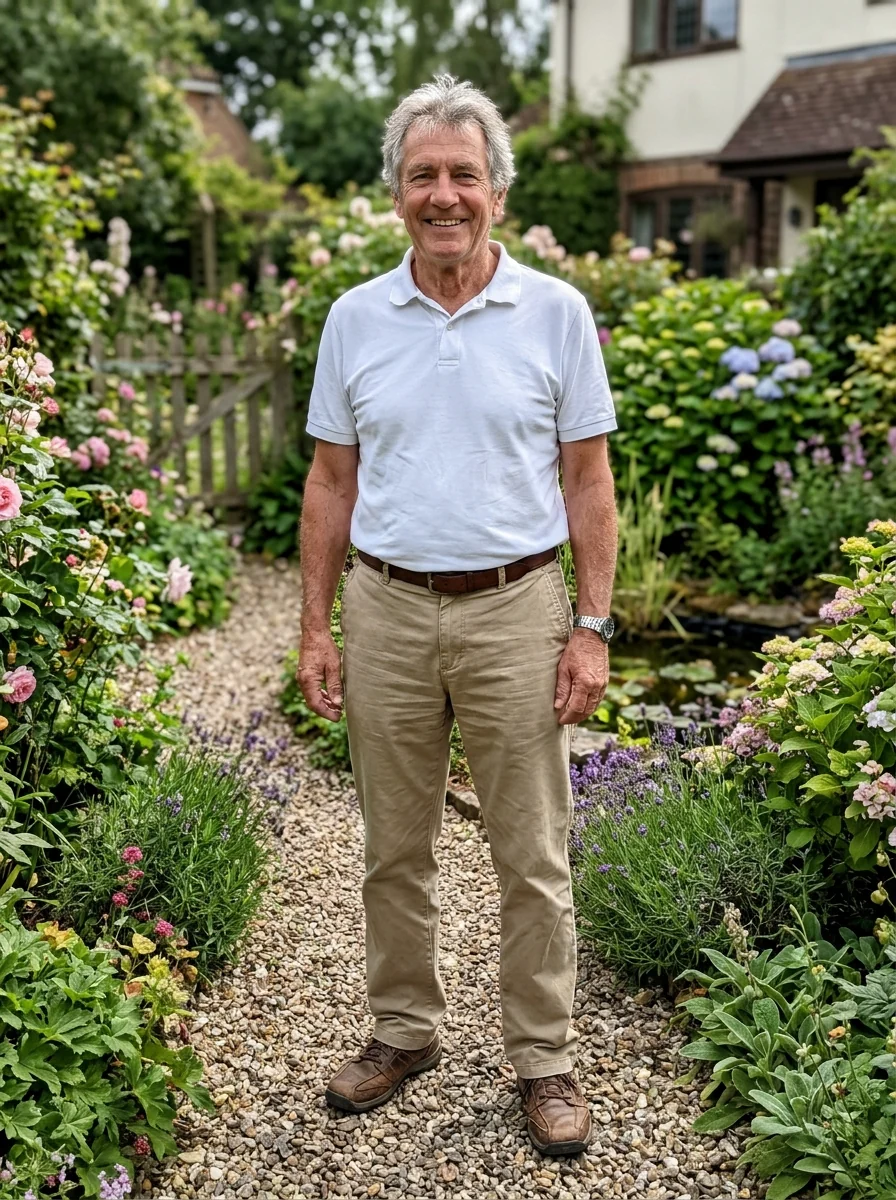
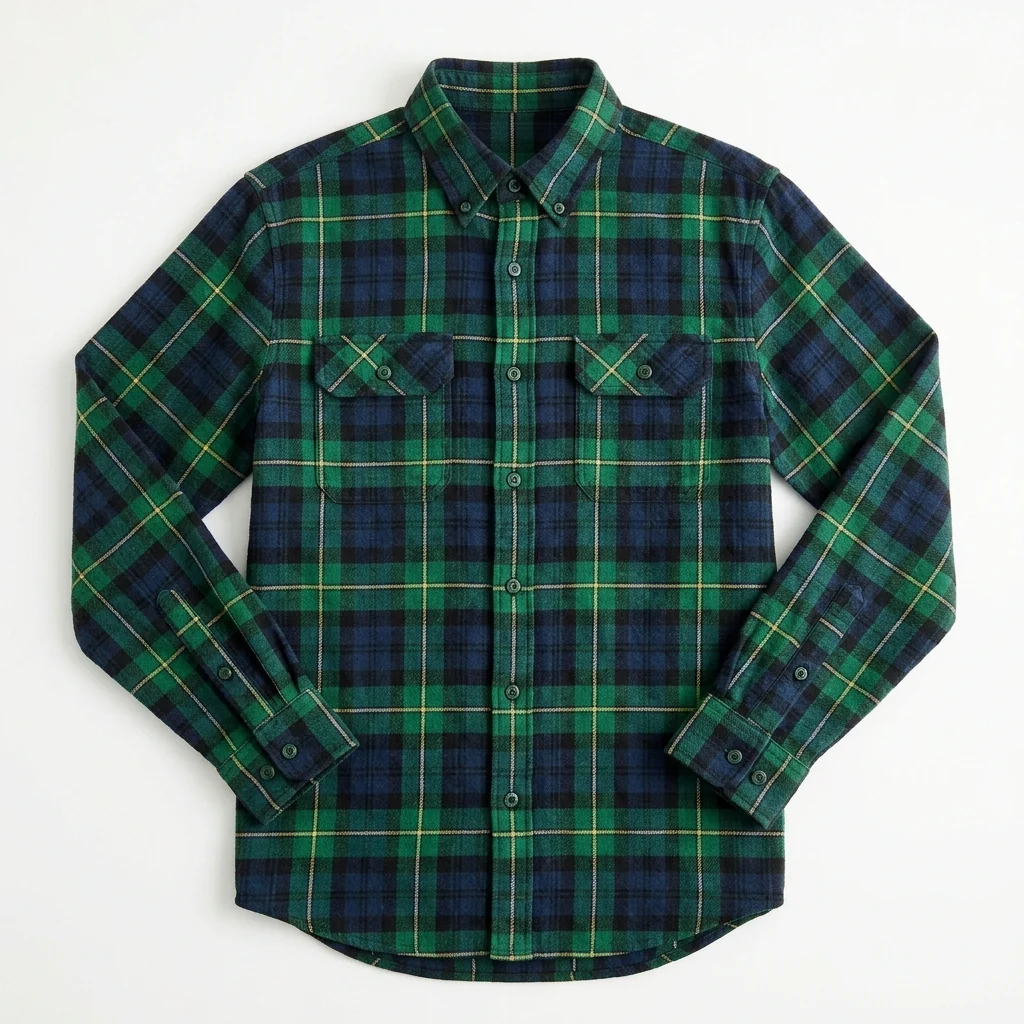
Green and blue tartan shirt
What the clothes changer swaps, and what it leaves alone.
The exact garment
Color, pattern, fabric and details match the clothing photo.
You stay the same
Face, body shape, pose, hair and background are kept.
Natural fit
Folds and shadows follow your body and the light in the photo.
AI Clothes Changer, step by step.
01
Upload your photo
A clear photo with your body and pose visible.
02
Add the clothing
A product photo or a picture of someone wearing it.
03
Download
Save the new look.
When people reach for a clothes changer instead of a fitting room.
- Before you hit order
- You have found a jacket or dress online and want a virtual try-on before paying and waiting on a return. Upload a full-body photo and the store's product shot, and use the page as a virtual fitting room to judge color and style; check the size chart for fit.
- Choosing between two outfits
- Not sure what to wear to a wedding, an interview or a party? Do a quick clothes swap with each outfit you're considering, then compare the results side by side or send them to a friend for a second opinion.
- A good photo in the wrong outfit
- You like a photo of yourself, but the casual shirt is wrong for a profile picture or a work bio. Upload it with a photo of a blazer or shirt, and the outfit changes while your face, pose and background stay.
- Showing a styling idea
- Stylists and small clothing sellers can show a customer how a piece looks on a person without booking a shoot. Check small logos and prints closely before the image goes into a listing.
AI Clothes Changer: best photos and fixes.
The clothing photo
A flat-lay, a product photo on a plain background or a garment on a hanger gives the cleanest result, because the whole piece is visible and nothing hides its shape. Photos of the garment worn by a model also work. Avoid screenshots with text overlaid, several garments in one shot, or close-ups that only show the fabric; the model needs the full outline.
Your photo
Stand facing the camera with your arms relaxed and your body visible down to at least the hips for tops, or full length for dresses and trousers. Fitted clothes in your photo work best because the model can see your shape. A thick winter coat over everything hides your build, so a jacket or dress may come out sized to the coat.
Matching type to type
The garment replaces whatever you are wearing in that area: a shirt replaces your top, trousers your trousers, a dress both. If you upload a jacket and want to keep your shirt underneath, write "jacket worn open over my shirt" in the instructions. Shoes and accessories are often skipped unless the photo shows your feet and you ask for them.
If logos, prints or fit look off
Small logos and fine prints are redrawn, so they may come out simplified or slightly changed. For a quick idea of fit and color that is fine; for a product listing, check the details closely. If the fit looks too loose or too tight, write "oversized fit" or "slim fit" in the instructions and regenerate.
Online shop photos and sizing
Product images from online shops work well, but the result shows the style and color, not how a specific size will fit you. Fabric stretch, length and drape are the model's estimate. Use the result to narrow down styles and colors, then check the shop's size chart. Writing "knee-length" or "cropped at the waist" helps when length matters.
Patterns, stripes and checks
Bold patterns are recognisable, but their exact repeat is redrawn to follow your body, so stripes may bend differently and checks may shift where the fabric folds. That is how the garment would actually look when worn, but small motifs and printed words may be simplified. If the pattern matters, use a sharp, flat photo of the garment where the pattern is clearly visible.
Layering two pieces
To try a jacket over a top, or a cardigan over a dress, run the tool twice: first the inner garment, then upload that result with the outer piece. Doing it in two steps keeps each garment closer to its photo than asking for both at once. Write "worn open" or "buttoned" for jackets so the layer underneath shows the way you want.
Clothes changer questions before you upload two photos.
What do I need to upload?
Two images: a photo of the person, and a photo of the clothing you want to try, such as a product shot from a store.
Will the person's face or pose change?
No. The clothes changer only edits the outfit. Face, body shape, pose and background are kept.
Which photos give the best result?
A full-body or half-body photo where the current clothes are clearly visible, and a clear, front-on photo of the new garment.
Is the Clothes changer free?
Yes, you can try it free. New accounts get 25 free credits, and one generation here uses 9 credits. You sign in with your email; no card needed. Results have no watermark. After that, credit packs never expire, and your first one is half price.
Can I change clothes in a group photo?
It works best with one person in the photo. With several people, crop to the person you want to dress before uploading.
What files can I upload?
Both photos can be JPG, PNG or WebP, up to 8 MB each. On a computer you can also scan a QR code to send a photo from your phone; the link works for 10 minutes.
Does it work on men's clothes?
Yes. Shirts, suits, jackets and trousers work the same way. For a quick suit on a headshot without a clothing photo, use [add suit to photo](/tools/add-suit-to-photo).
How is this different from changing the color of my clothes?
This tool puts a different garment on you from a second photo. To keep your own clothes and only change their color, use the [clothes color changer](/tools/clothes-color-changer).
Can I try on a wedding or prom dress?
Yes, with a photo of the dress. For gowns there are dedicated pages too: [wedding dress try-on](/tools/wedding-dress-try-on) and [prom dress try-on](/tools/prom-dress-try-on).
Are my photos used to train AI?
No. Photos, prompts and results are not used to train AI models. Results stay in My files for 48 hours, or 30 days once you've bought a credit pack, and you can delete them sooner. Failed runs are refunded automatically.