







PDF to PNG
Save PDF pages as sharp PNG images, right in your browser.
Drop a PDF
Every page becomes an image, stays on your device
 Unblur image →
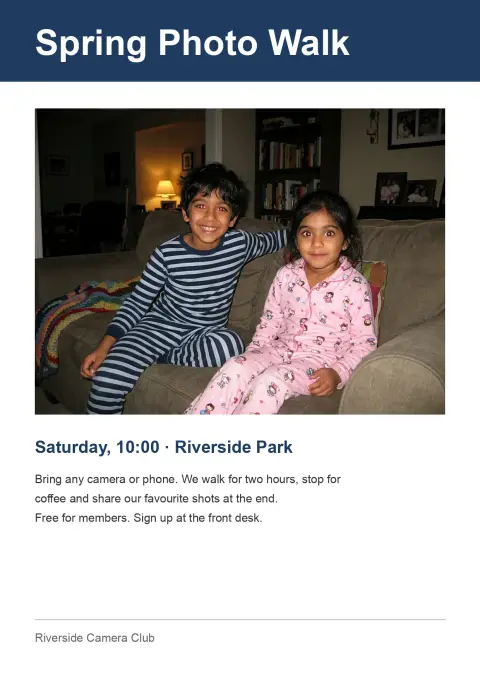
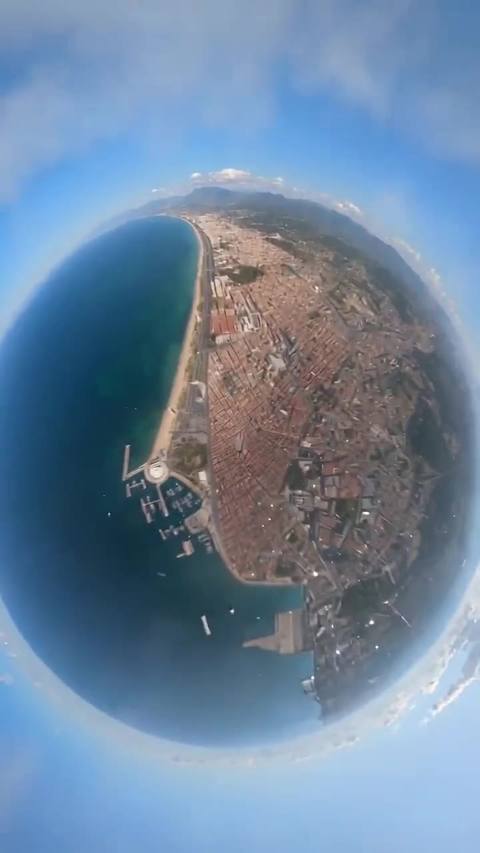
PDF to PNG examples.
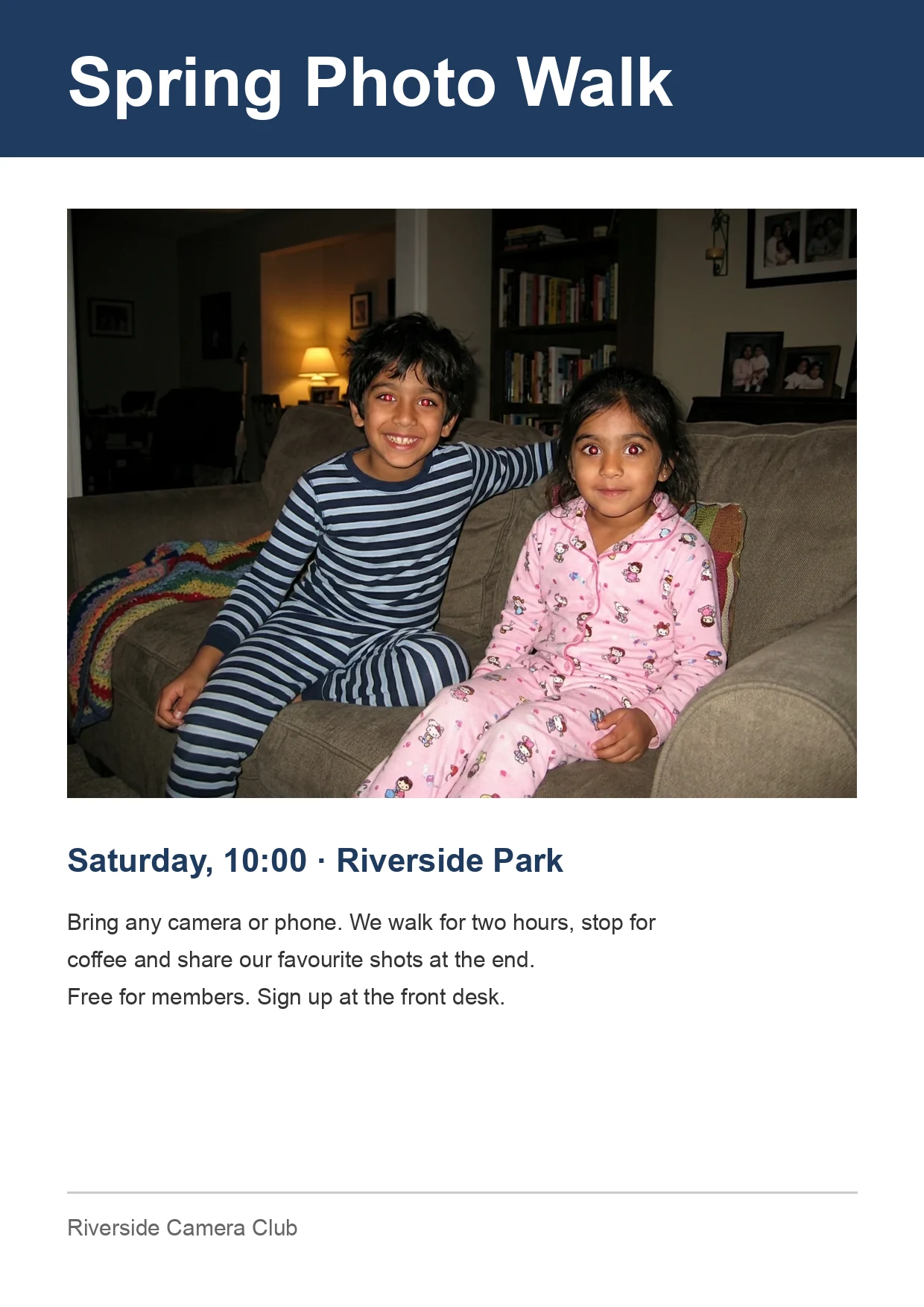
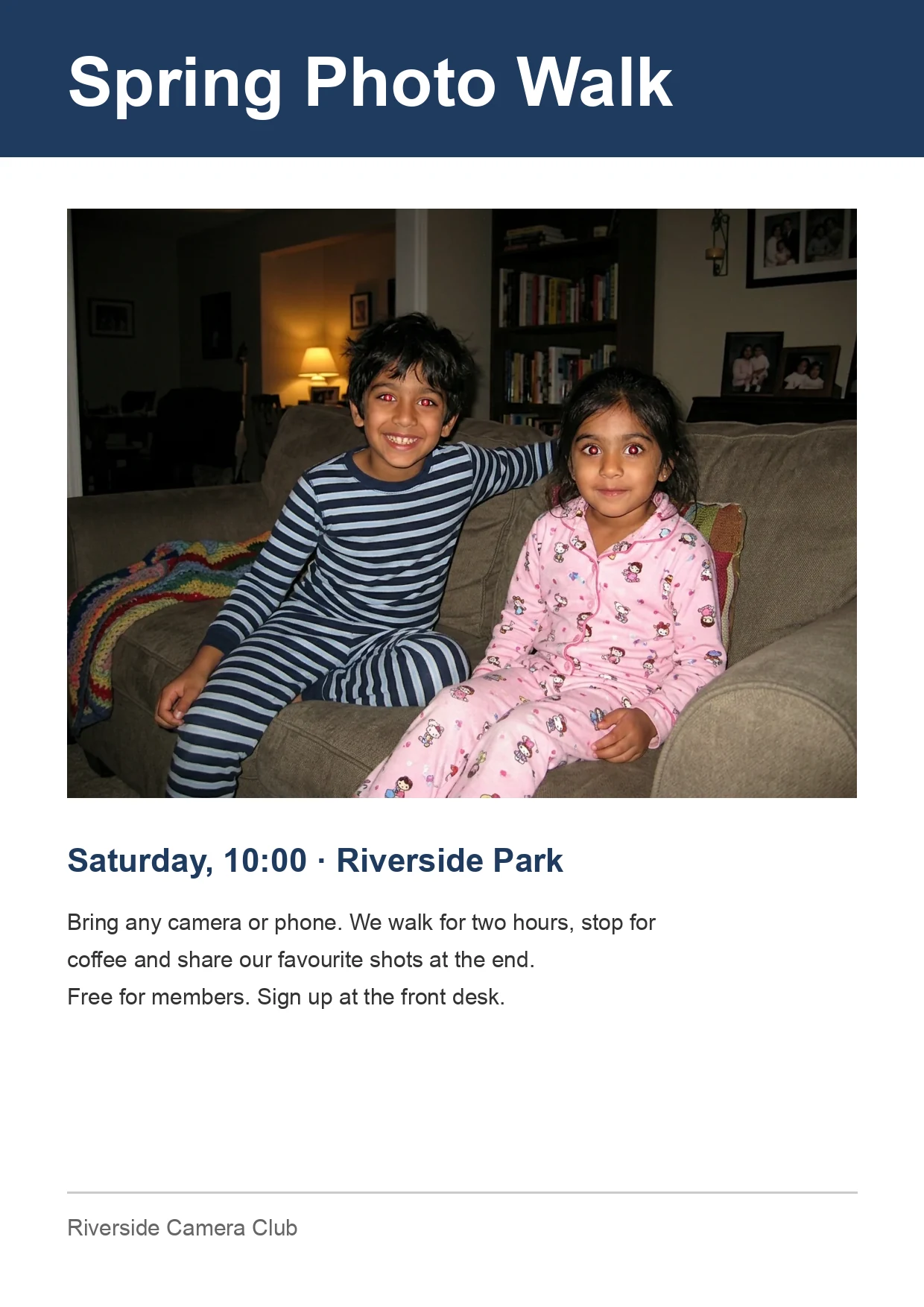
PDF page → PNG, 150 DPI
PDF to PNG features.
Crisp text and lines
PNG keeps small type, tables and thin rules clean, with no blur around the edges.
72, 150 or 300 DPI
Pick the pixel density per page: 150 for screens, 300 for print.
Page by page or all
Tap a thumbnail to save one page, or download every page as a ZIP named name-01.png, name-02.png.
PDF to PNG, step by step.
01
Add your PDF
Drop a PDF onto the page or choose one from your device.
02
Choose the DPI
150 is the default. Raise it to 300 for print or to zoom in on detail.
03
Download
Save one page, or all pages as a ZIP.
PDF to PNG use cases.
- Slides and diagrams
- Move a page with charts or flowcharts into a document or a slide without fuzzy edges.
- Pages with fine print
- Contracts, receipts and spec sheets where small text must stay readable when zoomed.
PDF to PNG: best photos and fixes.
Why PNG suits document pages
PNG stores every pixel exactly and compresses without losing detail. A page of black text on white is the ideal case: large flat areas shrink well and the letter edges stay crisp. JPG works by blurring tiny details, which can leave faint halos near letters. If a page has small type, a table or a technical drawing, PNG is usually the better choice.
Pixels, not pages
A PDF page is a set of instructions for drawing text, lines and pictures at any size. A PNG is one fixed size. Converting draws the page once and records the result. After that you cannot select the text or edit it, and the tool does not read the text back. If you need to edit the words, work from the original document.
Choosing the DPI
DPI means dots per inch: how many pixels are drawn for each inch of the page. A Letter page is about 1275 by 1650 pixels at 150 DPI and about 2550 by 3300 at 300 DPI. The first suits screens and most uploads. The second suits printing and cropping into one part of a page. 72 DPI is small and fast, but fine text looks soft.
Expect large files
PNG has no quality slider, so file size depends on the page. A text page at 150 DPI can be a few hundred kilobytes. A page full of photos or gradients at 300 DPI can reach several megabytes. If a site limits file size, lower the DPI, or use the JPG version of this tool, which adds a quality setting you can reduce.
Background and transparency
Pages are drawn on a plain white background. A PDF that was designed with a transparent or colored backdrop is drawn the way a PDF viewer would show it, so you get a white page with the design on top. The output is a normal PNG, so it can be placed into a slide, a document or an image editor.
Size caps and passwords
Each page is limited to 16 megapixels. A poster-sized page at 300 DPI would be larger than that, so it is scaled down. A PDF that needs a password cannot be opened until you remove the password in the program that set it. Embedded photos are not pulled out separately; you get the finished page as a picture. Check the thumbnail first.
PDF to PNG FAQ.
How do I convert a PDF to PNG?
Add the PDF, choose 150 or 300 DPI and download. Every page becomes a PNG, either one by one or together in a ZIP.
Is PNG better than JPG for PDF pages?
For text, tables and line art, yes: PNG keeps the edges clean. JPG is smaller and fine for pages that are mostly photos.
Why is my PNG so large?
A page at 300 DPI has millions of pixels, and PNG keeps all of them. Lower the DPI to 150 or even 100 to cut the size a lot.
Can I save just one page?
Yes. Every page appears as a thumbnail, and tapping one downloads only that page.
Does it keep the text selectable?
No. A PNG is a picture, so the words become pixels. The tool does not do text recognition or extract text.
Are my files uploaded anywhere?
No. Your browser draws the pages on your own device, so the PDF never leaves it. That makes it fine for private documents.
Is it free?
Yes. Quick tools are free, need no sign-in and use no credits; your images stay in your browser. The AI tools linked below need an account.