

No Makeup Filter
See the bare face under the makeup.
Drop a photo
or paste with ⌘V · JPG · PNG · WebP · up to 8 MB
No photo handy? Try one of ours.
More like this.
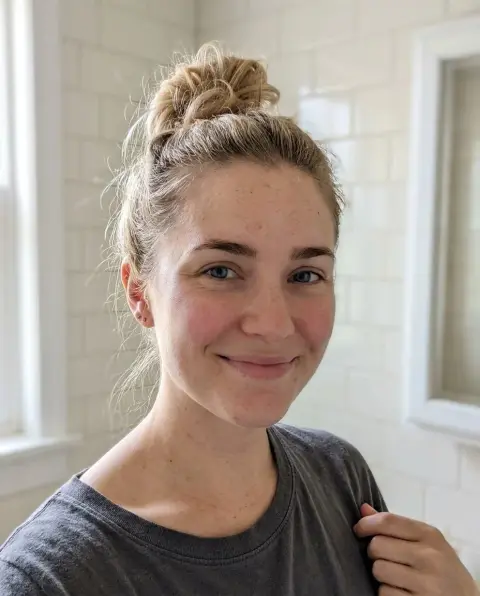
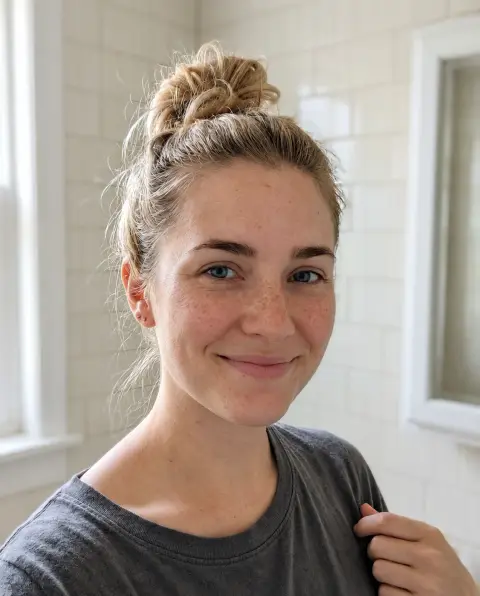

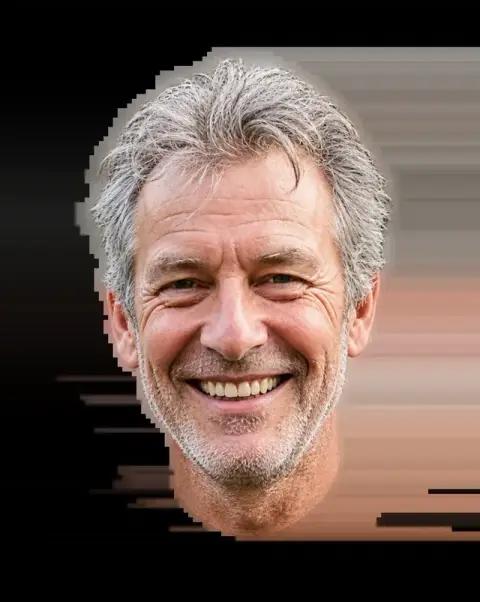
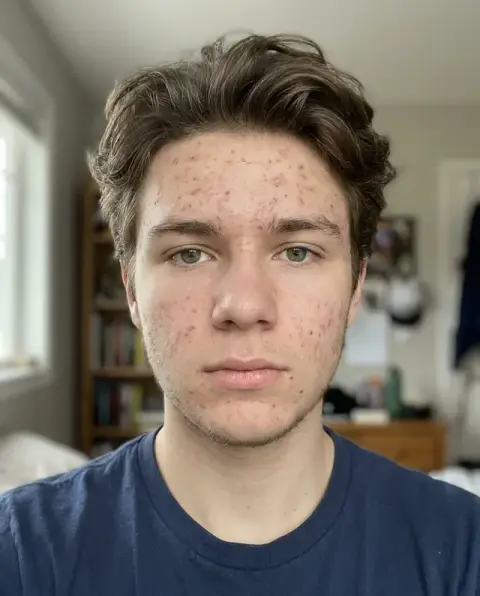
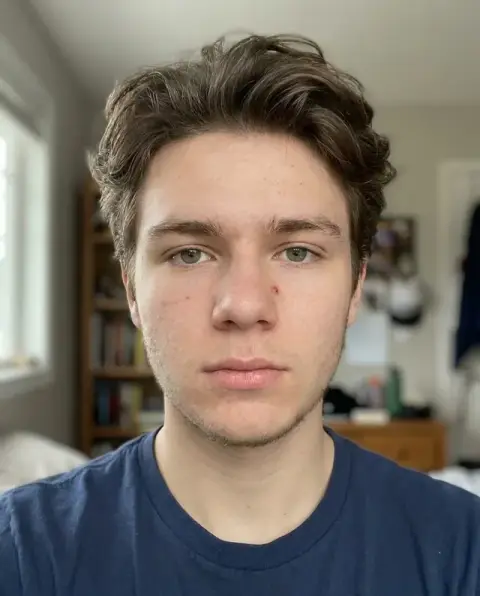
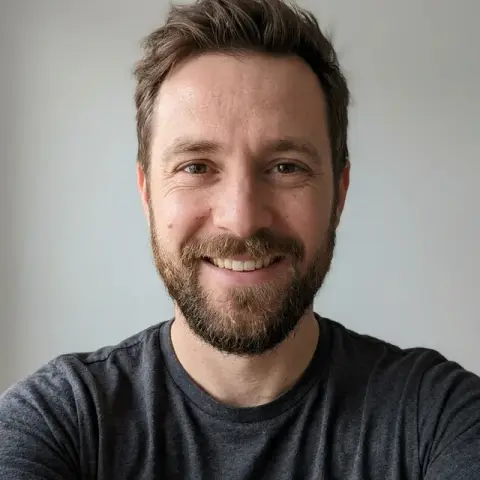

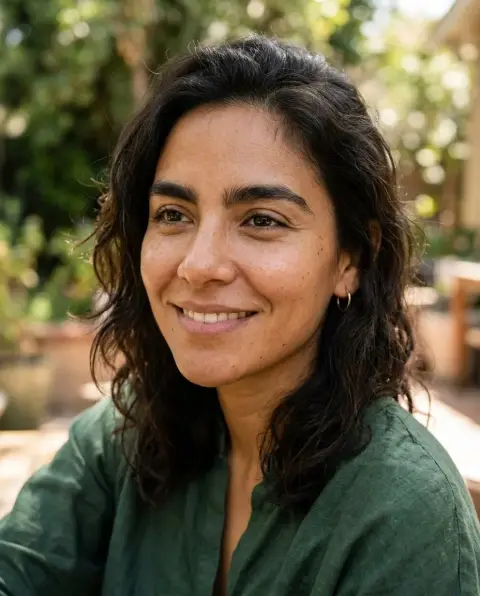
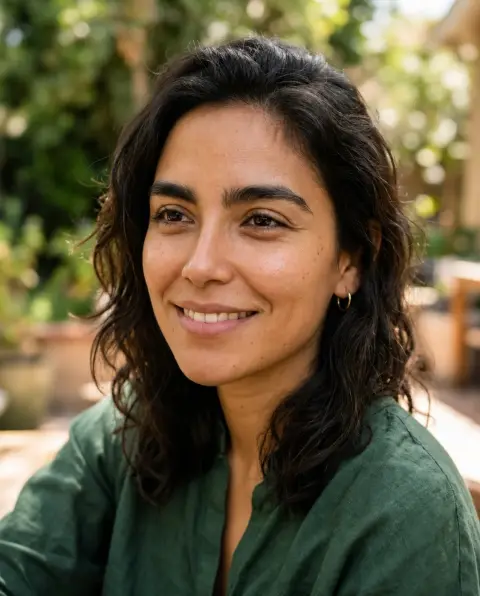
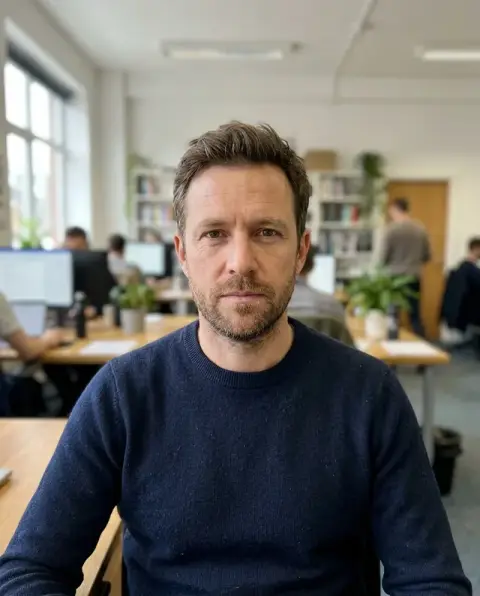
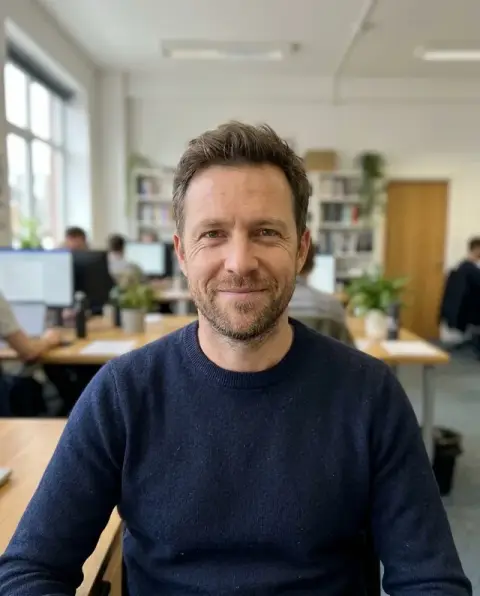
No Makeup Filter examples.
Real results from this page's default settings in one click, not retouched.How examples are made
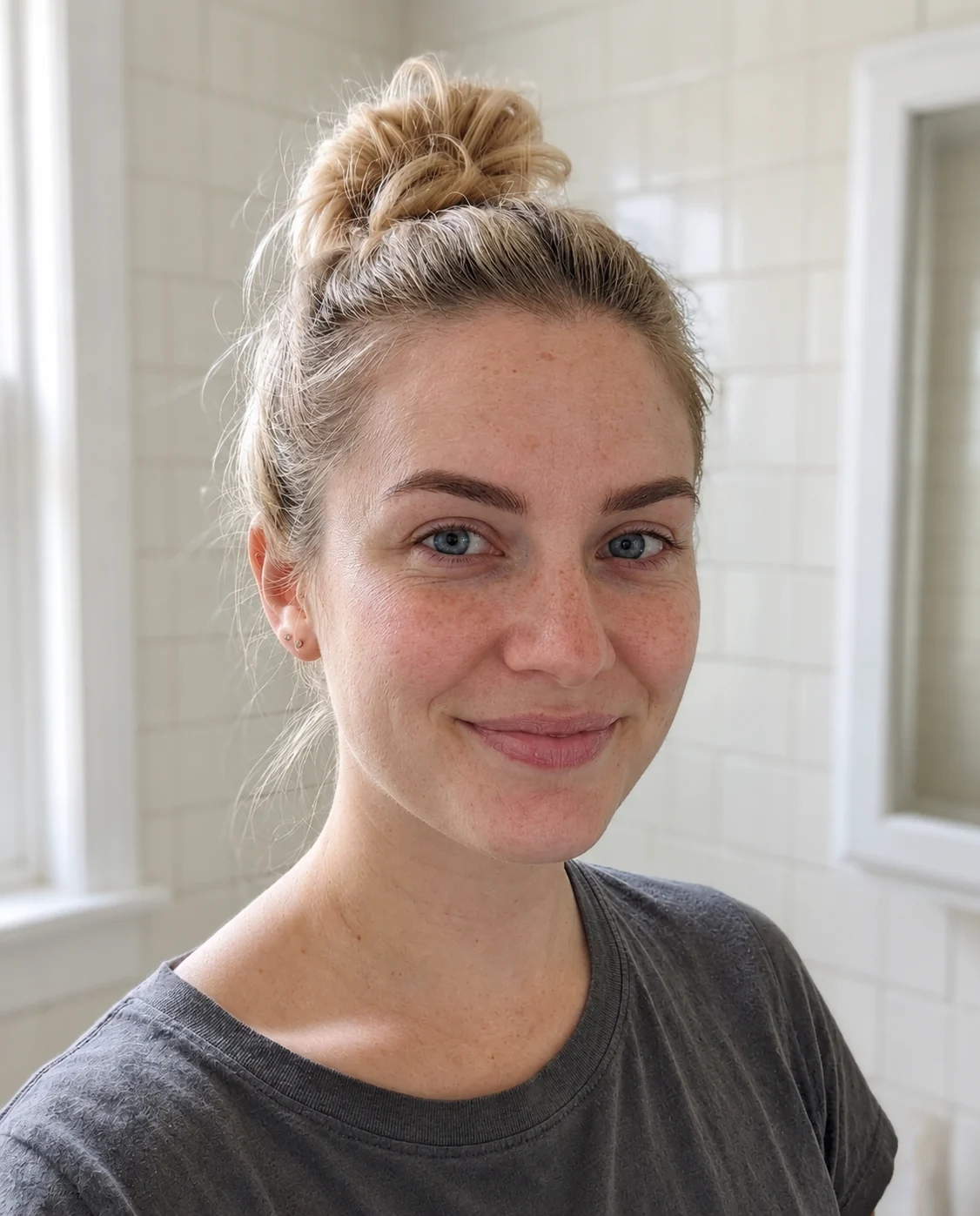
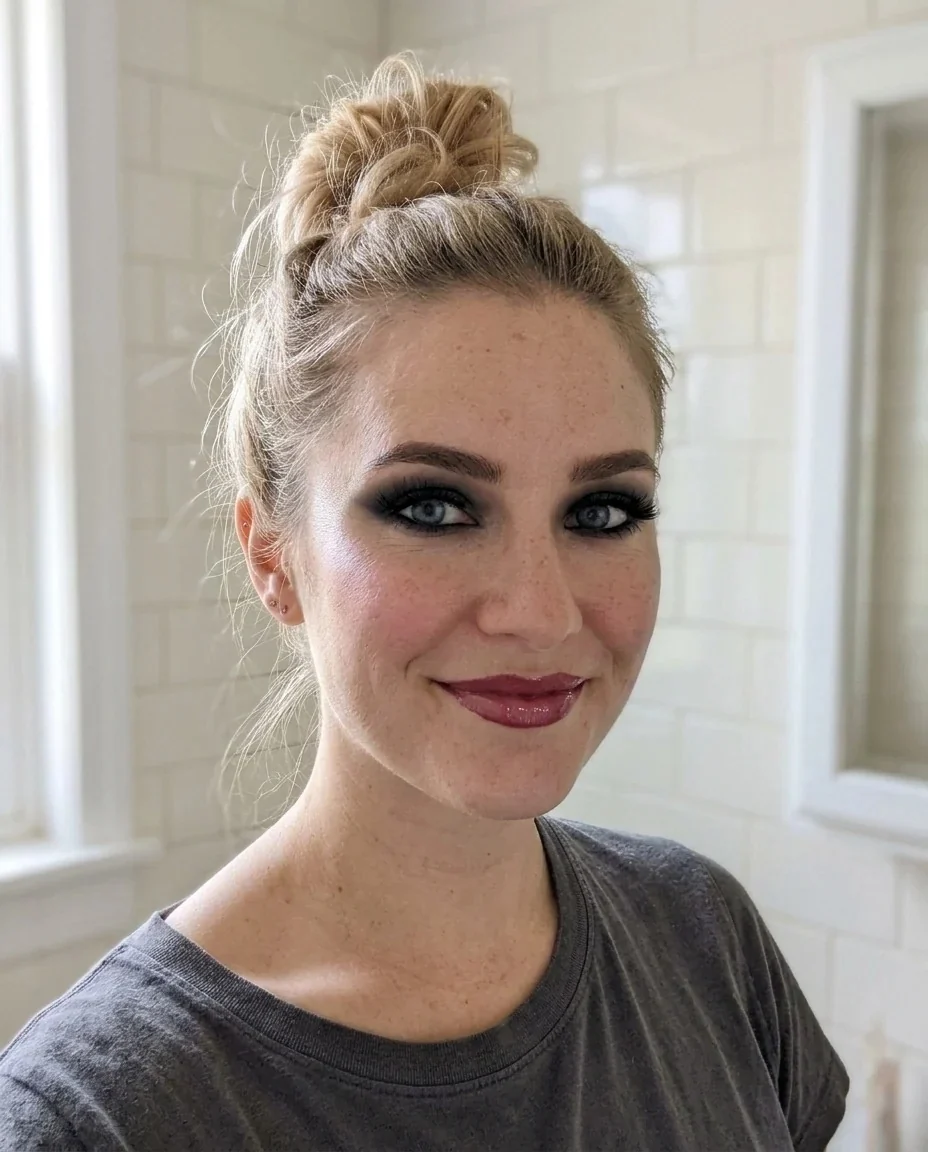
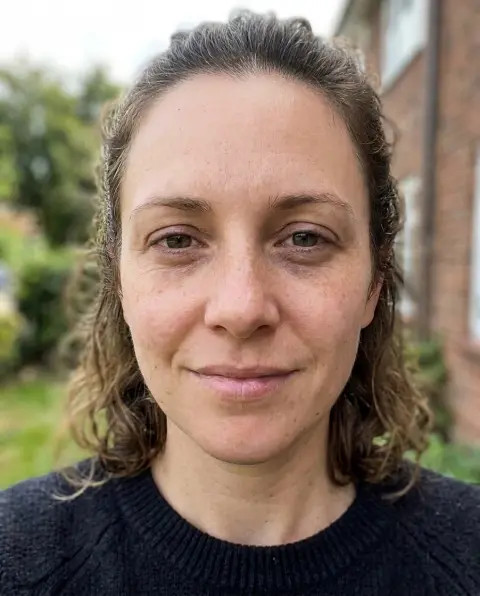
Woman with a bare face and natural lips after heavy eye makeup and red lipstick are removed
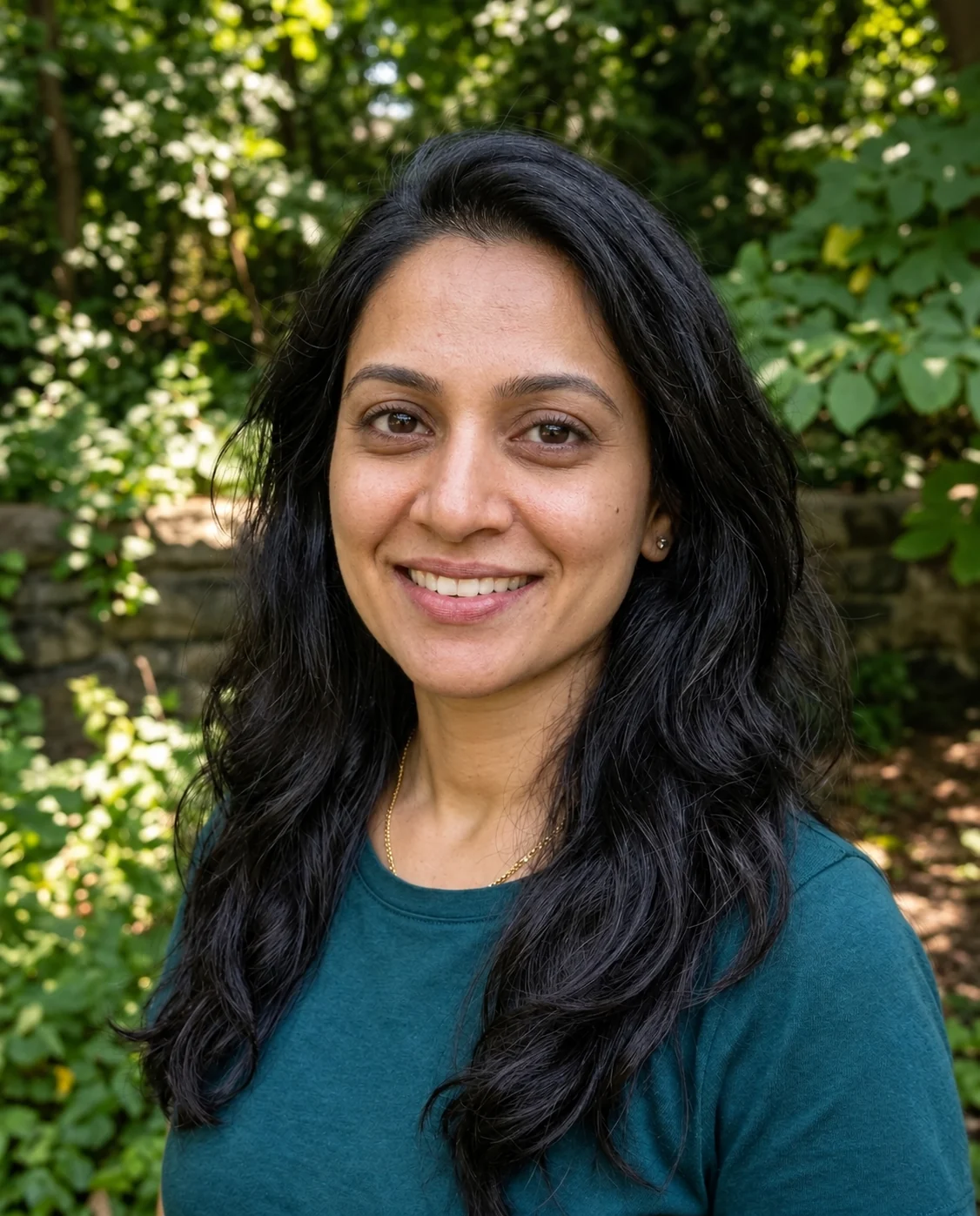
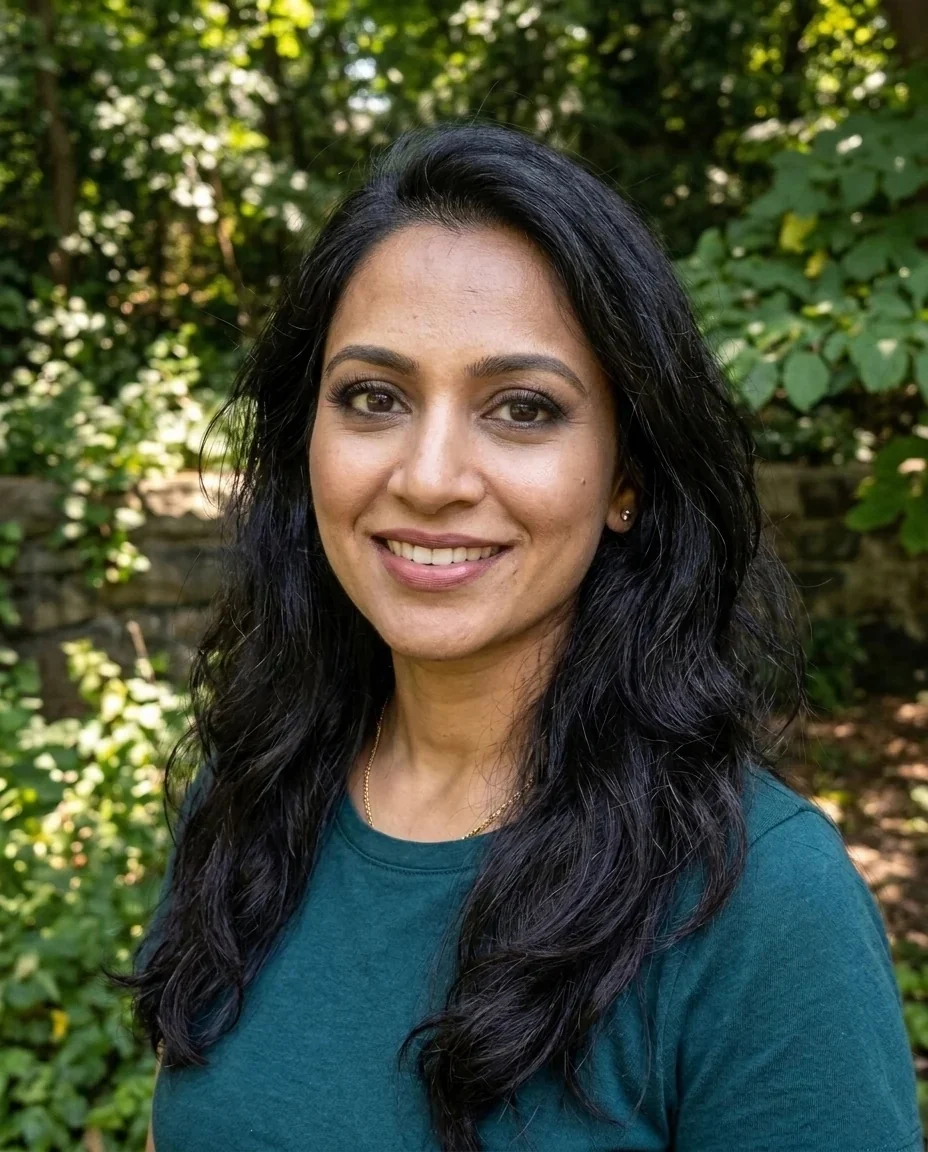
Woman with a bare face and natural skin, same wavy dark hair
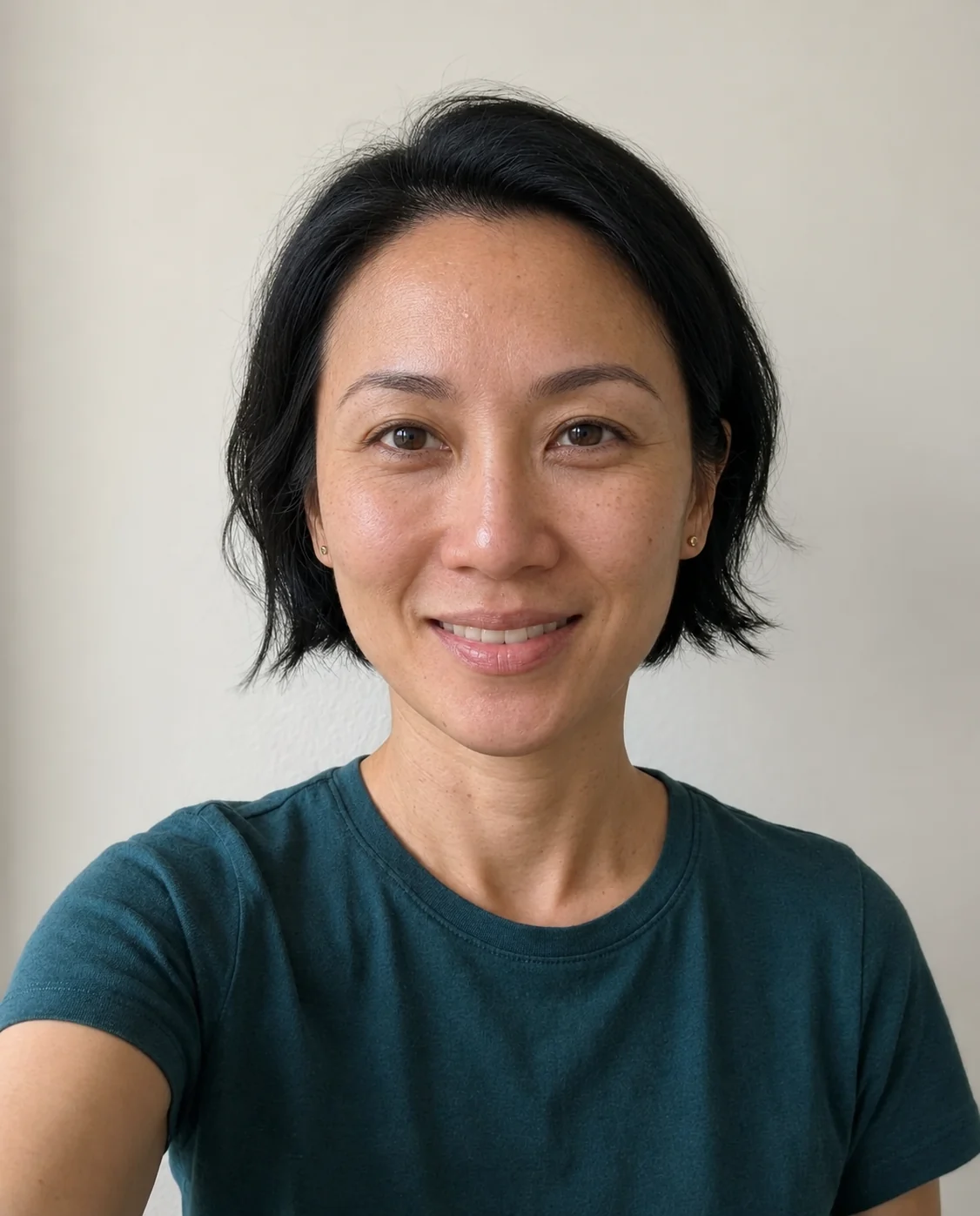
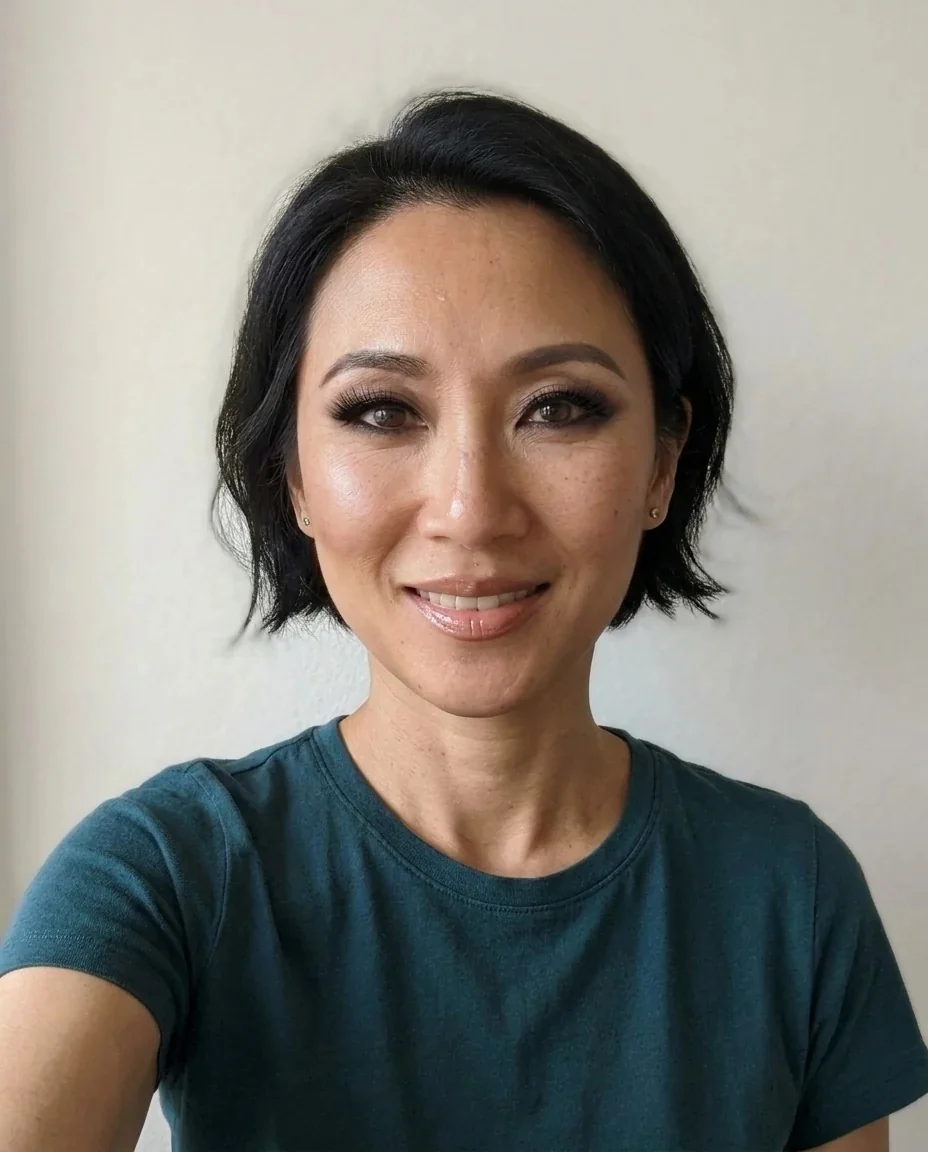
Woman with natural skin, bare lips and un-lined eyes, short black hair
No Makeup Filter features.
Makeup taken off
The AI removes foundation, lipstick, eyeliner, mascara, eyeshadow and blush, and shows natural skin and natural lip color underneath.
Real skin, not retouched
It keeps realistic texture and pores, and it does not add blemishes or beautify, so you see a bare face and nothing more.
Still the same person
Face shape, hair, clothing, background and lighting stay as they were, and you remain recognizable.
Best with visible makeup
The effect is strongest on photos where makeup is clearly worn; with little makeup to remove, little will change.
No Makeup Filter, step by step.
01
Upload a photo with visible makeup
Choose a clear, front-facing photo, or send one from your phone by scanning the QR code.
02
Generate
Sign in and press the button; the AI removes the makeup and shows the bare face.
03
Compare the two
Put the result next to the original to see what the makeup was doing, then download it.
No Makeup Filter use cases.
- With and without makeup
- Put a before and after together to show how much a look changes a face.
- Curiosity about a full-glam look
- If you are used to seeing a friend or yourself in a full face, this shows what is underneath.
- Learning makeup
- For people learning makeup, comparing a finished look with the bare face shows what each product actually does.
- Joining the no makeup filter trend
- The no makeup trend is popular on TikTok, and this web version works on any photo.
No Makeup Filter: best photos and fixes.
Photos that work best
Choose a photo where the makeup is plainly visible, such as bold lipstick, eyeliner or eyeshadow. The filter shows what is under the makeup, so a face that already looks bare will change very little. A sharp, front-facing photo in even light works best.
What changes and what stays
The AI removes foundation, lipstick, eyeliner, mascara, eyeshadow and blush, and shows natural skin with real texture and natural lip color. It does not add blemishes, and it does not smooth or beautify. Face shape, hair, clothing and background stay the same.
Heavy versus light makeup
Dark lips, strong eyeliner and full foundation show the biggest difference. Natural everyday makeup produces a smaller one. If you see little change, the photo probably had little makeup to remove.
An estimate, not your real skin
The result is the AI's guess at a bare face. Freckles, marks or redness may not match what is actually there, so treat it as a fun comparison.
If your features change
Only the makeup should change. If your eyes, brows or face shape look different, regenerate with a sharper, evenly lit photo.
Other face tools
For clearing spots, use the blemish remover. For a polished look, try the beauty filter, and for other changes the face editor.
No Makeup Filter FAQ.
What does the no makeup filter do?
It removes makeup from a photo and shows the bare face with natural skin texture and natural lip color.
Will it add blemishes or make me look better?
No. It does not add blemishes and it does not beautify. It only shows the face without makeup.
What if I am not wearing makeup in the photo?
There is little to remove, so little will change. The filter works best on photos where makeup is visible.
Is the result what my real skin looks like?
No. It is an estimate, and real freckles, marks or redness may differ from it.
Will my face and hair stay the same?
Yes. The AI is asked to keep face shape, hair, clothing, background and lighting the same and to keep you recognizable.
Is the no makeup filter free?
You can try it without paying anything up front: new accounts get 25 free credits once, and one generation here costs 9 credits with the default model, GPT Image 2. You sign in to generate, and results have no watermark. You can pick other models from the model menu at their own prices.
Which files can I upload?
JPG, PNG or WebP, up to 8 MB per image. You can also scan the QR code on the page to send a photo from your phone; the link is valid for 10 minutes.
Are my photos used for training, and how long are results kept?
No, uploads are not used for training. Your results stay in My files for 48 hours, or for 30 days if you have a plan, so download the ones you want to keep. If a generation fails, the credits are refunded.