



Add Santa to Photo
Santa in your own living room, lit like he was really there.
Drop a photo
or paste with ⌘V · JPG · PNG · WebP · up to 8 MB
No photo handy? Try one of ours.
More like this.

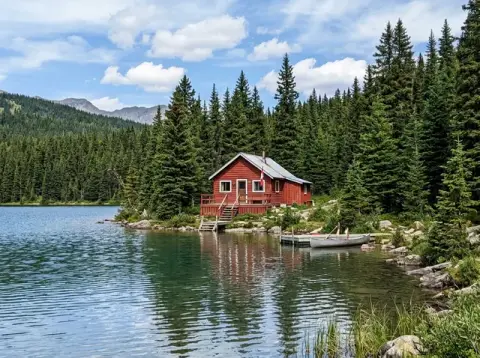
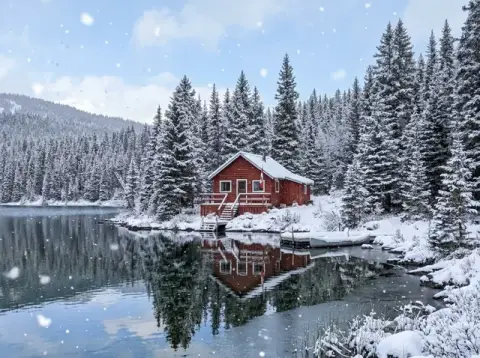








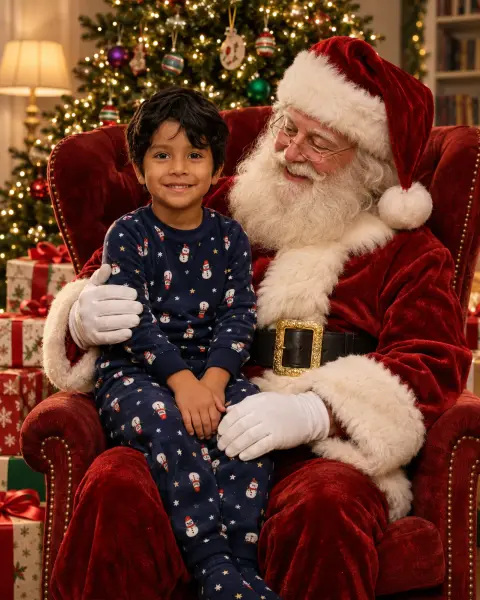
Add Santa to photo results: by the tree, beside a child and on the porch.
Real results from this page's default settings in one click, not retouched.How examples are made
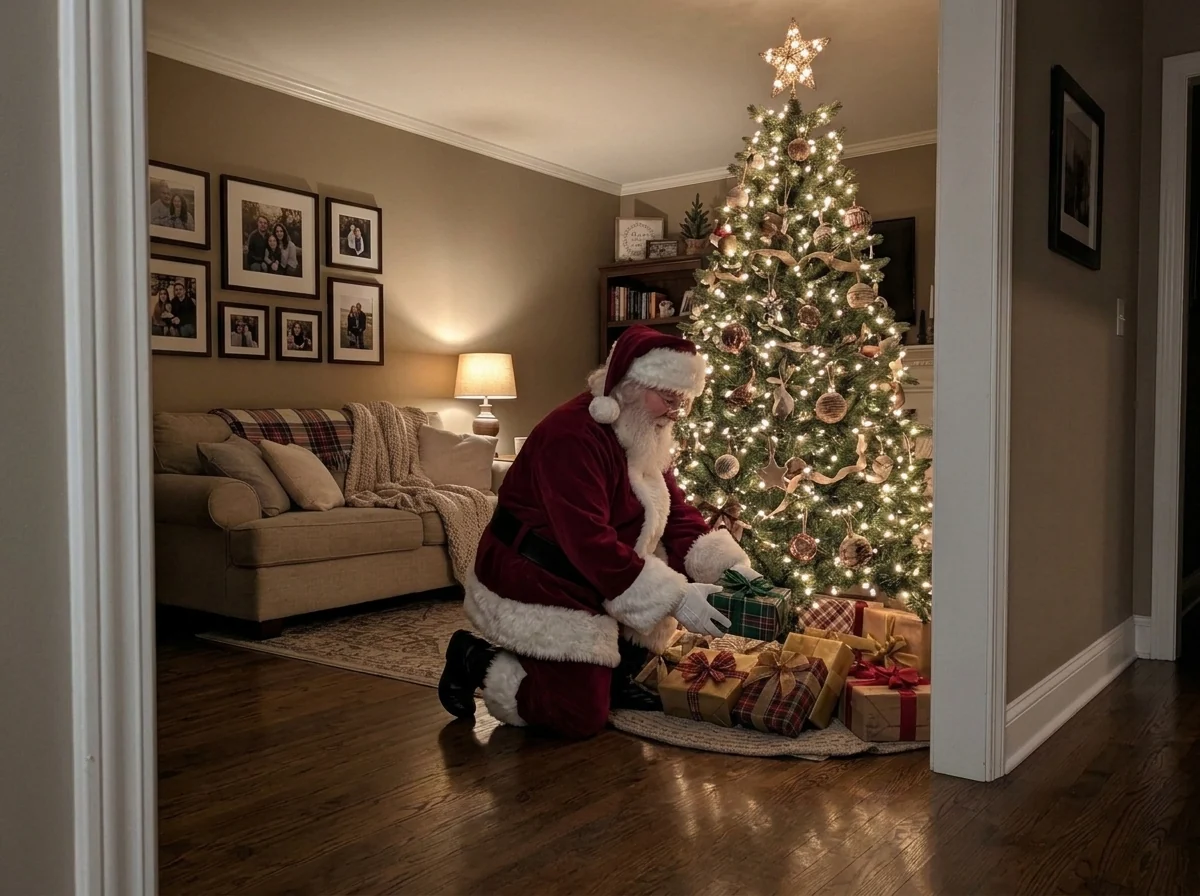
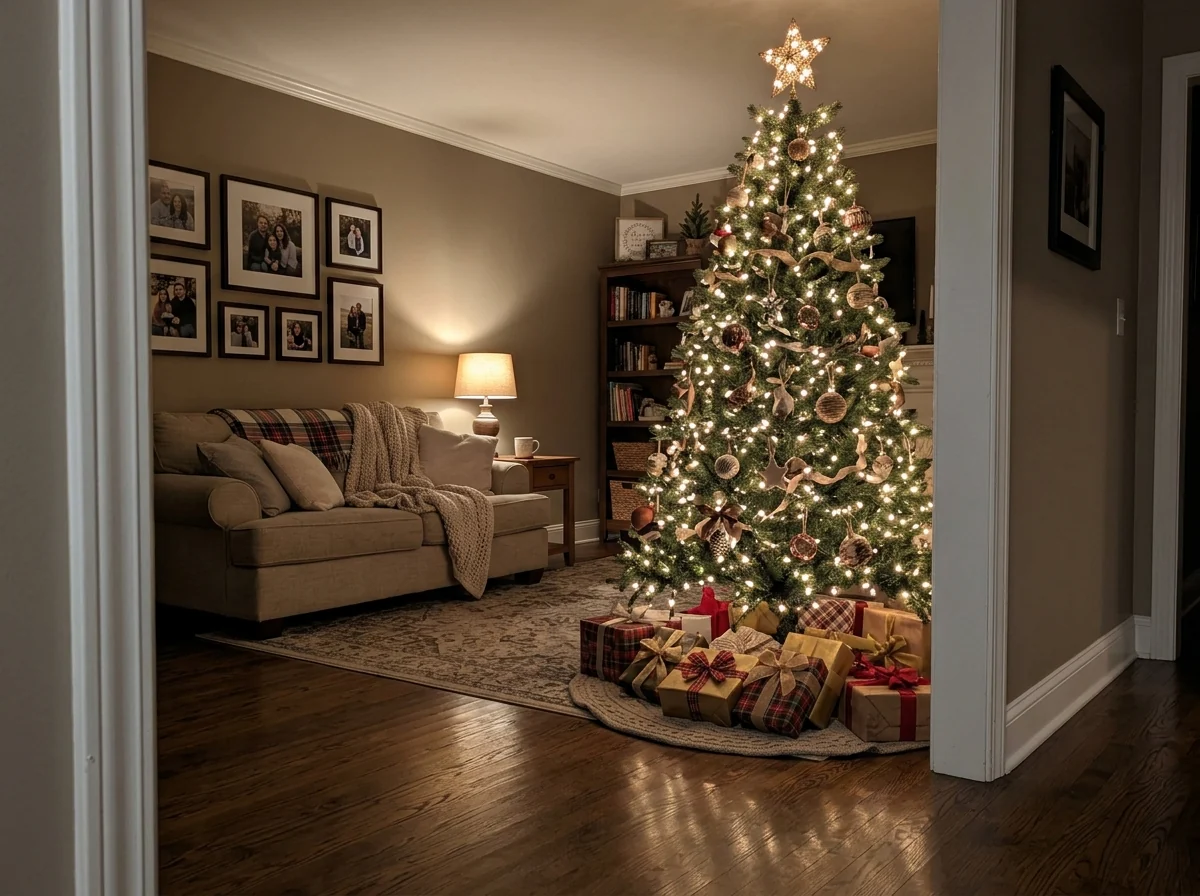
Leaving gifts
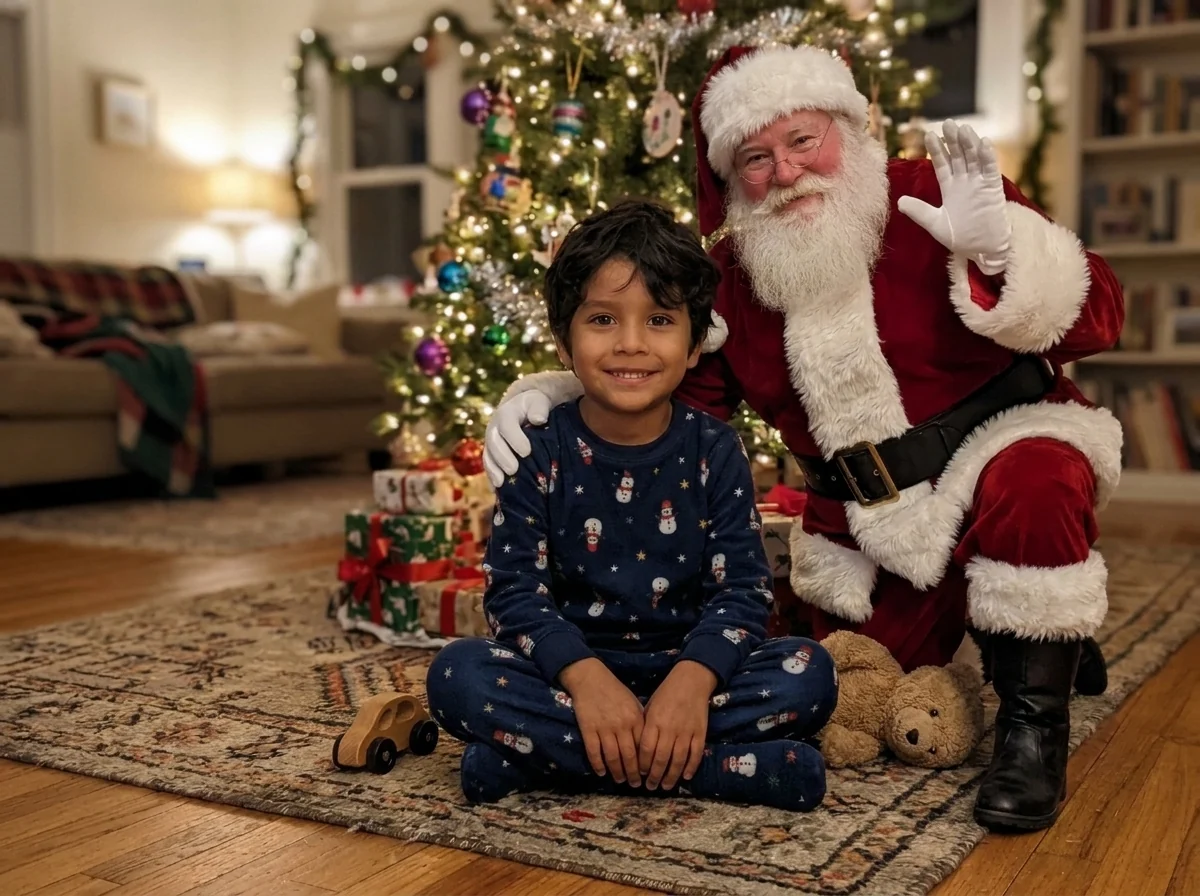
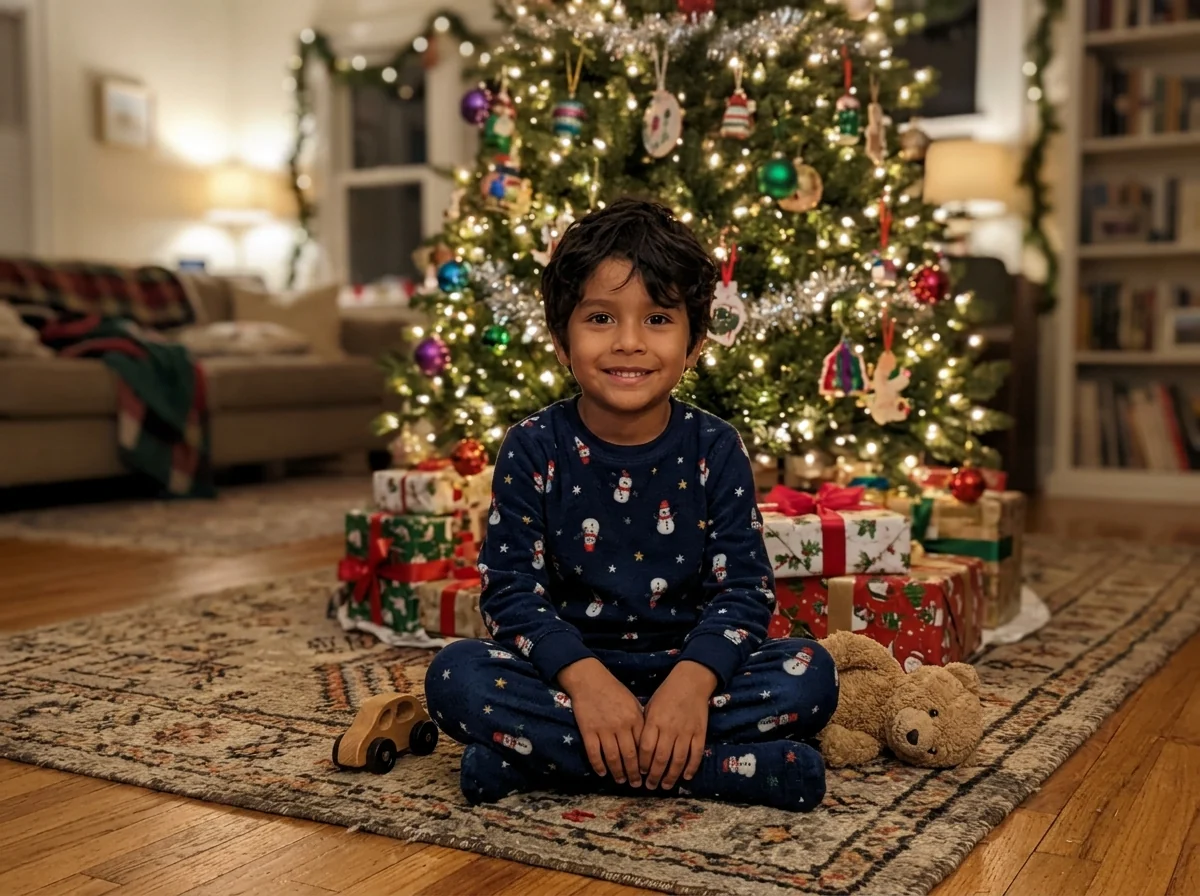
Posing with you
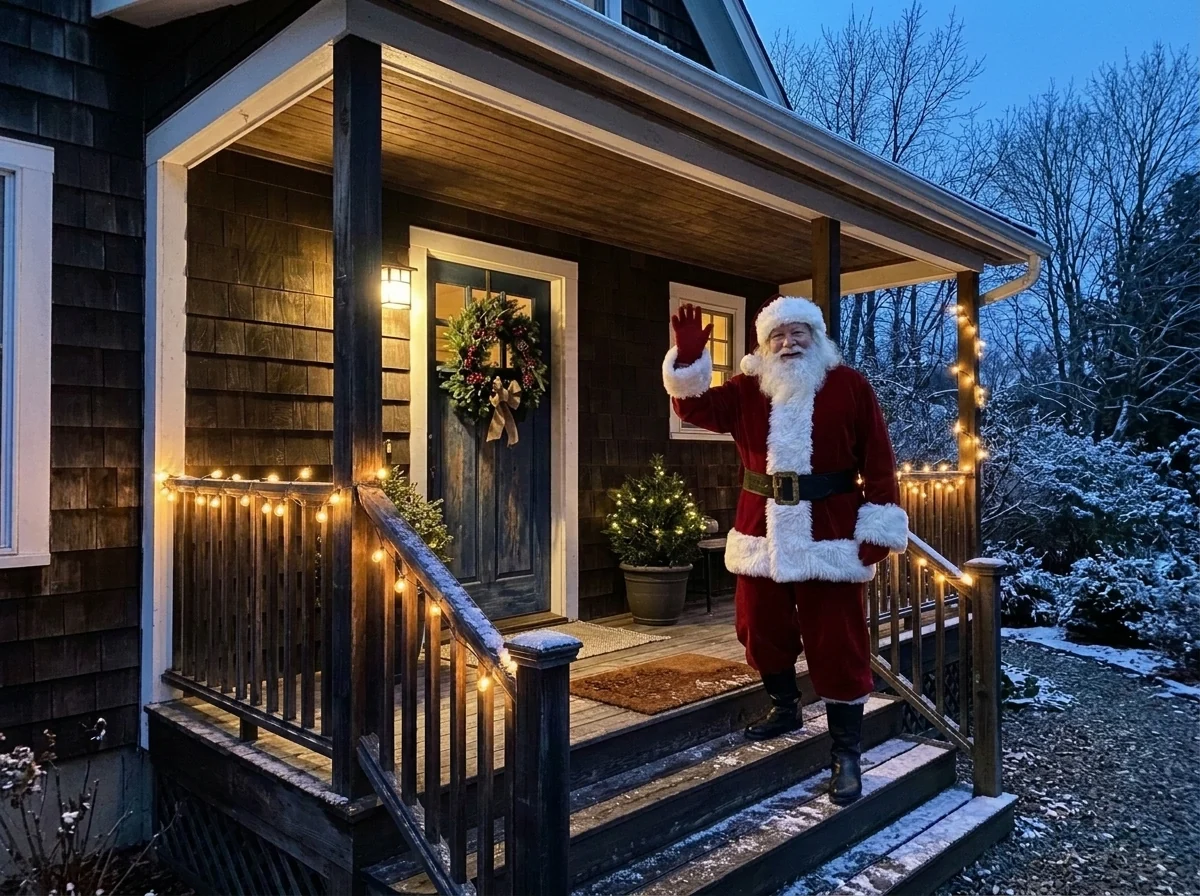
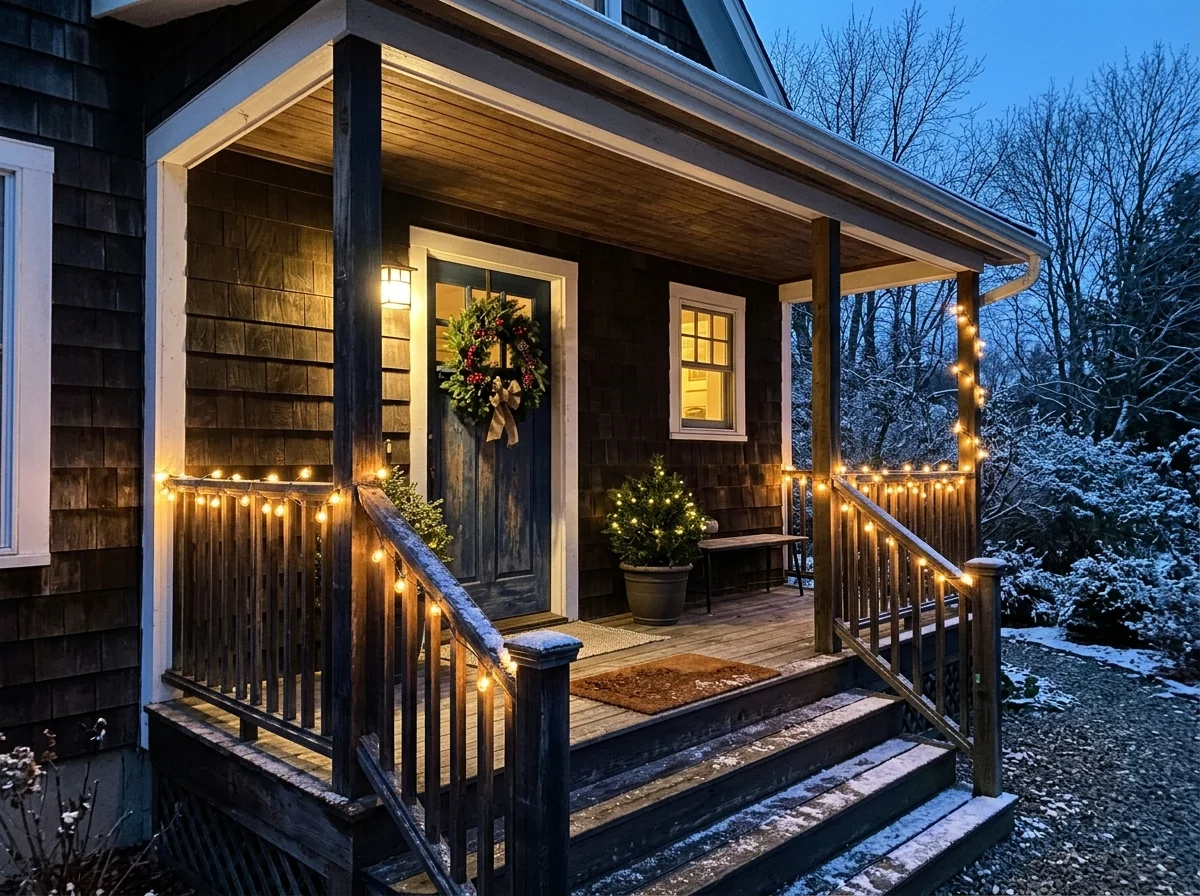
Waving
How Add Santa to Photo fits him into your room.
Fits your room
Size, perspective and light follow the photo.
Three moments
Leaving gifts, waving, or posing with your family.
Your photo kept
People and decorations stay exactly as they are.
Add Santa to Photo, step by step.
01
Upload a photo
Your tree, living room or porch, with or without people.
02
Pick a moment
Leaving gifts, waving or posing.
03
Download
Show it on Christmas morning.
Why families use Add Santa to Photo on Christmas Eve.
- Proof for Christmas morning
- Take a photo of the living room on Christmas Eve after the children are in bed. Pick Leaving gifts and have the picture ready on your phone when they ask whether he came.
- A card with Santa in it
- Use a family photo by the tree, pick Posing with you, and send it as this year's card or print copies for the grandparents.
- When a visit to Santa is not possible
- If there is no time or money for a mall visit, a photo of your child next to Santa at home is the next best thing. Upload one where the child has room beside them.
- A doorbell or porch moment
- Put Santa waving on the porch or at the front door, as if he was caught arriving. A dusk photo of the decorated porch works well.
Add Santa to Photo: best photos and fixes.
Photos that make it believable
Night photos of the living room with the tree lights on make the most convincing "caught Santa" pictures, because the warm, low light hides small differences. Take the photo from where a hidden camera might be, such as the corner of the room or the stairs. Bright daytime photos work too, but look more like a family portrait than a sneaky snapshot.
Leave space where Santa can stand
Santa is placed in empty floor space, usually near the tree or the fireplace. If the room is full of furniture or toys, he may be squeezed in or appear partly hidden. A wide photo that shows the floor in front of the tree gives him room to kneel with gifts or stand and wave.
Gifts, waving or posing
Gifts shows Santa kneeling and placing presents under the tree, the classic Christmas morning scene. Waving shows him looking back at the camera as if caught in the act. Posing is a friendly, face-on photo, best for family cards. Pick gifts or waving for a surprise picture to show children in the morning.
With children in the photo
To place Santa next to a child, say where: "Santa standing next to the girl in pyjamas, his hand on her shoulder". Children's faces stay as they are. For the most natural result, use a photo where the child is facing the camera and there is room beside them; tight crops of a single child leave no space for Santa.
Changing how Santa looks
You can describe your own Santa: "a slim Santa with a short grey beard", "Santa in a green coat", "Santa with darker skin". Mentioning the room's light also helps, such as "lit by the warm tree lights from the left". If he looks too bright or too sharp compared with the room, regenerate with "match the grain and light of the photo".
Keeping the surprise believable
Children look closely. Small things make the picture convincing: Santa's boots on the real floor, his shadow in the direction of the room's lamps, presents under your actual tree. Mention a detail from your room, such as "placing a red present next to the rocking chair", so the scene ties into the house. Avoid photos where the tree or room has been edited already.
Stairs, doorways and the tree
Santa is placed in the room, so pick the corner where the story works best: near the tree with presents, by the fireplace, or at the foot of the stairs as if he just came down. Say where: "Santa by the fireplace, filling the stockings". A photo that shows that spot clearly gives him a natural place to stand.
Add Santa to photo questions from parents.
Will Santa look like part of the photo?
Yes. He is placed at a believable size and lit like the room, with matching grain and focus.
Can Santa stand next to my child?
Yes. Pick Posing with you, or describe where he should be in the instructions.
Can I change how Santa looks?
Yes. Write it in the instructions, for example "Santa holding a sack of toys".
Is the Add Santa to photo free?
Yes, you can try it free. New accounts get 25 free credits, and one generation here uses 9 credits. You sign in with your email; no card needed. Results have no watermark. After that, credit packs never expire, and your first one is half price.
Can I add a reindeer or a sack of toys?
Yes. Write "with a reindeer" or "holding a sack of toys" in the instructions and Santa is placed with them.
Can I add just a Santa hat instead?
Yes. To put a hat on the people in your photo rather than adding Santa himself, use [add Santa hat to photo](/effects/add-santa-hat-to-photo).
Can I add Santa to a video?
No. It works on still photos only. To make a short clip from the finished picture, try [image to video](/video/image-to-video).
What if the result is not right?
Run it again for a new variation; Santa is placed a little differently each time. Failed runs are refunded automatically.
What files can I upload?
A JPG, PNG or WebP, up to 8 MB. On a computer you can scan a QR code to send a photo from your phone; the link works for 10 minutes.
Are photos of my home and children used to train AI?
No. Photos and results are not used to train AI models. Results stay in My files for 48 hours, or 30 days once you've bought a credit pack, and you can delete them sooner.