
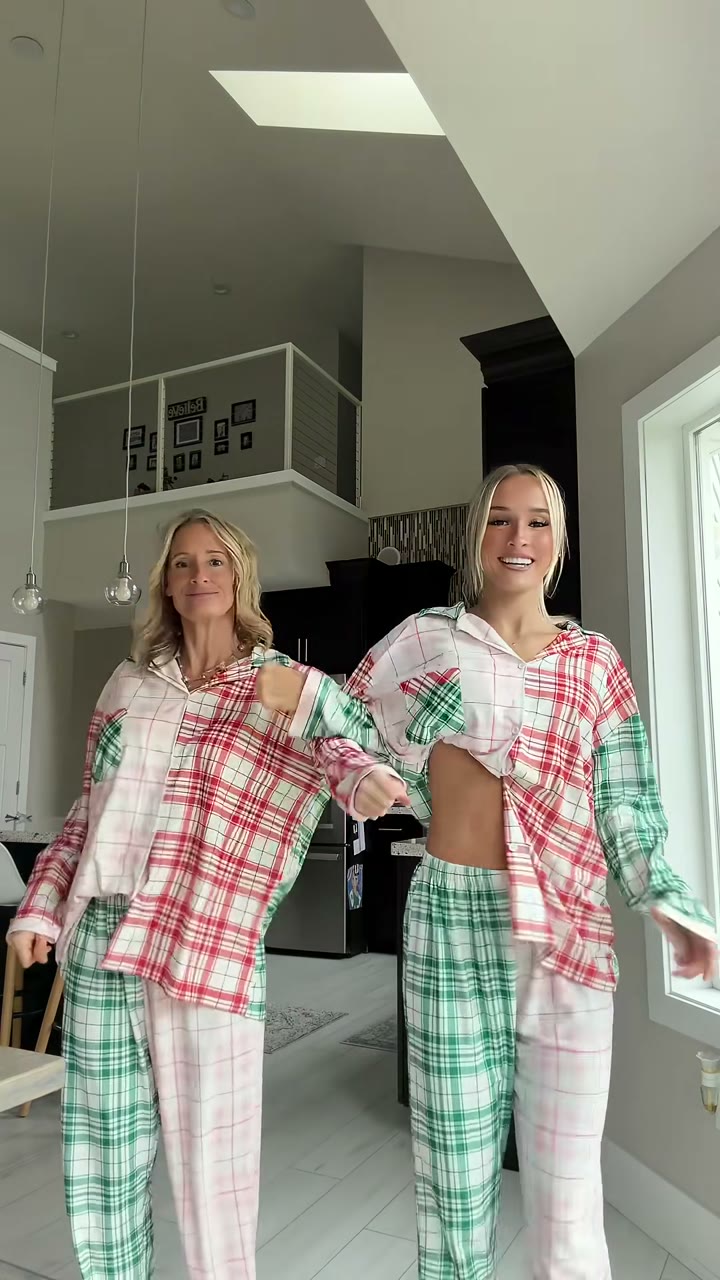
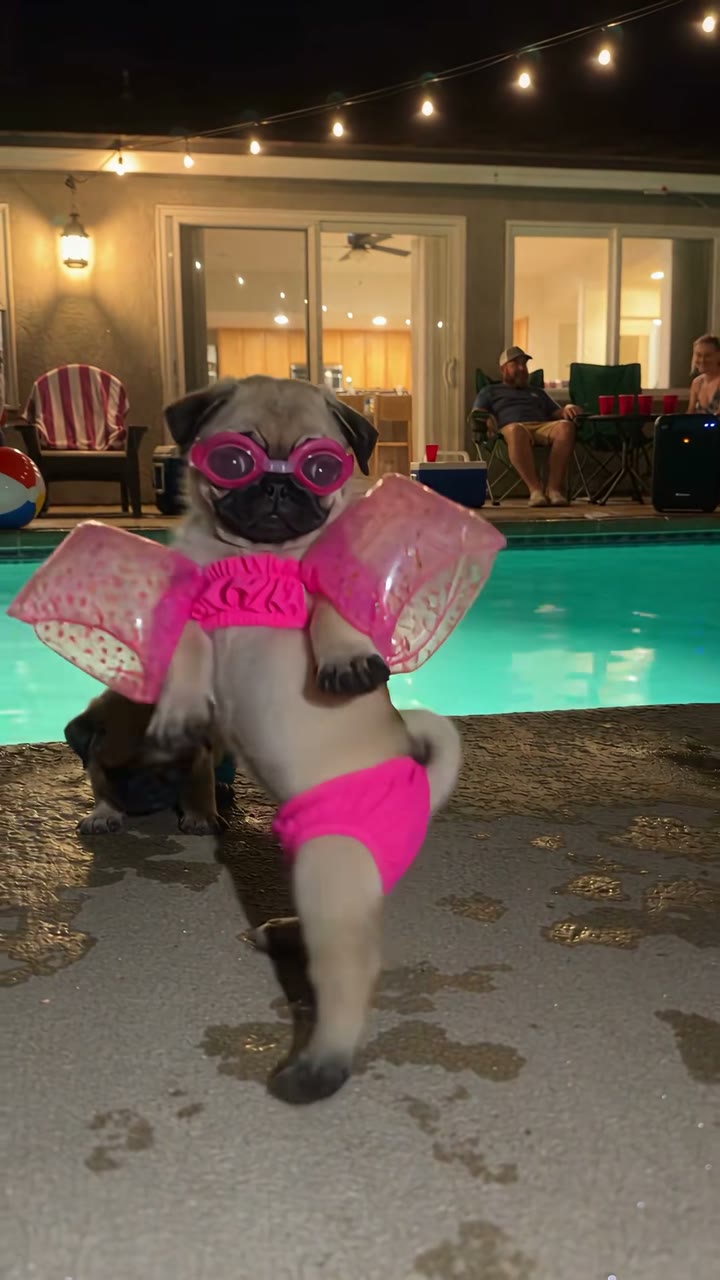

Christmas Photo Editor
Put any photo in a Christmas setting, faces untouched.
Drop a photo
or paste with ⌘V · JPG · PNG · WebP · up to 8 MB
No photo handy? Try one of ours.
More like this.
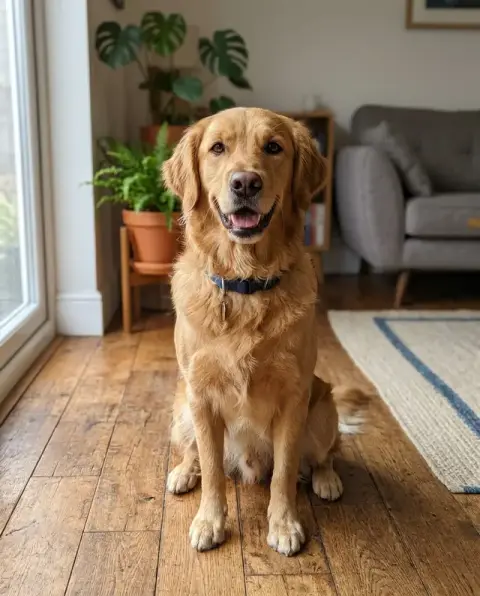
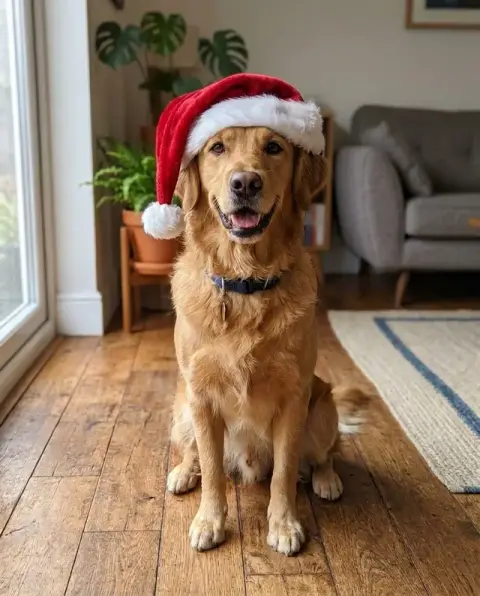
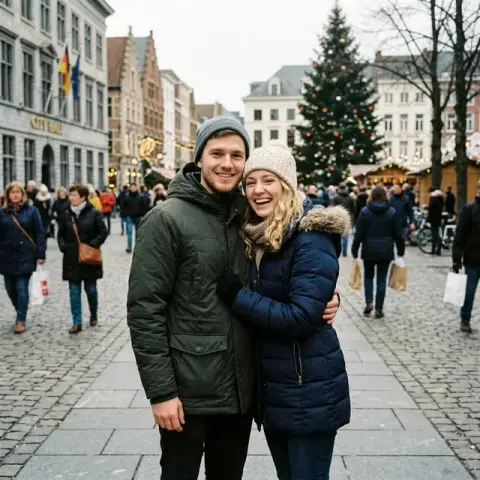
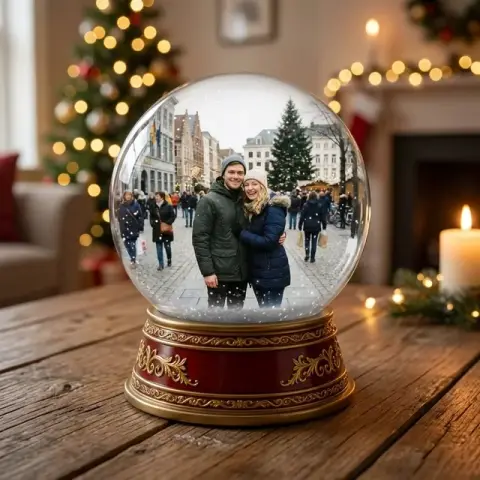
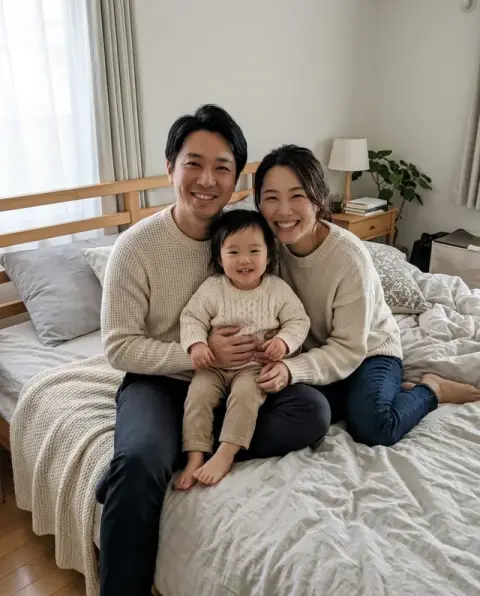
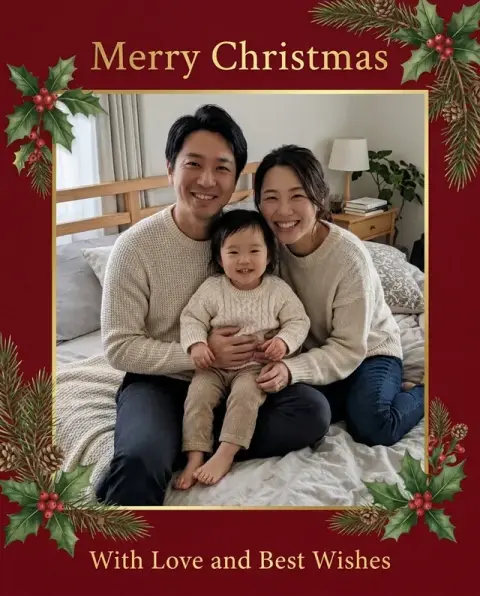
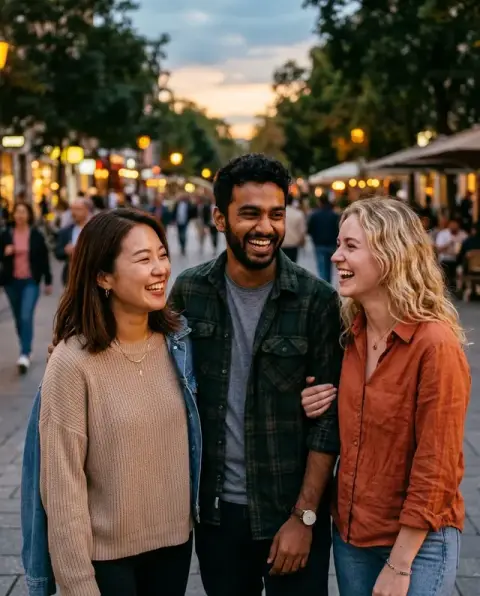
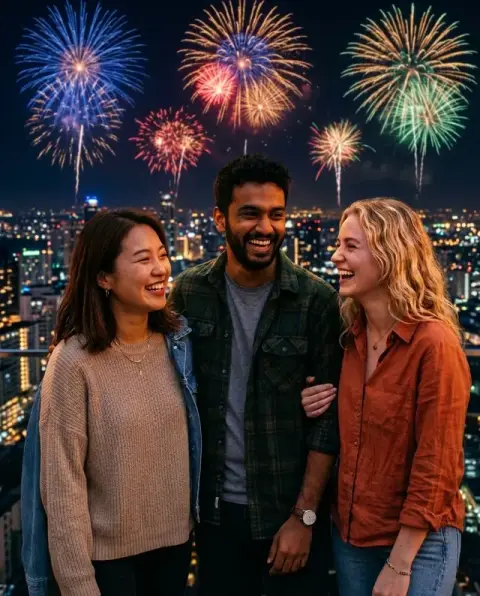


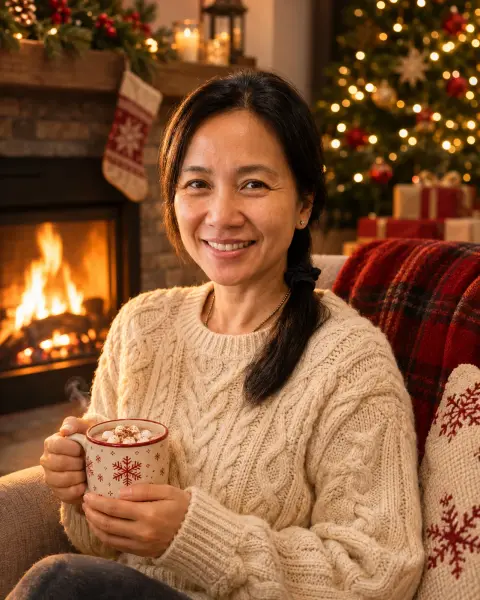
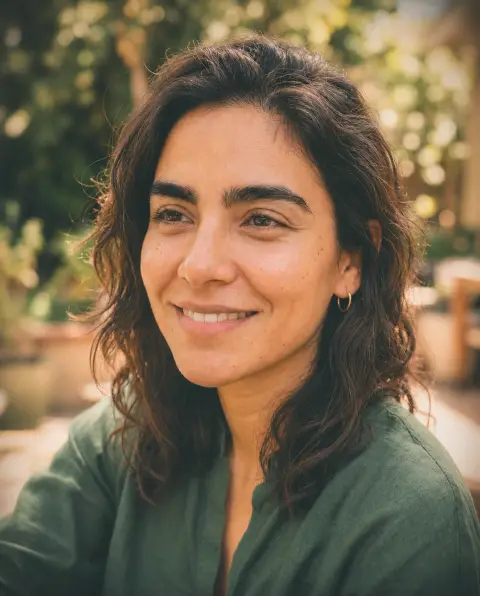
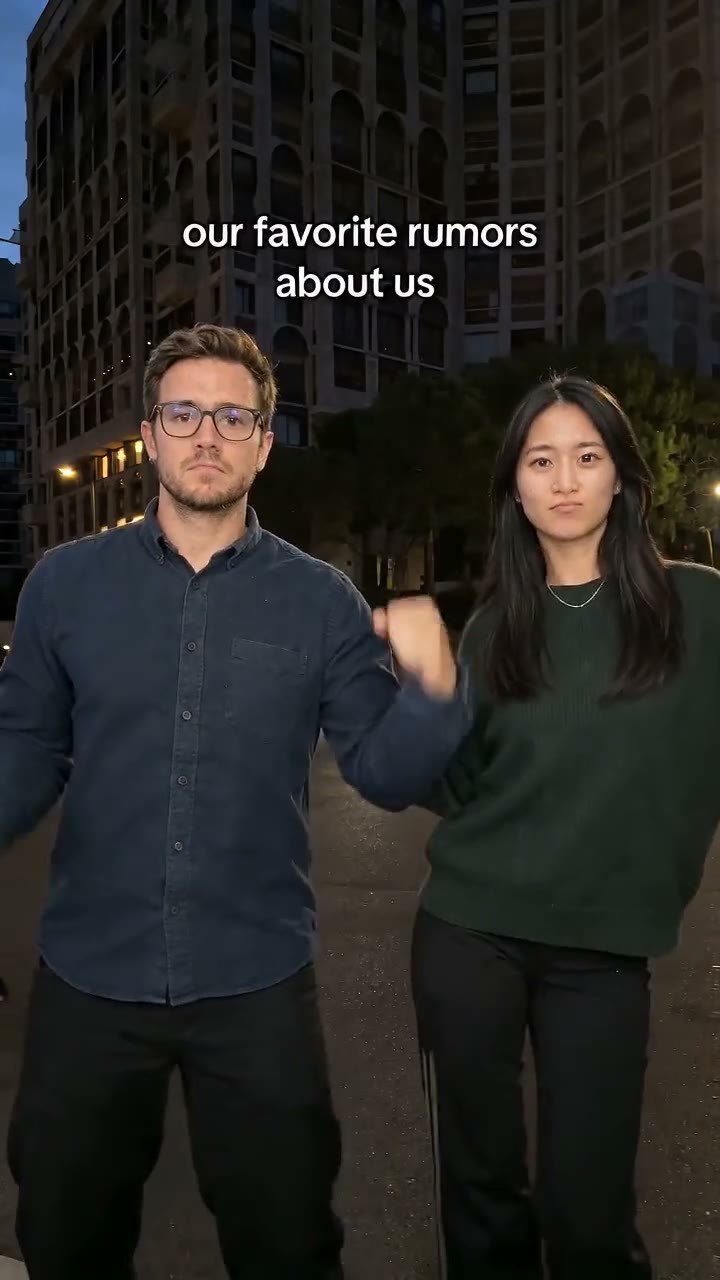
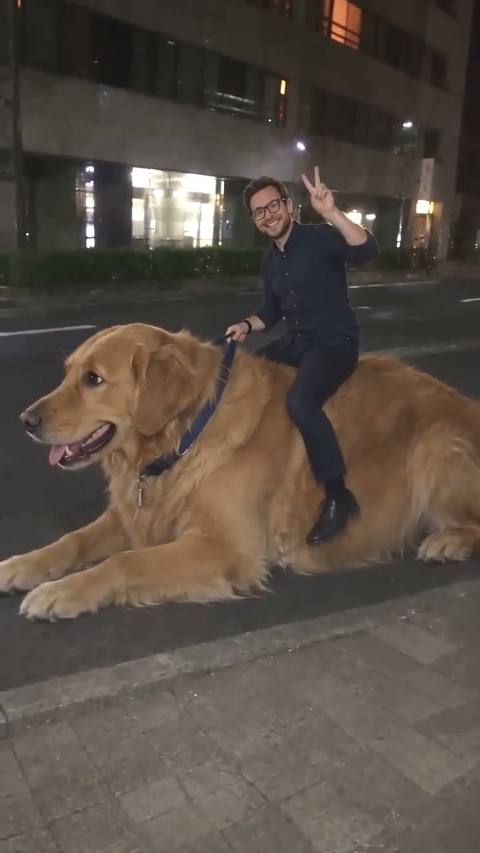
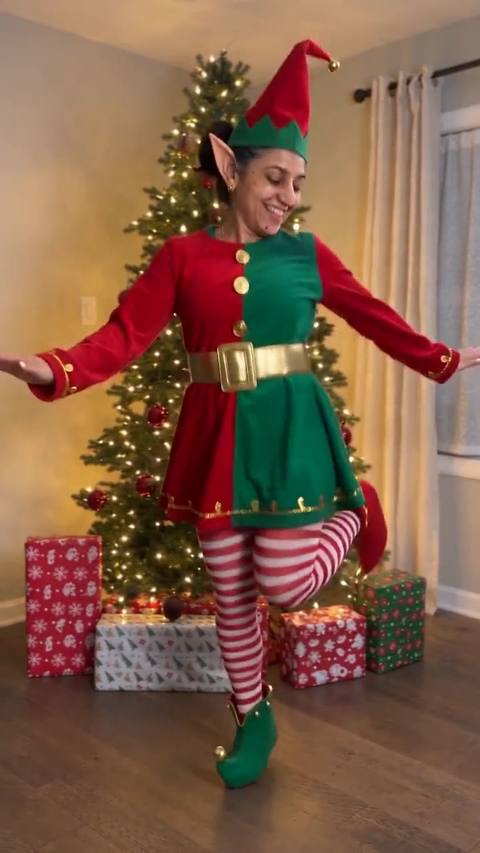
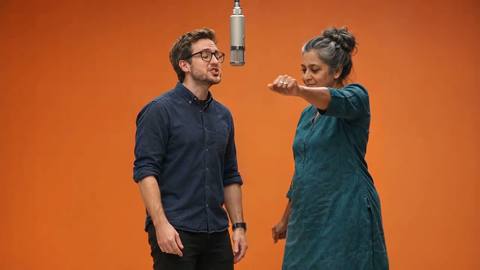
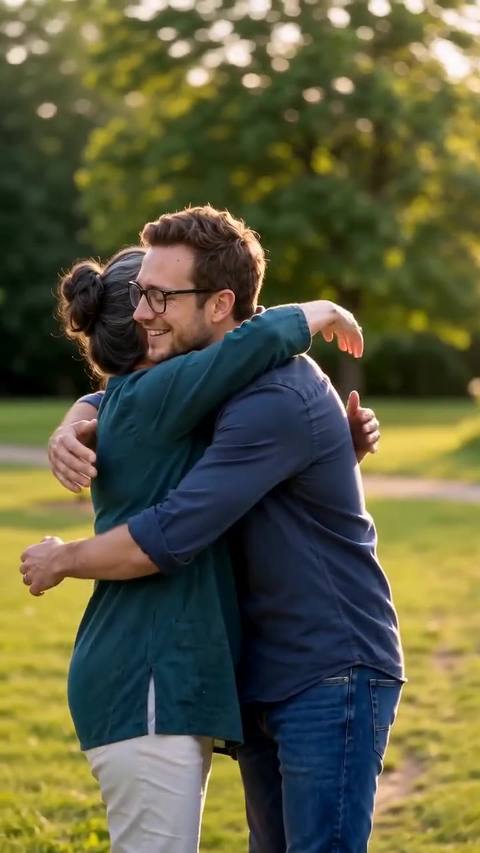
Indoors, snowy and studio scenes from the Christmas photo editor.
Real results from this page's default settings in one click, not retouched.How examples are made

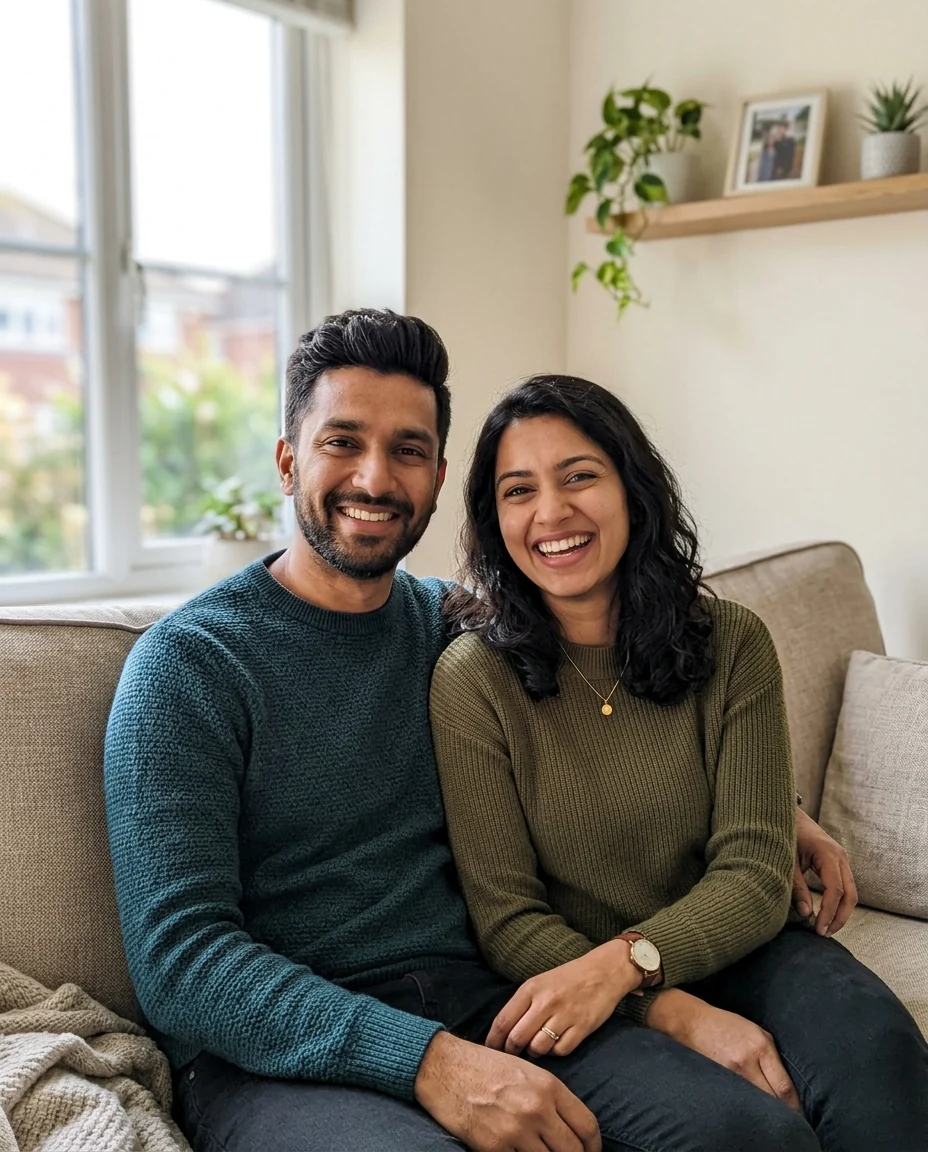
Cozy indoors
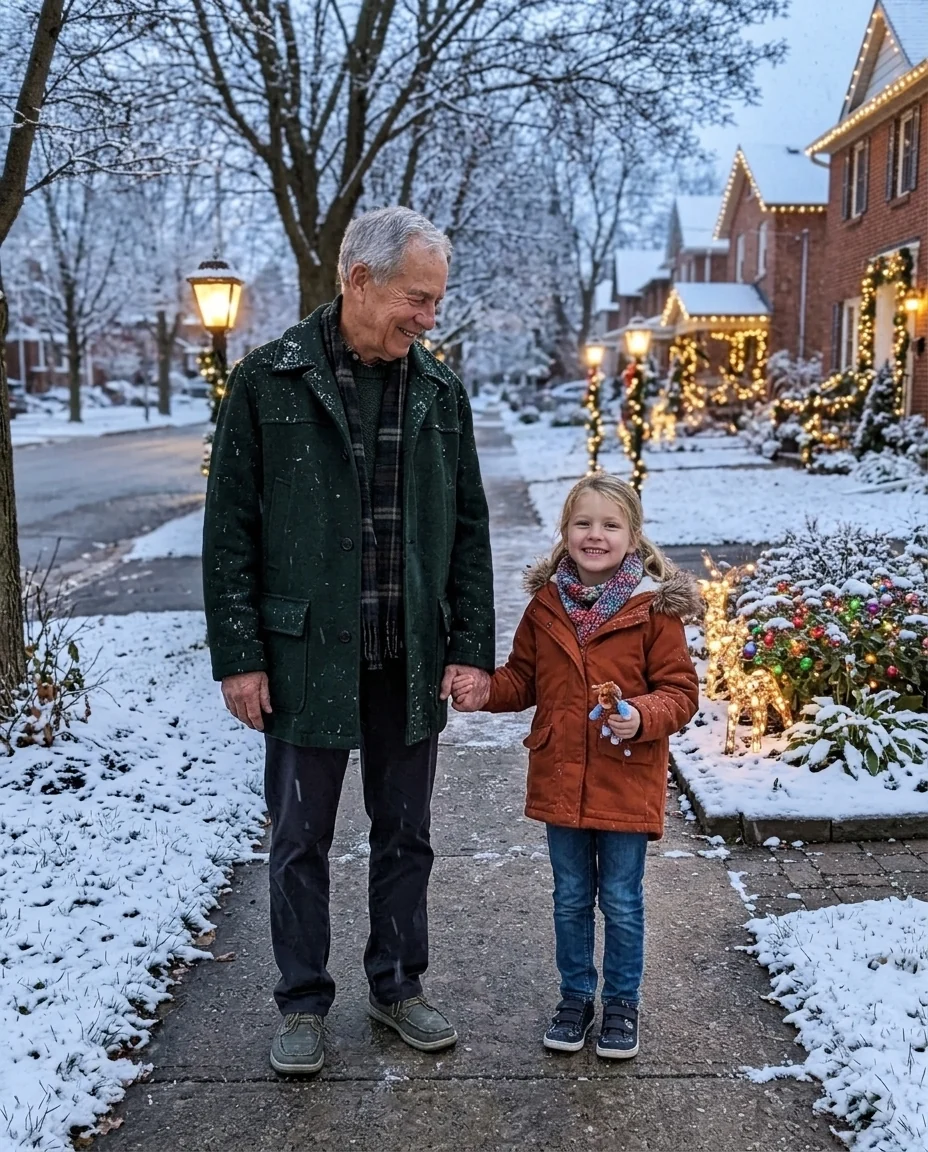
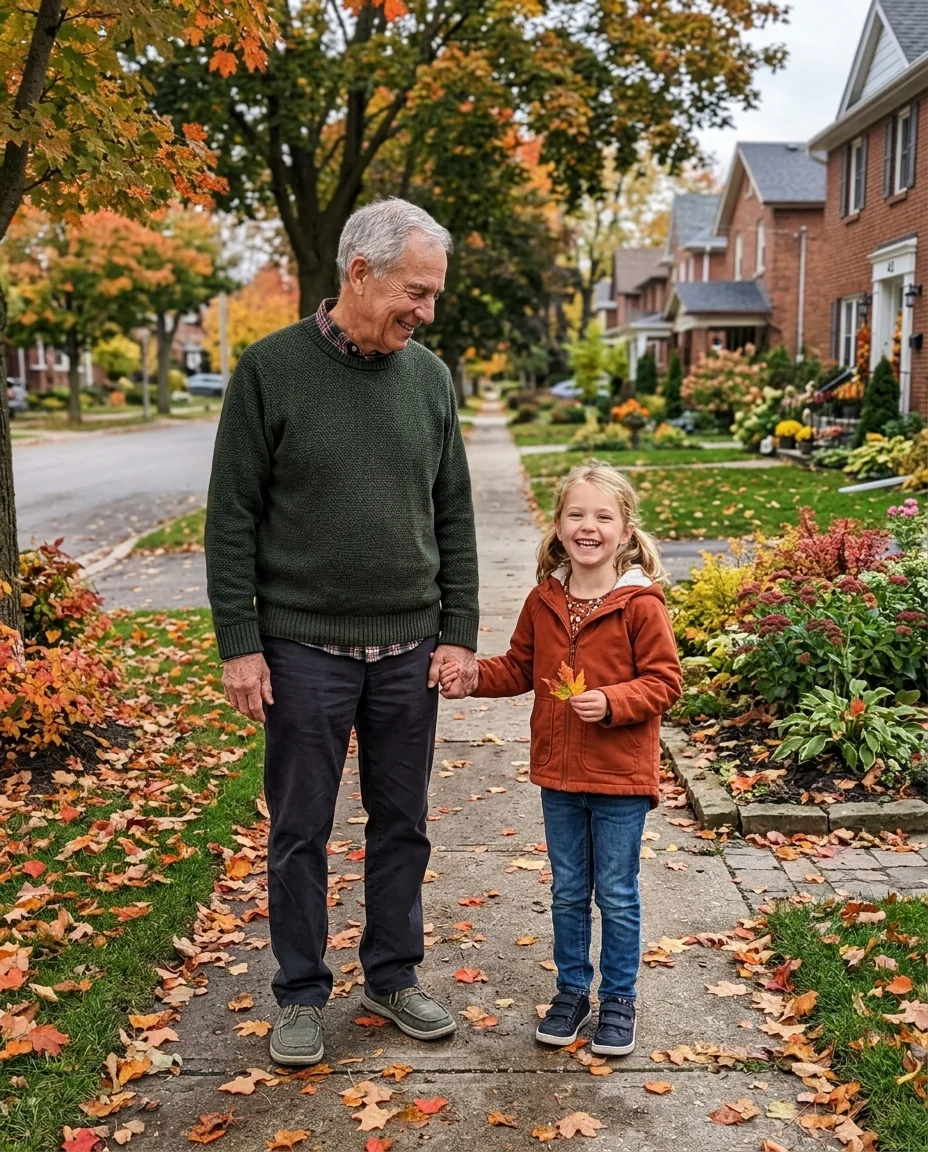
Snowy outdoors
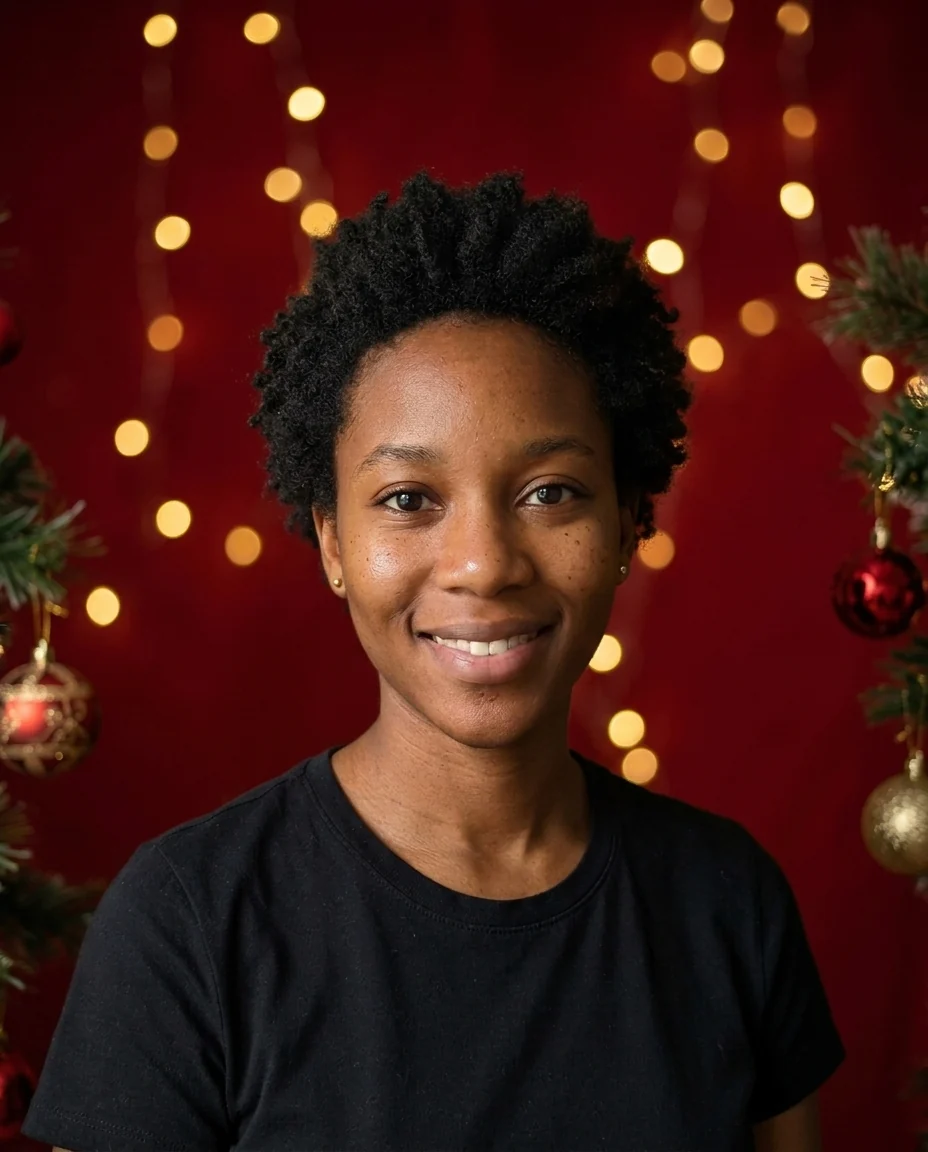
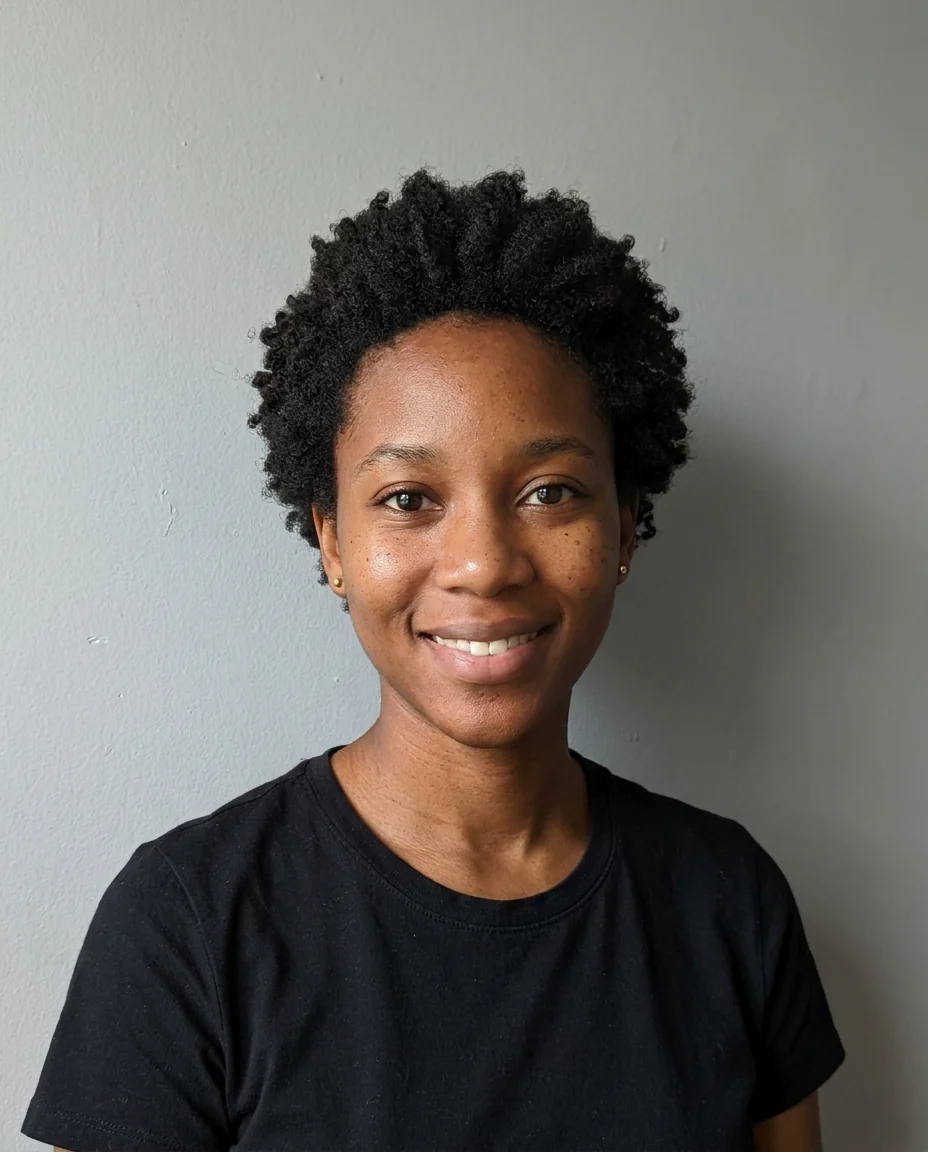
Studio portrait
What the Christmas photo editor changes around you.
Three Christmas scenes
A cozy living room, a snowy street or a red studio backdrop.
Faces stay the same
Only the setting, light and clothing change.
Groups and pets
Works on couples, families and pets as well as single portraits.
Christmas Photo Editor, step by step.
01
Upload a photo
Any photo with people or pets in it.
02
Pick a scene
Or choose Custom and describe your own.
03
Download
Post it or print it on a card.
Who uses a Christmas photo editor in December, and why.
- No time for a mini session
- Photographers' Christmas sessions book up fast and cost money. Take a photo of the family in the living room as it is, pick Studio or Indoors, and use the result on this year's card.
- A card from a summer photo
- Your best photo of the kids this year was taken on a beach in July. Upload it and pick Snowy to move them into a winter street, with coats and scarves added.
- The team holiday post
- A photo from the office party becomes a festive post for the company page or newsletter. Each face is kept; Studio gives the cleanest look for a work account.
- A festive profile picture
- Swap your avatar for December using a selfie you already like. Choose Indoors, and ask for a Santa hat if you want it to read as Christmas at a small size.
Christmas Photo Editor: best photos and fixes.
Photos that work best
Photos where everyone faces the camera, with faces large and sharp, give the most natural Christmas portraits. Group photos work well, as long as nobody is cut off at the edges. Ordinary indoor or outdoor photos are fine; the setting is replaced, so the original background does not matter much.
Indoors, Snowy or Studio
Indoors puts you in a cozy living room with a decorated tree, presents and a fireplace with stockings. Snowy moves you outside on a snowy evening in a decorated street, with winter coats added. Studio gives a deep red backdrop with golden bokeh, like a photographer's Christmas mini session. Choose Custom for anything else, such as "a Christmas market at night" or "a cabin porch with fairy lights".
Matching outfits and props
Write it in the instructions to dress everyone the same: "matching red pajamas", "Christmas sweaters" or "add a Santa hat to everyone". Props help too: "holding mugs of hot chocolate", "the dog wearing a red bow". Faces stay the same; only clothes and props change when you ask for them.
Pets and children
Pets are kept in the scene and can be dressed up. Children's faces stay as they are. When a pet or a child is small in the frame, crop closer before uploading so they are not lost when the background changes. Photos at children's eye level look more natural in the new scene.
Making it into a card
The scene comes back without text, so it is ready for a card design. Studio portraits leave the most room for a greeting on the backdrop around you; write "leave space above the people" if you need more. Add the greeting and names in a card app afterwards, where you can check spelling, and print from the largest download.
Light that matches the scene
Each setting comes with its own light: warm firelight indoors, cool evening light in the snow, soft studio light in front of the red backdrop. Faces are relit to match, which keeps them looking like part of the scene. If a face looks too warm or too cold, regenerate with "keep natural skin tones".
Couples and small groups
Two to five people facing the camera, standing close together, give the most natural holiday portrait. Larger groups work but faces at the edges get smaller. For a big family card, take one photo of everyone together rather than combining separate photos. Hold hands or lean in a little; it reads warmer in a holiday scene.
Christmas photo editor questions from families and pet owners.
Will it change our faces?
No. Faces, expressions and poses are kept; the background, light and clothing change.
Can I add text like "Merry Christmas"?
Use the Christmas card generator for a card with a greeting. This editor adds no text to the photo.
Does it work with pets?
Yes. Dogs and cats get the same treatment, including a small Santa hat if you ask for one.
Is the Christmas photo editor free?
Yes, you can try it free. New accounts get 25 free credits, and one generation here uses 9 credits. You sign in with your email; no card needed. Results have no watermark. After that, credit packs never expire, and your first one is half price.
How is it different from the Christmas filter?
This editor replaces the setting around you with a Christmas scene. The [Christmas filter](/effects/christmas-filter) adds a festive glow, a snow globe or a vintage card look to the photo instead.
What files can I upload?
JPG, PNG or WebP, up to 8 MB. On a computer you can also scan a QR code to send the photo from your phone; the link works for 10 minutes.
Will it work on a blurry or low-resolution photo?
Yes, but small or blurry faces stay soft in the new scene. Use the largest copy you have, or run [unblur image](/tools/unblur-image) first.
Can I try another scene with the same photo?
Yes. Pick a different scene and run it again; each run gives a new variation, and failed runs are refunded automatically.
Who owns the result?
You own the images you generate as far as the law allows, and you keep the rights to the photos you upload.
Are our family photos used to train AI?
No. Photos, prompts and results are not used to train AI models. Results stay in My files for 48 hours, or 30 days once you've bought a credit pack, and you can delete them sooner.