Add Emoji to Photo
Cover faces or decorate with emojis.
Drop a photo
or paste with ⌘V · JPG · PNG · WebP · up to 8 MB
No photo handy? Try one of ours.
Add Emoji to Photo examples.
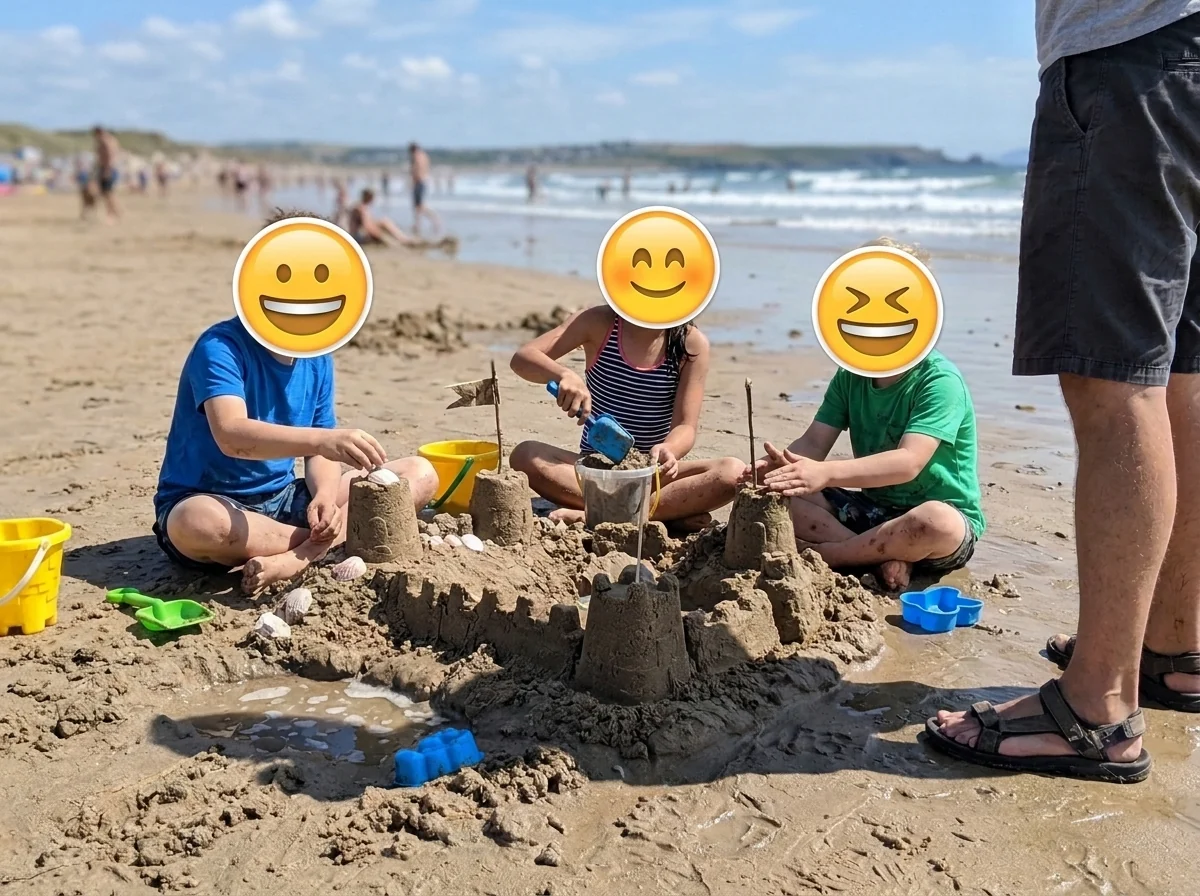
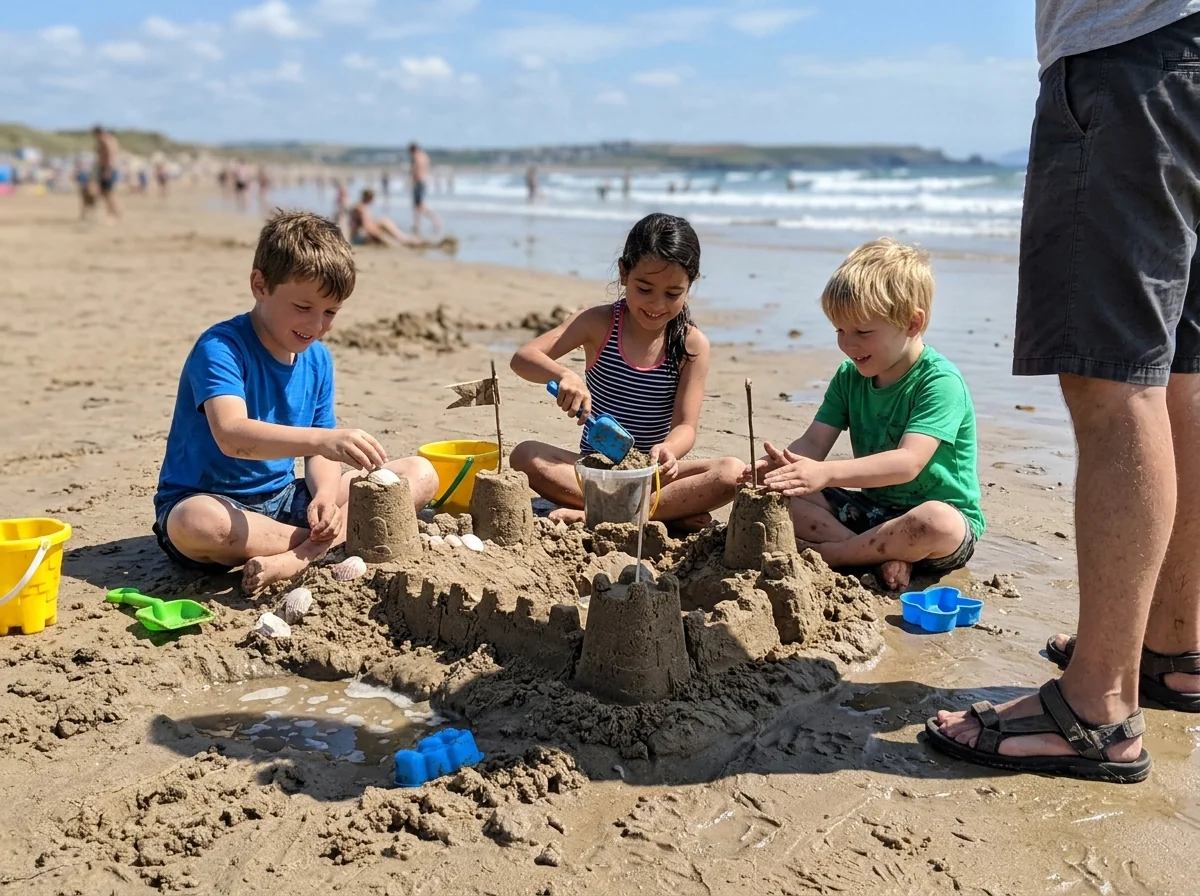
Hide kids' faces
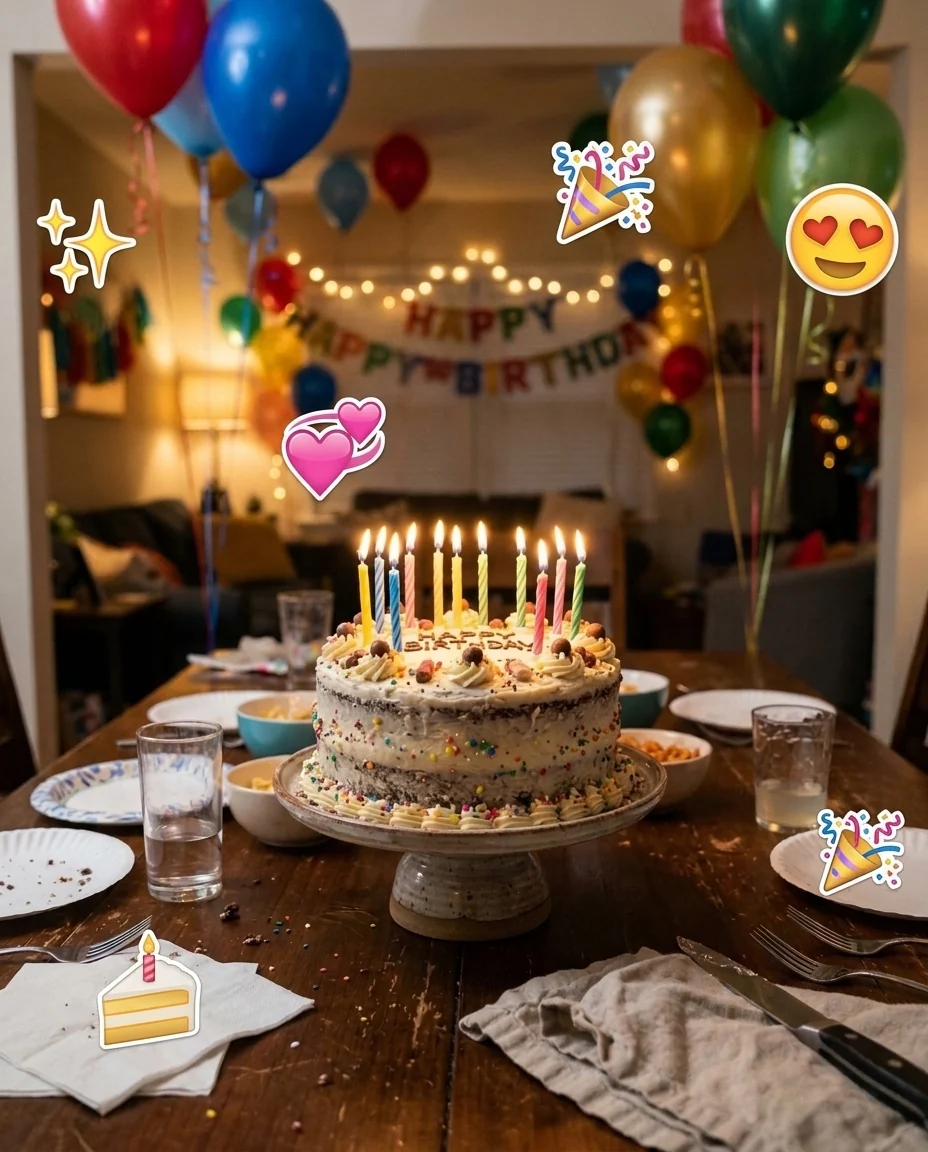
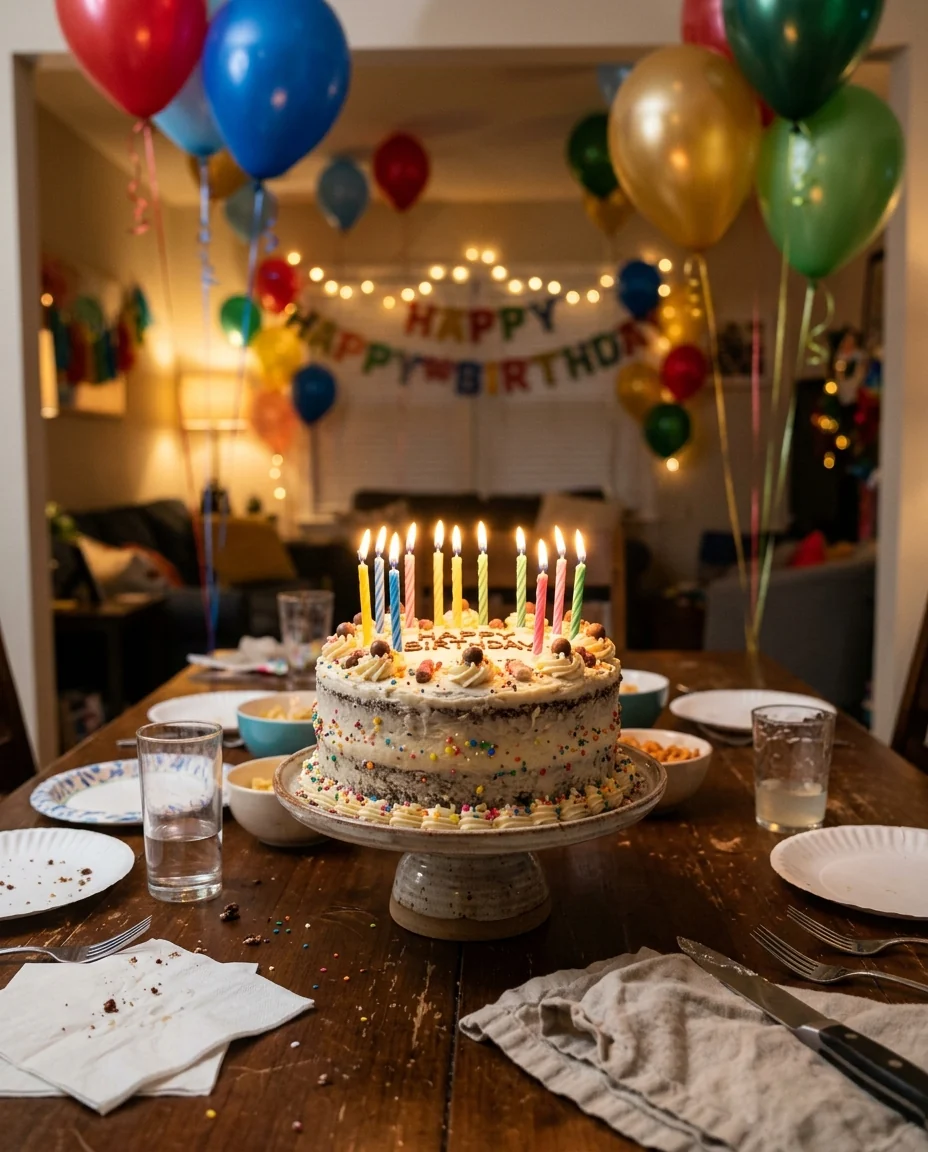
Party decorations
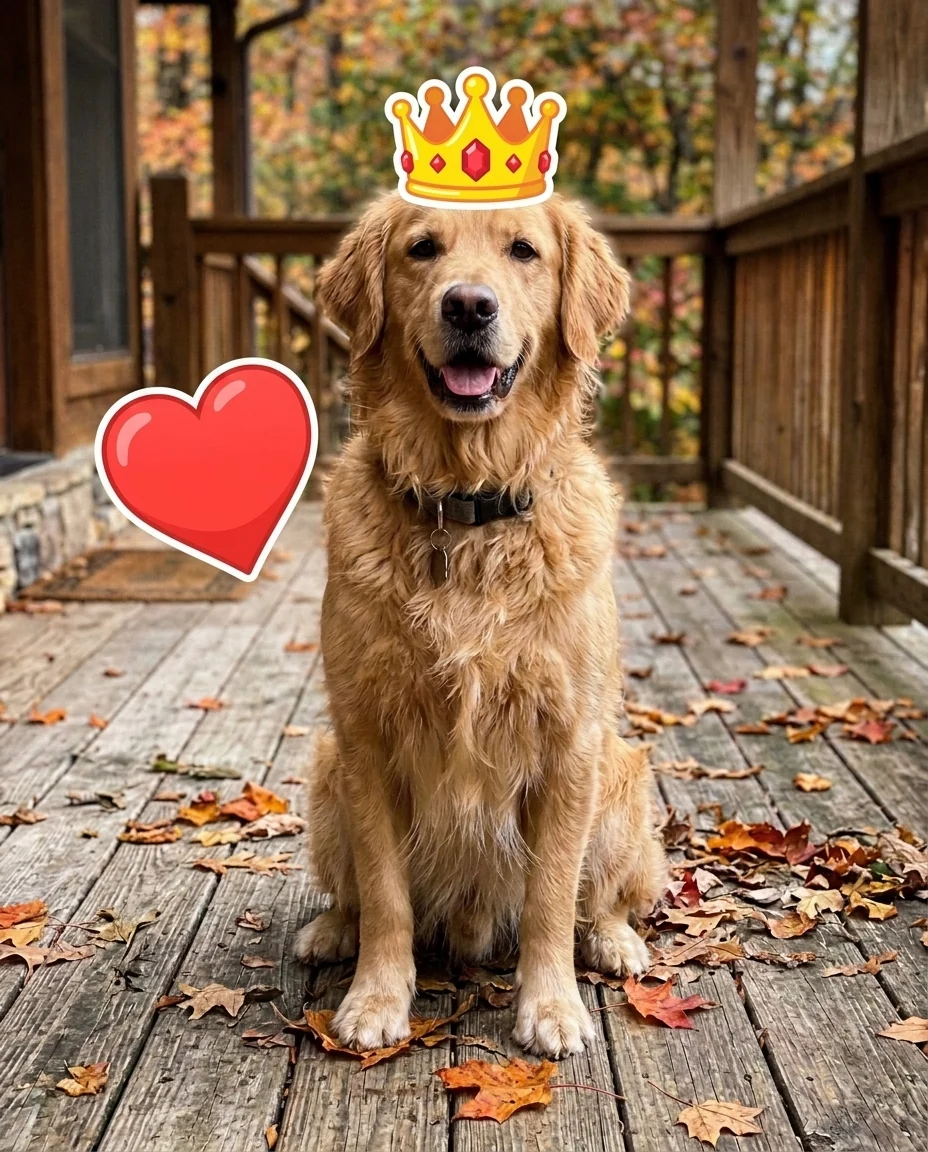
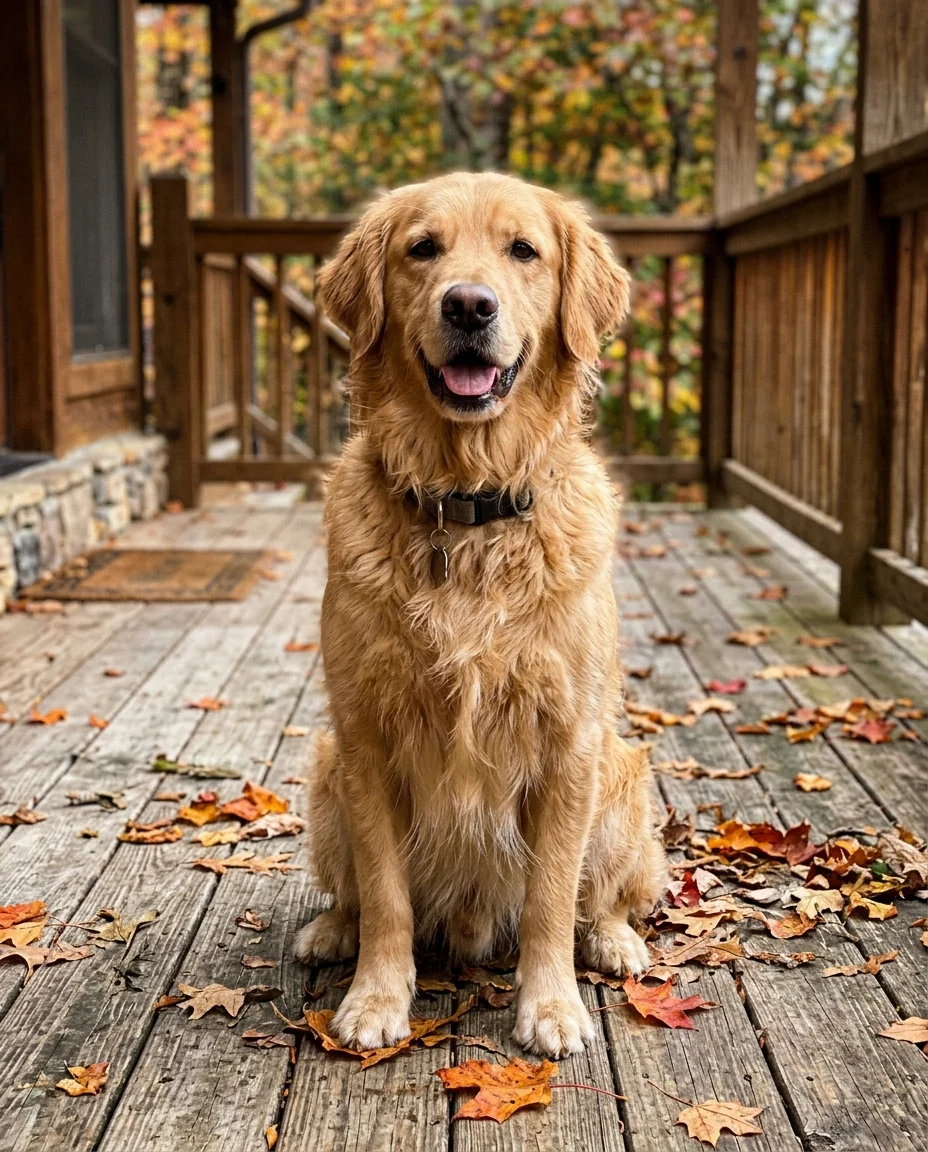
Exactly where you want
Add Emoji to Photo features.
Cover faces for privacy
A smiley over each face in one step.
Decorate
A few emojis that fit the photo.
Say what goes where
"A crown on the dog's head".
Add Emoji to Photo, step by step.
01
Upload a photo
Any photo from your camera roll.
02
Pick Cover faces or Decorate
Or Custom to describe it.
03
Download
Post it or send it.
Add Emoji to Photo use cases.
- Kids and privacy
- Hide children's faces before posting family photos.
- Party and holiday posts
- Decorate a picture with emojis that fit the moment.
- Pet photos
- Give your pet a crown, hearts or sunglasses.
Add Emoji to Photo: best photos and fixes.
Covering faces for privacy
Cover faces puts one large smiley over each face, hairline to chin, so the face itself is hidden. Hair, clothes and surroundings can still identify someone. It's a quick way to share photos of children, of friends who prefer not to be online, or of strangers in the background. Check every face in the result before you post: in a busy photo a small face at the edge can be missed. If one is, write "also cover the face of the person on the far right".
Which emoji goes where
With Custom you describe the emojis and where they sit: "a sunglasses emoji over his eyes", "three hearts in the top right corner", "a laughing emoji over each face". Naming a place in the photo, like a corner, a person or an object, works better than describing a size. Emojis are drawn in a familiar glossy style, so they look like standard emojis, though small details can differ from the ones on your phone.
Decorating with a few emojis
Decorate adds three to five emojis that match the scene, such as cake and party poppers for a birthday or sun and waves for the beach, placed in empty areas and not over faces. Fewer, larger emojis look cleaner than many small ones. If you want a specific set, use Custom and list them, for example "a rainbow and two stars".
Stickers and other shapes
Besides emoji faces, you can ask for sticker-style shapes: hearts, stars, crowns, sparkles, flowers or arrows. They get a thin white outline like stickers in a story app. Words and captions are not added, because text is better typed in your phone's editor, where you control the font and spelling.
Photo stays the same
Only the emojis are added; the photo underneath, including faces that aren't covered, colors and framing, is kept. The result is a new image file, so the emojis are part of the picture and can't be moved afterwards. Keep your original if you might want a different version later. Removing emojis from a photo is a different job, done by the emoji remover.
Related tools
To make your own custom emoji from a photo or idea, the AI emoji generator draws a single new emoji on a transparent background. The sticker generator turns photos into die-cut stickers. To remove stickers or emojis from a photo, use the emoji remover, and to erase captions, use remove text from image. Background changer swaps the whole scene behind you.
Add Emoji to Photo FAQ.
Can it hide every face in a group photo?
It puts an emoji over each face it finds, but small faces can be missed. Check every face, and name any that were missed.
Can I pick a specific emoji?
Yes. Choose Custom and describe it, for example "a sunglasses emoji over his eyes".
Can it add text too?
No. It adds emojis and sticker shapes only. Add captions in your phone's editor afterwards.
Is the Add emoji to photo free?
Yes, you can try it free. New accounts get 15 free credits, and one generation here uses 13 credits. You sign in with your email; no card needed. Results have no watermark. After that, plans add credits every month and credit packs never expire.