Image Extender
Zoom out and add the scene around your photo.
Drop a photo
or paste with ⌘V · JPG · PNG · WebP · up to 8 MB
No photo handy? Try one of ours.
Image Extender examples.
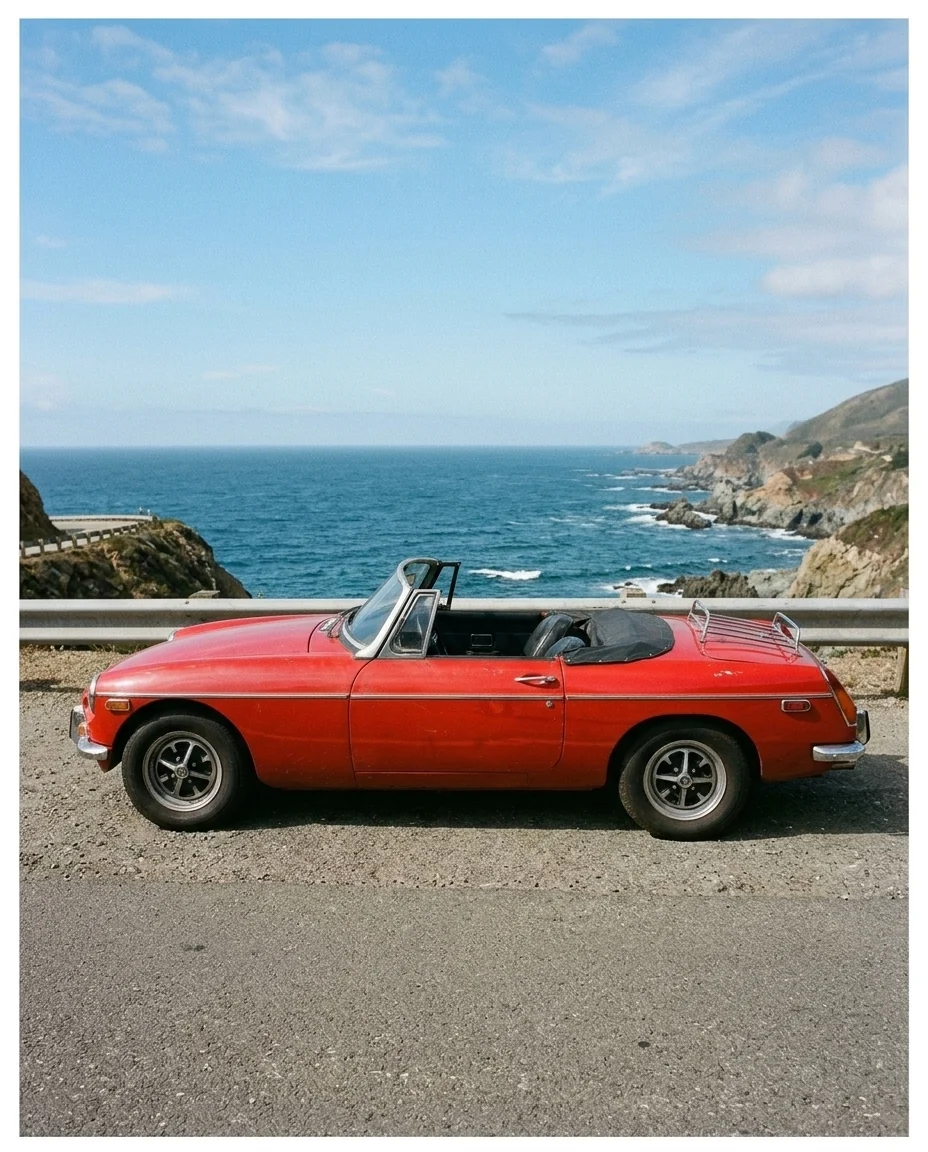
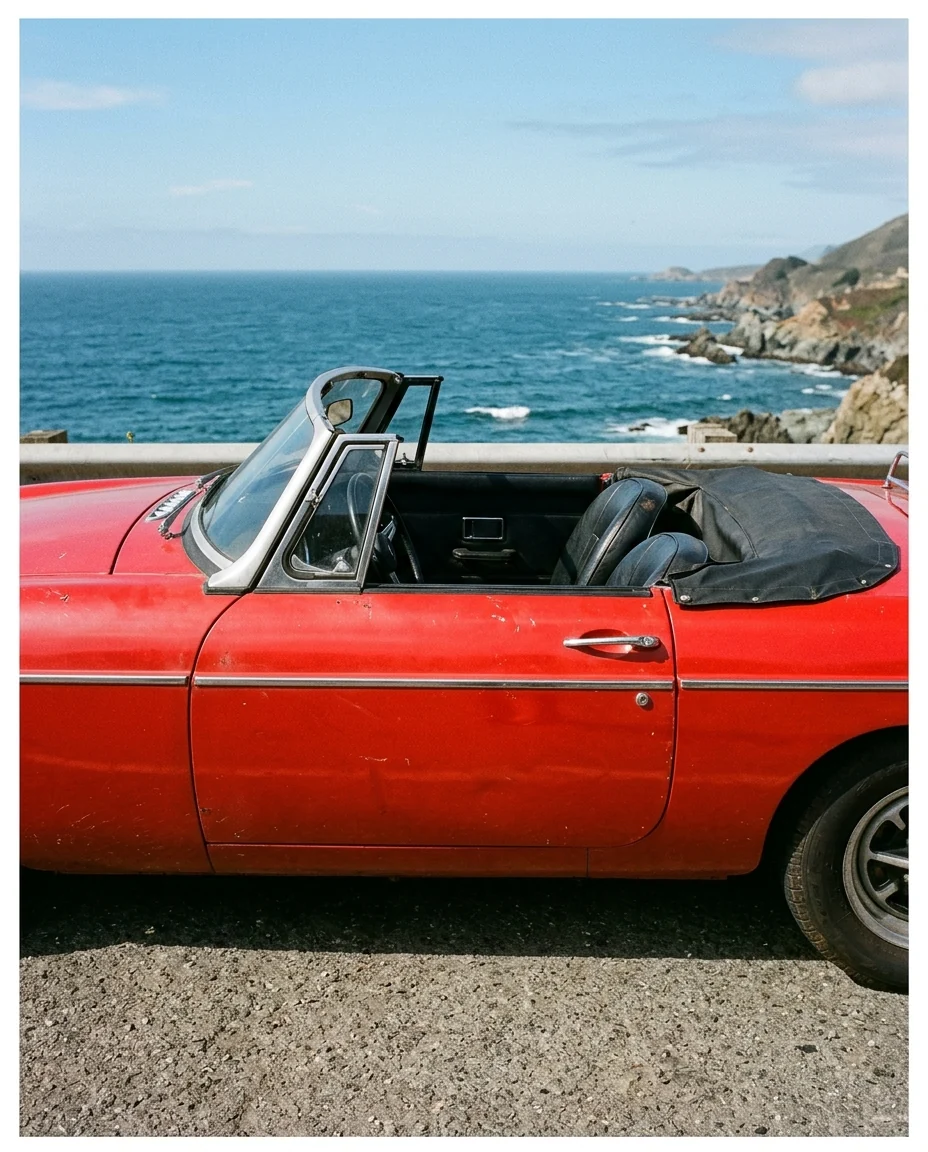
Whole car back in frame
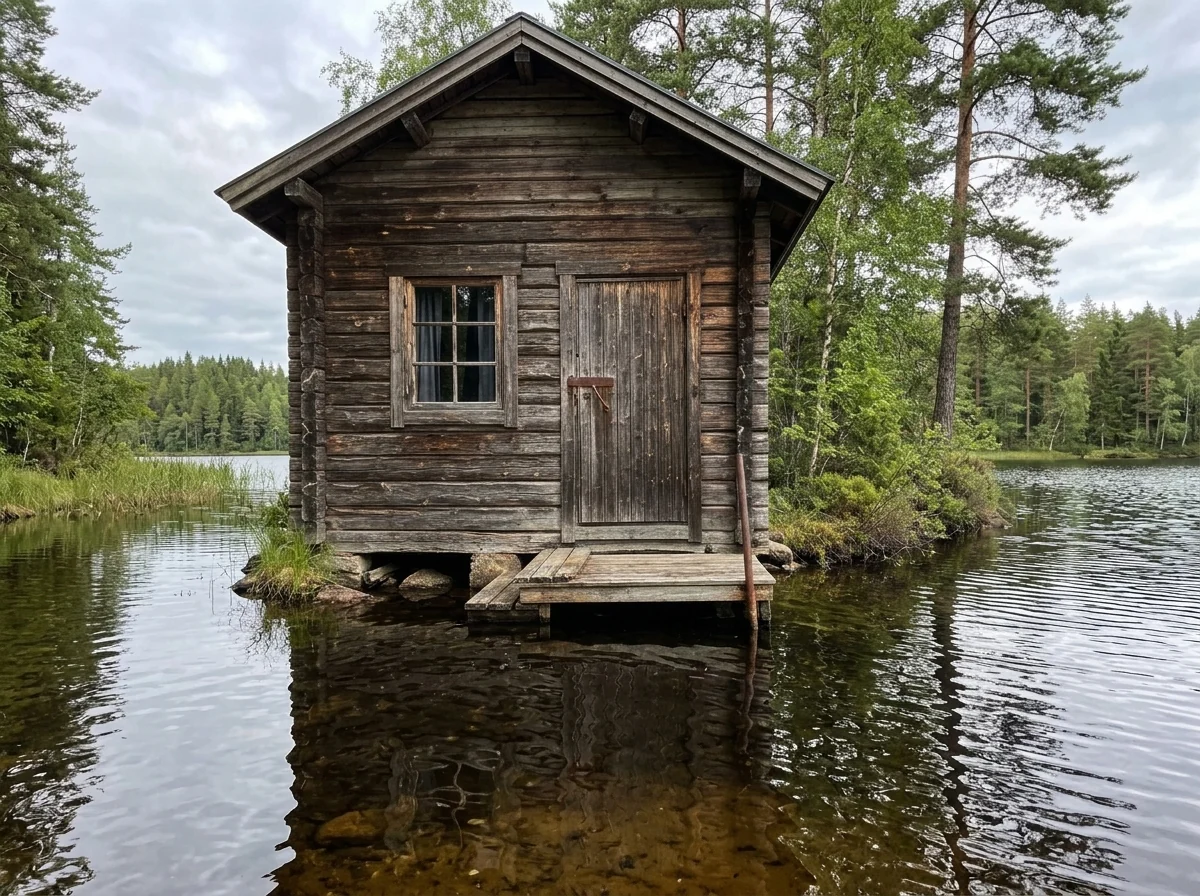
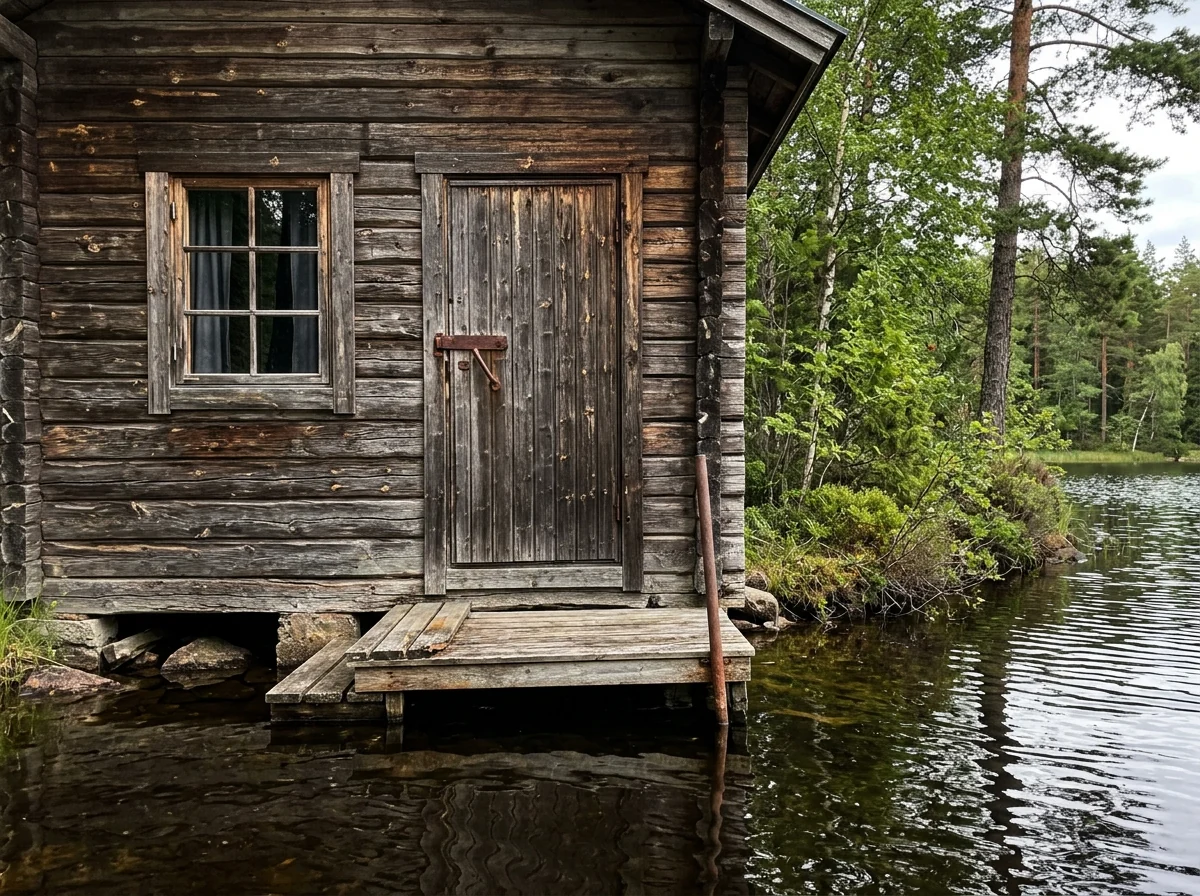
Wider landscape


More of the table
Image Extender features.
Zooms out
Your photo sits in the middle; new scene is added around it.
Completes the cut-off
Heads, roofs and table edges are finished.
Matches the look
Light, perspective and grain carry into the new areas.
Image Extender, step by step.
01
Upload a photo
One that feels too tight or cut off.
02
Pick how far to zoom out
A little or a lot.
03
Download
Crop the wider version to any shape you need.
Image Extender use cases.
- Fixing tight crops
- Get back the top of a head or a pair of feet.
- Room for titles
- Make empty space around a subject for text.
- Easier cropping
- Get enough scene to crop the same photo for different posts.
Image Extender: best photos and fixes.
Photos that extend well
Scenes with simple, continuous surroundings extend most convincingly: sky, sea, grass, walls, floors, forests and city streets. Portraits cropped too tightly are a good case too, because the missing top of a head or shoulders follows a predictable shape. Busy scenes with crowds, text on signs or complex architecture at the very edge are harder: the new area has to invent a lot, and invented signs or faces may look less believable up close.
A little or a lot
A little keeps the original at about 70% of the width, so only a margin of new scene is added and it closely follows what was at the edges. A lot shrinks the original to about half the width and invents much more surroundings, which is useful for banners and wide wallpapers but leaves more room for surprises. If you need a big zoom-out, running A little twice on the result is often more faithful than one large step.
Steering what gets added
Without instructions the new area continues what is already there. To guide it, write what should be just outside the frame: "more beach and sea on both sides", "the rest of the living room with a sofa on the left", "empty sky above for a title". This is useful when you need clean space for text in a thumbnail or header, because the default may fill the space with more detail.
Keeping the original sharp
The original area is kept, but the whole image is redrawn at the same output size, so a large, sharp photo becomes a wider image where the original part is slightly smaller. Very small or compressed uploads give a soft result overall. Start from the largest file you have. If the extended version looks soft, the unblur image tool can sharpen it afterwards.
Changing the shape
The result keeps your photo's aspect ratio, just zoomed out, so the original sits smaller inside a wider view of the same scene. That gives you room to crop: after A lot, a tight vertical photo has enough new scene to crop a square or a 4:5 post without cutting into the subject. For a very wide banner, start from a horizontal photo, or put the subject on a new wide scene with the background changer.
When the seam shows
A visible line, a change in grain or a slight color shift between old and new areas usually comes from strong vignetting, heavy filters or text near the edge of the original. Remove filters if you can and upload the unedited photo. Regenerating once often gives a cleaner join. For product shots on plain backgrounds, the background changer may be simpler than extending.
Image Extender FAQ.
Does my original photo change?
It is kept in the middle of the new image. The whole image is redrawn at output size, so very fine detail can soften slightly.
Can I choose a new aspect ratio?
The result keeps the same ratio, zoomed out. Crop the wider image to any shape you need afterwards.
Can I tell it what to add?
Yes. Write it in the instructions, for example "more sky above" or "a sofa on the left".
Is the Image extender free?
Yes, you can try it free. New accounts get 15 free credits, and one generation here uses 13 credits. You sign in with your email; no card needed. Results have no watermark. After that, plans add credits every month and credit packs never expire.