

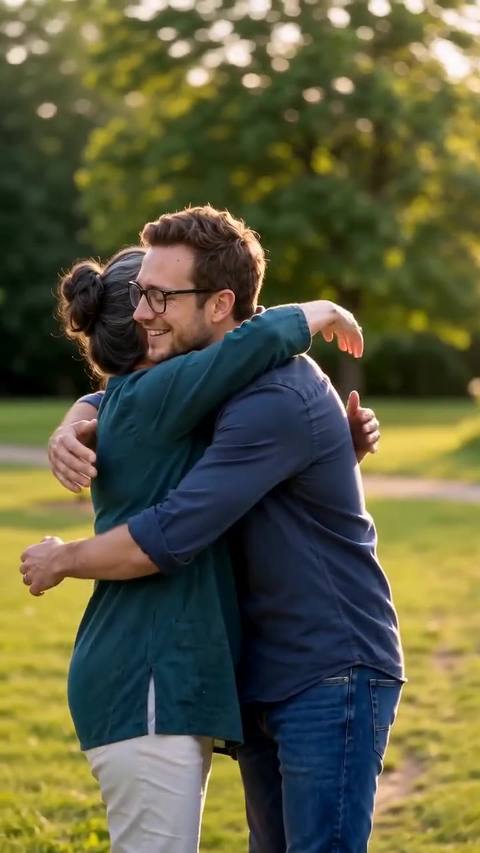



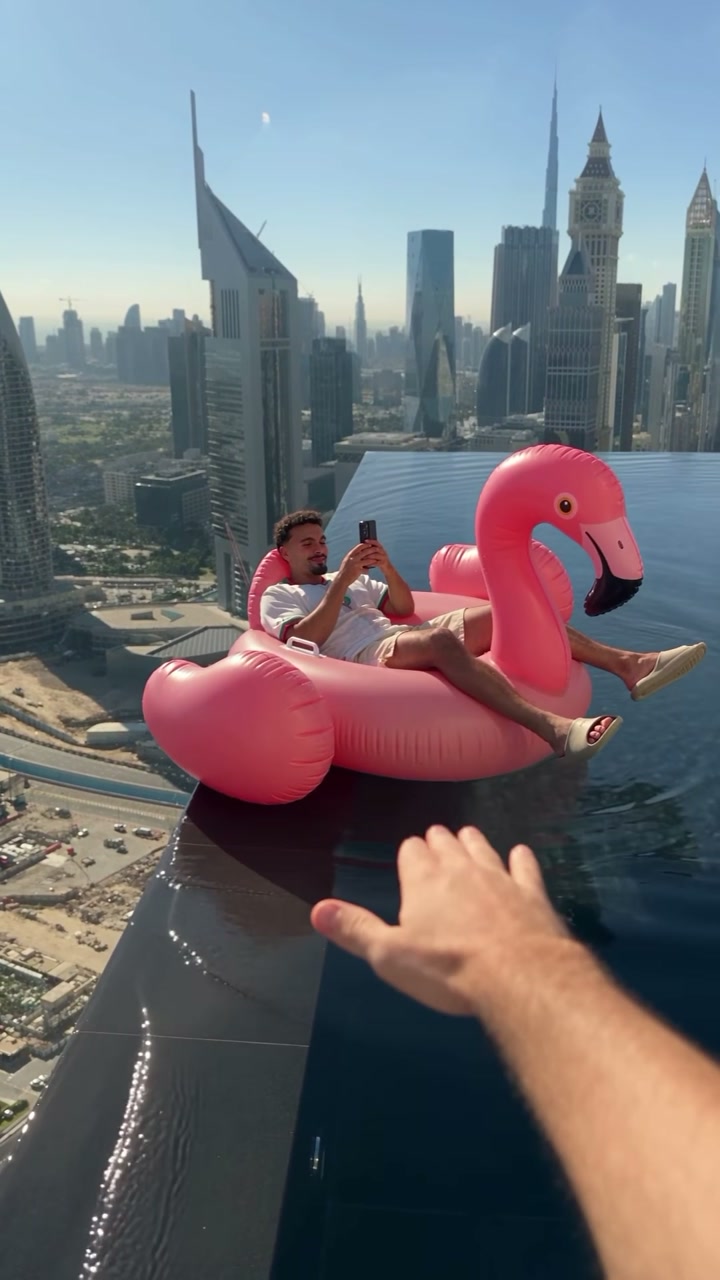
Remove People from Photos
Erase strangers, tourists and photobombers from your pictures. The AI rebuilds the background behind them so nothing looks edited.
Drop a photo
or paste with ⌘V · JPG · PNG · WebP · up to 8 MB
No photo handy? Try one of ours.
More like this.

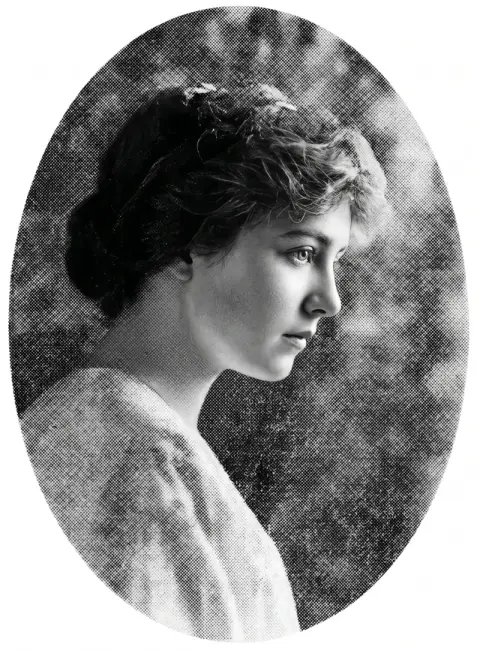
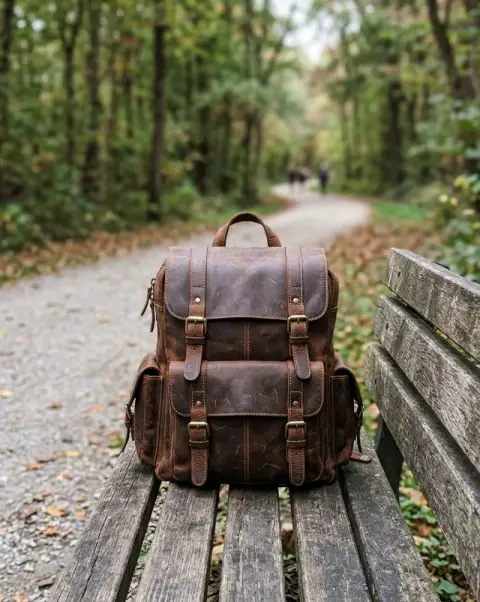
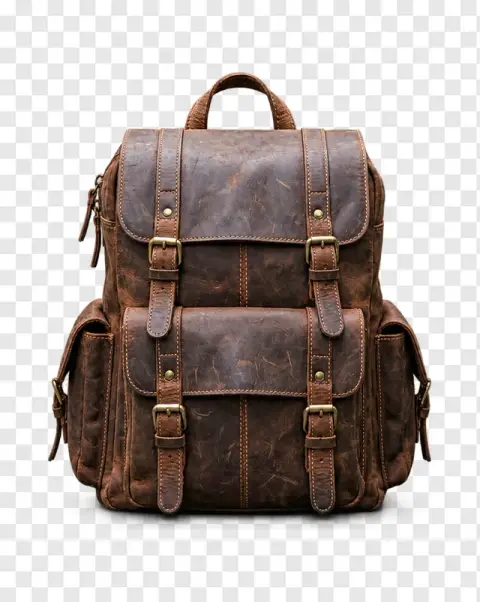
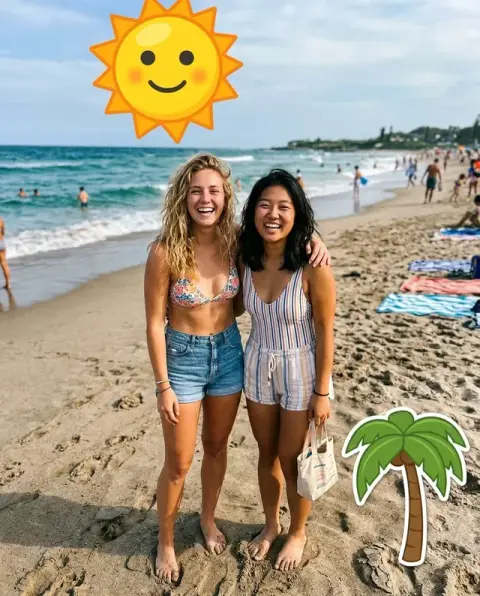
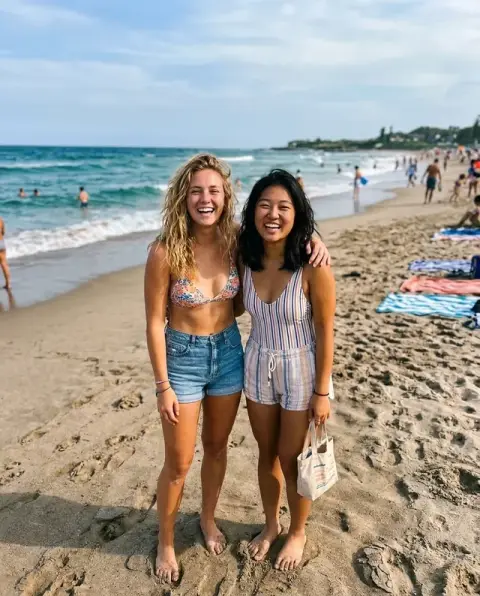
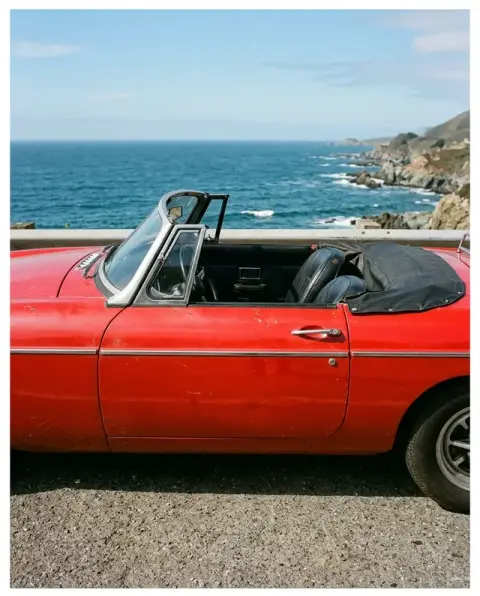
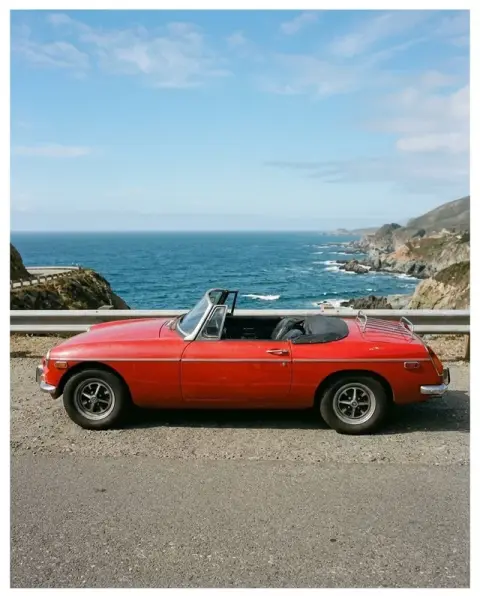
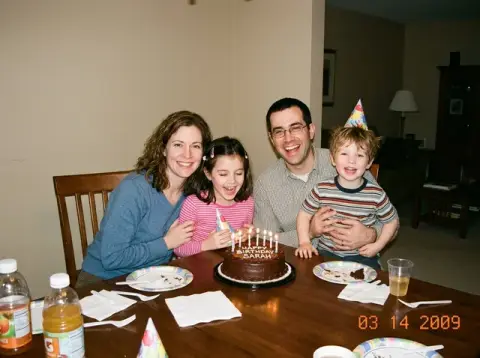
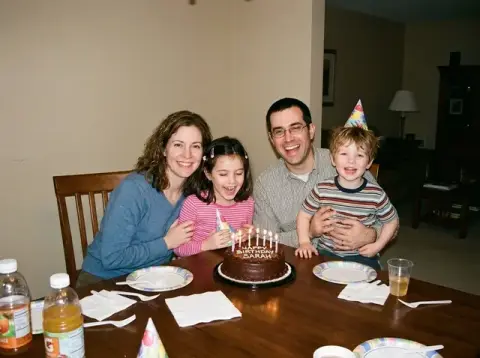
Remove People from Photos examples.
Real results from this page's default settings in one click, not retouched.How examples are made

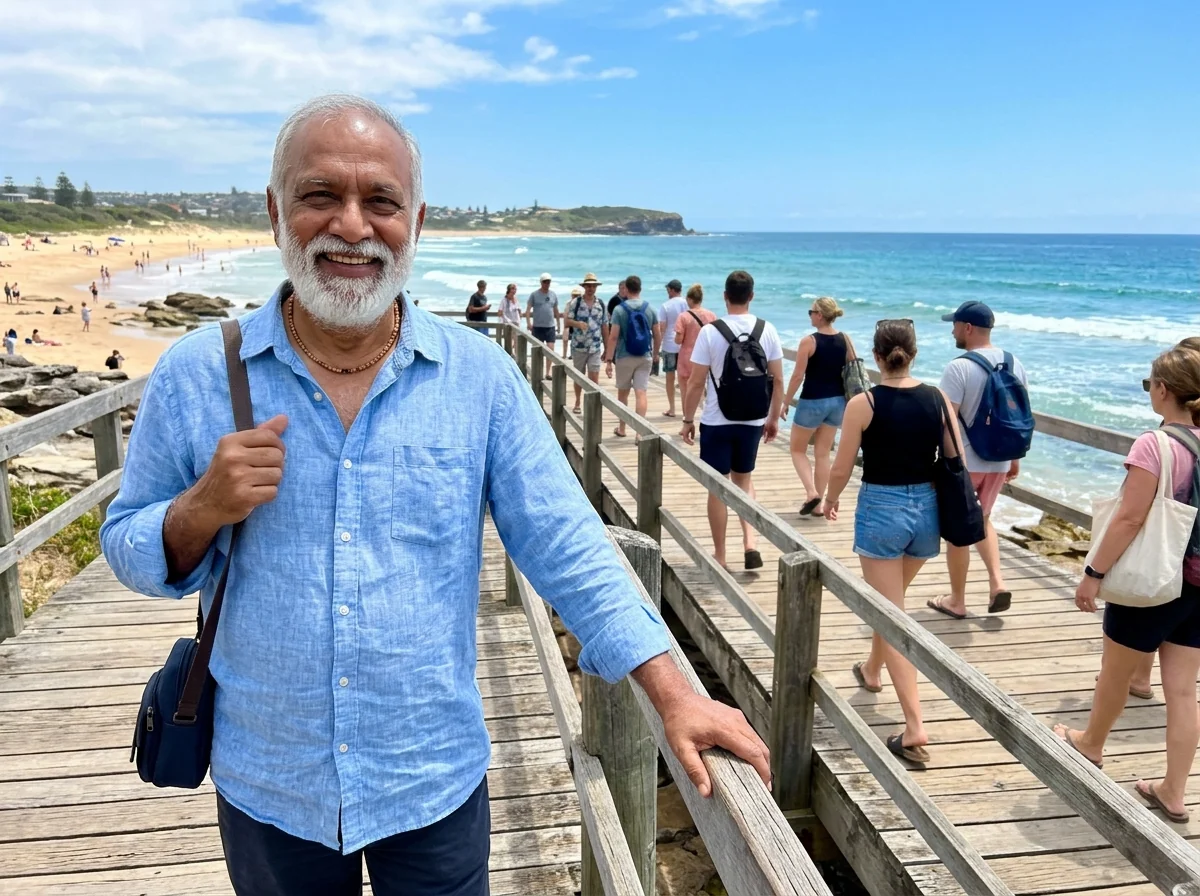
The boardwalk with only the man left
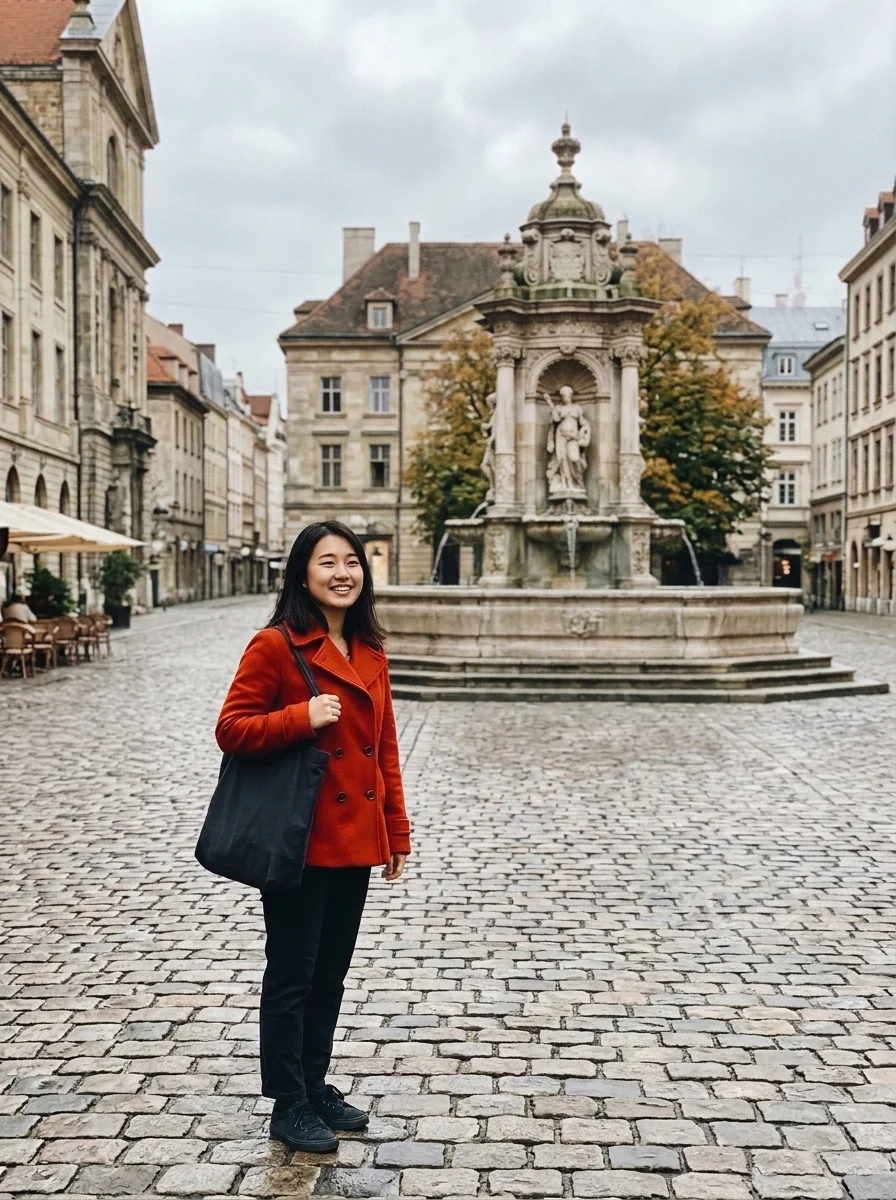
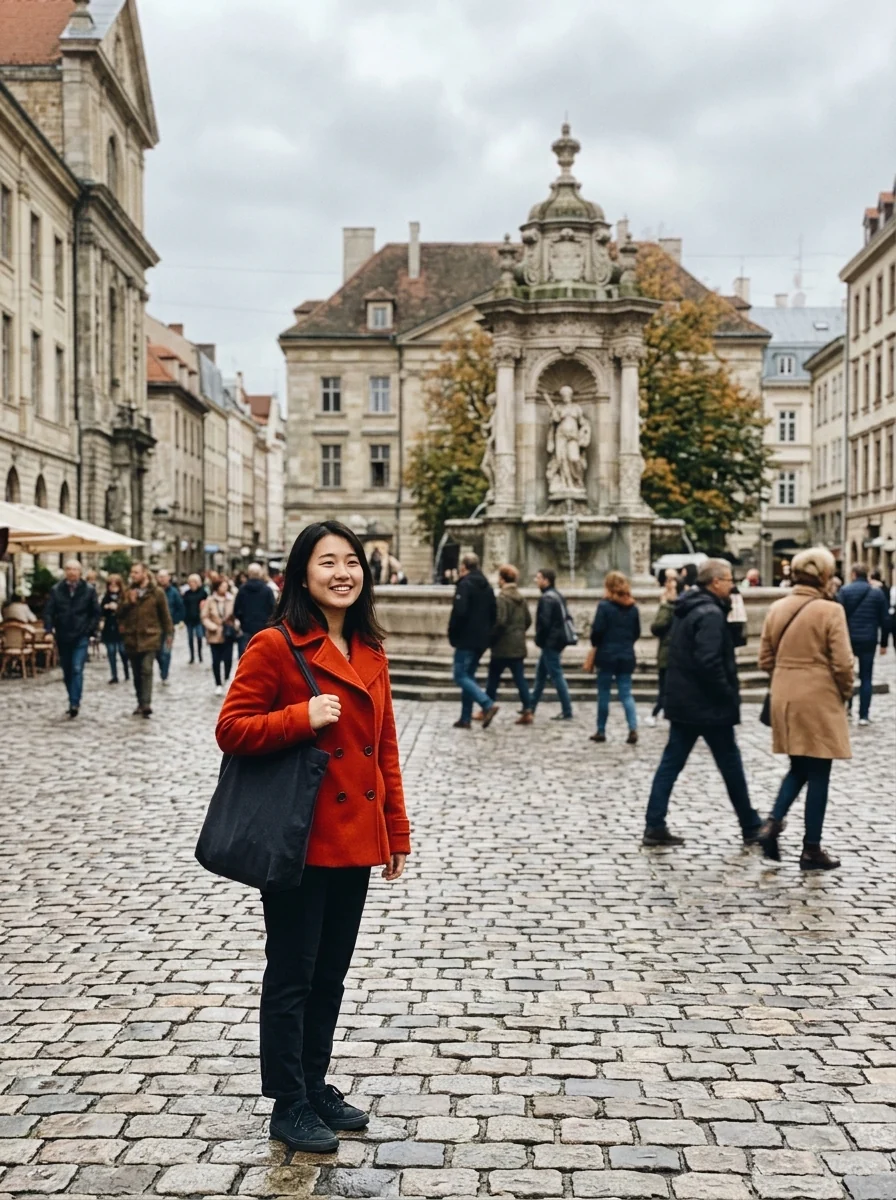
The city square with the passersby removed and the fountain rebuilt

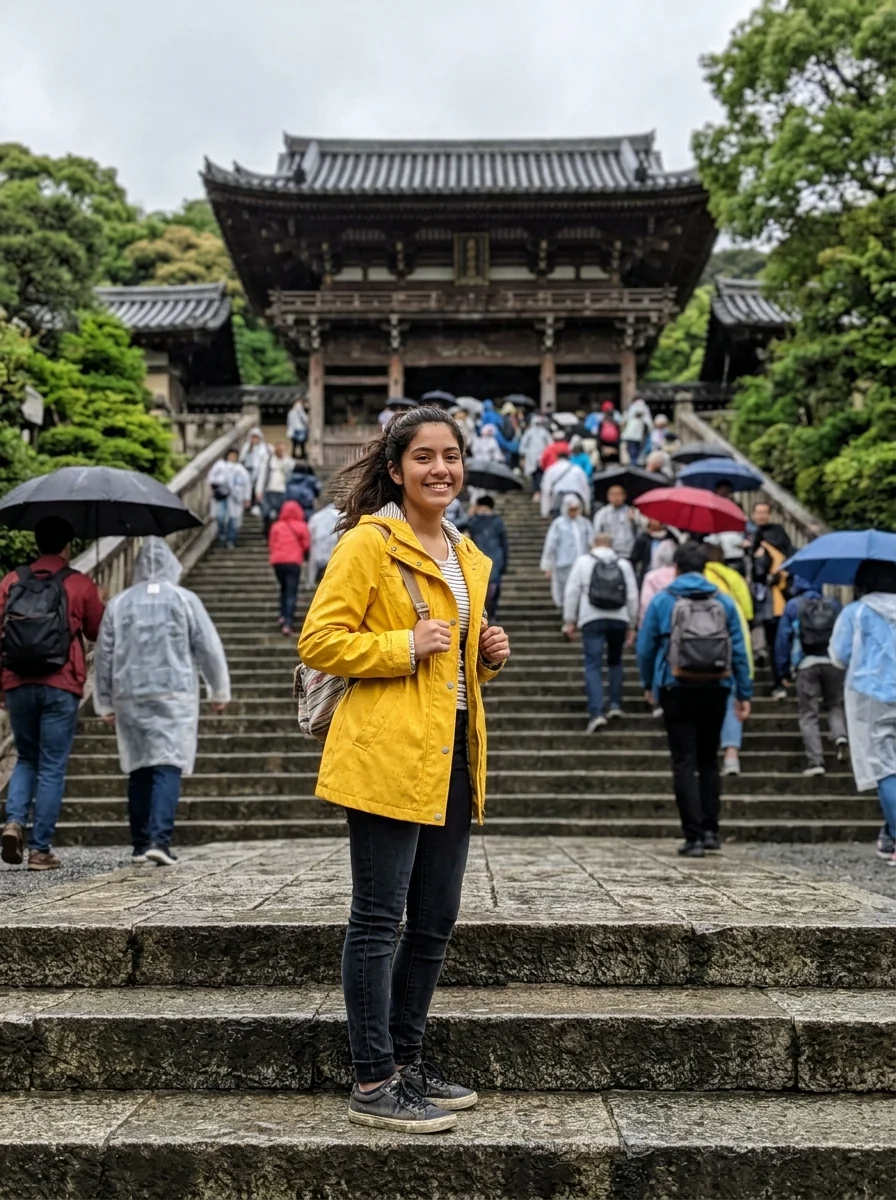
The temple steps empty except for the girl
Remove People from Photos features.
Automatic person detection
You do not need to draw a selection. The AI finds background people on its own and keeps the person in the foreground.
Realistic background fill
Instead of a smudge, the model regenerates the wall, sky, sand or street that was hidden behind the removed person.
Keeps your subject untouched
Faces, clothing and colors of the people you want to keep are not modified.
Add instructions for tricky shots
Tell the tool which people to keep, for example 'keep the two people on the left', when the scene is crowded.
Remove People from Photos, step by step.
01
Upload the photo
Choose a JPG, PNG or WebP. Group shots and travel photos with background crowds are the typical use case.
02
Optionally describe who to keep
If more than one person should stay, add a short note such as 'keep the couple in the center'.
03
Generate and download
Review the result, regenerate if needed, then download the cleaned photo.
Remove People from Photos use cases.
- Travel photos
- Landmarks without the crowd. Remove tourists from the Eiffel Tower, temples, beaches and viewpoints.
- Couple and family photos
- Erase a passer-by who walked into the frame at the wrong moment.
- Real-estate and venue shots
- Clean up staff or visitors from property and event photos before listing them.
Remove People from Photos: best photos and fixes.
Photos that work best
The easiest case is a main subject in front, with strangers smaller and further back, standing against something simple like sky, sand, grass or a plain wall. The background behind them is easy to rebuild. People standing in front of detailed buildings, railings or crowds need more reconstruction, so expect to regenerate once or twice.
Saying who to keep
By default the tool removes people who are not the main subject. When there are several people in front, or the main subject is small, say who stays: "keep the couple in the middle, remove everyone else" or "remove only the man in the red jacket". Describing clothes is the most reliable way to point at one person.
People at the edge or cut off
Someone half out of the frame at the edge is often removed most cleanly by cropping the photo first. If cropping would lose too much, upload the full photo and name them: "remove the person cut off on the right edge". Hands or bags reaching into the frame can be named the same way.
Shadows, reflections and objects
When a person is removed, their shadow and their reflection in windows or water usually go too. If one stays, ask for it: "also remove her shadow on the ground". You can remove objects in the same way, such as bins, signs and parked scooters, by naming them in the instructions.
Checking the rebuilt background
The filled area is the model's reconstruction of what was behind the person. Repeating patterns such as tiles, fences and windows are worth checking up close, since a line may not continue exactly. Try another model from the dropdown if one result keeps leaving traces; each fills backgrounds slightly differently.
Related tools for clean backgrounds
When a crowd is too dense to reconstruct piece by piece, the background remover can isolate your subject cleanly, or the background changer can place them into a fresh scene. To erase only stray signs, trash bins or wires while keeping everyone in the shot, try the watermark remover.
Remove People from Photos FAQ.
Can it remove a person who is standing in front of something complex?
Usually yes. The AI regenerates the hidden area based on the surrounding scene. Very large people covering most of the frame may leave visible artifacts, so try a second generation or crop first.
Will it remove the main person too?
No. By default the foreground subject is kept. Use the instructions box if the tool keeps or removes the wrong person.
Is the Remove people free?
Yes, you can try it free. New accounts get 25 free credits, and one generation here uses 9 credits. You sign in with your email; no card needed. Results have no watermark. After that, credit packs never expire, and your first one is half price.
Can I remove objects, not just people?
Yes. Use the object remover tool for cars, signs, trash cans and other unwanted objects.
What resolution is the output?
The output keeps the aspect ratio of the input. Very large images are downscaled to the model's maximum output size.
Guides on the blog.
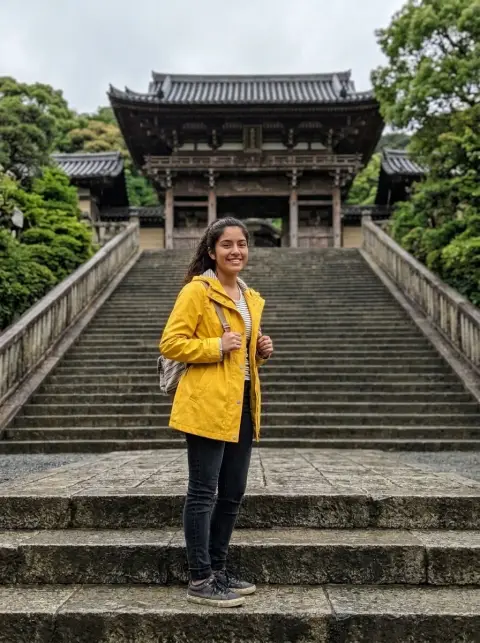 How to take travel photos without tourists in themFamous places are crowded places. Timing, angles and camera tricks for clean landmark shots, and how to remove the people who still walk into frame.
 How to remove the background from a photoThree ways to cut out a subject, from a one-click AI tool to a clean white product shot, and how to keep hair and edges sharp.
 Nano Banana prompts for photo editing: 40 examplesThe prompt pattern that gets clean edits from Nano Banana, and 40 copy-ready examples for backgrounds, light, clothes, objects, style and restoration.