

Nano Banana became popular because you can edit a photo just by describing the change. No masks, no layers. But the way you phrase the request makes a big difference. A vague prompt gets a vague edit; a clear one changes exactly what you want and leaves everything else alone.
Here's the pattern that works, followed by forty prompts you can copy and adapt. They work with Nano Banana, Nano Banana 2 and Nano Banana Pro.
The pattern: change, details, keep
Good edit prompts have three parts:
- The change: what should be different. "Change the background to a beach at sunset."
- The details: how it should look. "Warm golden light, gentle waves, no other people."
- What to keep: what must stay exactly the same. "Keep the person's face, hair, clothes and pose unchanged."
The third part is the one people forget. Without it, the model may "improve" things you didn't ask about.
Other tips
- One main change per prompt works best. For several changes, do them one after another, or use Nano Banana Pro, which handles multi-step instructions better.
- Use plain, specific words: "navy wool coat" beats "nice coat".
- Mention the light: "match the lighting of the original photo" helps edits blend in.
- Put text in quotes: "a sign that says 'OPEN'".
Backgrounds (8 prompts)
- "Replace the background with a plain light grey studio wall. Keep the person and the lighting on their face unchanged."
- "Change the background to a sunny beach at golden hour. Match the warm light on the person."
- "Put the product on a white marble kitchen counter with soft morning window light. Keep the product's shape, label and color exactly the same."
- "Make the background a softly blurred modern office."
- "Replace the messy room behind her with a bookshelf, slightly out of focus."
- "Change the background to a snowy street with Christmas lights at night."
- "Remove the background and place the subject on a solid pastel blue background."
- "Extend the sky above the mountains so the image has more space at the top."
Lighting and time of day (6 prompts)
- "Make it golden hour: warm, low sunlight from the left, long soft shadows."
- "Turn this daytime street into night, with streetlights and lit windows."
- "Remove the harsh shadow across her face and make the light soft and even."
- "Make the scene look like an overcast day with soft, diffused light."
- "Add warm light from the window on the right, as if it's early morning."
- "Brighten the dark room naturally, as if a lamp were turned on."
People and clothing (8 prompts)
- "Change his hoodie to a navy blazer and white shirt. Keep his face, hair and pose."
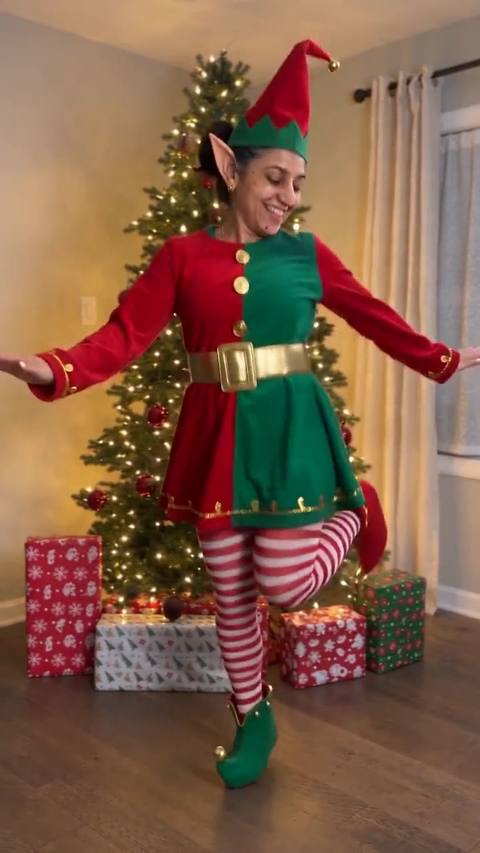
- "Put her in a red knitted Christmas sweater."
- "Give him a short, neat beard that matches his hair color."
- "Change her hair color to copper red. Keep the haircut and texture."
- "Add a soft, natural smile. Keep everything else unchanged."
- "Remove the glasses and show the eyes naturally."
- "Make the sweater burgundy instead of grey."
- "Add a Santa hat to the dog."
Objects (6 prompts)
- "Remove the people in the background. Keep the girl in the white dress."
- "Remove the trash can on the left and fill in the wall naturally."
- "Add a steaming cup of coffee on the table next to the laptop."
- "Change the car's color to satin teal, keeping reflections."
- "Replace the text on the sign with 'FLOWERS' in the same painted style."
- "Add a vase of tulips on the windowsill."
Style and effects (6 prompts)
- "Turn this photo into a soft watercolor painting with visible paper texture."
- "Redraw this as a clean anime illustration."
- "Make this look like a 1970s film photo: warm tones, slight grain, faded blacks."
- "Turn the photo into a pencil sketch with cross-hatching."
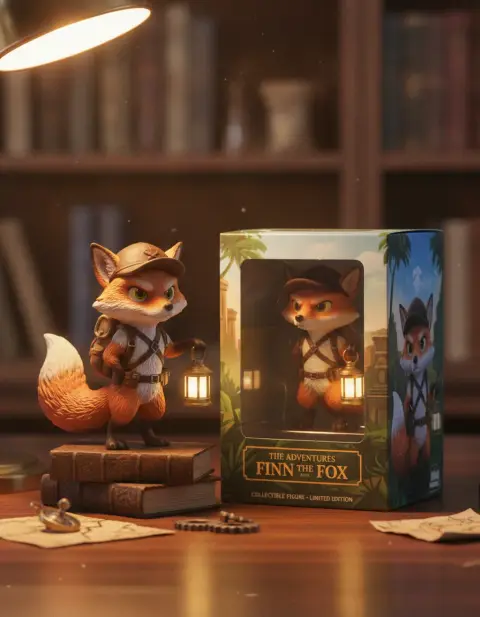
- "Make the person a glossy 3D collectible figure standing on a desk next to its packaging box."
- "Add gently falling snow to the scene."
Restoration and cleanup (6 prompts)
- "Restore this old photo: remove scratches, creases and stains. Keep the faces exactly as they are."
- "Colorize this black-and-white photo with natural, realistic colors."
- "Sharpen this blurry photo and recover detail in the faces."
- "Straighten the horizon and crop slightly so it looks level."
- "Remove the reflection from the glass in the top left corner."
- "Remove the phone's shadow from this document photo and make the paper evenly white."
When a prompt doesn't work
- The whole image changed: add a "keep" sentence listing what must stay the same.
- The change is too subtle: be more specific and stronger: "much darker", "clearly visible".
- The face changed: say "keep the face exactly the same" and use a higher-quality photo.
- Text is wrong: use Nano Banana Pro, keep the text short, and put it in quotes.
- Several changes, some ignored: split them into separate prompts.
You don't always need a prompt
Many of these edits have a dedicated tool on our site with the prompt already tuned, so you just upload a photo and pick an option. For example, the background changer, hair color changer, remove people, photo restoration and add snow to photo. They're a good shortcut when you want a reliable result without writing the prompt yourself.
 Nano Banana ProGoogle's model for precise edits and clean textTry it with your photo
Which Nano Banana for which edit?
- Quick, simple edits: Nano Banana.
- Most edits at good quality and up to 4K: Nano Banana 2.
- Text on signs, complex edits, several reference images: Nano Banana Pro.
Our comparison of Nano Banana vs Nano Banana Pro explains the differences in detail.
For more ready-to-copy examples, see our tested Nano Banana 2 prompts, each shown with the result it made.