
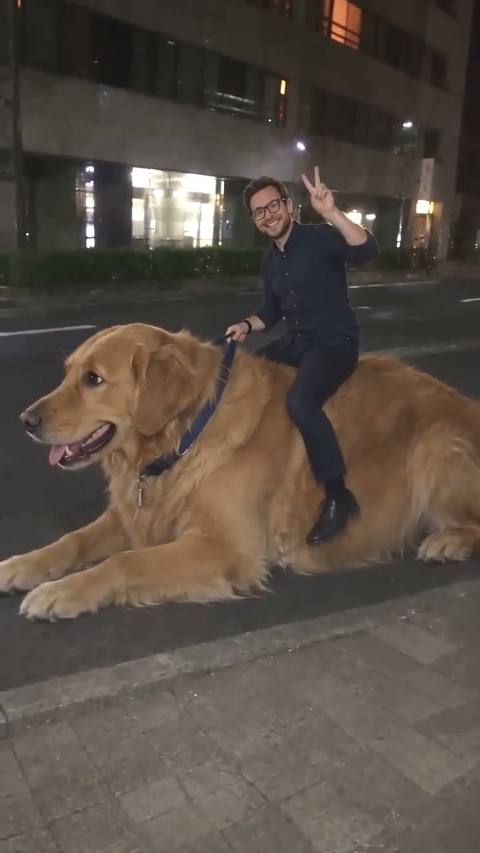
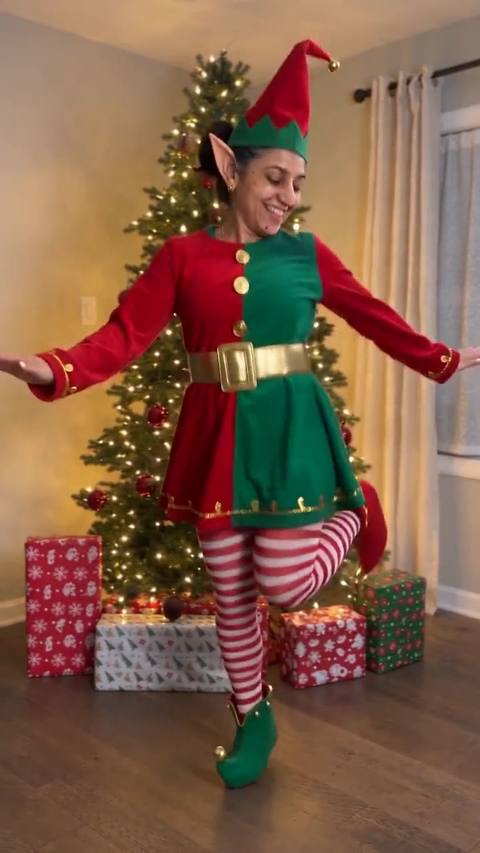
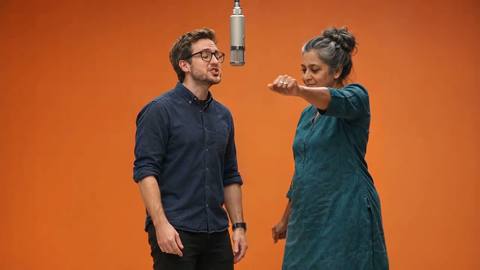

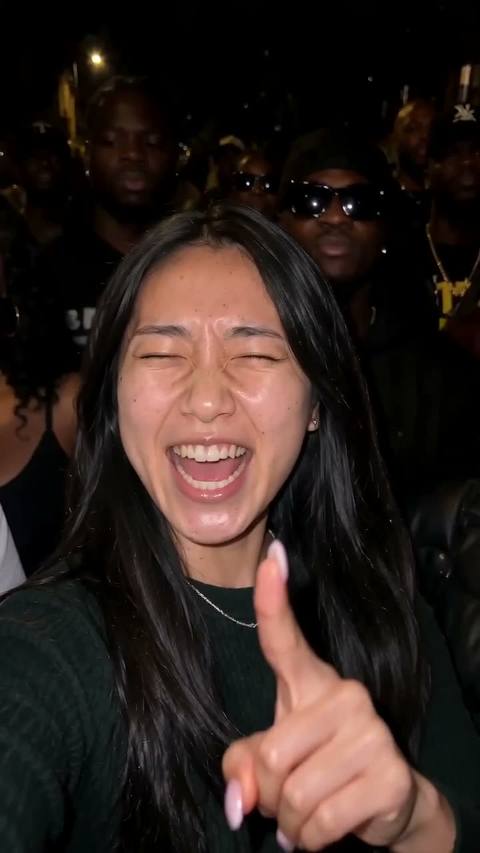
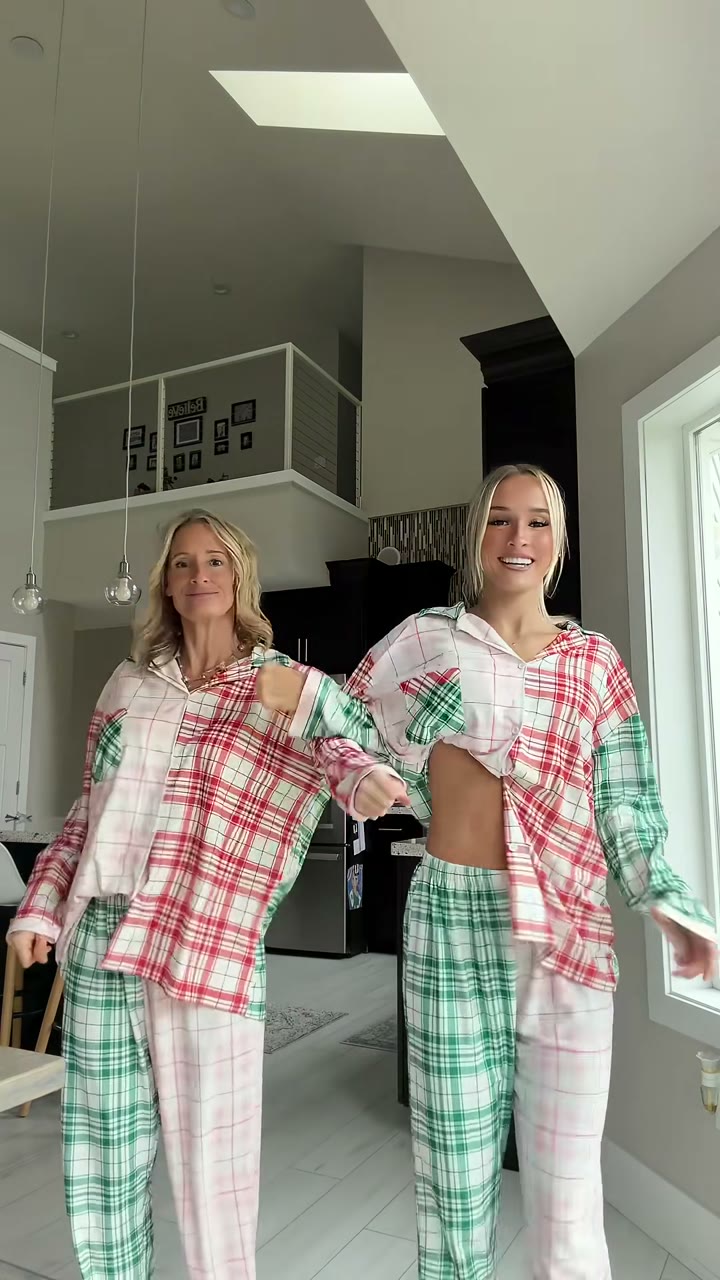
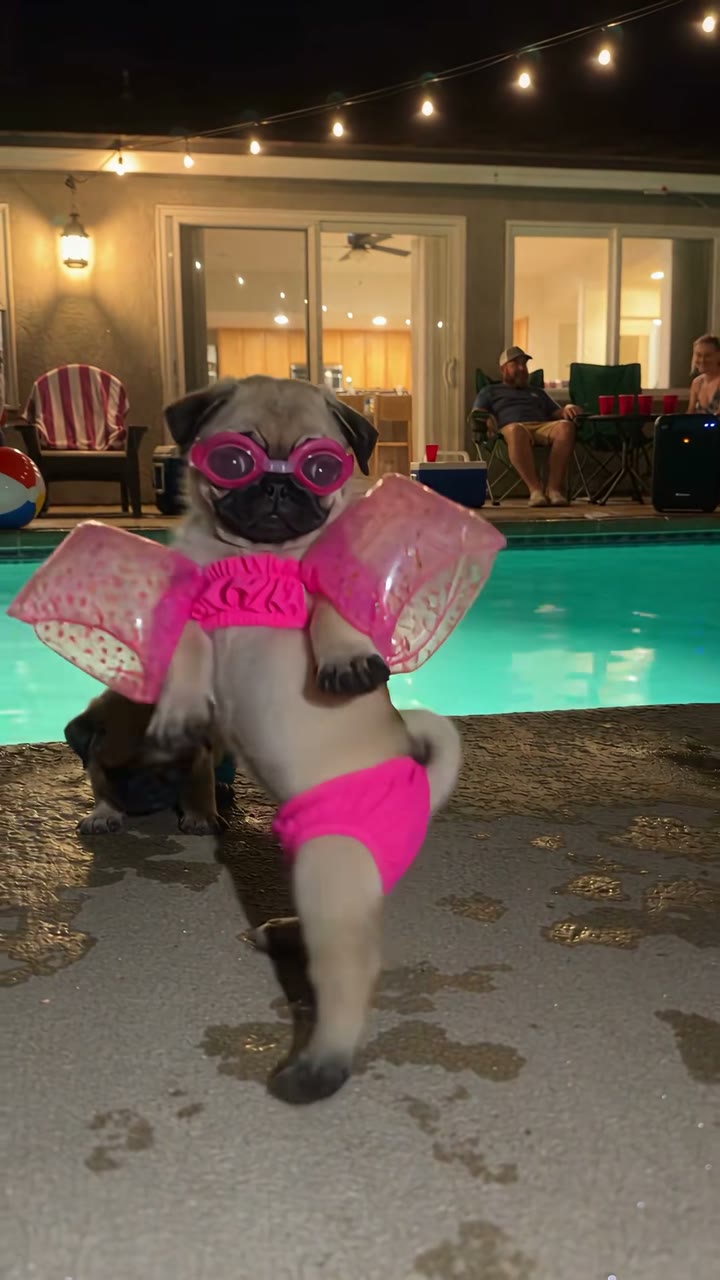
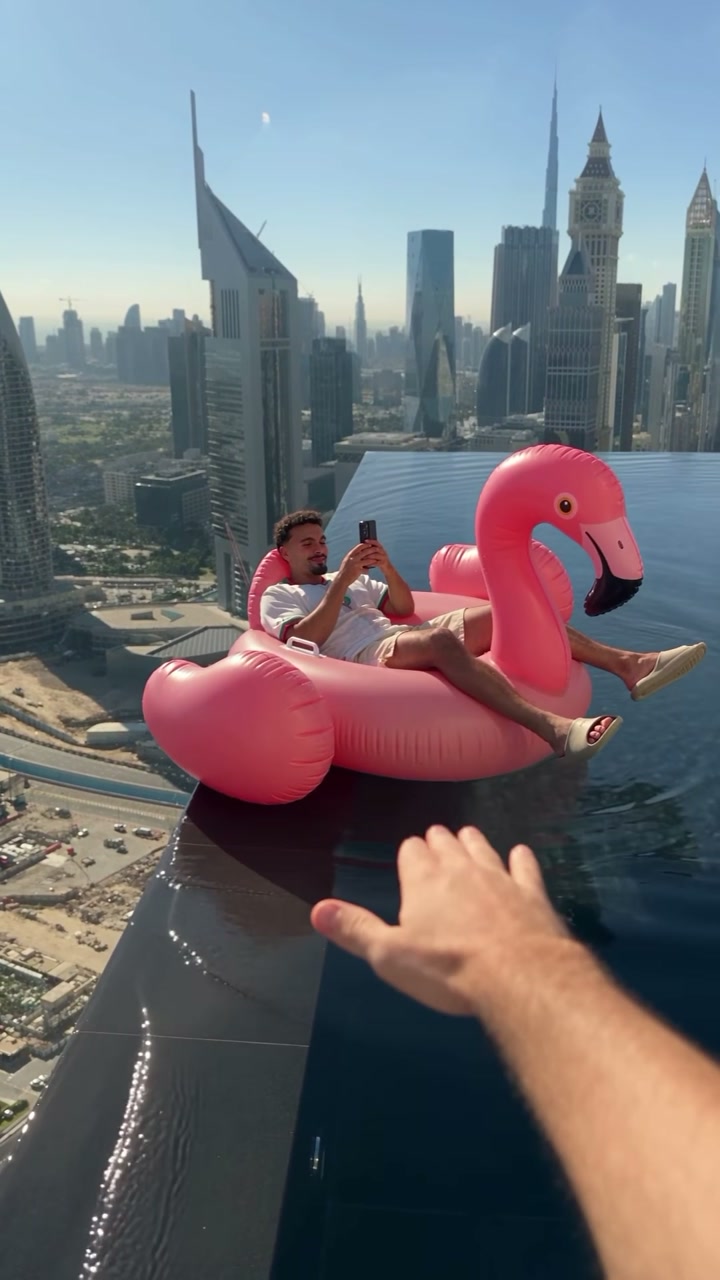
AI Image Combiner
Blend up to four photos into one.
Image 1
Image 2
or paste with ⌘V · JPG · PNG · WebP · up to 8 MB
More like this.
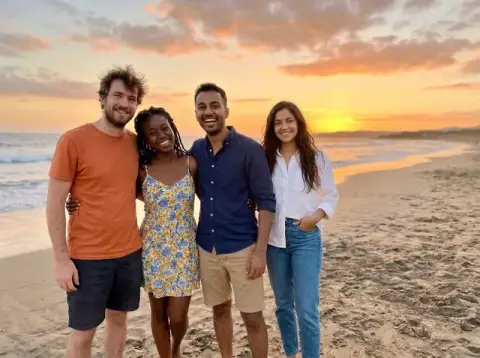
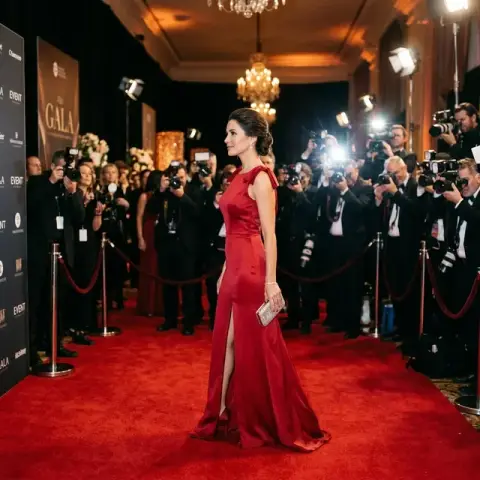
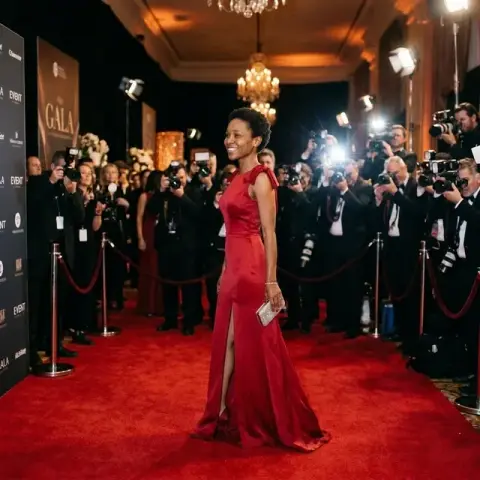
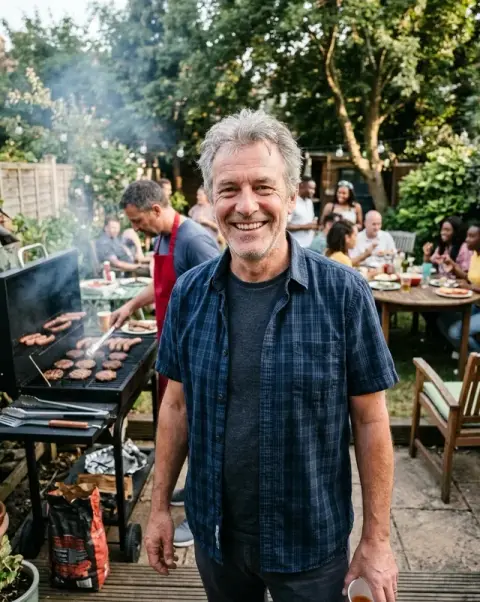
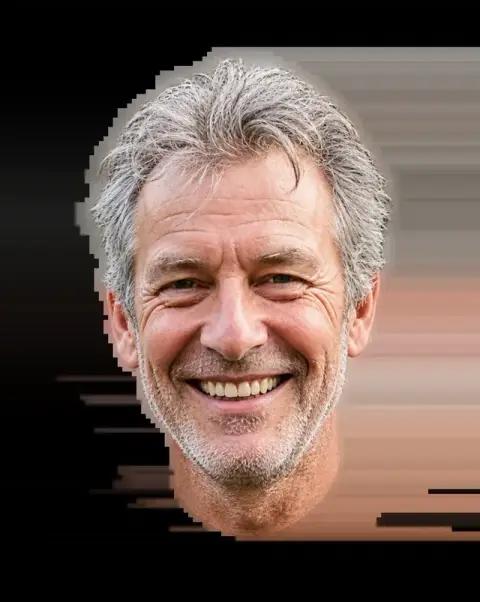


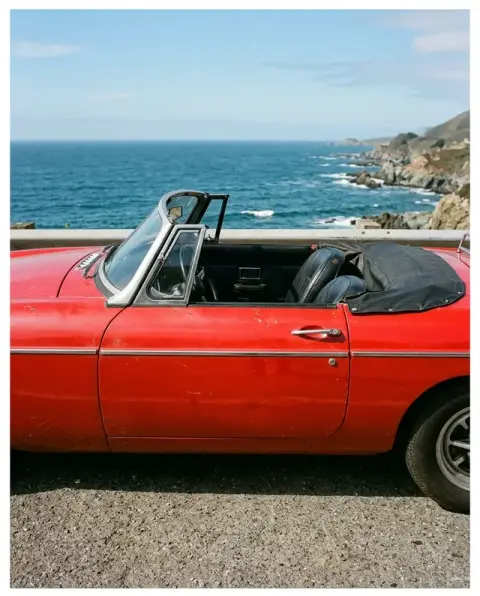
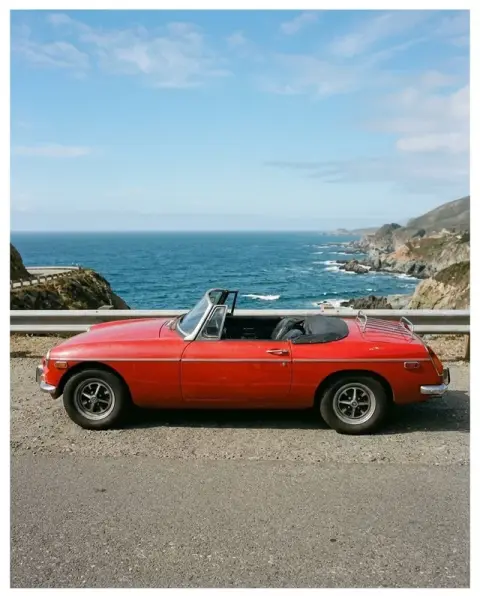
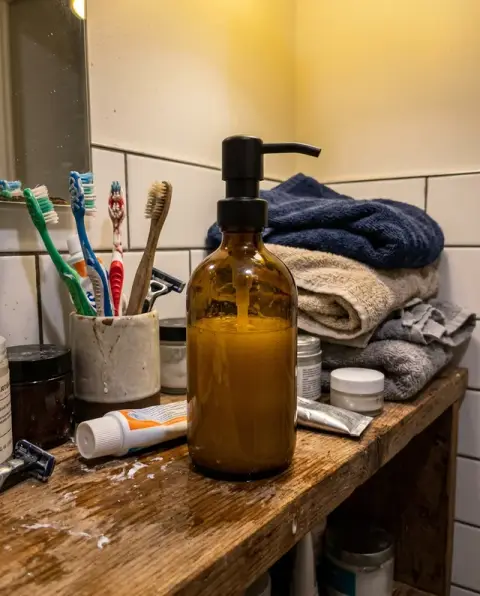
AI Image Combiner examples.
Real results from this page's default settings in one click, not retouched.How examples are made
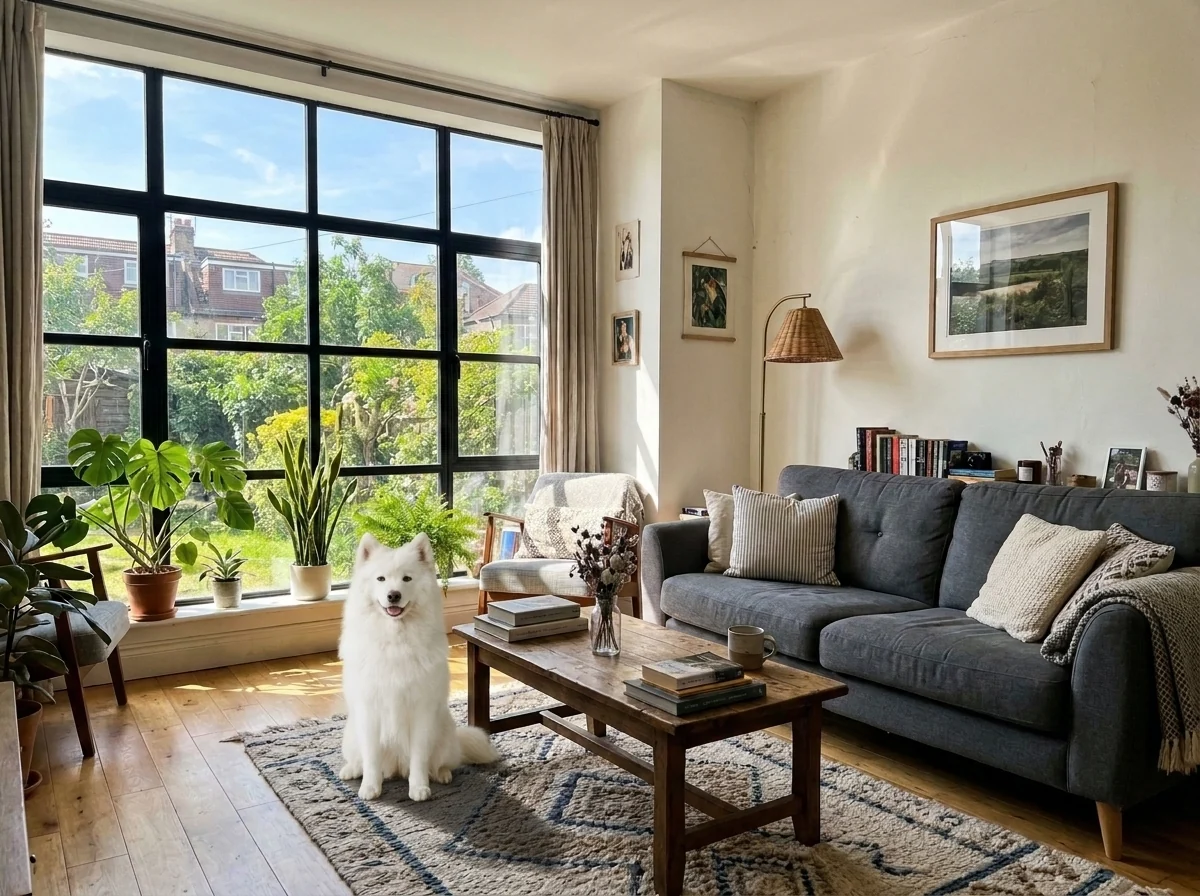
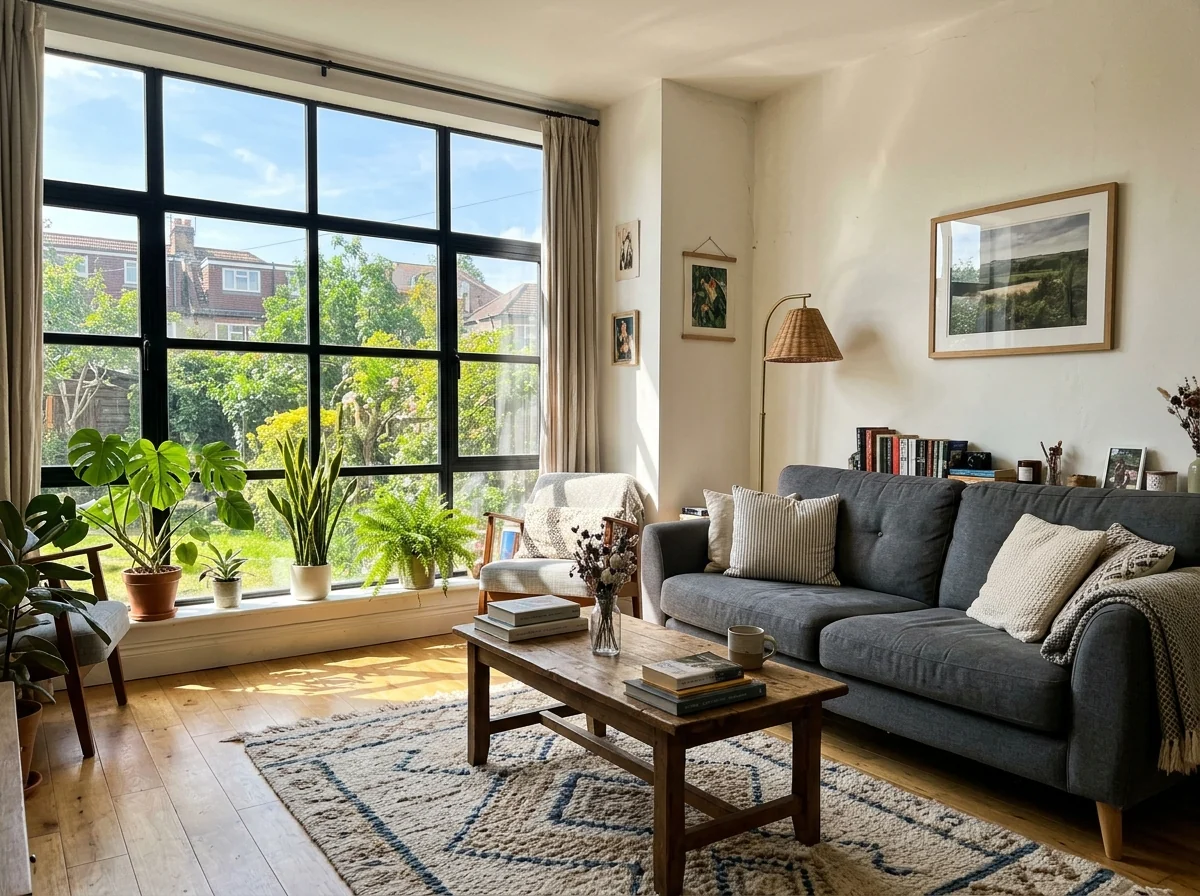
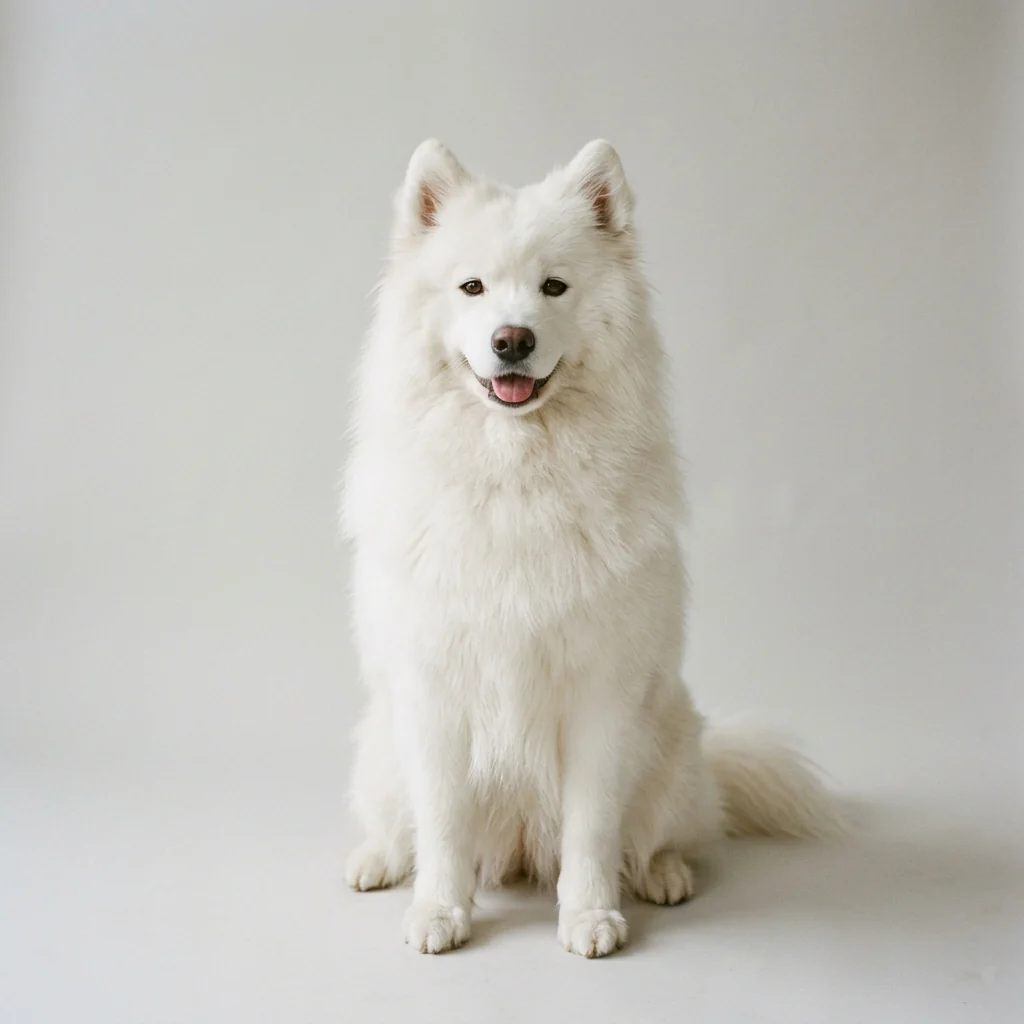
The Samoyed sitting on the rug in the living room
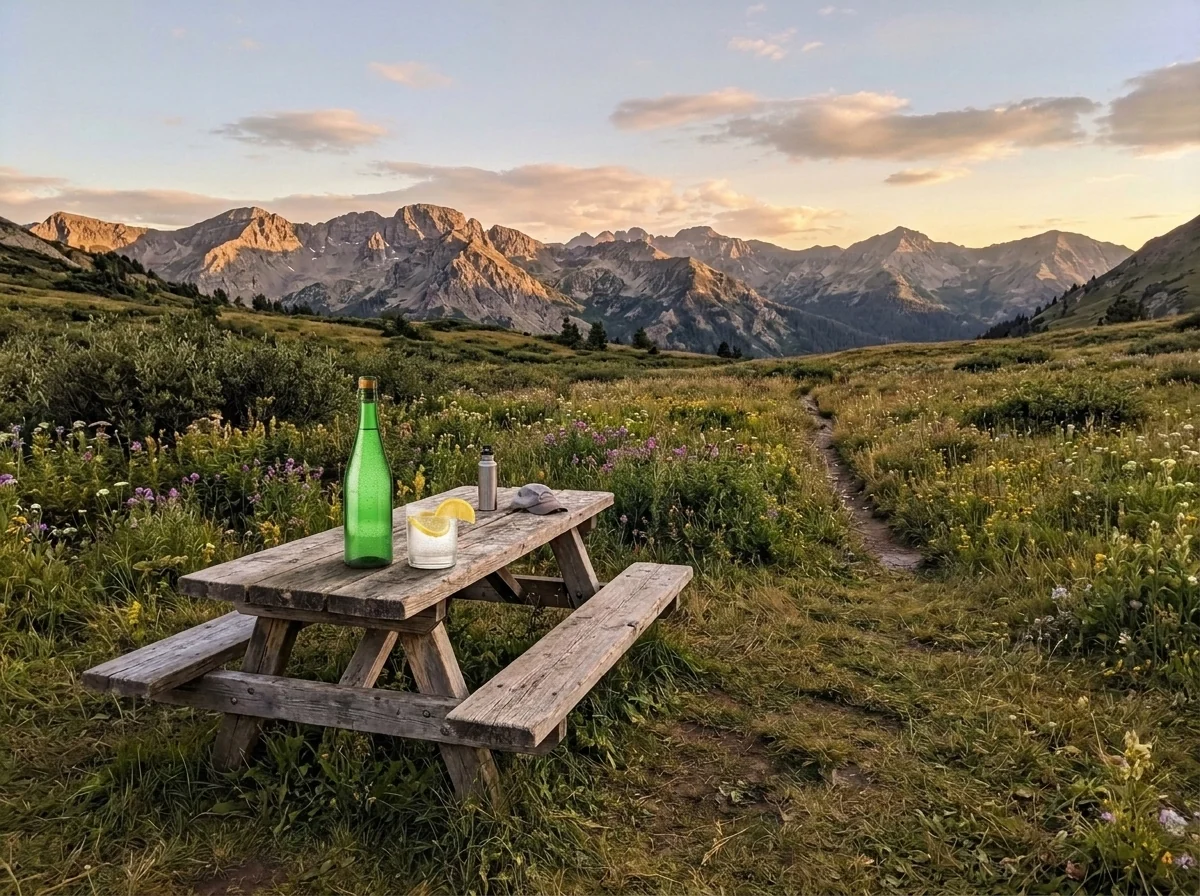
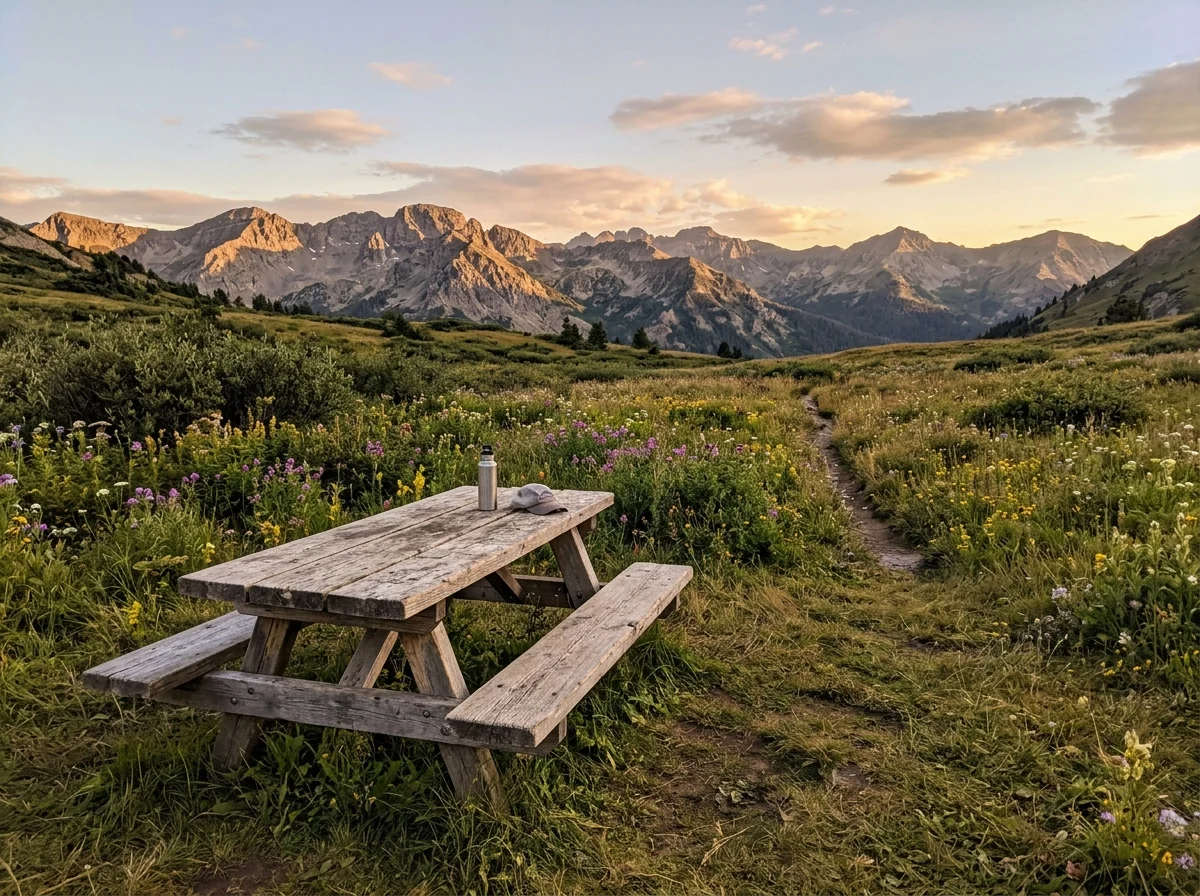
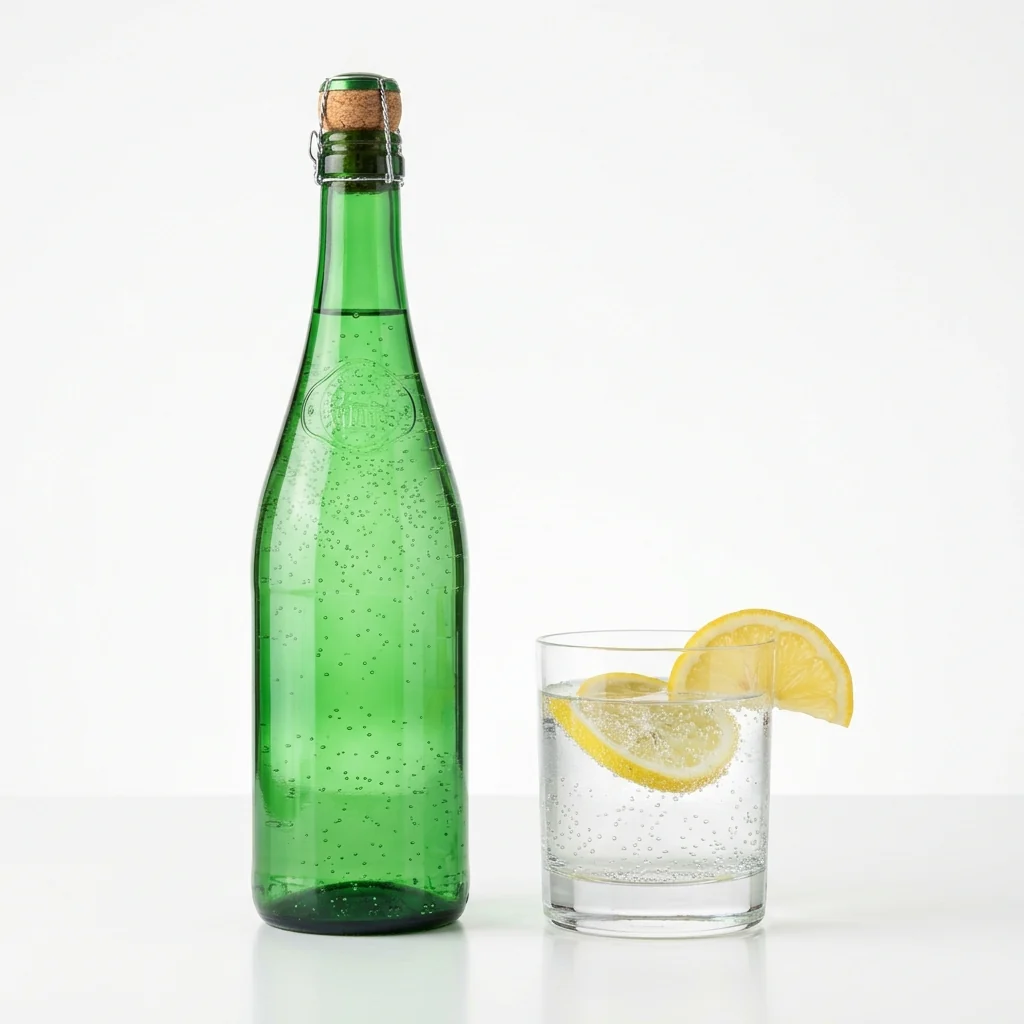
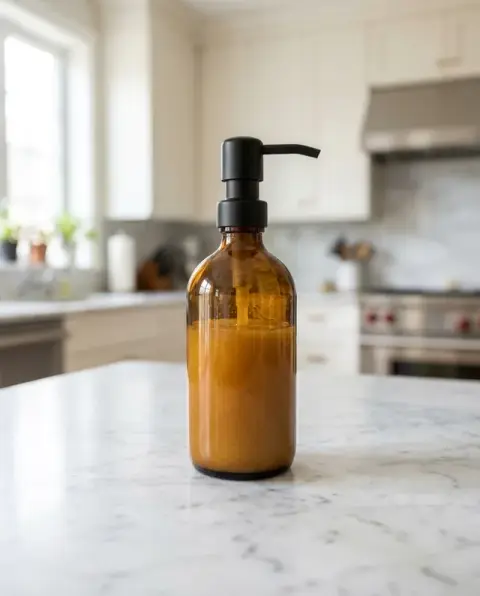
The bottle and glass standing on the picnic table at golden hour
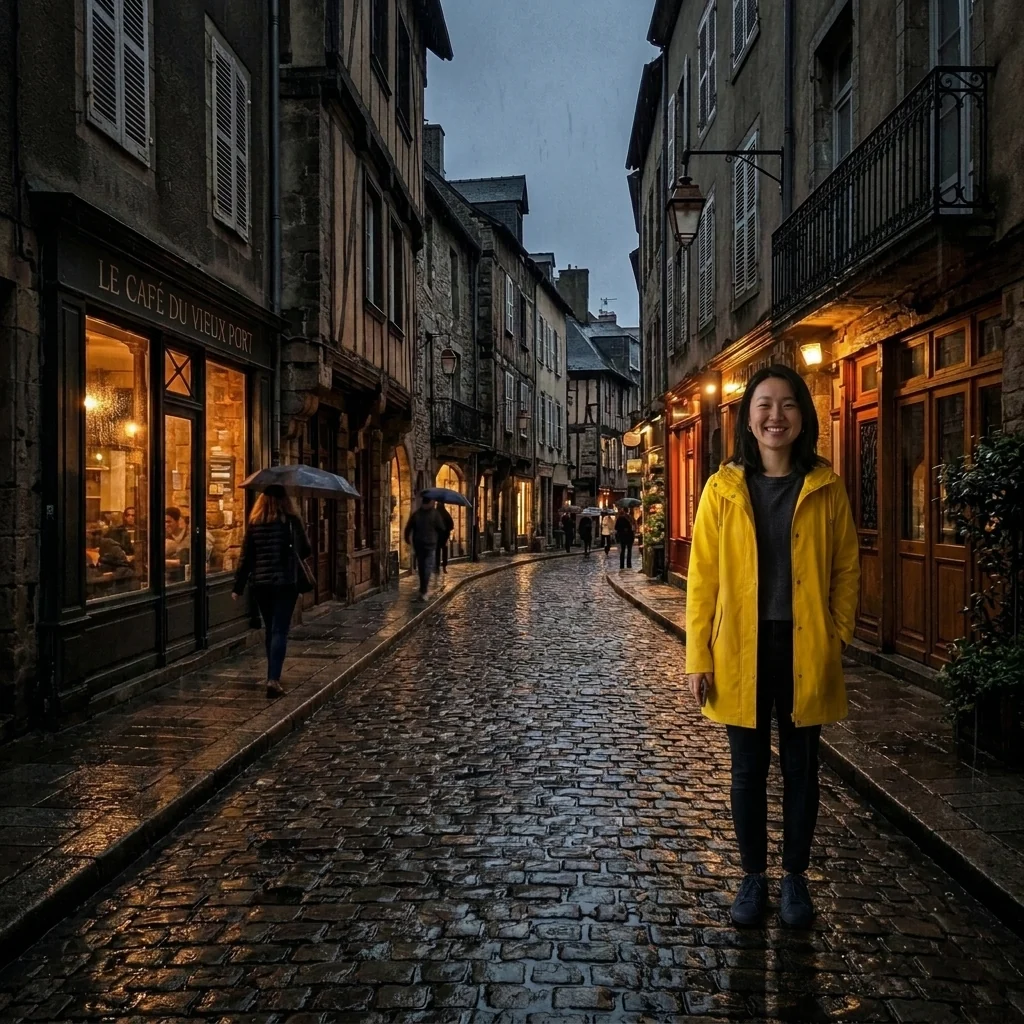
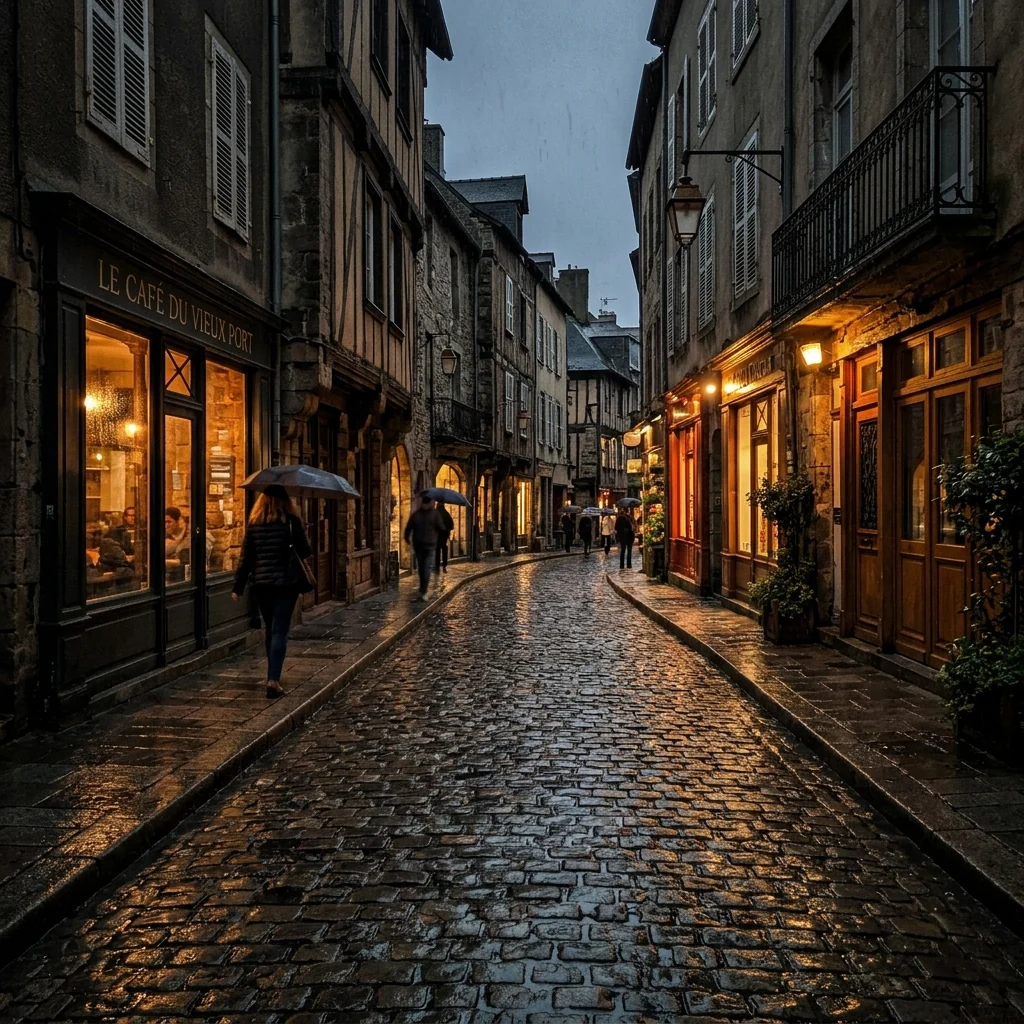
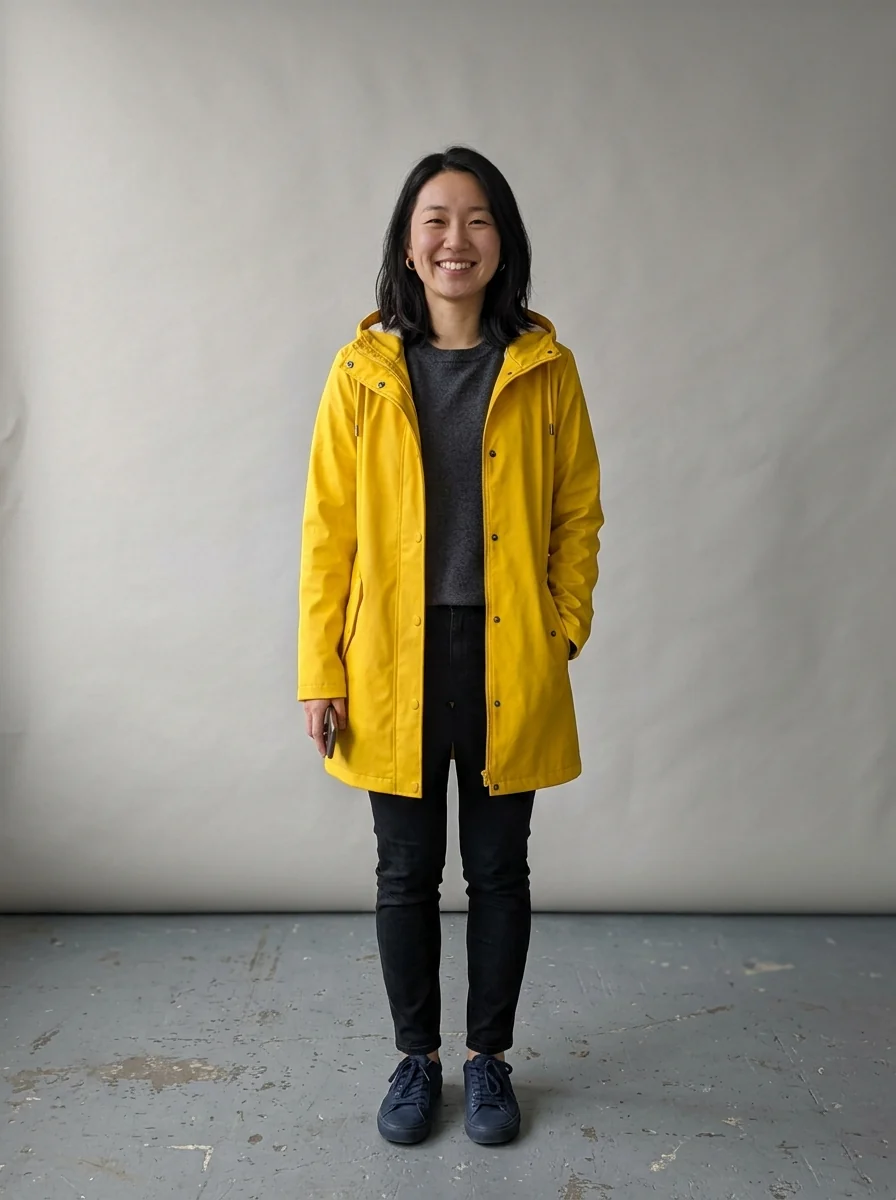
“put the woman into the street scene”
AI Image Combiner features.
Up to four photos
Two are required, two more are optional.
Matched light and scale
Subjects look photographed together.
You decide the scene
Say which photo is the background.
AI Image Combiner, step by step.
01
Add your images
The first one is the scene by default.
02
Describe the mix
Optional: who goes where.
03
Download
One combined photo.
AI Image Combiner use cases.
- Product in a setting
- Place a product into a lifestyle scene.
- Missing people and pets
- Put a pet or a friend into a family shot.
AI Image Combiner: best photos and fixes.
Choosing the photos
Each photo should show one clear thing you want in the final picture: a person, a pet, a product, a background scene. Photos taken in similar light blend most naturally, such as all outdoors in daylight. Mixing a studio product shot with a dark evening street scene works, but needs a clear instruction about how the light should look.
Telling it what goes where
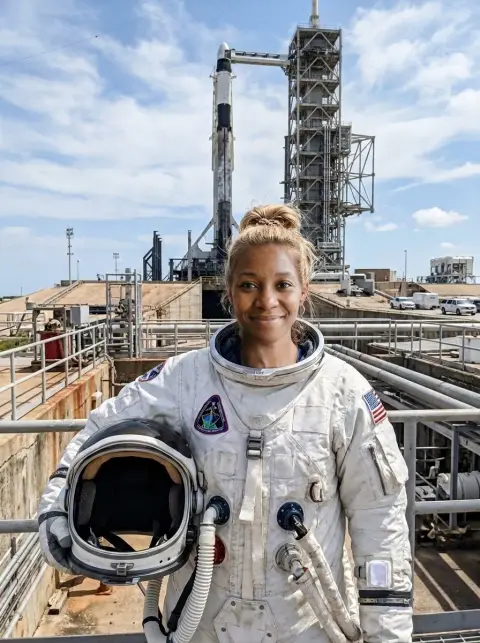
Write the scene as one sentence that refers to the images by number: "put the dog from image 2 on the sofa in image 1" or "the woman from image 1 holding the bottle from image 3 on the beach in image 2". Without instructions, the first image usually becomes the base and the others are added to it.
Scale and position
A product photographed close up and a room photographed wide do not share a scale, so say how big things should be: "a small cup on the table", "the person standing next to the car, about the same height as the roof". Position words such as left, right, in front of and behind help the model arrange everything.
Faces and small details
When a person from one photo is placed into another, their face is redrawn at the new size and angle. Large, sharp, front-facing faces keep the best likeness. Small text, logos and patterns on products may be simplified; check them closely before using the result for a listing or an ad.
Collages and side by side
To place photos next to each other instead of blending them into one scene, write "side-by-side collage, two panels, no blending". For one image layered over another, like a logo on a shirt, say exactly which surface it goes on. Up to four images can be used; two or three usually give cleaner results.
Product in a setting
To show a product in use, upload the product photo and a photo of the setting, then describe how it fits: "the bottle from image 2 standing on the bathroom shelf in image 1, catching the window light". Shoot the product straight on with even light so its label stays readable. Check the label afterwards at full size, since small print can change.
Adding a pet or a person who was missing
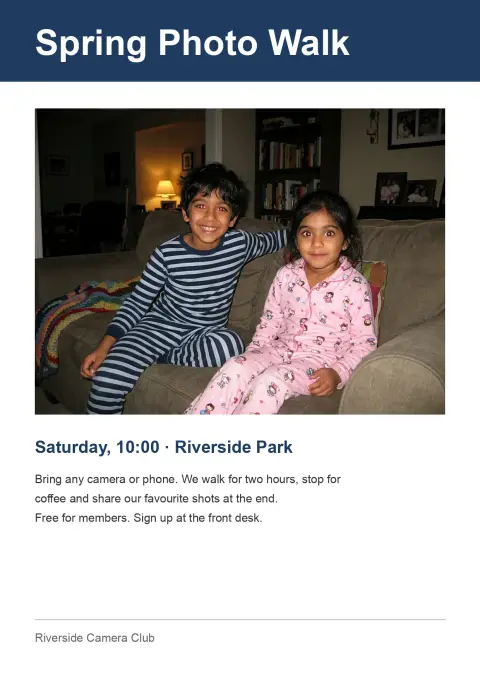
Combining is a quick way to add a pet or a person who was not there when a photo was taken. Use a photo of them taken at a similar angle and distance, and say where they go and what they do: "the dog from image 2 sitting at the woman's feet, looking at the camera". Similar lighting in both photos makes the result look like one moment.
AI Image Combiner FAQ.
Which photo becomes the background?
The first one, unless you write otherwise, for example "use image 2 as the background".
Can I make a side-by-side collage?
No. This tool blends photos into one natural scene, not a collage with borders.
Is there a size limit?
Each image can be up to 8 MB. JPG, PNG and WebP work.
Is the Image combiner free?
Yes, you can try it free. New accounts get 25 free credits, and one generation here uses 9 credits. You sign in with your email; no card needed. Results have no watermark. After that, credit packs never expire, and your first one is half price.