Blur Image
Soften a whole photo or just the part you choose.
Drop a photo
or paste with ⌘V · JPG · PNG · WebP, stays on your device
No photo handy? Try one of ours.
 Unblur image →
 Background changer →
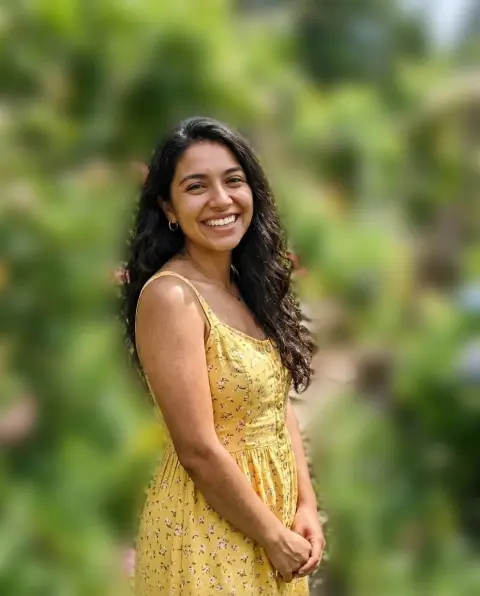
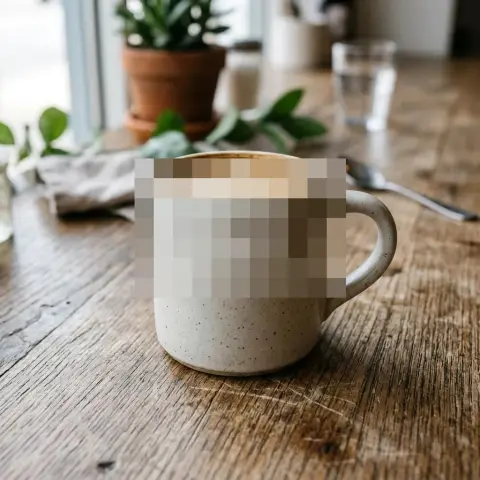
Blur Image examples.
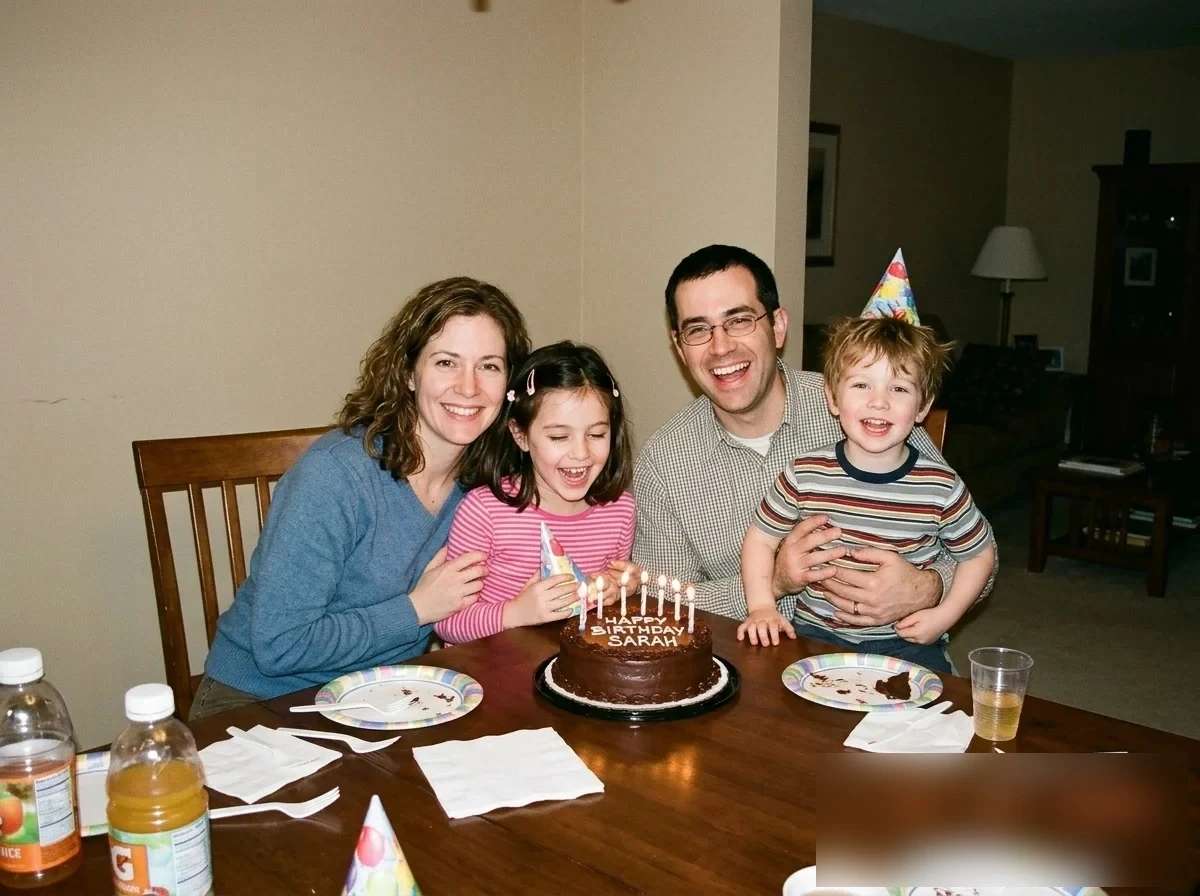
Just one area
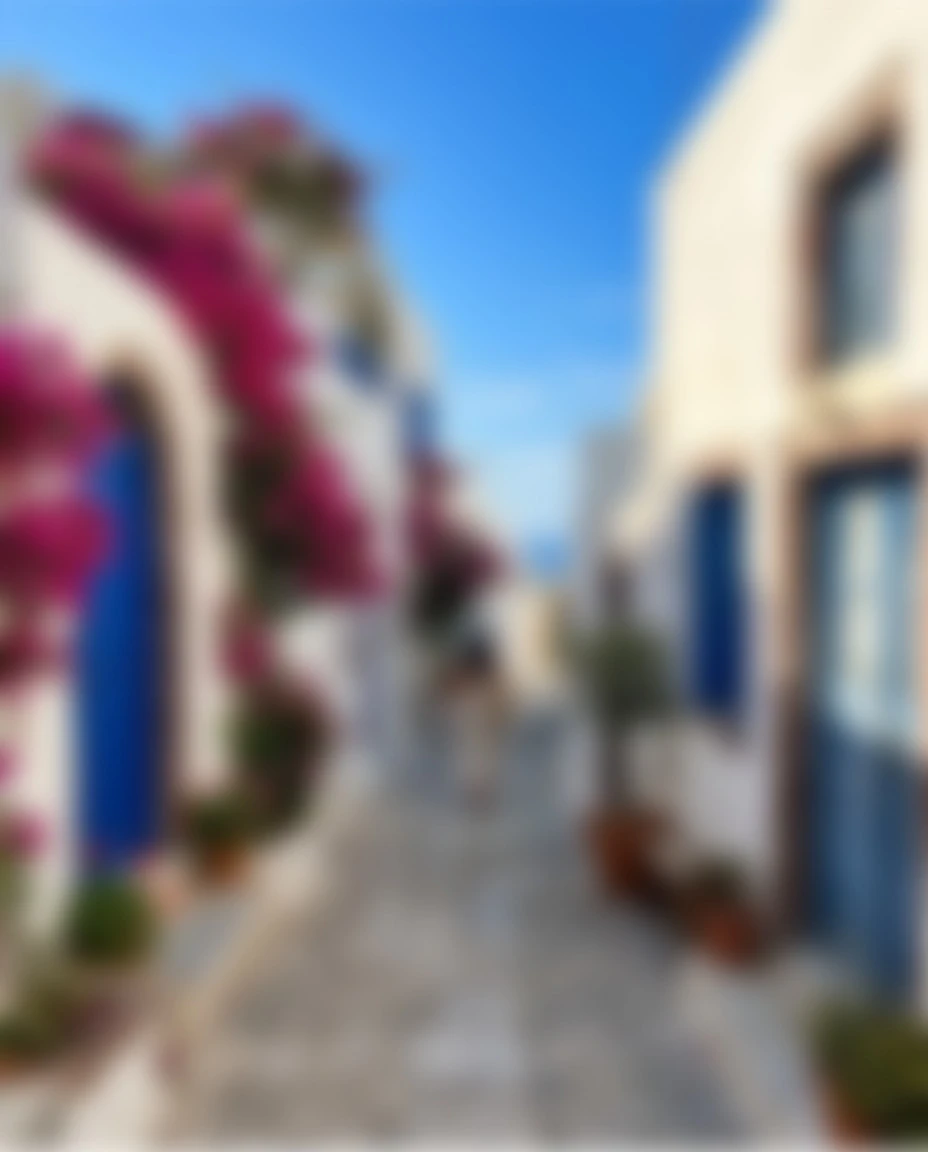
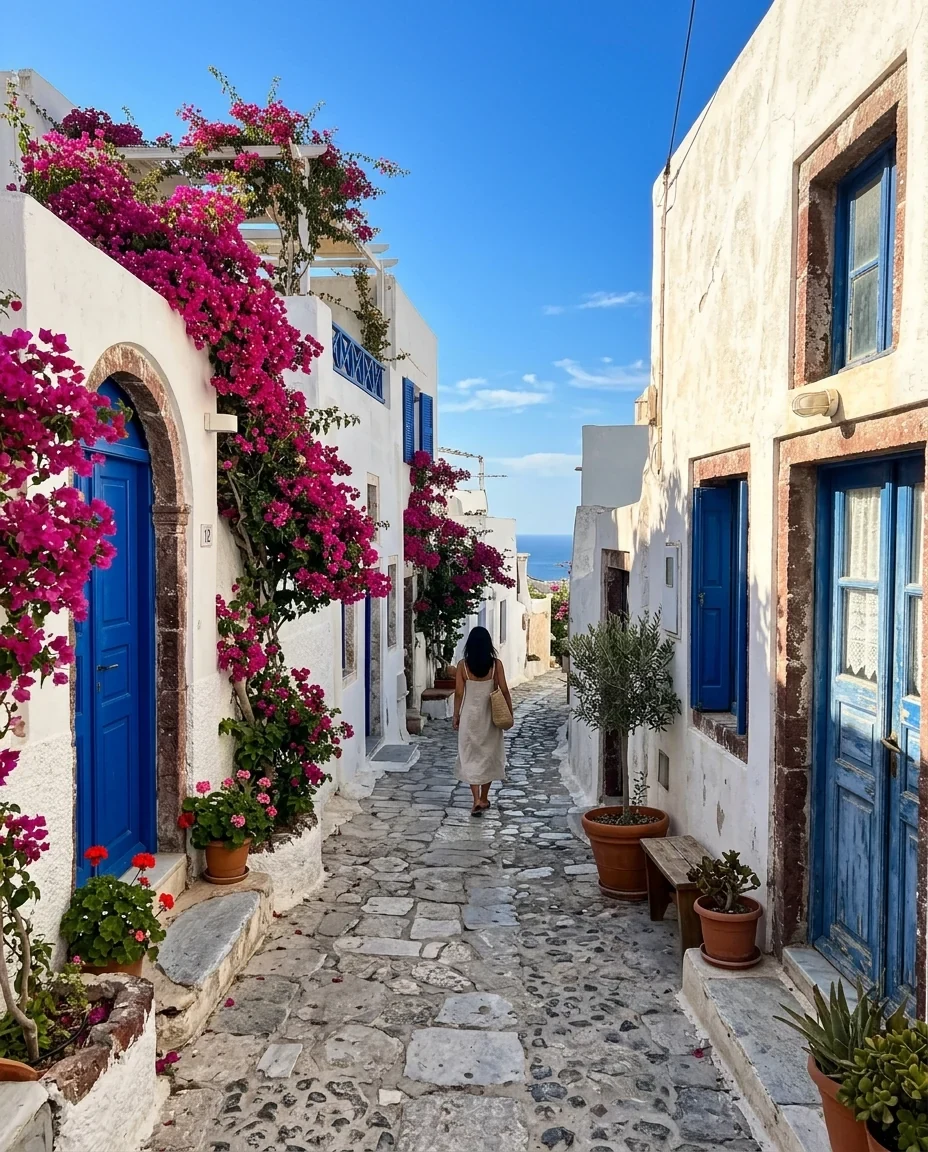
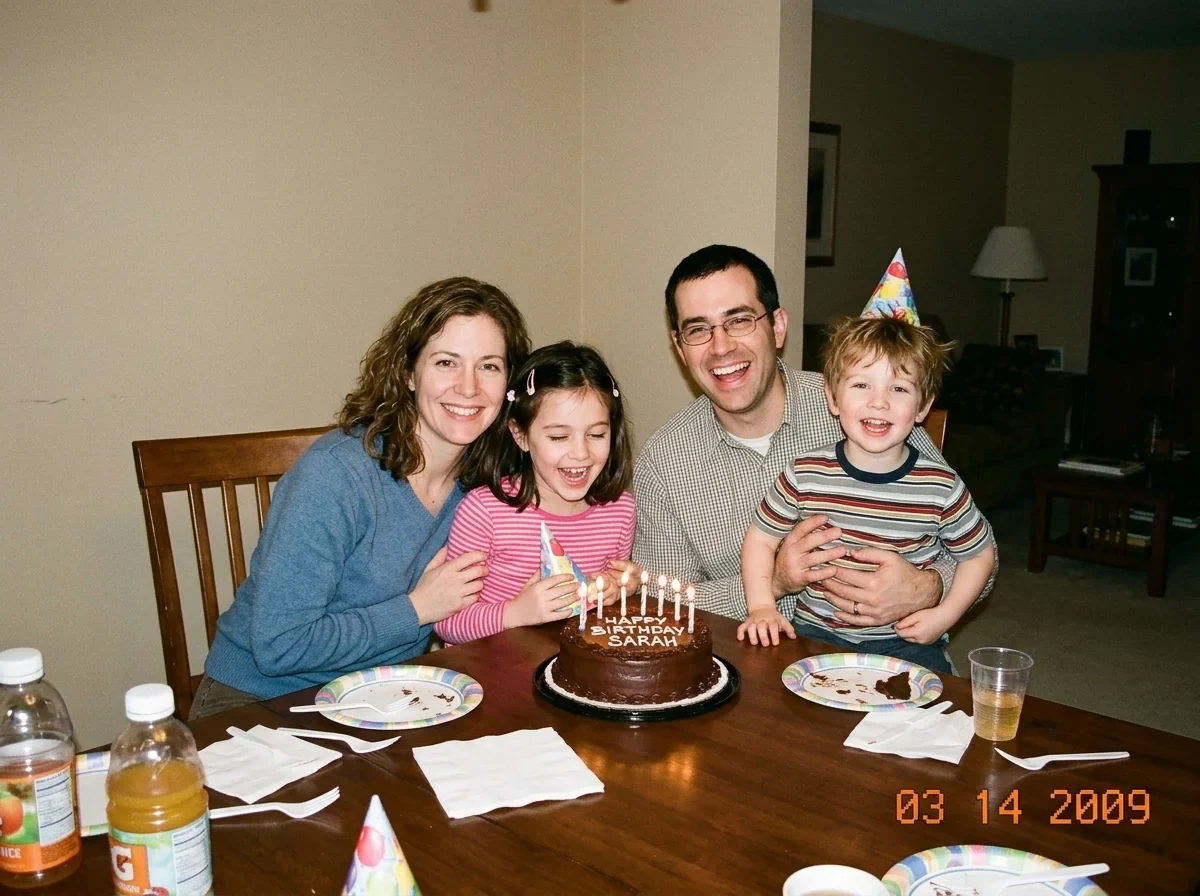
Whole photo
Blur Image features.
Whole photo or one area
Drag a box to blur just that part.
Adjustable strength
From a soft haze to fully unreadable.
Clean edges
The blur doesn't fade at the photo's borders.
Blur Image, step by step.
01
Drop a photo
Or try a sample.
02
Set the blur and area
Drag a box over what to blur.
03
Download
JPG or PNG.
Blur Image use cases.
- Privacy
- Blur faces, names and number plates.
- Backgrounds
- A soft, blurred version of a photo behind text.
- Hiding clutter
- Soften a distracting corner.
Blur Image: best photos and fixes.
Blurring a face or text
Drag a box slightly larger than the face, plate or text and raise the blur until nothing can be read, usually 2–3% for text and more for large faces. Blur hides detail well at full size but can leave shapes recognizable; for strong privacy, pixelate with big blocks or cover the area completely.
A soft background image
Blurring a whole photo gives a calm background for slides, banners and phone wallpapers, with text on top. 1–2% gives a dreamy look, 4–5% turns the photo into soft color shapes.
Blur strength
Strength is a percentage of the photo's long side, so 2% looks the same on a small and a large photo. The preview is a smaller copy; the download uses the full image with the same look.
Edges
The blur is computed with the edge pixels extended, so the borders of the photo, or of the box where it touches them, don't fade into a dark or transparent rim.
Blurring only the background
To keep a person sharp and blur everything behind them, use blur background instead: it finds the person automatically, which is much quicker than drawing boxes.
Format
JPG for photos and small files, PNG for screenshots or when you will edit the result again.
Blur Image FAQ.
Can I blur just part of a photo?
Yes. Drag a box on the photo; Area switches to Selected area.
Can blur be reversed?
Strong blur removes detail for good; mild blur may be partly recoverable. For sensitive things use a strong setting, pixelate with big blocks, or cover them completely.
Are my images uploaded?
No. The tool runs in your browser and the images never leave your device. Close the tab and they are gone.
Is it free?
Yes. Quick tools are free, need no sign-in and use no credits; your images stay in your browser. The AI tools linked below need an account.