Pixelate Image
Square blocks over a whole photo or just one part.
Drop a photo
or paste with ⌘V · JPG · PNG · WebP, stays on your device
No photo handy? Try one of ours.
Drag on the photo to choose the area.
Next, with AI
 Pixel art generator →
 Add emoji to photo →
Pixelate Image examples.
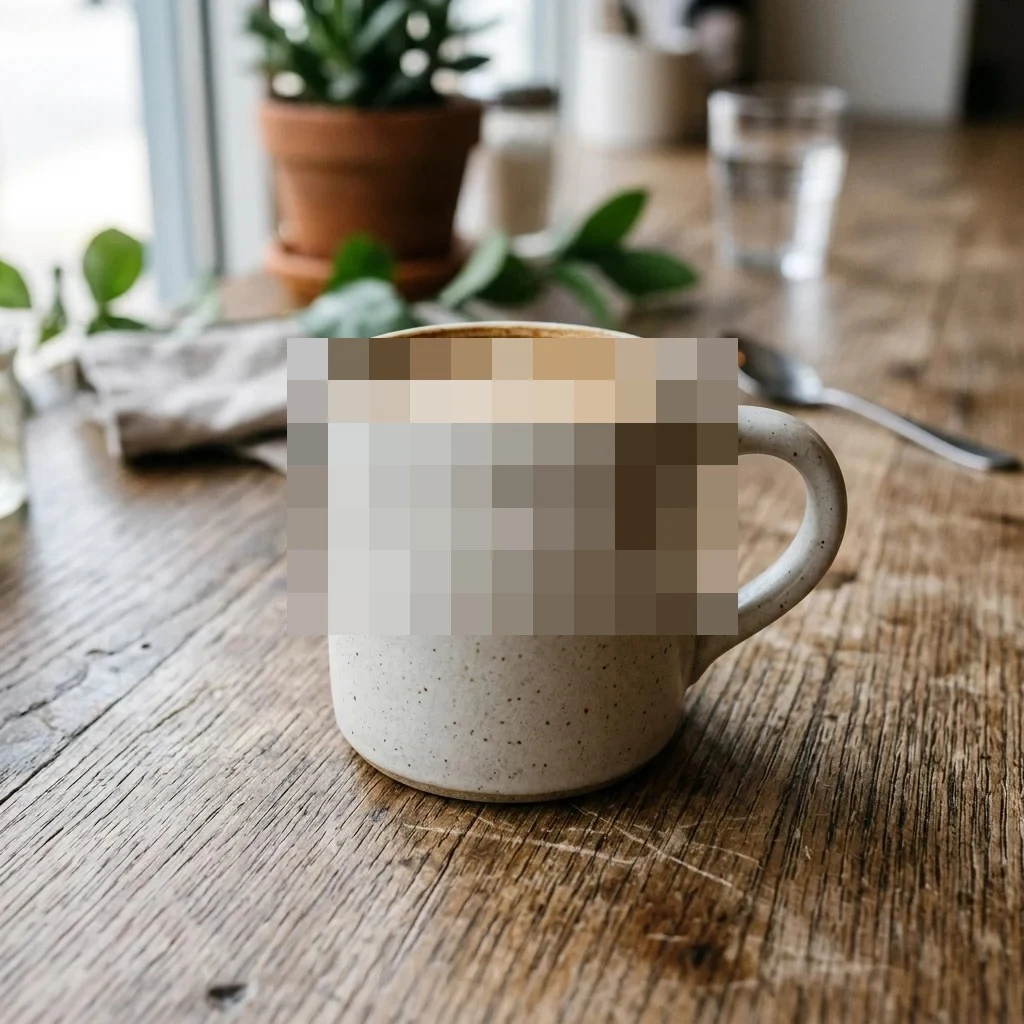
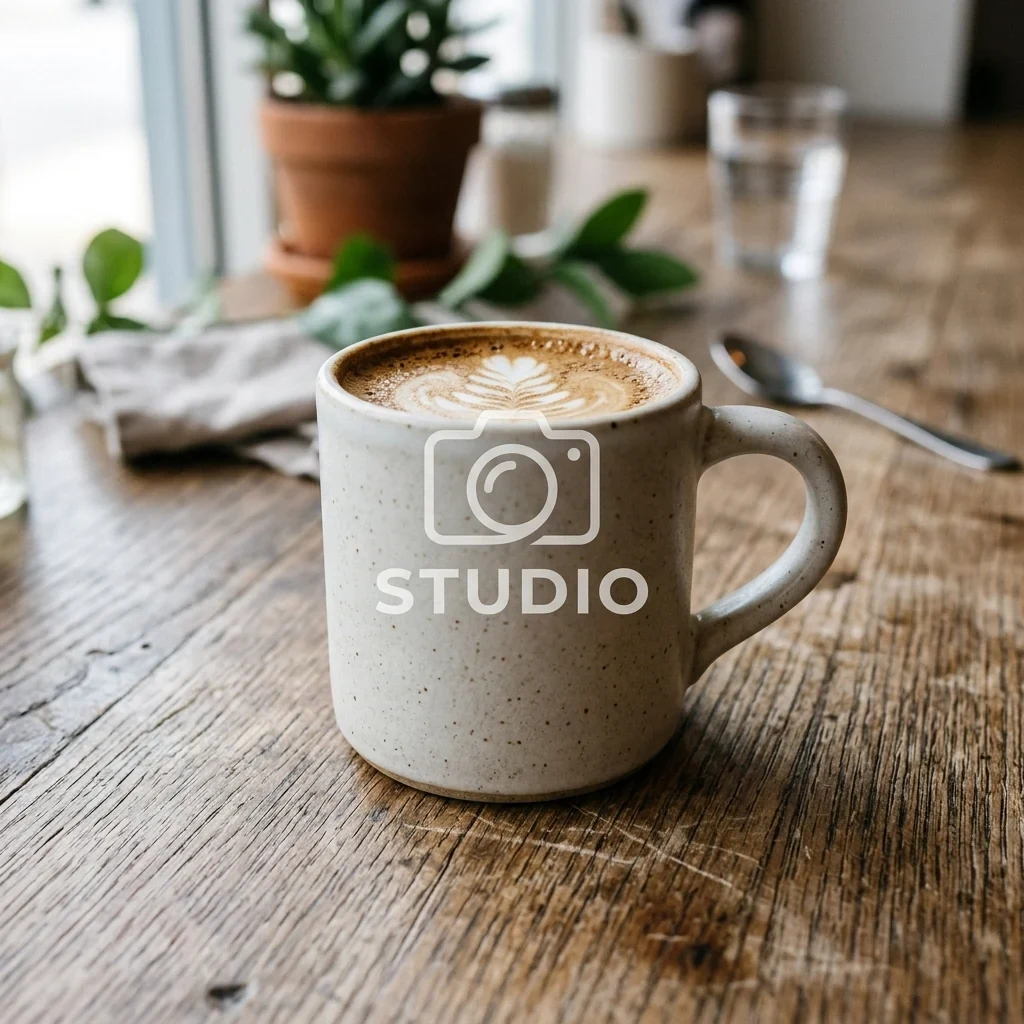
Just one area
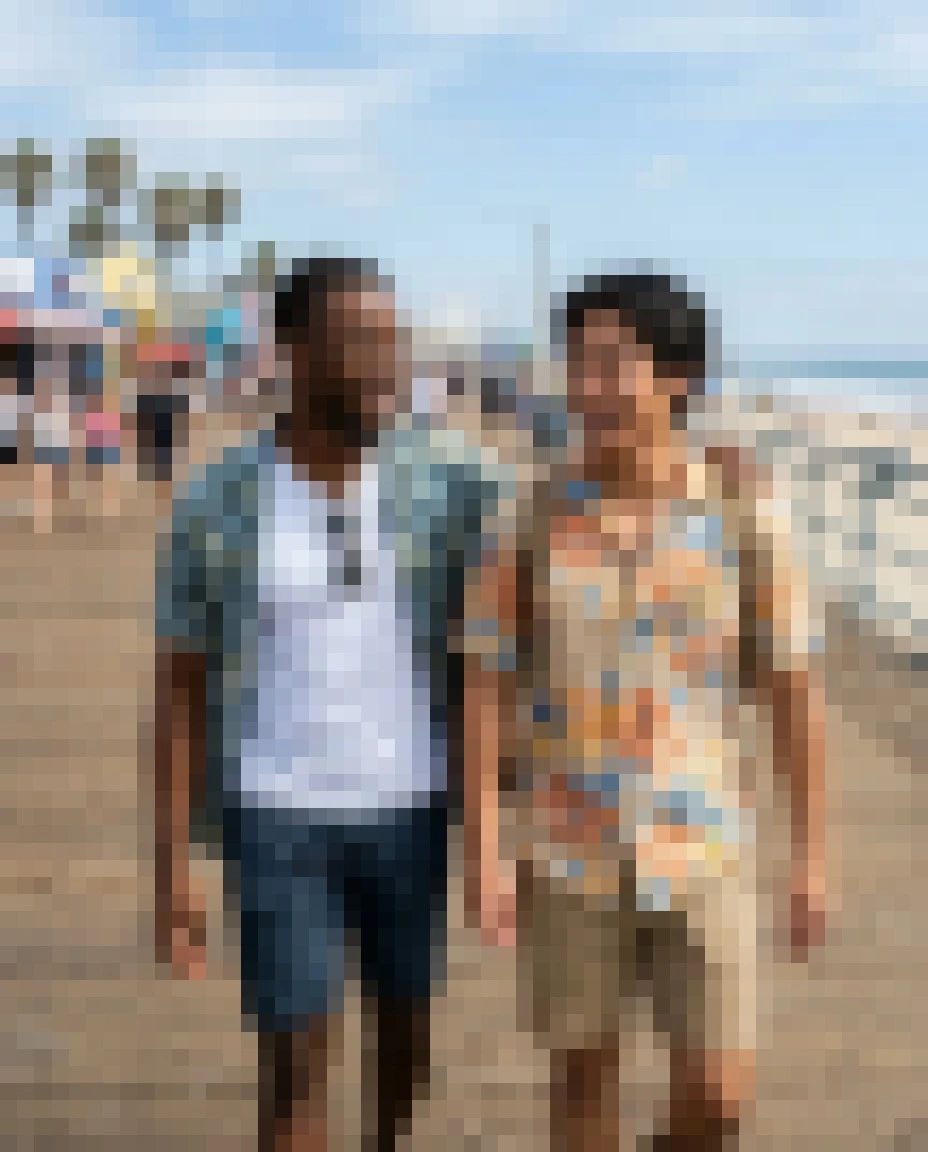
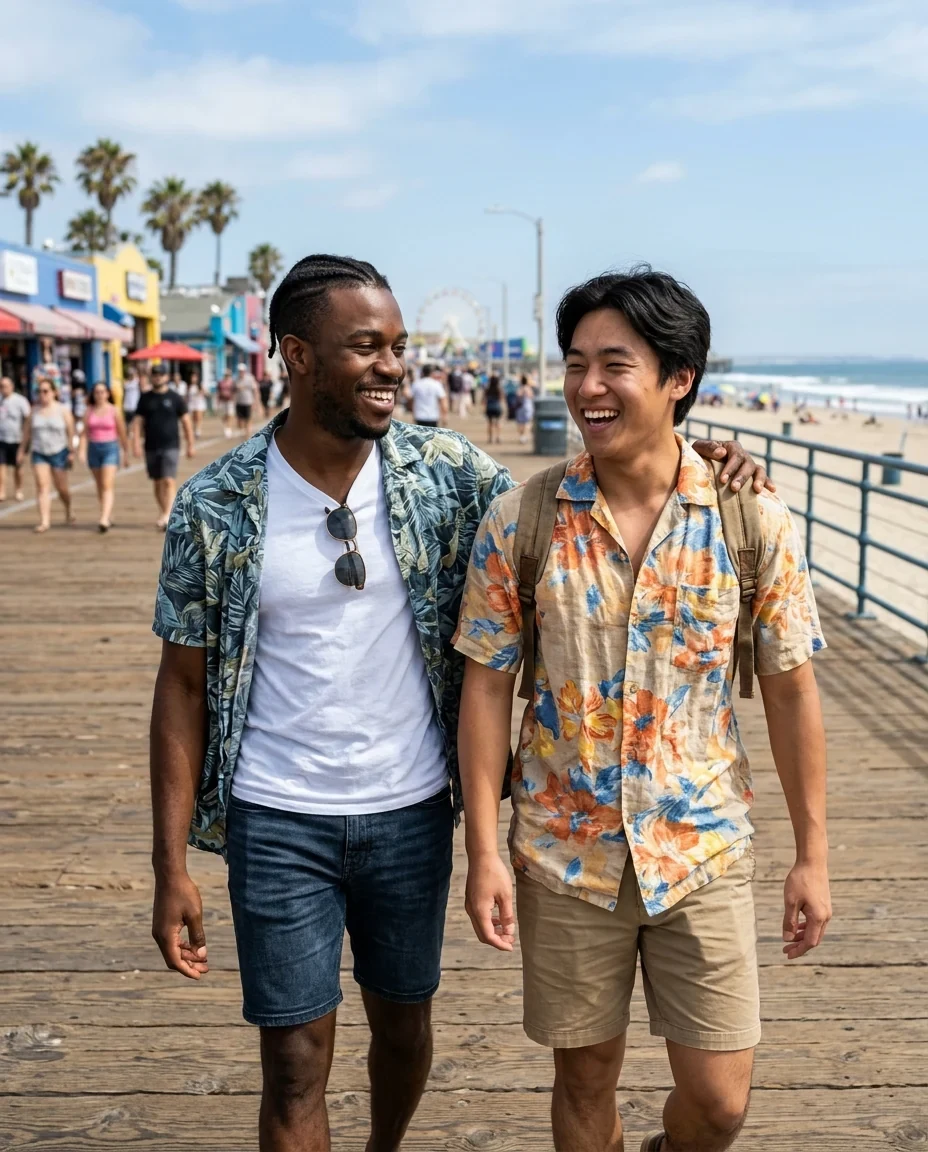
Whole photo, small blocks
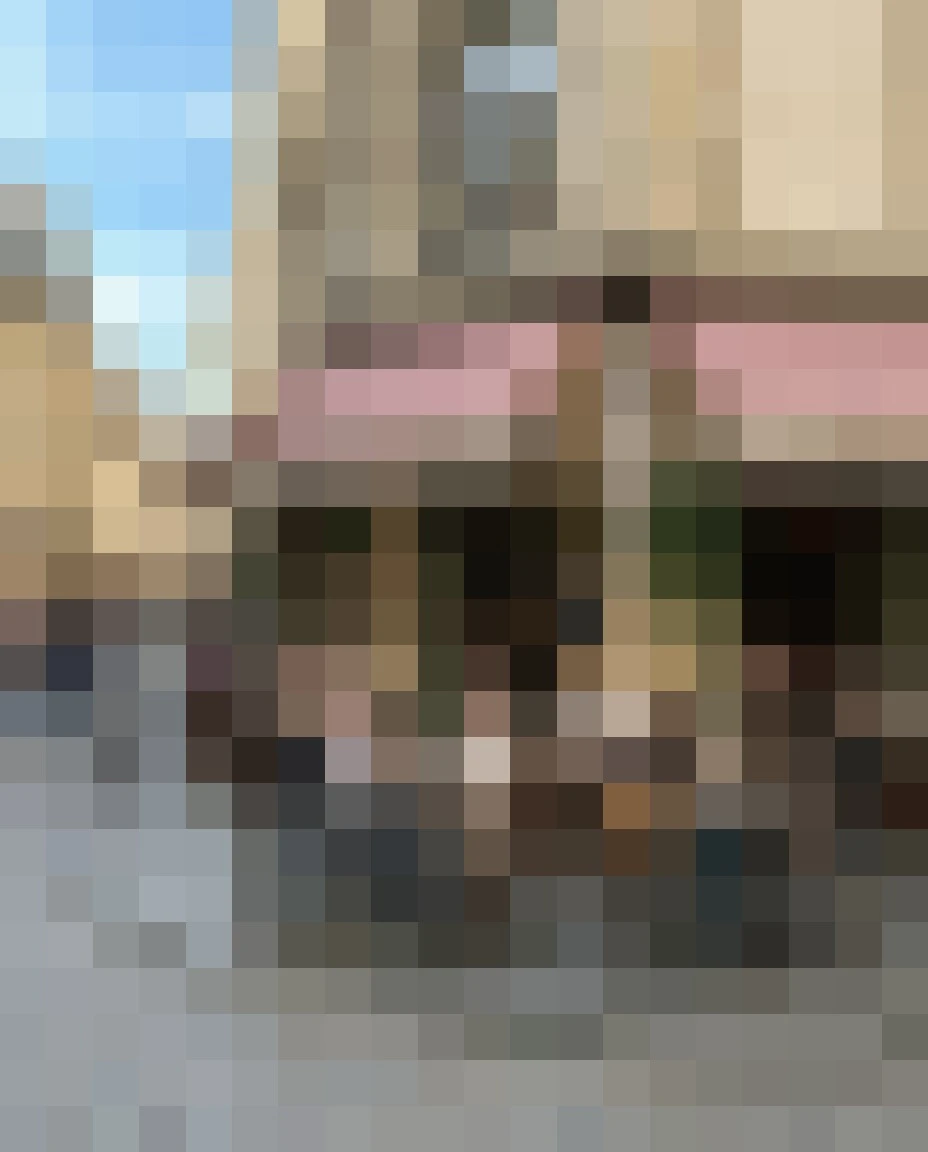
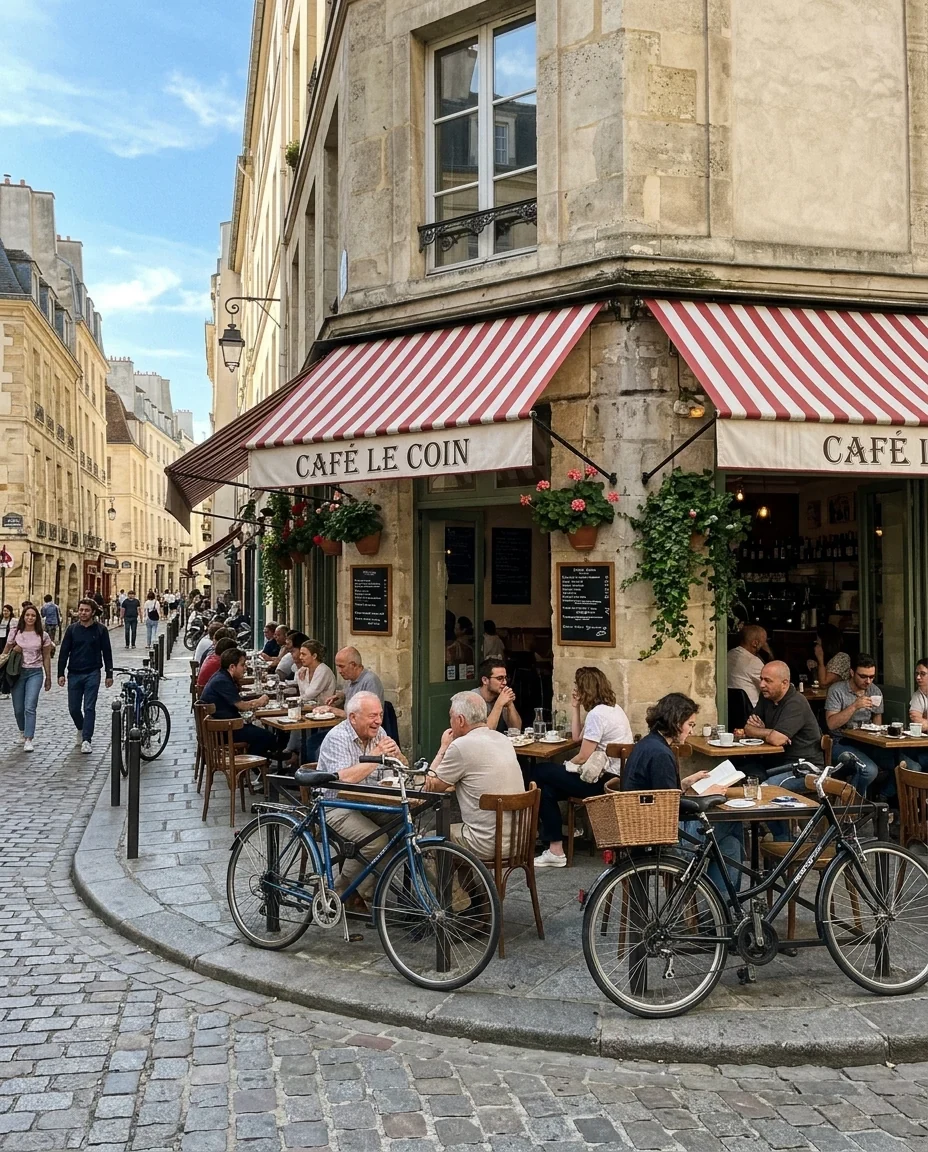
Whole photo, big blocks
Pixelate Image features.
Whole photo or one area
Drag a box on the photo to pixelate only that part.
Any block size
From fine mosaic to big chunky squares.
Stays on your device
Nothing is uploaded.
Pixelate Image, step by step.
01
Drop a photo
Or try one of the samples.
02
Drag a box if you like
Over a face, plate or text; or keep the whole photo.
03
Download
JPG or PNG.
Pixelate Image use cases.
- Privacy before posting
- Hide a face, a house number or a car plate.
- Screenshots
- Cover names, emails or account numbers.
- Retro look
- Turn a whole photo into a pixel mosaic.
Pixelate Image: best photos and fixes.
Hiding a face or a plate
For privacy, drag a box a little larger than the face or plate and use a big block size, around 4–6%. Small blocks can leave a face recognizable, especially in a large photo. Check the result zoomed out as well as zoomed in: a face that is unreadable up close may still be recognizable at thumbnail size, where blocks blend together.
Text and numbers
Names, phone numbers and account numbers on screenshots need blocks bigger than the letters, so no stroke survives. For small text, 2–3% is usually enough; for large headlines, go higher. Pixelation is not encryption: for anything truly sensitive, such as passwords or ID numbers, crop it out or cover it with a solid box instead.
Block size and photo size
Block size is a percentage of the photo's long side, so the same setting looks the same on a phone photo and on a camera photo. 1% gives a fine mosaic, 5% chunky squares, 10% just a few big blocks. The live preview shows the result as you slide.
Several areas
The tool pixelates one box at a time. For two faces, pixelate the first, download, then open the downloaded photo and pixelate the second. Keep the original file safe in case you need to redo it.
A pixel art look
On the whole photo, big blocks turn any picture into a retro mosaic. Photos with bold colors and simple shapes work best. For real pixel art, drawn with clean outlines and a limited palette, try the AI pixel art generator linked below.
Format
JPG keeps file sizes small for photos. PNG keeps the block edges perfectly sharp, which looks better for screenshots and pixel-art-style images.
Pixelate Image FAQ.
Can pixelation be undone?
Not by restoring the original detail; it is gone from the downloaded image. Still, small blocks can leave faces recognizable, so use a big block size for privacy.
Can I pixelate just a face?
Yes. Drag a box over the face on the photo; Area switches to Selected area.
Are my images uploaded?
No. The tool runs in your browser and the images never leave your device. Close the tab and they are gone.
Is it free?
Yes. Quick tools are free, need no sign-in and use no credits; your images stay in your browser. The AI tools linked below need an account.