
Unpixelate Image with AI
Turns blocky, low-res pictures sharp and clear.
Drop a photo
or paste with ⌘V · JPG · PNG · WebP · up to 8 MB
No photo handy? Try one of ours.
More like this.
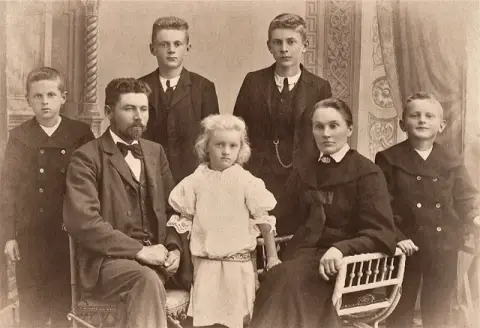
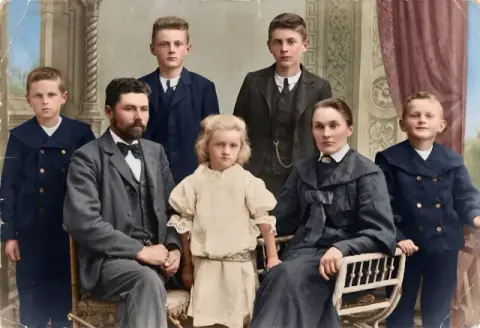
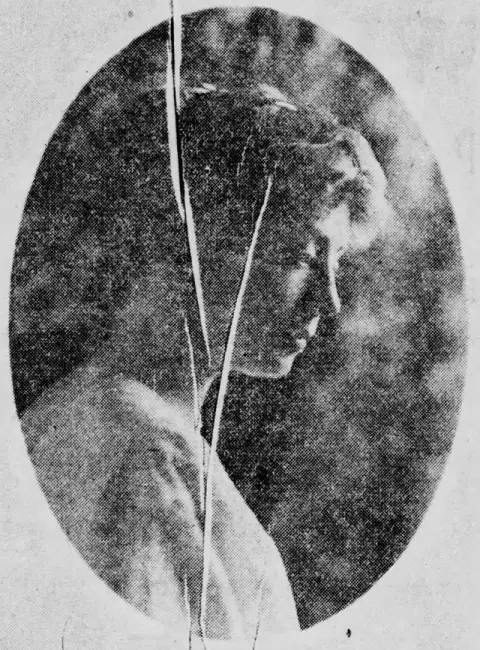
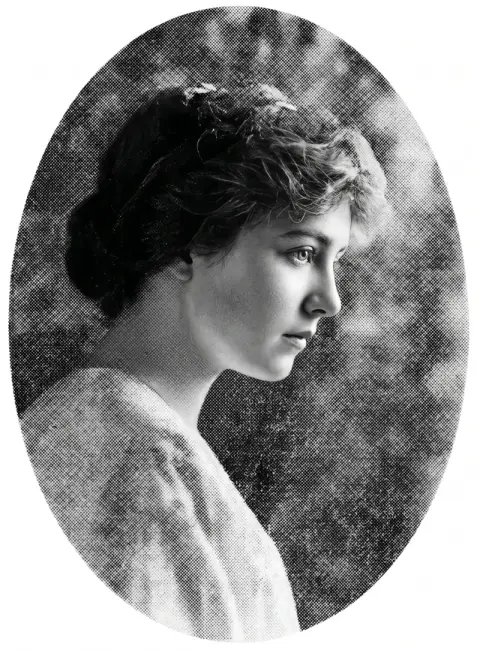
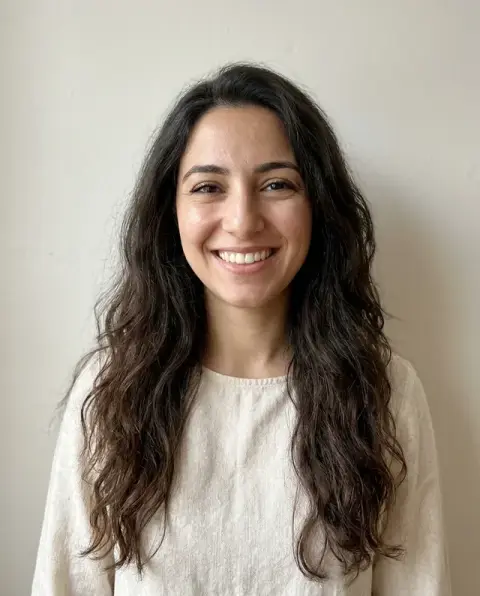
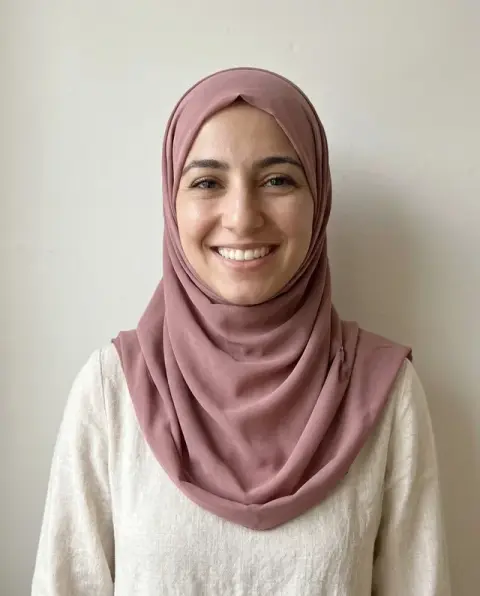
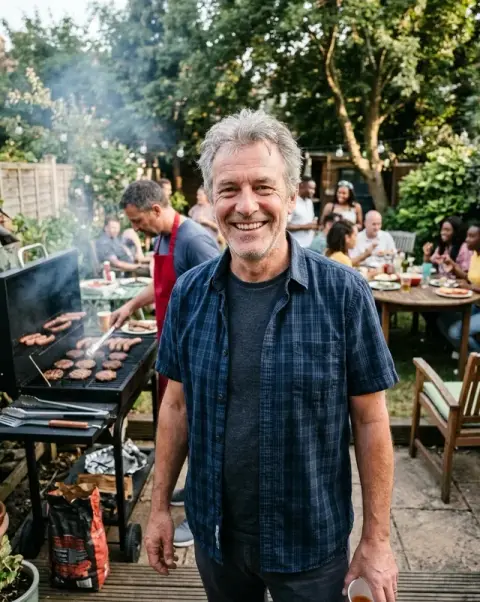
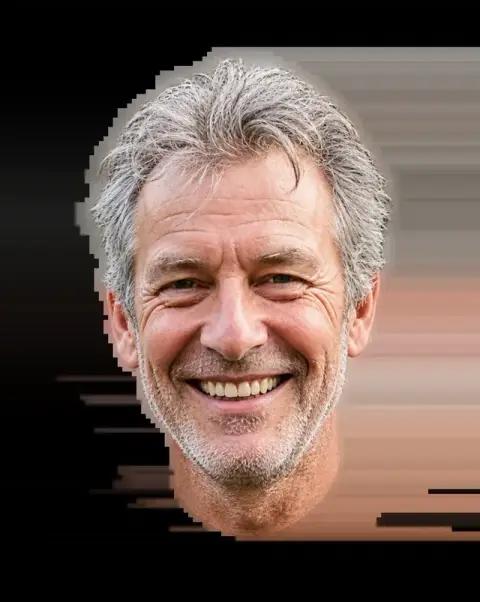
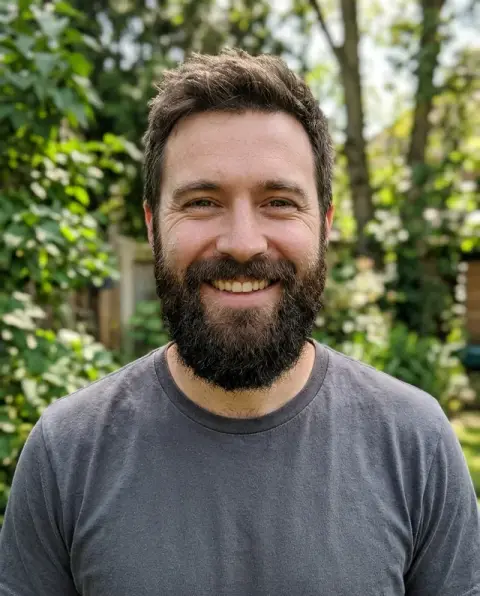
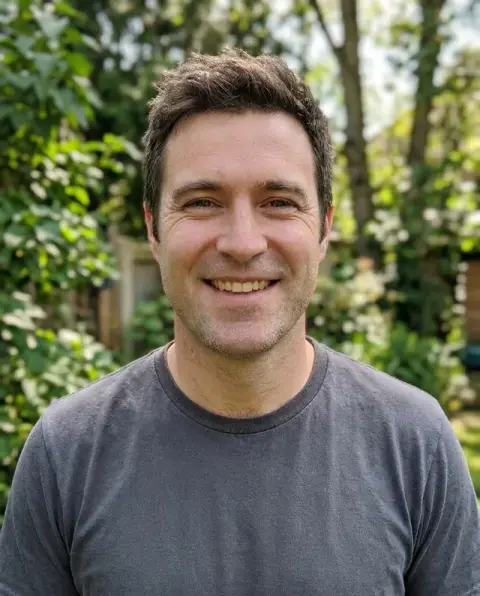


Unpixelate Image with AI examples.
Real results from this page's default settings in one click, not retouched.How examples are made

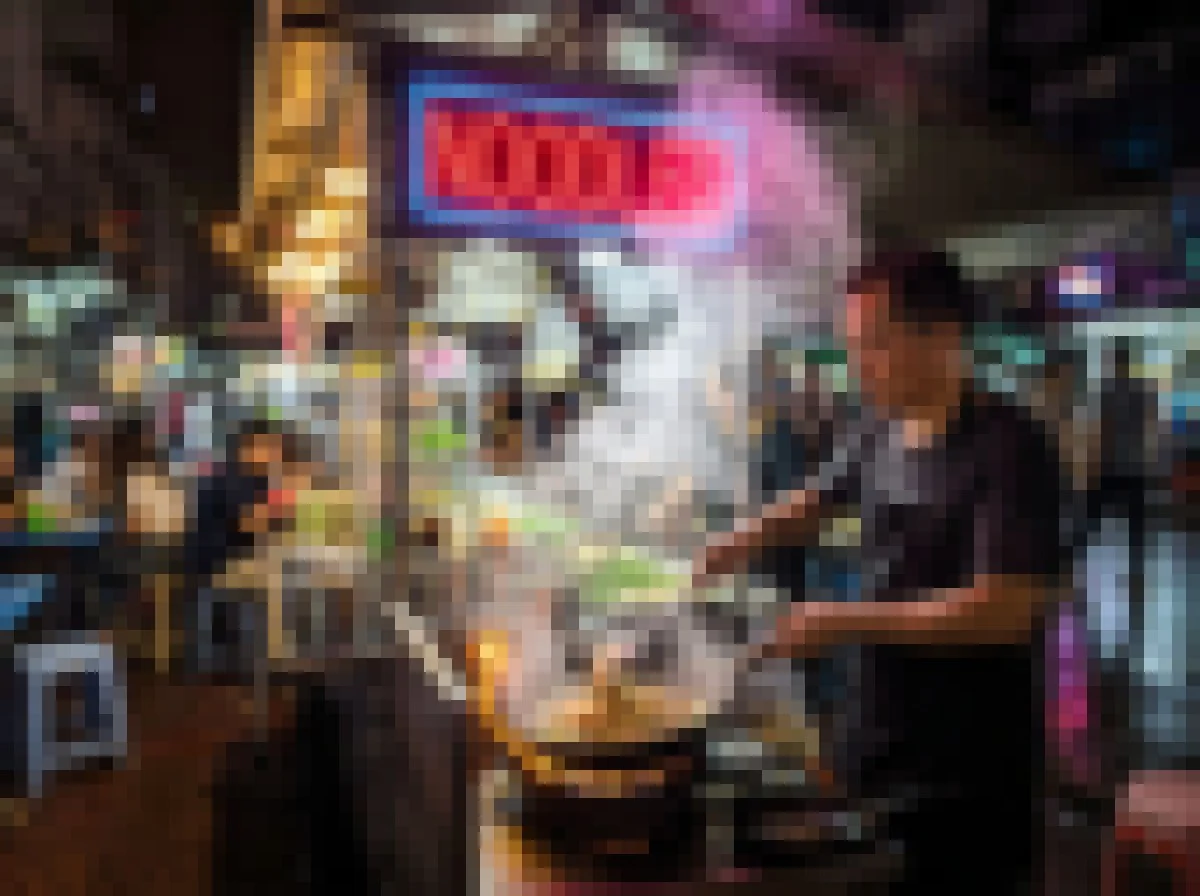
The noodle stall sharp, with a readable neon sign
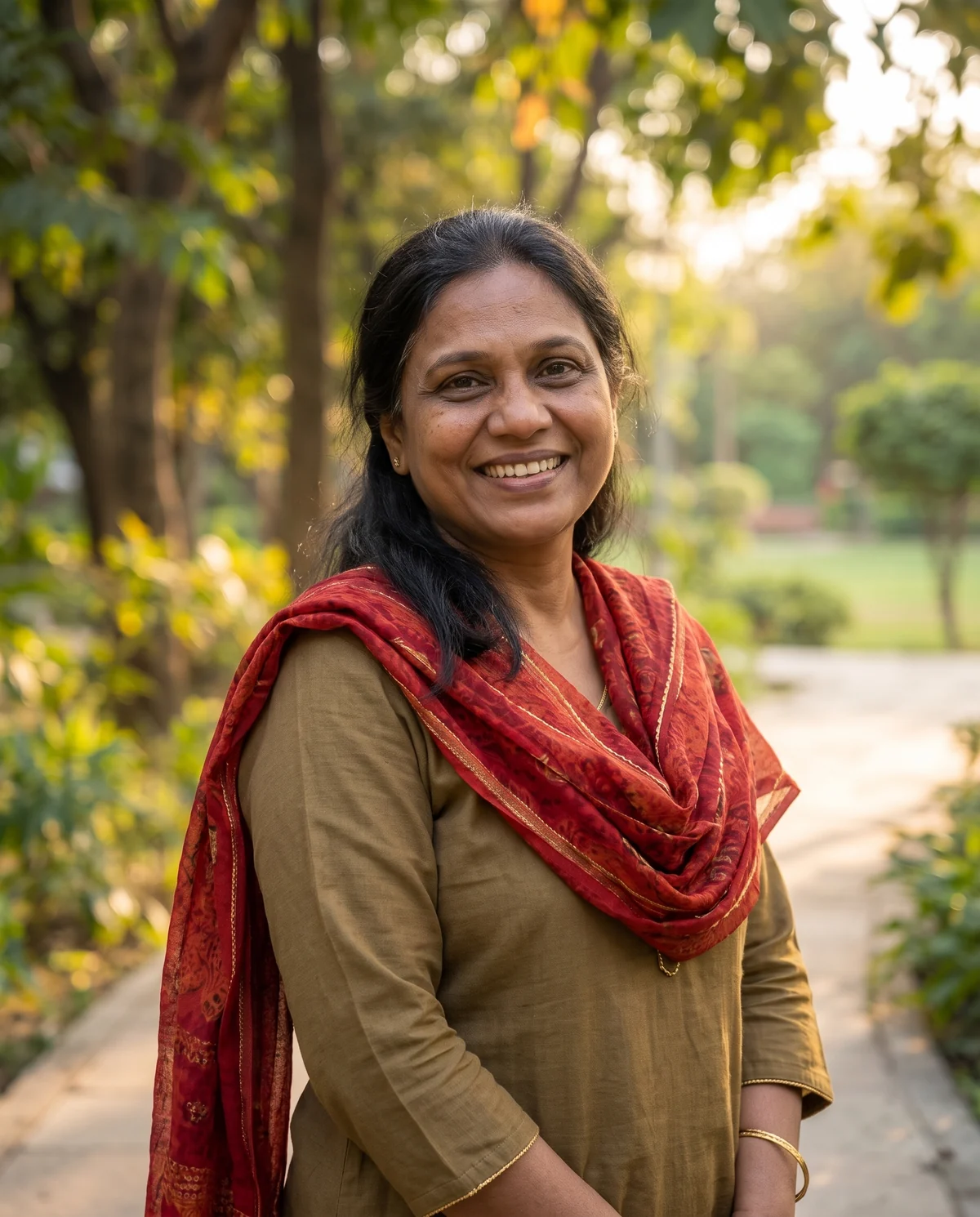
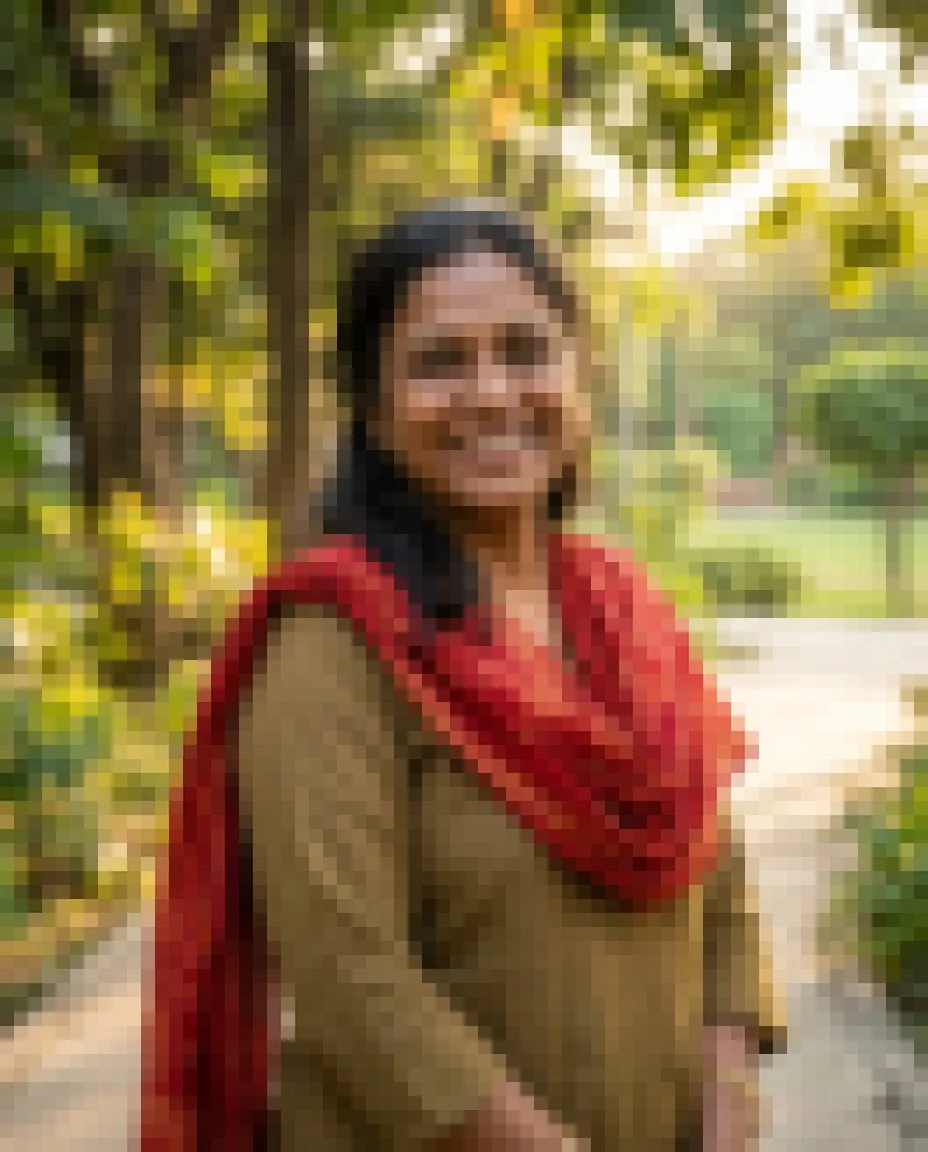
The same portrait restored with a clear face and scarf
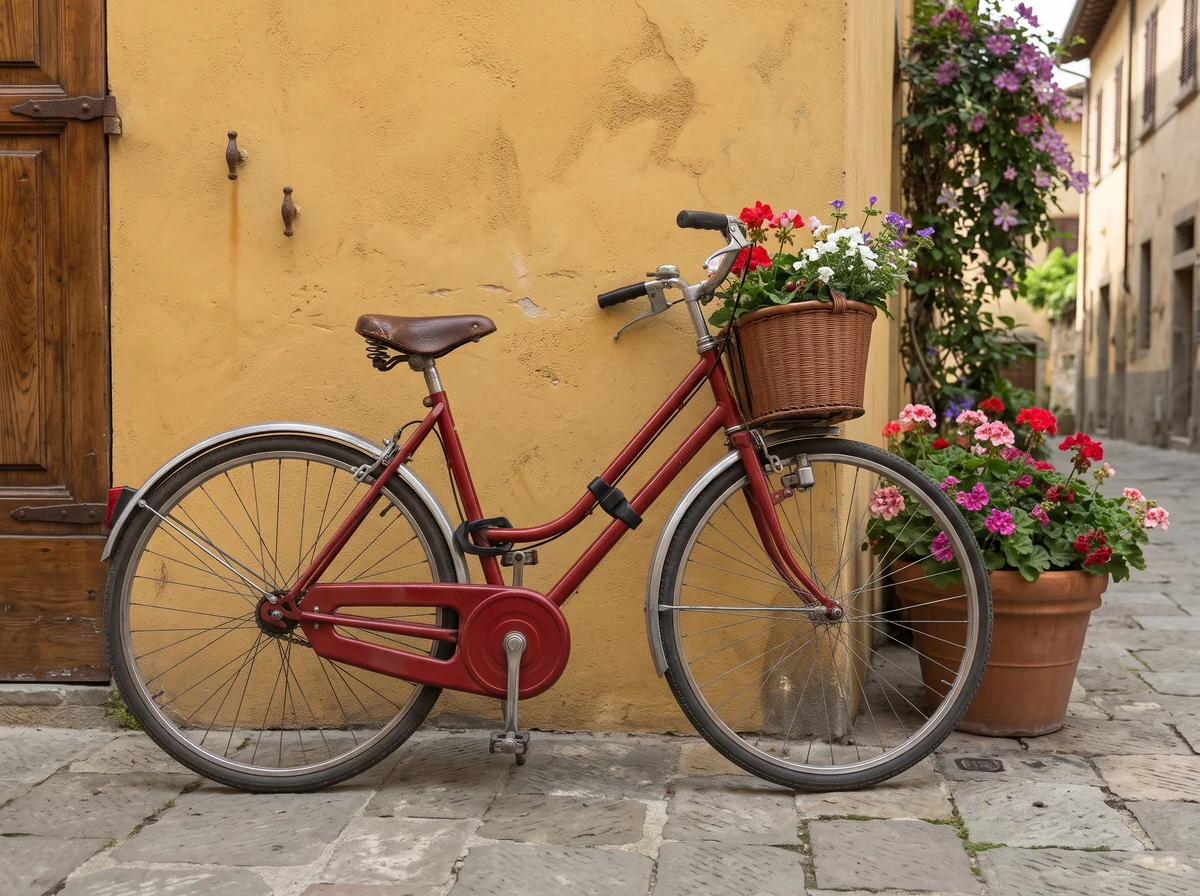
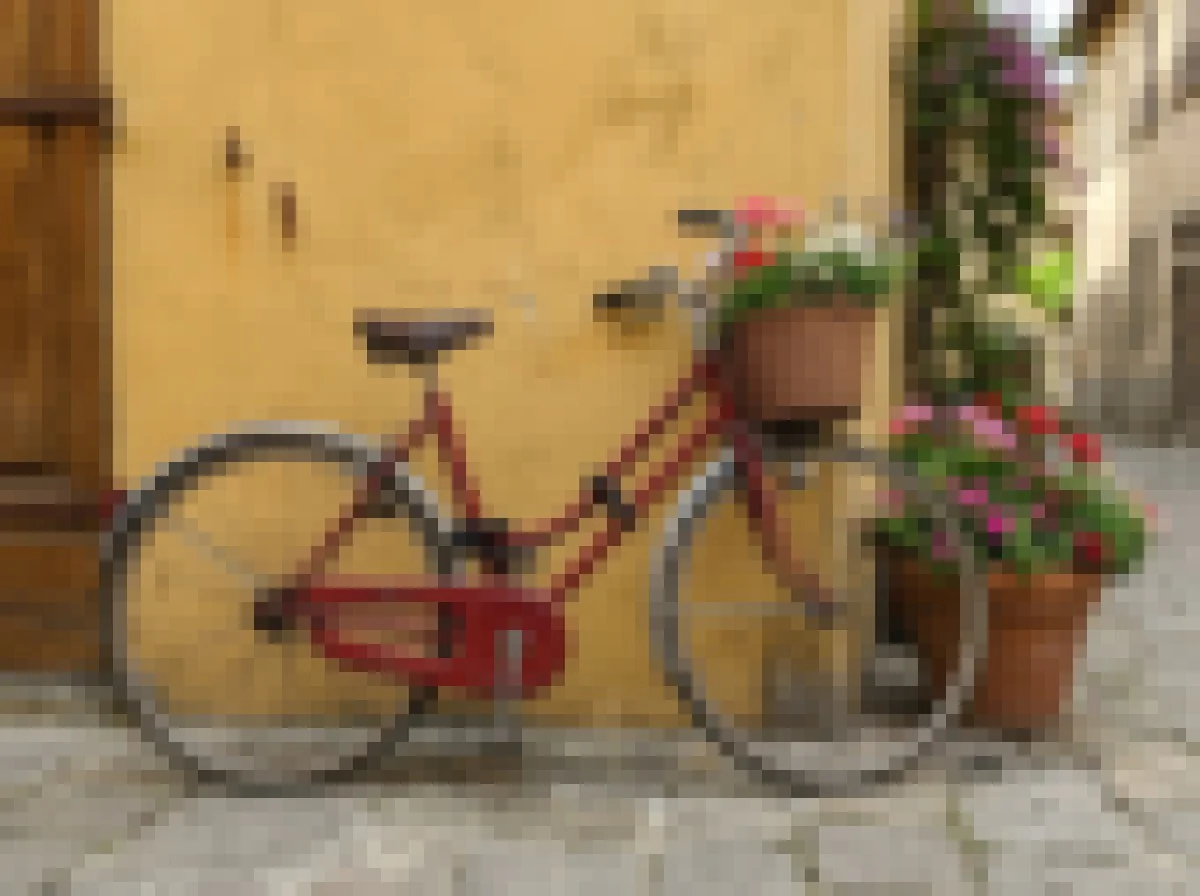
The bicycle and wall rebuilt with sharp edges and detail
Unpixelate Image with AI features.
Smooth edges again
Blocky pixels become clean lines and textures.
Faces and text
Rebuilt so people look like themselves and words can be read.
2K output
Results come out larger and sharper than the original.
Unpixelate Image with AI, step by step.
01
Upload the image
JPG, PNG or WebP, even very small ones.
02
Unpixelate
The image is rebuilt at 2K.
03
Download
Save the sharp version.
Unpixelate Image with AI use cases.
- Old screenshots and thumbnails
- Rescue small images saved years ago.
- Images from chats
- Fix photos that were compressed when they were sent.
Unpixelate Image with AI: best photos and fixes.
Images that work best
Small thumbnails, old screenshots, images saved from chats and early digital photos with visible blocks are the typical cases. The output is rebuilt at 2K, so even a 300-pixel image comes back with smooth edges. The more of the original you start from, the closer the details stay to the real thing.
Faces in small images
Faces that are only a few dozen pixels wide are rebuilt with new detail. They look sharp and natural, but the eyes, teeth and skin are drawn by the model, so the likeness can drift. Use the largest copy you can find, and compare the result with other photos of the person before printing it.
Text and logos
Large, blocky text comes back crisp. Small text where each letter is only a few pixels tall may be guessed, so check every word and number. For logos, the result is a clean redraw that can differ slightly in letter spacing or curves; for brand use, find the original vector file if you can.
Censored and mosaic-blurred images
Faces or text that were deliberately pixelated to hide them cannot be recovered. The model will draw something plausible, but it is invented, not revealed. Do not use the tool to identify people or read hidden information; the result would be wrong and misleading. Use it only on images you own or have the right to edit.
Pixels or blur
Pixelation shows as visible squares or jagged stair-step edges. If your image is soft and smeared rather than blocky, unblur is the better tool. Some photos have both, such as a shaky photo that was later shrunk. In that case try unpixelate first, then unblur the result if it is still soft.
Old game, video and webcam stills
Stills from old videos, webcams and video calls are often small and blocky. Unpixelating gives smooth edges and readable shapes, but faces from tiny video frames are rebuilt with a lot of guessing. Use the largest frame you can export from the original video, rather than a screenshot of a playing video, which adds its own blur and compression.
Upscaling for print or slides
A small image stretched across a slide or a printed page looks blocky. Unpixelate it first, so the result has smooth edges at 2K, and then place it at its final size. For a large print, check the detail at 100% zoom; very small originals can still look soft when printed big, even if they look fine on screen.
Unpixelate Image with AI FAQ.
Can it fix censored or mosaic-blurred faces?
No. It sharpens images that are low resolution. Detail that was deliberately hidden can't be recovered, and the tool won't invent a face.
What resolution do I get?
2K by default, 4K when you need it.
How is this different from unblur?
Unpixelate fixes blocky, low-resolution images. Unblur fixes motion blur and soft focus.
How many credits does one generation use?
With GPT Image 2, the default 2K generation uses 16 credits. You can select 1K for 9 credits. New accounts get 25 free credits, enough to try 1K. Sign in with your email; no card needed. Results have no watermark. Credit packs never expire, and your first one is half price.
Guides on the blog.
 Why are my photos pixelated? Causes and real fixesBlocky squares, jagged edges and smeared color have a few clear causes. How to tell them apart, stop them happening, and repair images that are already blocky.
 Remini alternatives for sharpening and restoring photosRemini is known for sharpening faces in blurry and old photos. Alternatives for unblurring, unpixelating, repairing damage and adding color, and how to choose.