



Remini became popular for one thing above all: making blurry faces sharp. Old family photos, low-quality selfies and soft video stills come out with crisp eyes and skin. The app has since added AI portraits and other features, and it's mostly sold as a subscription.
There are several reasons to look at alternatives: you may want a pay-as-you-go option, a desktop workflow, or tools that also fix scratches, tears and missing color, not just blur. Here are the main options.
First: what problem do you have?
"Enhance" covers several different jobs. Picking the right tool starts with naming the problem:
- Blur: soft focus, camera shake, motion blur. The whole image or the subject looks smeared.
- Pixelation: blocky squares, jagged edges, compression artifacts from a small or heavily compressed file.
- Physical damage: scratches, creases, tears, stains and missing corners on old prints.
- Fading and missing color: washed-out prints, color shifts, or black-and-white photos you'd like in color.
Some tools do all four; most do one or two well. Our guides on blurry photos and pixelated photos explain how to tell blur from pixelation.
Remini alternatives compared
Remini is a free download on iPhone and Android and also runs on the web. Regular use is a subscription, with weekly plans. These are the main alternatives. Plans and features were checked in November 2026.
Let's Enhance
Let's Enhance is a web upscaler and enhancer that can output very large files for print. New accounts get 10 credits; free results are watermarked and capped at 8 megapixels. Paid plans are monthly or yearly credit subscriptions.
VanceAI
VanceAI is a set of web enhancers and upscalers, plus a Windows desktop app. The web plans run on monthly credits, and the desktop app is also sold as a one-time lifetime license.
Topaz Photo
Topaz Labs makes professional desktop software for Mac and Windows that sharpens, denoises and upscales on your own computer. It's sold as a subscription. Best for photographers working with large files.
Upscayl
Upscayl is a free, open-source desktop upscaler for Windows, Mac and Linux that runs offline. It needs a compatible graphics card (most built-in laptop graphics won't do), and it enlarges images rather than restoring faces or repairing damage.
Photoshop and Lightroom
Adobe Photoshop and Lightroom include AI features for noise reduction, sharpening and upscaling, and Photoshop's neural filters include photo restoration. They give fine control and work well on large files, but take time to learn.
Genealogy services
Some family history platforms, such as MyHeritage, offer photo enhancement and colorization alongside family trees. Convenient if you're already building a tree there.
Web-based AI tools
Online tools with no app to install. Our tools fall in this group, split by problem so each one does one job well.
Our tools, by problem
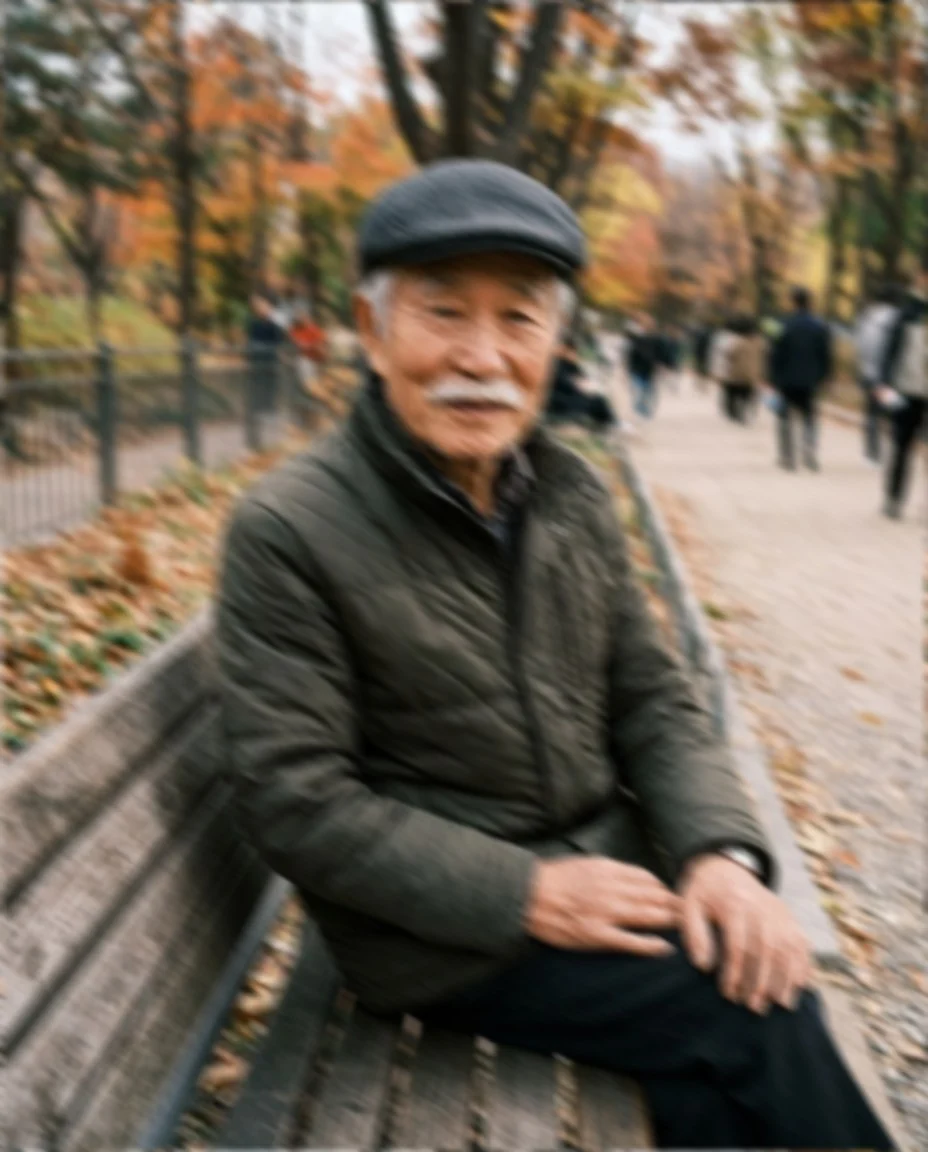
Blurry photos: Unblur image
Unblur image removes motion blur, camera shake and soft focus, and recovers detail in faces, text and textures. It keeps the same people, colors and framing and is instructed not to change anyone's facial features.

 Unblur imageMake a blurry photo sharp againTry it with your photo
Damaged old photos: Photo restoration
Photo restoration repairs scratches, creases, tears, stains and missing corners, and rebuilds damaged emulsion, while keeping faces and details as they were.

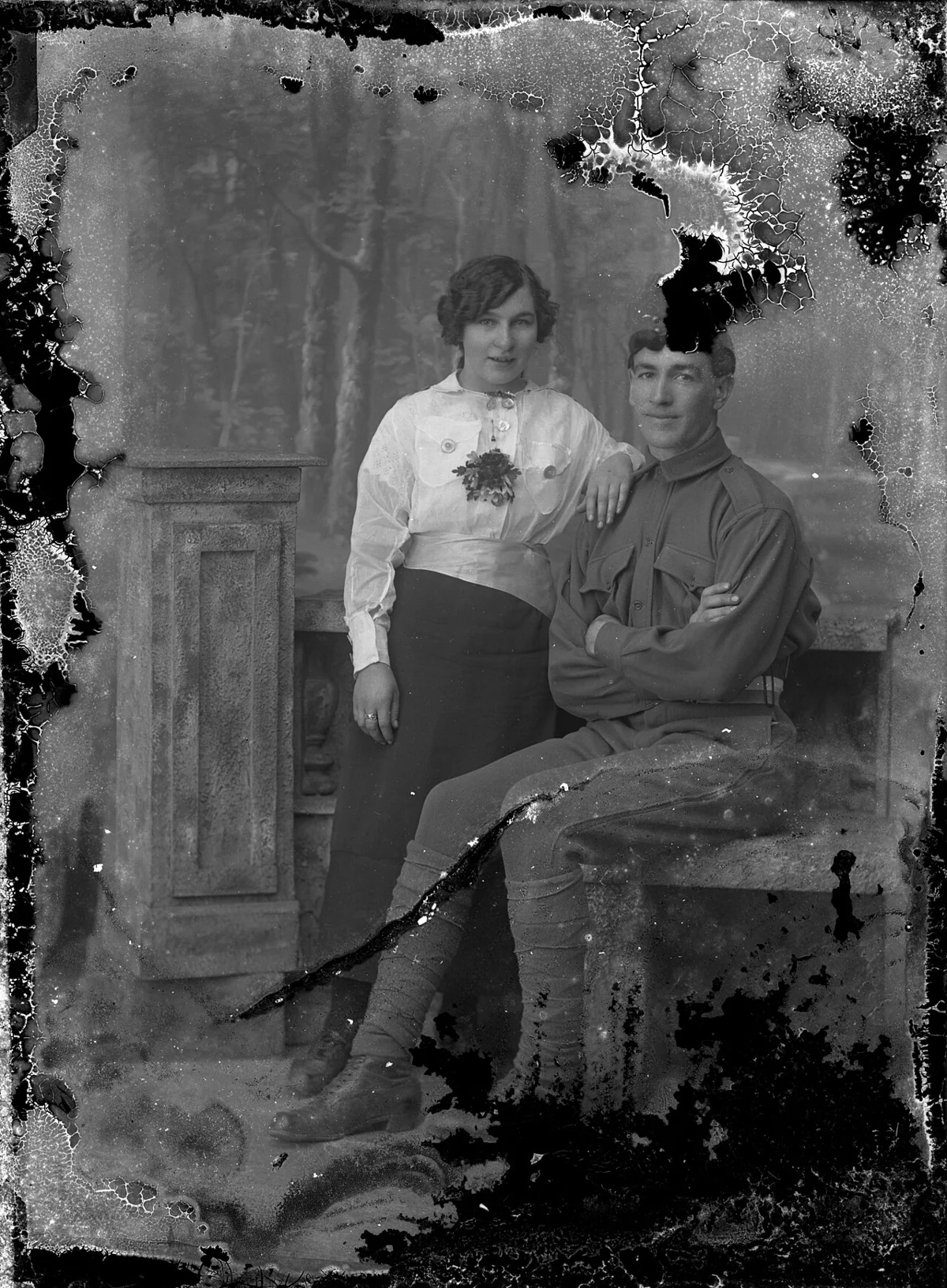
 Photo restorationRepair creases, tears and fading in old photosTry it with your photo
Black-and-white photos: Colorize photo
Colorize photo adds natural color to old black-and-white photos: skin, clothes, sky, buildings. You can tell it known colors in the instructions, like "her dress was blue".
 Colorize photoAdd natural color to black and white photosTry it with your photo
Blocky, low-resolution images
For pixelated images, Unpixelate image removes blocky pixels and compression artifacts and rebuilds edges and detail.
Pricing
You sign in to use the tools. New accounts get 25 credits, and after that you pay for what you use, with the cost shown on the button before you generate. Credit packs never expire, and there's no subscription.
Order matters when you fix old photos
If a photo has several problems, fix them in a sensible order:
- Scan or photograph it well. A sharp, evenly lit copy beats any later fix.
- Straighten and crop so the tool works only on the photo, not the table around it.
- Repair damage like scratches, creases and stains.
- Sharpen if the photo is still soft.
- Colorize last, on the clean version.
Colorizing a scratched photo colors the scratches too, and sharpening before repair can make dust and cracks more visible. Save a copy after each step so you can go back.
How to compare tools fairly
Pick three test photos and run them through each tool you're considering:
- A blurry portrait of someone you know well.
- An old, damaged family photo.
- A small, compressed image from a messaging app.
Then judge:
- Does the face still look like the person? This matters more than sharpness.
- Are skin and hair natural, or plastic and over-smoothed?
- Are text and small details correct, or invented?
- Are the colors believable?
- Is the resolution good enough for your use: screen, print, enlargement?
Realistic expectations
No tool can recover detail that was never captured. When a face is only a few pixels wide, any tool invents a plausible face, and it may not be the right one. For family history, keep the original scan alongside the enhanced version, and treat colorized and heavily restored images as interpretations.
Which should you choose?
- Mostly selfies and recent photos, on a phone: Remini or another face-enhancement app.
- Large prints from small files: Let's Enhance.
- A one-time purchase instead of a subscription: VanceAI's desktop license, or Upscayl at no cost if your computer has a suitable graphics card.
- Professional work and large files: Topaz Photo or Photoshop.
- Building a family tree: a genealogy service's built-in tools.
- Different problems on different photos, without a subscription: web tools that match each problem, like unblur, restoration and colorize.
For a full walkthrough of scanning, repairing and colorizing old photos, see our guide on how to restore old photos.