AI Product Photography
Studio-quality product photos from a phone snapshot.
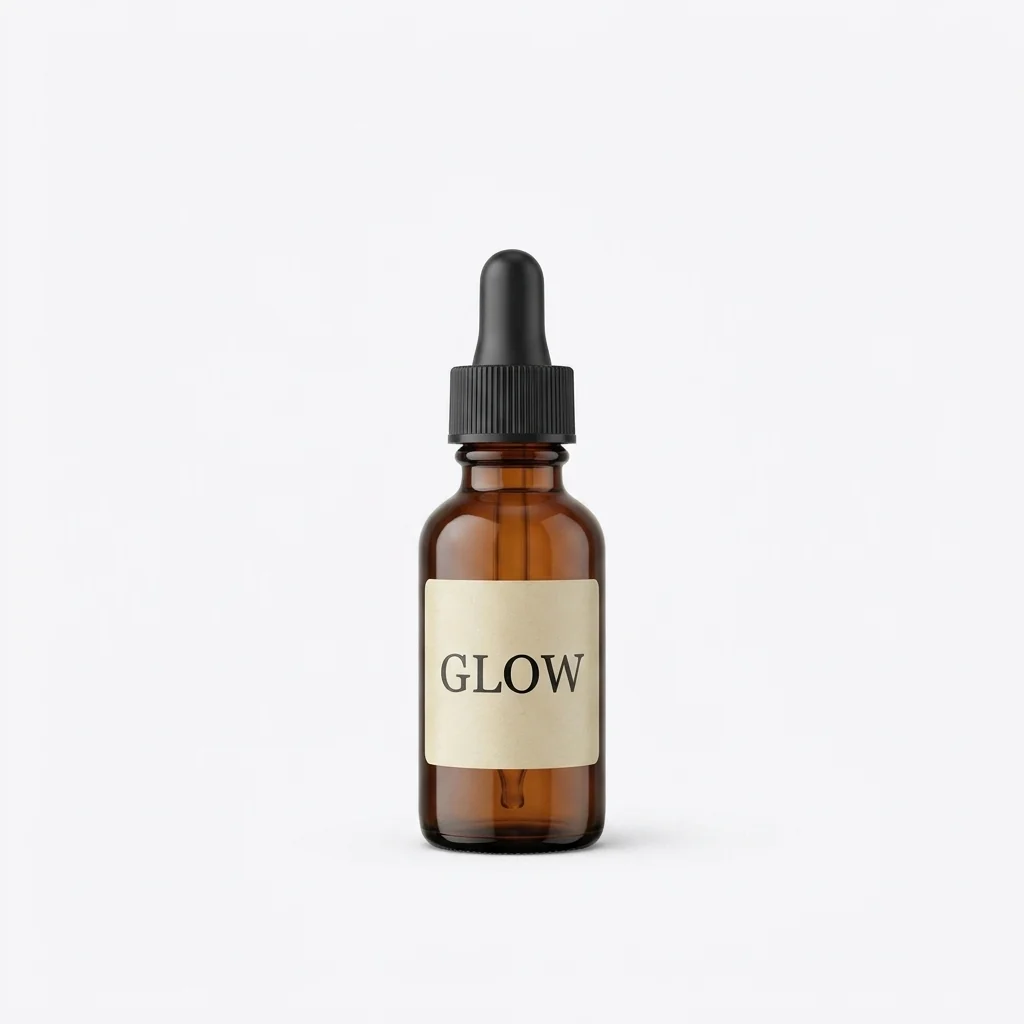 Example output
AI Product Photography examples.
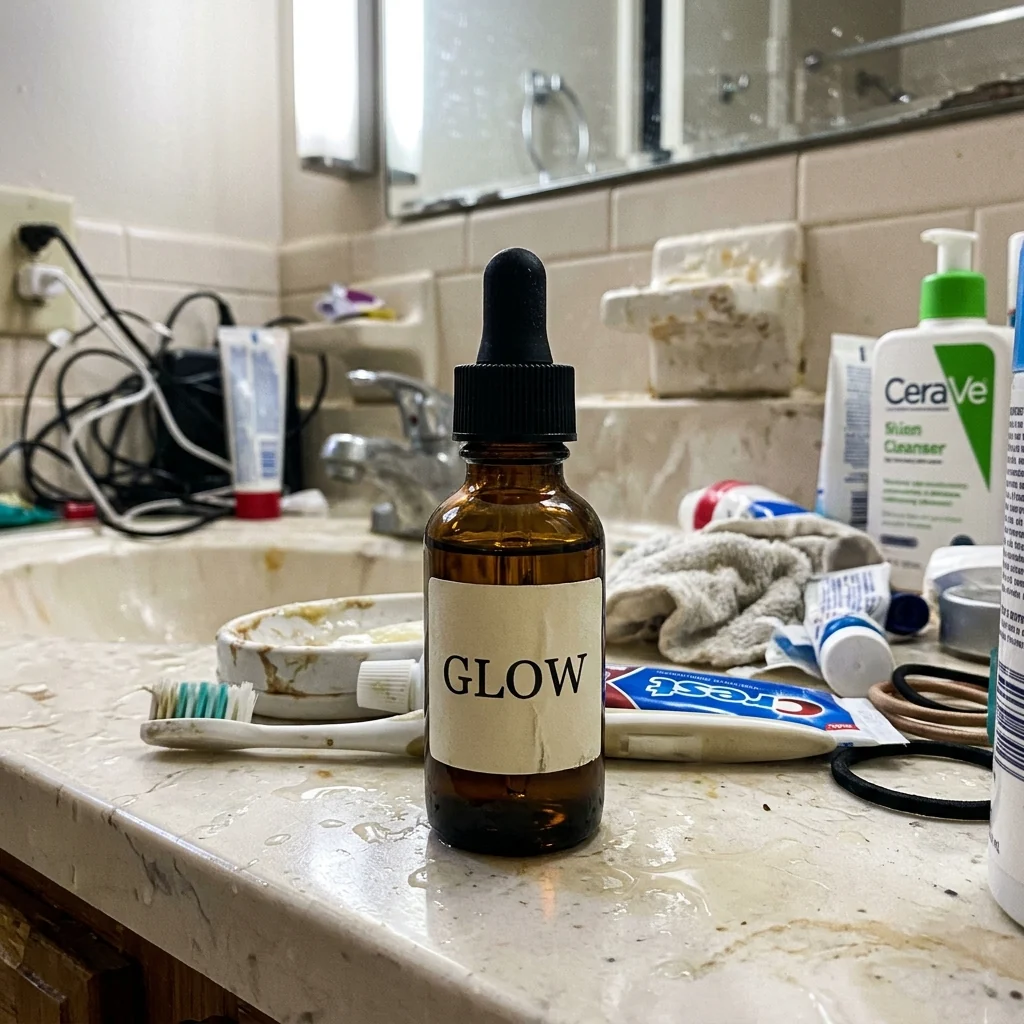
White studio
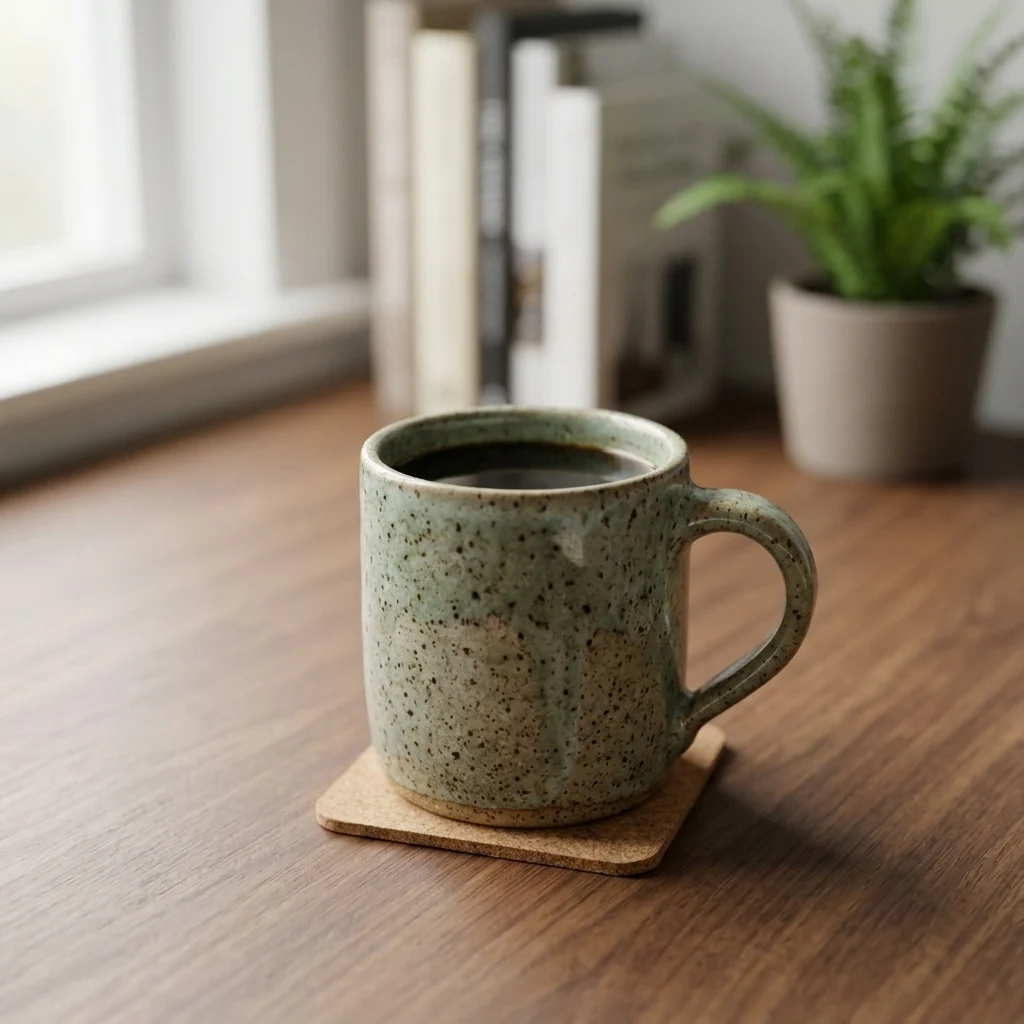
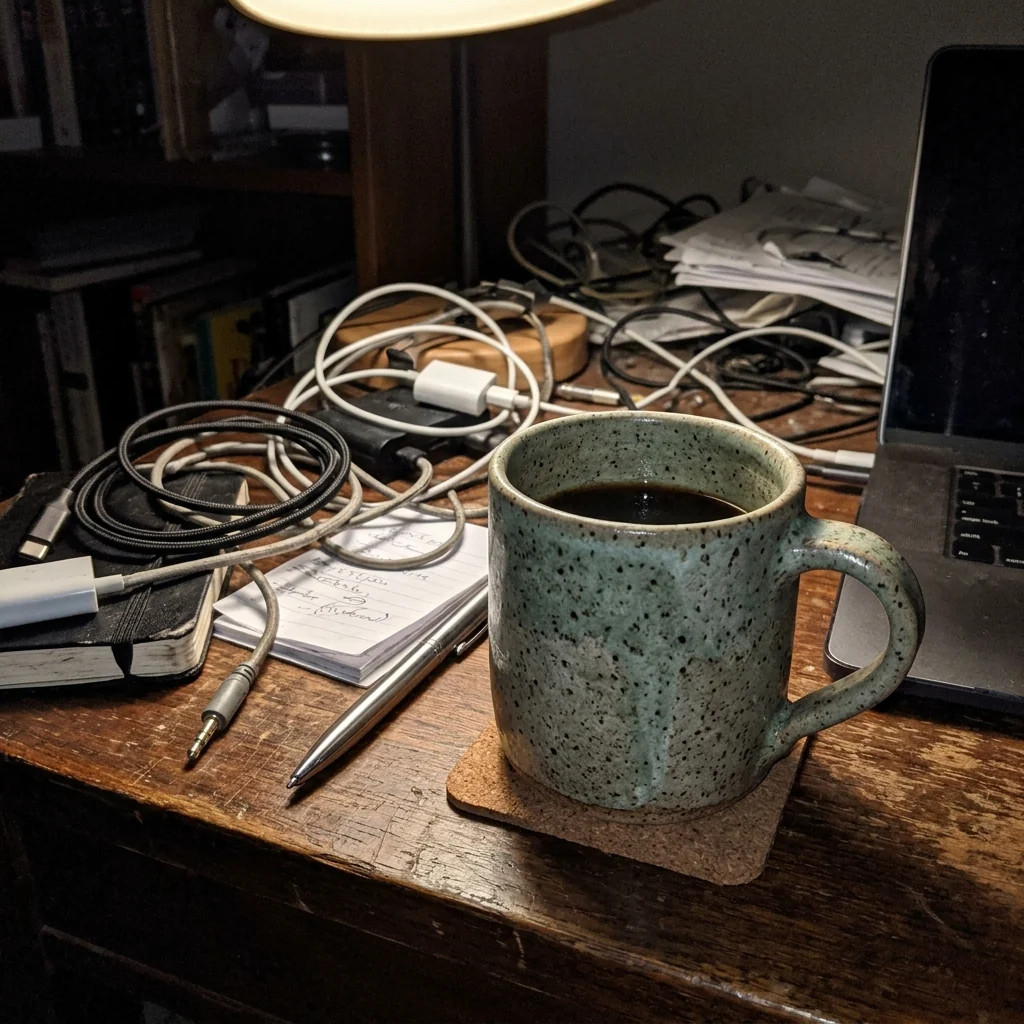
Lifestyle
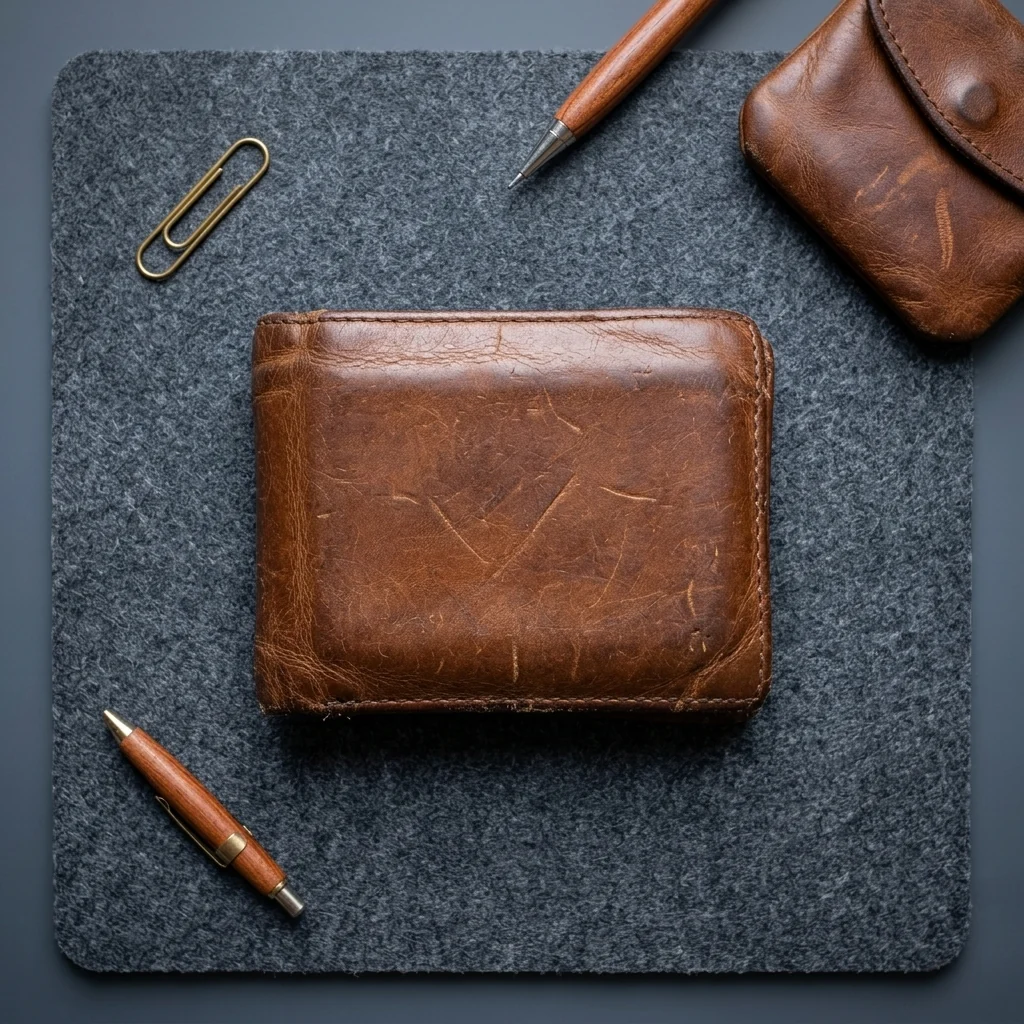
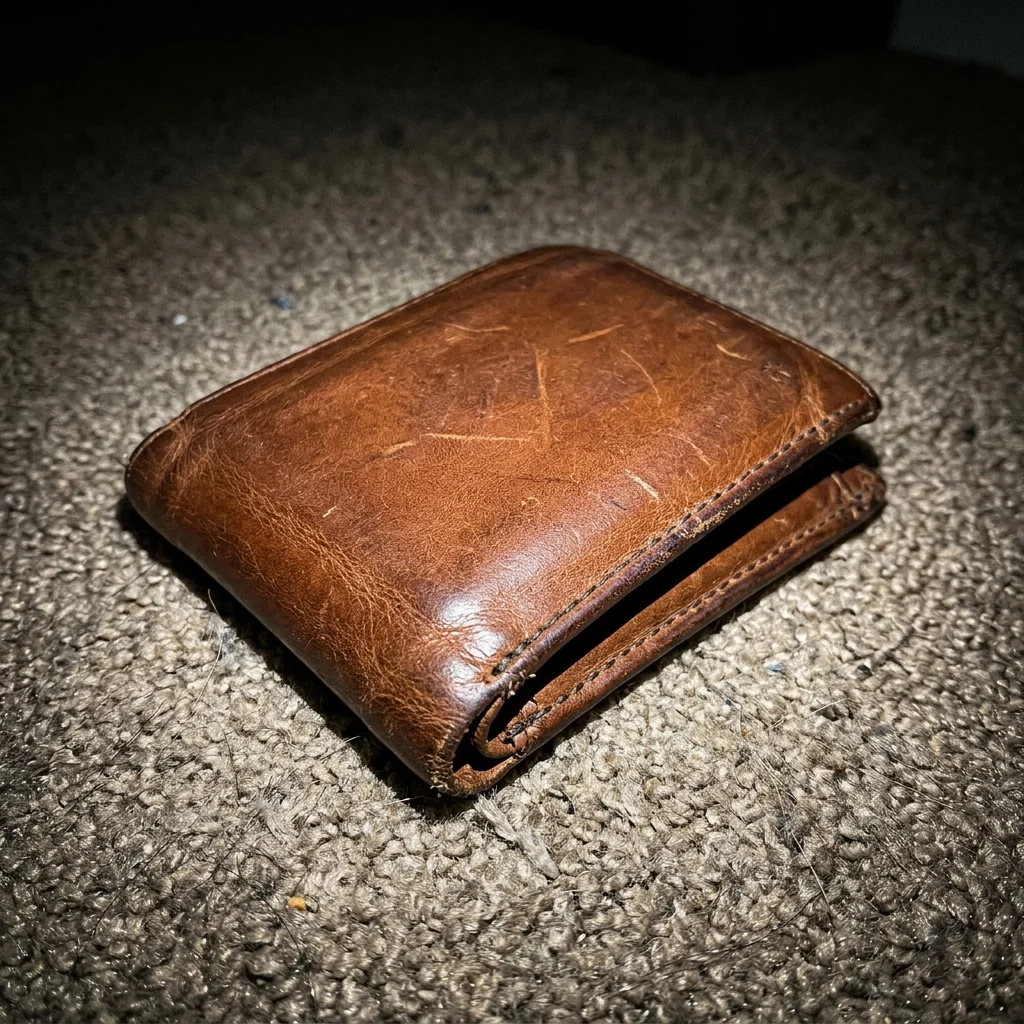
Flat lay
AI Product Photography features.
From a phone snapshot
Your product, on a professional background.
Three scenes
Studio white, lifestyle or flat lay.
Product kept the same
Shape, colors and labels are kept.
AI Product Photography, step by step.
01
Upload a product photo
Any snapshot; the background doesn't matter.
02
Pick a scene
Studio, Lifestyle, Flat lay or Custom.
03
Download
Use it on your store or socials.
AI Product Photography use cases.
- Online stores
- White-background photos for listings.
- Social posts and ads
- Lifestyle shots without a photo shoot.
- Handmade sellers
- Polished photos of products you made.
AI Product Photography: best photos and fixes.
The snapshot you start from
The background doesn't matter, but the product does: shoot it whole, in focus, with its label facing the camera and no fingers covering it. Daylight from a window shows true colors better than a yellow lamp or flash. A slightly higher angle, as a customer would see it, gives the most natural result. Upload the largest photo you have, and shoot every product from the same height and distance so a set matches.
Choosing a scene
Studio gives the clean white background most marketplaces want. Lifestyle places the product where it would be used, with soft natural light: a bathroom shelf, a kitchen table, a desk. Flat lay shoots from above with a few props; it suits flat or small items such as wallets, notebooks, jewelry and cosmetics, and looks odd for tall bottles. Custom lets you describe your own: "on wet black stone with water drops", "in a cozy cabin at Christmas".
Labels and text
Labels, logos and printed text are kept as they are, but small text can still come out slightly changed. Zoom in and check every word before publishing, especially ingredients, sizes and brand names. If the label is warped, regenerate or upload a straighter, sharper photo of the label.
Honest product photos
Your product should look like what the customer receives. The color, size and details are kept, but lighting and setting make it look its best. Avoid adding props that suggest something is included when it isn't, and check that colors match the real item. Studio gives a white background close to what marketplaces ask for; check their rules.
A consistent set
For a store page, run every product with the same scene and similar angles so the collection matches. Use one or two lifestyle shots per product next to the white studio one. If you sell variants in several colors, photograph each one; don't ask the tool to change the color, since buyers need the real one.
Related tools
The background remover cuts the product out for your own designs, and add white background to photo is a quick way to get a plain white backdrop. The mockup generator puts designs on products, and add logo to photo brands a photo or product. For packaging and flyers, try the flyer generator.
AI Product Photography FAQ.
Will my product look the same?
Its shape, colors and labels are kept as closely as possible. Check small text, which can still come out slightly changed.
Can I make a photo without uploading one?
Yes. Describe the product and it is created from scratch, which is useful for concepts but not for real listings.
Is the white background pure white?
It is a seamless studio white. If a marketplace needs exact #FFFFFF, run the result through add white background to photo.
Can I choose my own scene?
Yes. Pick Custom and describe the surface, light and props, for example "on a marble shelf with morning window light".
Is the AI product photography free?
Yes, you can try it free. New accounts get 15 free credits, and one generation here uses 13 credits. You sign in with your email; no card needed. Results have no watermark. After that, plans add credits every month and credit packs never expire.