




Edit Text in Image
Change the words, keep the font and style.
Drop a photo
or paste with ⌘V · JPG · PNG · WebP · up to 8 MB
No photo handy? Try one of ours.
More like this.
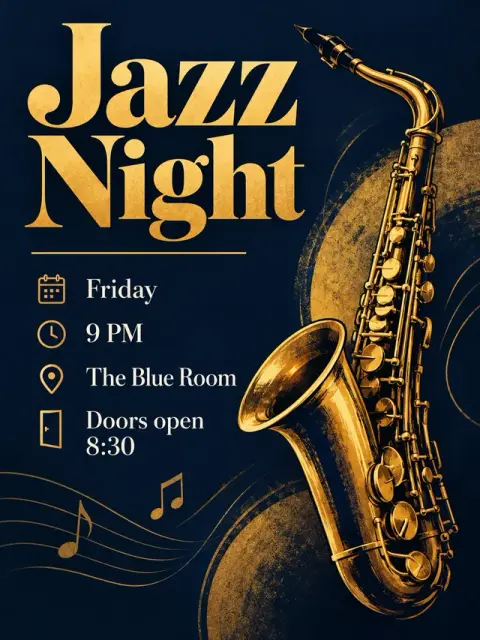
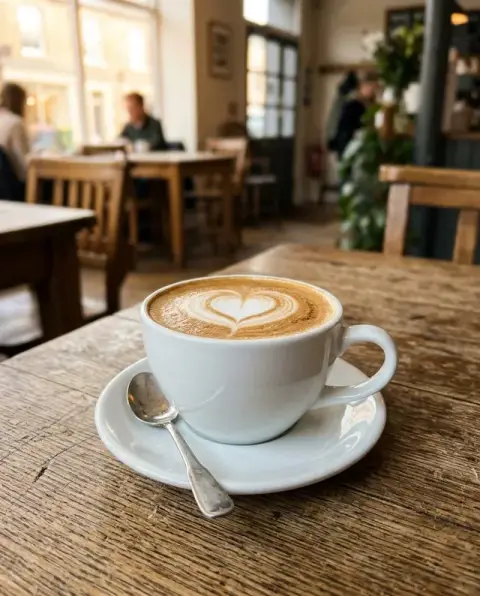



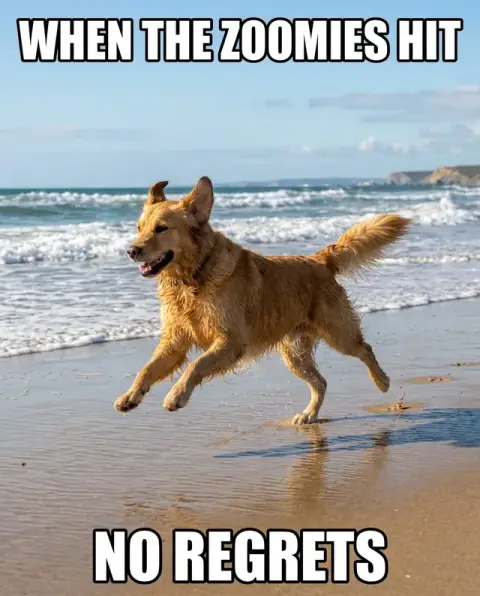
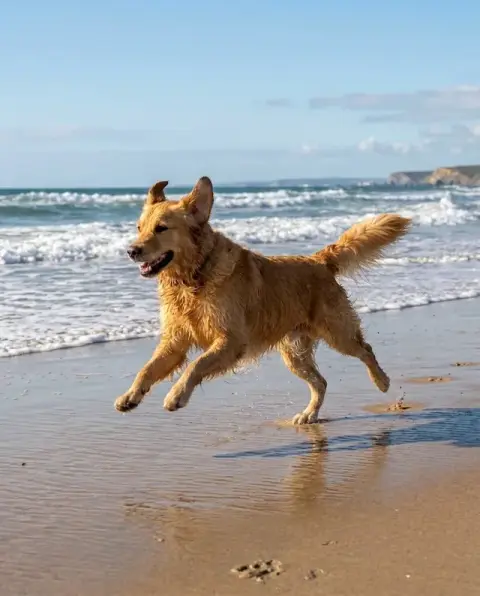
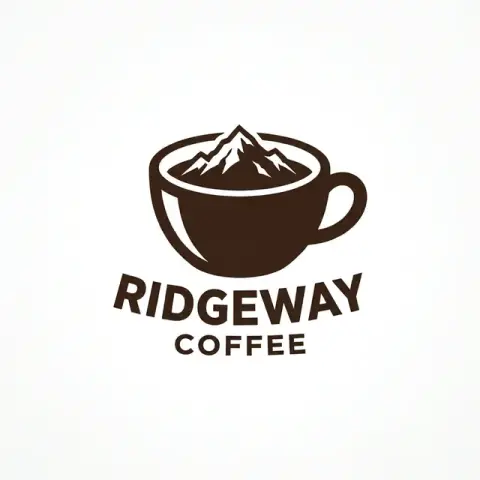
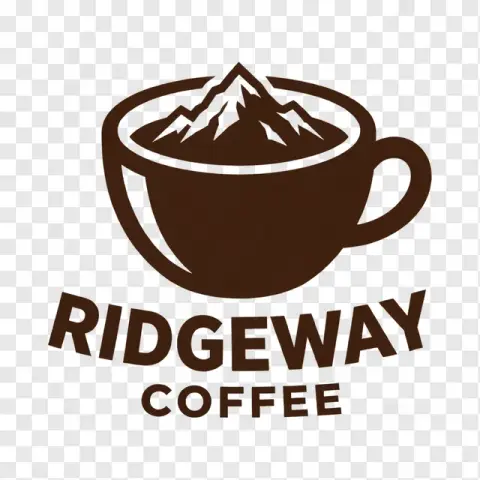
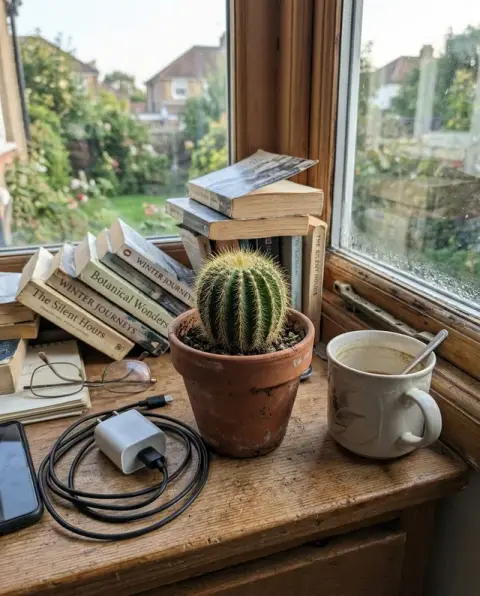
Edit Text in Image examples.
Real results from this page's default settings in one click, not retouched.How examples are made
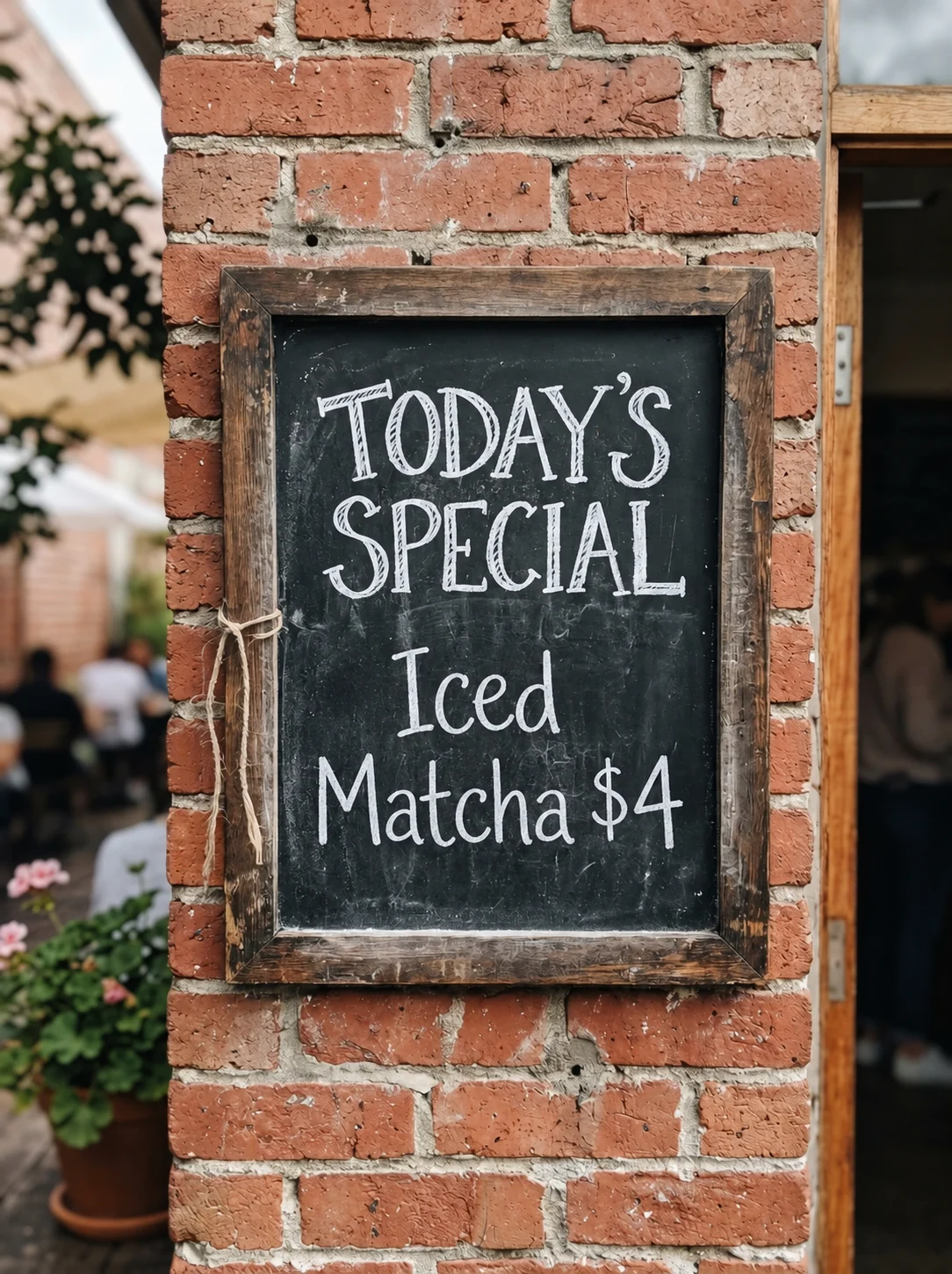
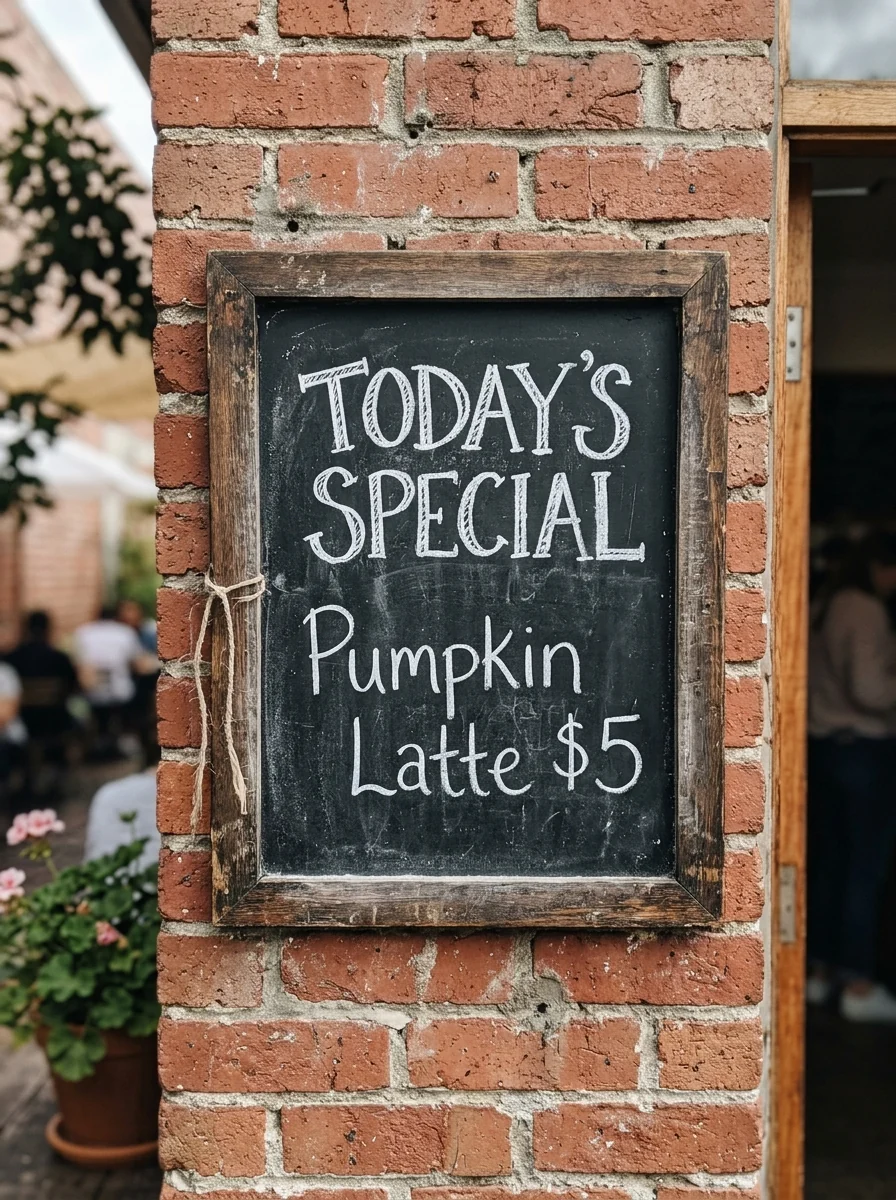
Iced Matcha $4
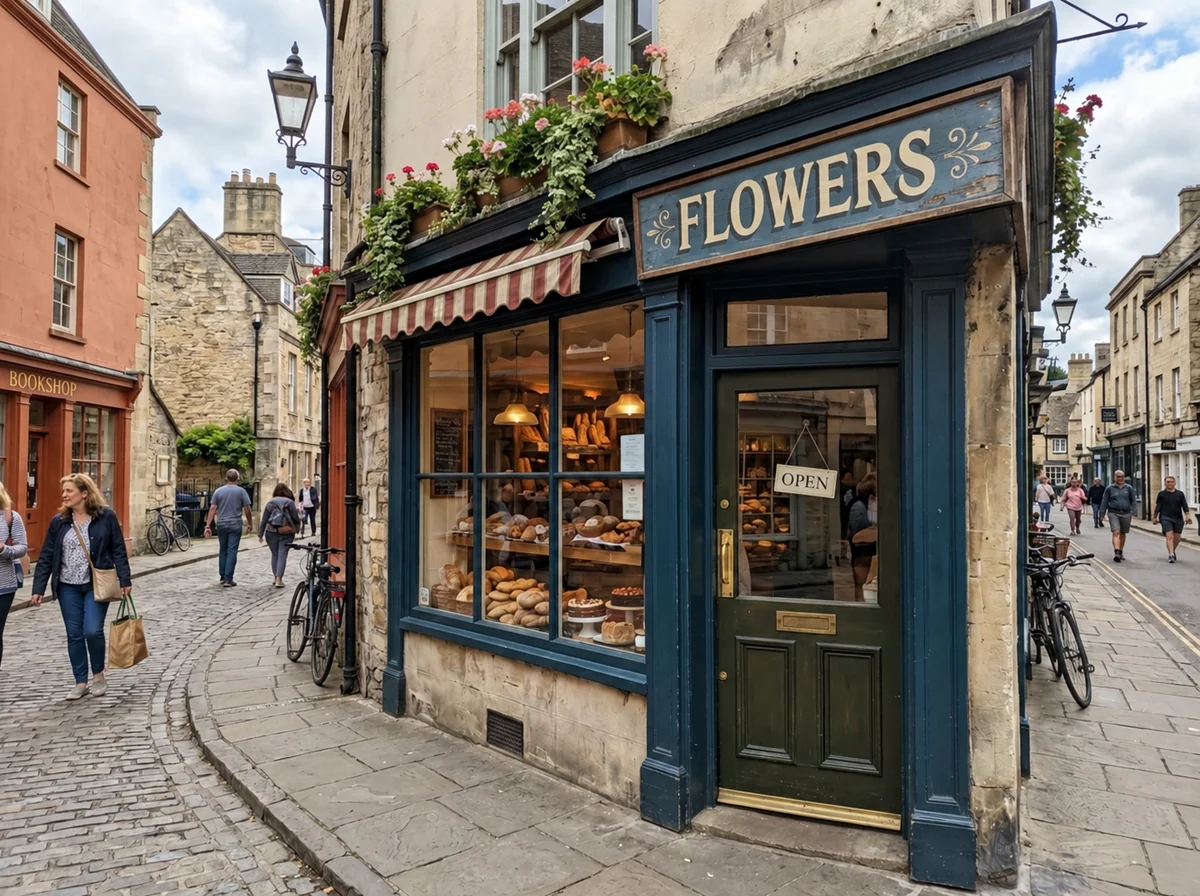
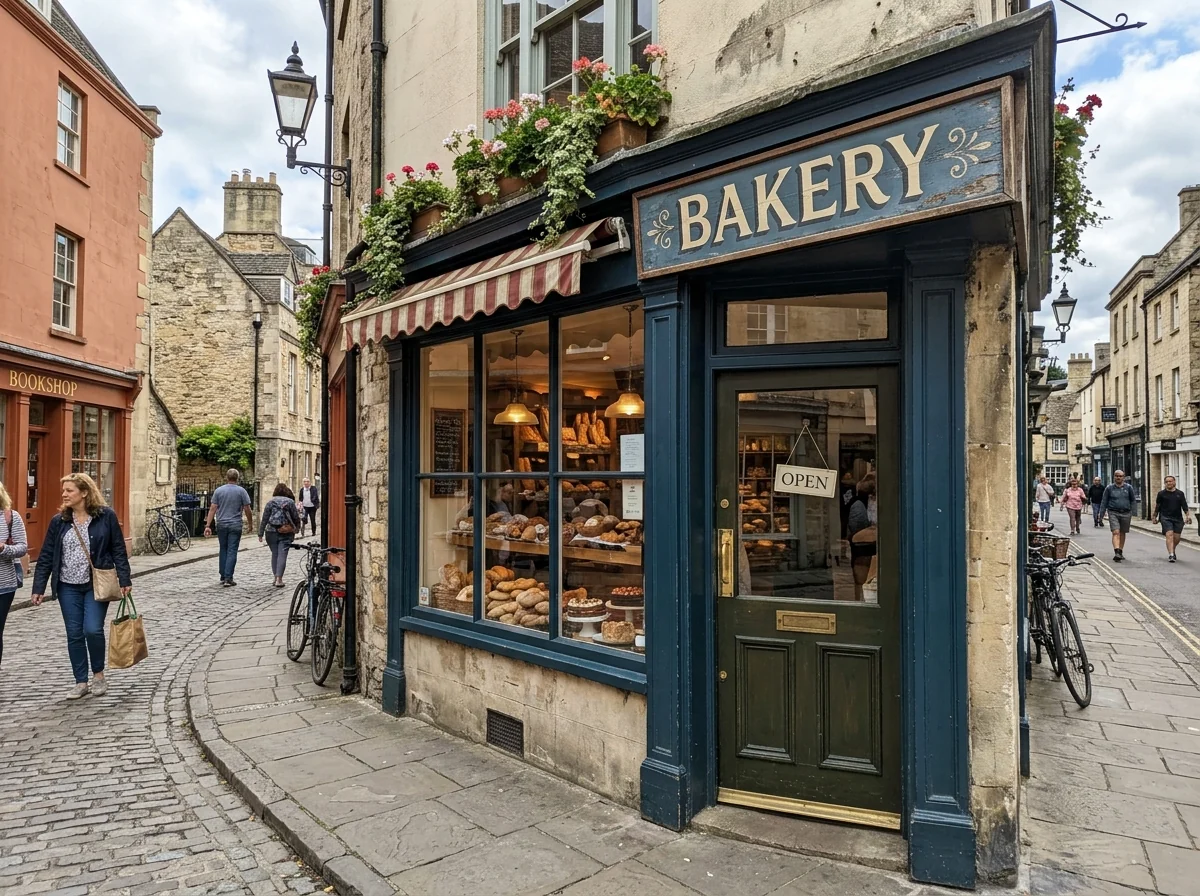
FLOWERS
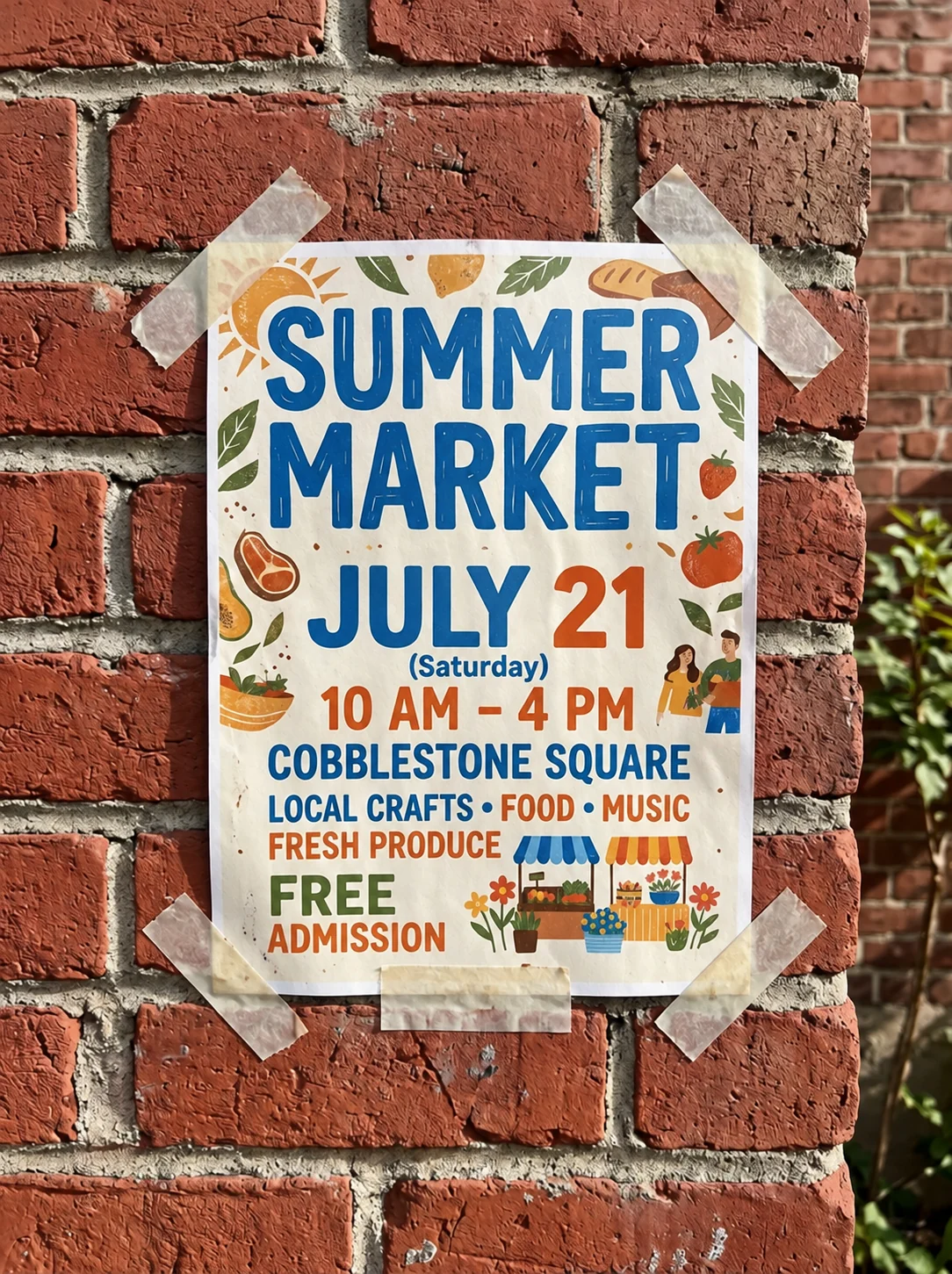
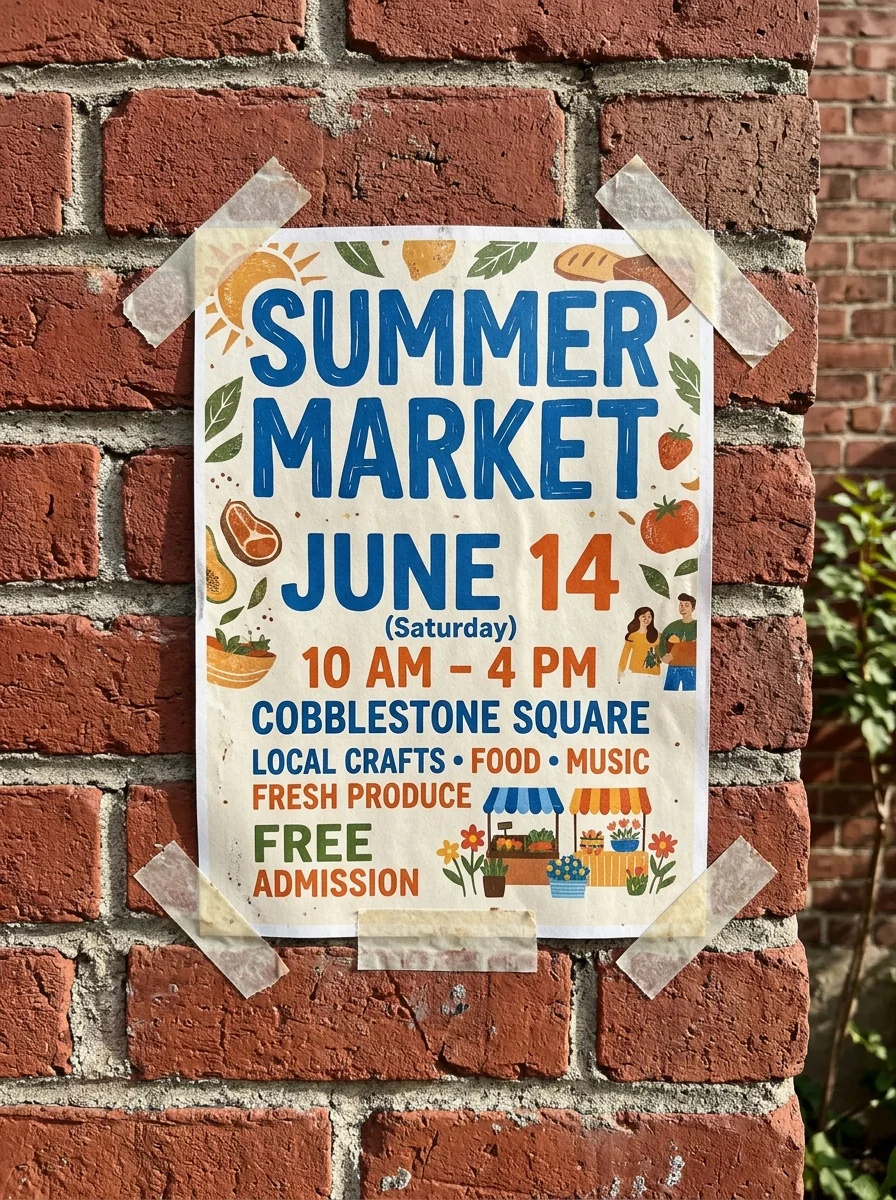
JULY 21
Edit Text in Image features.
Font matched
Same style, size, color and texture.
Perspective kept
New text follows the angle of the sign or label.
Your words
The new text uses exactly what you type; check long or small text.
Edit Text in Image, step by step.
01
Upload an image
A sign, poster, label, menu or screenshot.
02
Write the change
For example: change "$5" to "$4".
03
Download
Use the corrected image.
Edit Text in Image use cases.
- Fix typos
- Correct a mistake without redoing the design.
- Update prices and dates
- Reuse a menu or poster with new details.
Edit Text in Image: best photos and fixes.
Text that edits cleanly
Printed text on signs, posters, menus, packaging and screenshots gives the best match, especially when the letters are large and sharp. The model copies the font, color, size and angle of the original. Small print in the corner of a photo, text on curved bottles and words partly hidden behind objects are harder, and the new letters may come out slightly different.
Writing clear instructions
Quote both the old and new text: change "OPEN 9-5" to "OPEN 8-6". When several lines look alike, say which one: "the price on the second line". Keep the new text roughly the same length as the old, since the model fits it into the same space; a much longer phrase gets squeezed or wrapped. Translations work the same way, one line at a time.
Handwriting and stylized fonts
Handwriting, script fonts and hand-painted signs are matched in style rather than copied letter by letter, so the result looks like the same hand but not identical. Logos with custom lettering are the hardest: the model may simplify them. Check every letter of a name or number at full size before you use the image. Short words in handwriting match best, so edit a word or two at a time.
If other text changes too
Text you did not mention can occasionally be redrawn, especially on dense menus or documents. Use a crop that contains only the area you need to edit when possible, and add "keep all other text exactly the same" to the instructions. Editing someone else's official documents or IDs is not allowed; use it for your own designs, signs and screenshots.
Changing prices, dates and numbers
Numbers are the most common edit and also the easiest to check: the new figures should be the same height and weight as the old ones. If digits look slightly off, write the full line, for example change "$12.99" to "$14.50", rather than just the number. For several prices on one menu, edit one line per run and check each before moving on.
Screenshots and app interfaces
Screenshots have clean, flat type, which makes them easy to edit: a button label, a heading, a line in a chat. The new words match the font and size of the interface. Do not use the tool to fake messages, receipts or posts by other people; edit only your own designs, mock-ups and screenshots of your own work.
Edit Text in Image FAQ.
Can I translate the text?
Yes. Write "translate all text to Spanish" and it is rewritten in the same style.
Does it work on handwriting?
Yes. Chalk, marker and handwritten text are matched as closely as possible.
What if I leave the instructions empty?
It checks the existing text and fixes spelling mistakes only.
Can I edit text in someone else's document or ID?
No. Do not use it to alter official documents, IDs, receipts or anything meant to deceive. See our Terms.
Is the Edit text in image free?
Yes, you can try it free. New accounts get 25 free credits, and one generation here uses 9 credits. You sign in with your email; no card needed. Results have no watermark. After that, credit packs never expire, and your first one is half price.


