Remove Glare from Photo
Clear reflections and flash hotspots.
Drop a photo
or paste with ⌘V · JPG · PNG · WebP · up to 8 MB
No photo handy? Try one of ours.
Remove Glare from Photo examples.


Glare on glasses
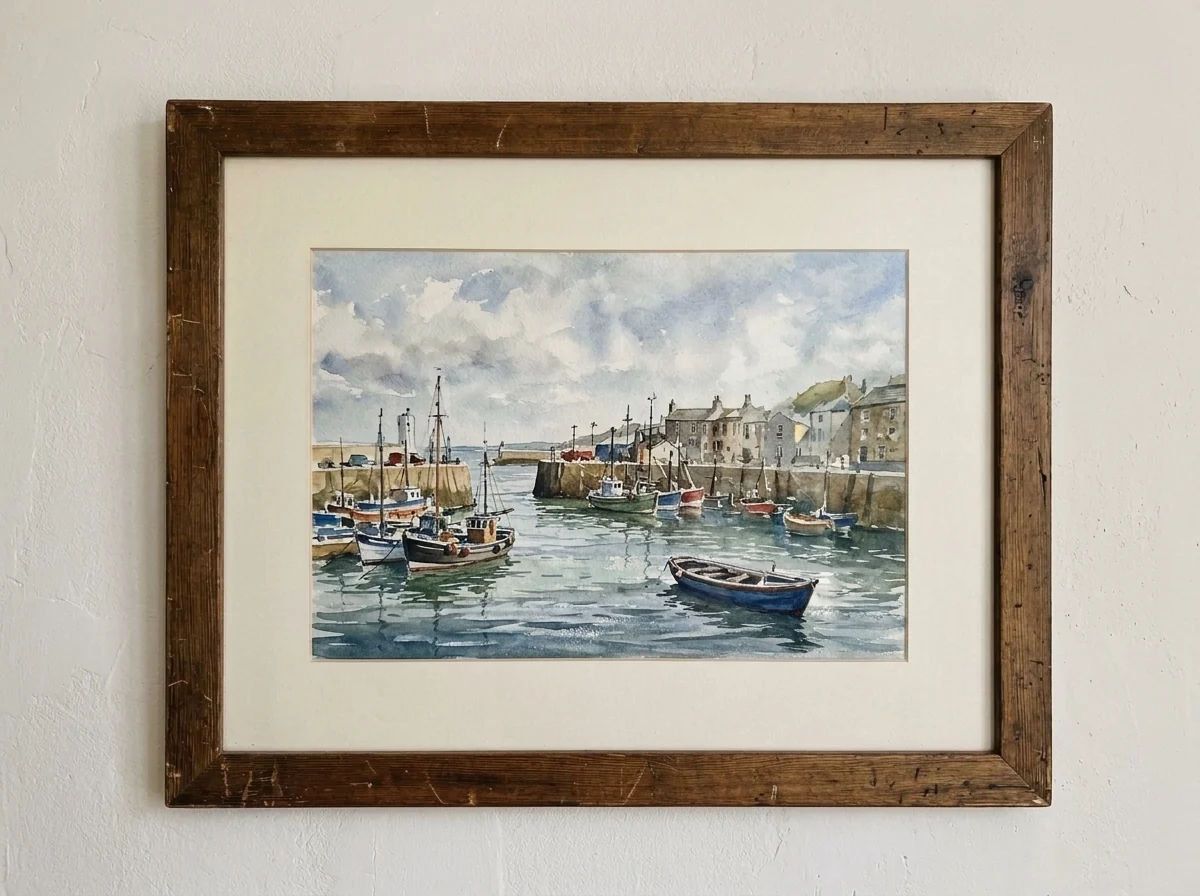
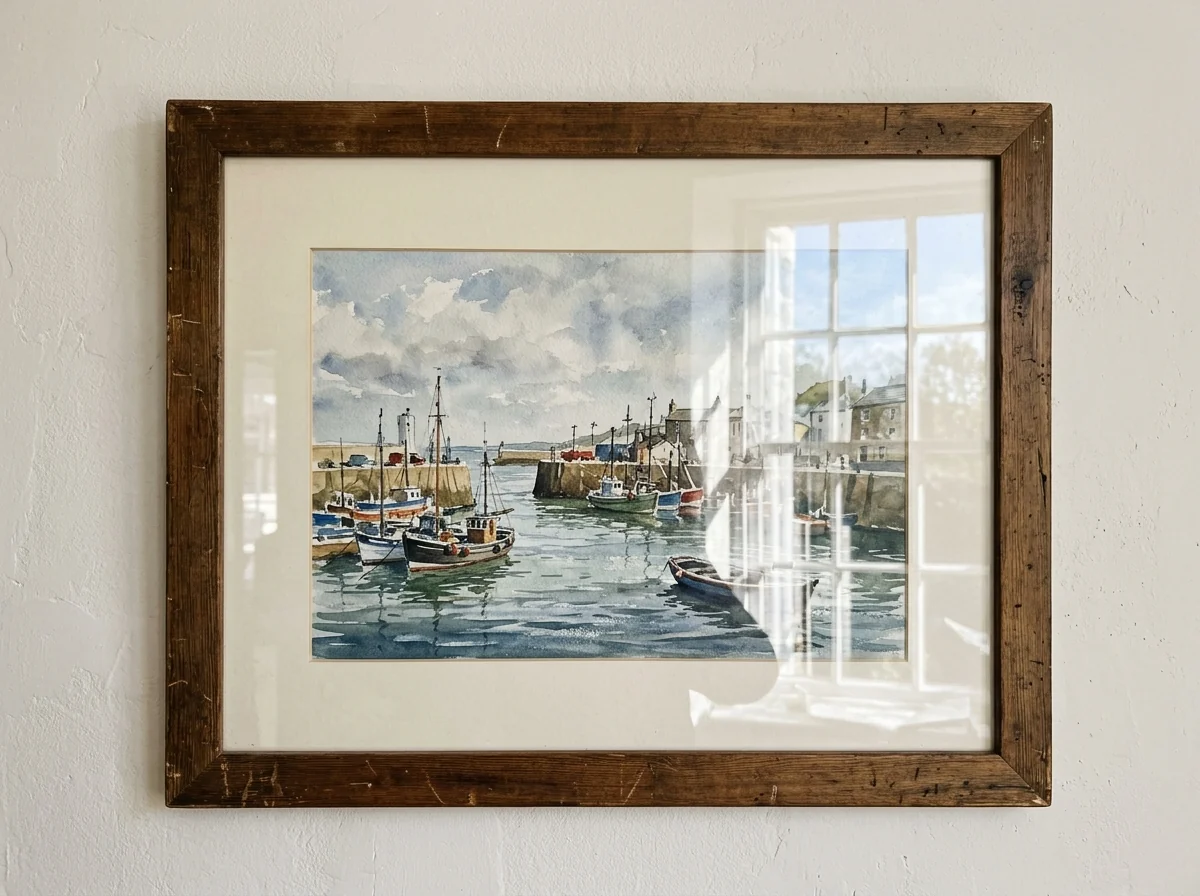
Picture behind glass


Shiny skin
Remove Glare from Photo features.
Glasses, glass and screens
Lens reflections, window glare and screen shine.
Skin shine too
Flash hotspots on forehead and nose.
Detail rebuilt
Eyes, paintings and screens, where still visible.
Remove Glare from Photo, step by step.
01
Upload a photo
The largest version you have.
02
Name the glare if needed
For example "only the reflection on the glasses".
03
Download
Check the restored area at full size.
Remove Glare from Photo use cases.
- Portraits with glasses
- See the eyes behind reflective lenses.
- Artwork under glass
- Clean up photos of framed prints and posters.
- Product and screen shots
- Remove shine from glossy packaging and phone screens.
Remove Glare from Photo: best photos and fixes.
Glare on glasses
Lens reflections are the most common glare. When the eyes are still partly visible through the reflection, they are restored closely. When a reflection hides an eye completely, the eye has to be drawn to match the other one, so check the eye color and direction of gaze. Writing the eye color in the instructions, such as "brown eyes", keeps it right. The frames, the shape of the lenses and any lens tint are kept.
Windows, frames and screens
For a photo through a window, the reflection of the room is removed and the view outside restored. For framed pictures and posters under glass, the artwork behind the glare comes back as long as part of it is visible. Phone and laptop screens with a reflection are restored to their content, but small text on a screen may be redrawn rather than read, so don't rely on it for exact words.
Shine on skin
Flash and warm rooms make foreheads, noses and cheeks shine. Removing that shine keeps the skin's texture and color, so the face looks matte but still real. This doesn't retouch spots or wrinkles. If you only want the skin fixed and not, say, the shine on a glossy table, write "only the shine on his face".
Big hotspots and blown-out areas
When a flash hotspot or a reflection is pure white, there is no detail left under it. The tool fills it in from the surroundings, which works on simple surfaces like walls, wood or fabric. On a document or label with text, the missing words can't be recovered; take the photo again from a slight angle if you can, which moves the reflection off the important part.
Choosing what to keep
Not every highlight is glare. Catchlights in the eyes, the sparkle on jewelry and the sheen on a car's paint make a photo look alive. They are kept by default, but if any of them disappear, say so: "keep the catchlights", "keep the shine on the car". Naming the glare you want gone, by position and object, makes the edit more focused.
Avoiding glare next time
Tilting glasses slightly down, moving the light to the side, turning off the flash or shooting framed art at a small angle all stop reflections before they happen. A polarizing filter works for windows and water. For photos you can't retake, the remove shadow from photo tool handles dark shadows, unblur image sharpens soft shots and the red eye remover fixes flash eyes.
Remove Glare from Photo FAQ.
Can it remove glare from glasses?
Yes. Lens reflections are removed and the eyes restored; if an eye was fully hidden, write the eye color in the instructions.
Can it read text hidden by glare?
No. Text under a pure white reflection can't be recovered; the area is filled in, but words there may not be the real ones.
Will it remove all highlights?
It removes glare and keeps natural highlights such as catchlights. Name anything that should stay if it is removed.
Is the Remove glare free?
Yes, you can try it free. New accounts get 15 free credits, and one generation here uses 13 credits. You sign in with your email; no card needed. Results have no watermark. After that, plans add credits every month and credit packs never expire.