


Circle Crop
A round photo with a clear background, in seconds.
Drop a photo
or paste with ⌘V · JPG · PNG · WebP, stays on your device
No photo handy? Try one of ours.
Drag on the photo to move the circle.
Next, with AI
 Background changer →
Circle Crop examples.

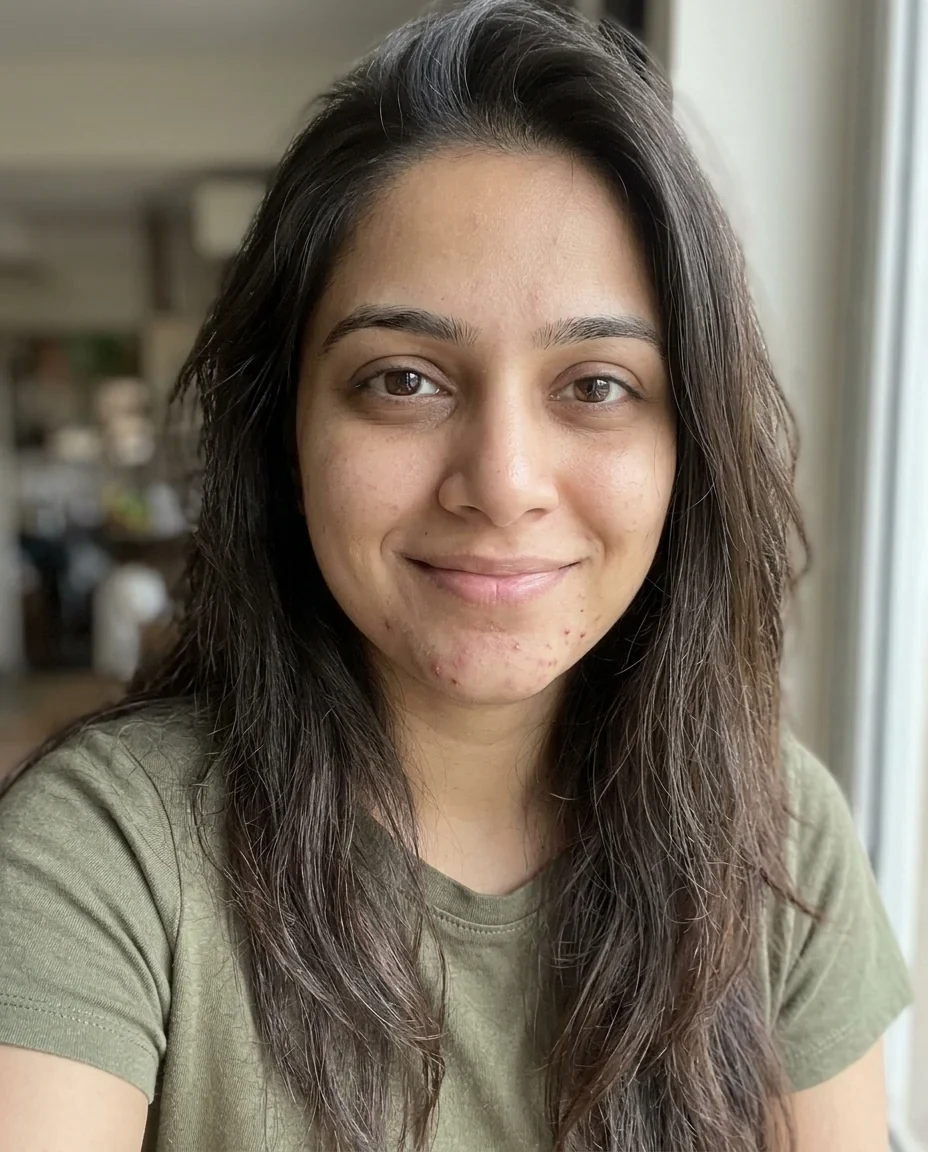
Profile picture


With a border
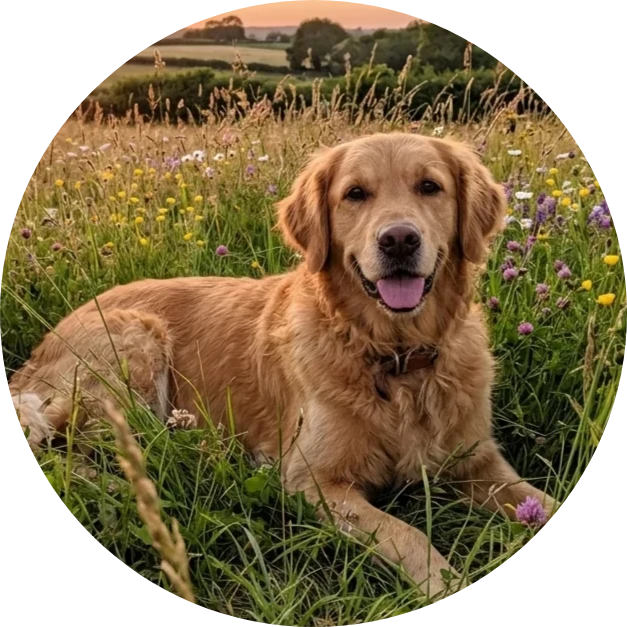
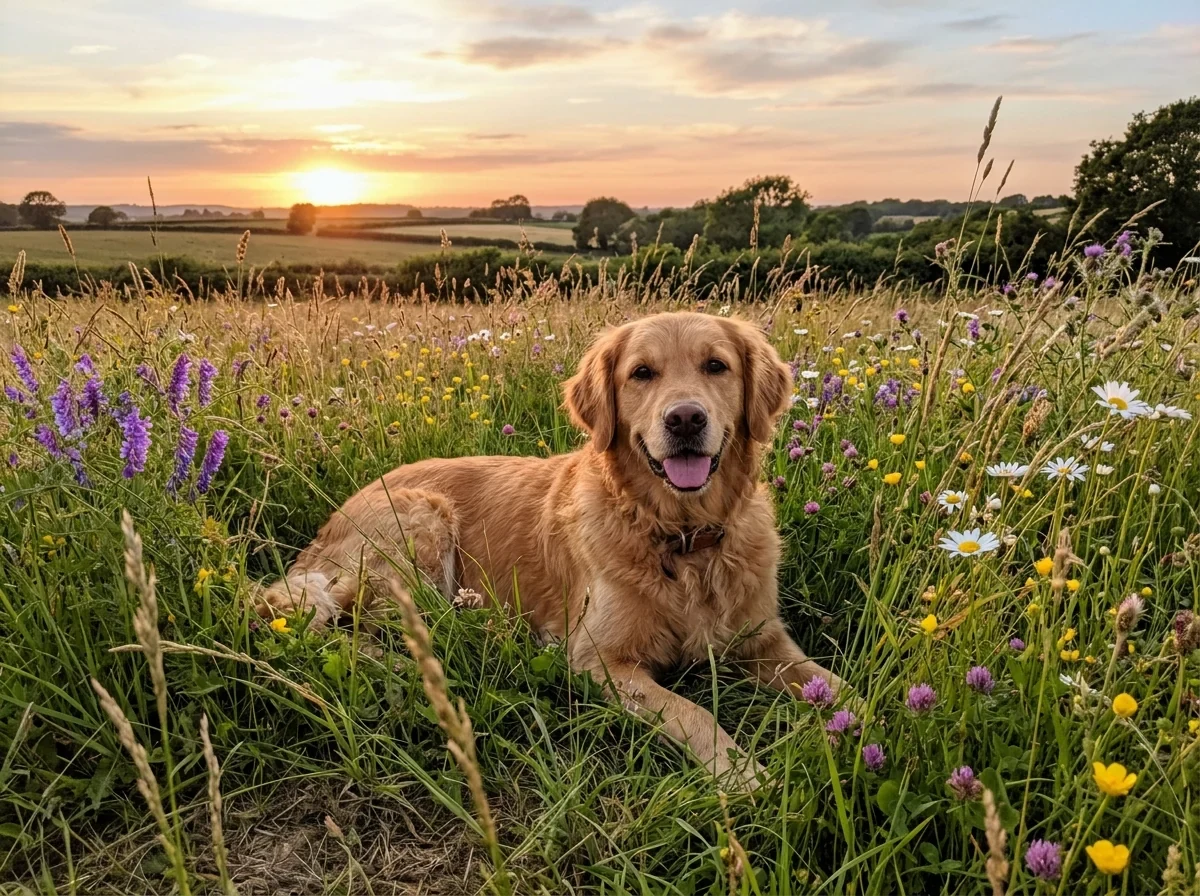
Pet photo
Circle Crop features.
Drag to place
Click or drag on the photo to move the circle.
Clear background
PNG keeps the corners clear.
Optional border
White, black or any color.
Circle Crop, step by step.
01
Drop a photo
Or try a sample.
02
Place and size the circle
Drag on the photo; use the size slider.
03
Download
PNG keeps it round.
Circle Crop use cases.
- Profile pictures
- A round avatar for any site.
- Team pages and slides
- Matching round headshots.
- Stickers and logos
- Round badges for designs.
Circle Crop: best photos and fixes.
Placing the circle
Click or drag on the photo to move the circle's center there; the slider sets its size as a share of the photo's short side. For a profile picture, put the eyes a little above the middle and leave some space above the head, as most sites crop round avatars that way.
Size and quality
The download is cut from the full-size photo, so a bigger circle gives a sharper image. For avatars, 400 pixels across is plenty; most phone photos give much more.
Clear corners
PNG keeps the area outside the circle clear, so the image sits on any background. If the circle reaches past the photo's edge, that part stays clear too. JPG has no transparency, so the corners become white; choose JPG only if the place you upload to needs it.
Borders
A thin white or colored ring makes a round photo stand out on busy pages. The border width is a percentage of the circle, so it looks the same at any size. Match it to your brand color with the custom color.
A set of headshots
For a team page, use the same circle size relative to each face so heads look the same size. Photos taken against similar backgrounds look most consistent.
Background first
To put a person on a clean color before cropping, run the AI background changer first, then crop the result into a circle here.
Circle Crop FAQ.
Will the corners be transparent?
Yes with PNG. JPG can't store transparency, so its corners are white.
How do I move the circle?
Click or drag on the photo; the circle follows.
Are my images uploaded?
No. The tool runs in your browser and the images never leave your device. Close the tab and they are gone.
Is it free?
Yes. Quick tools are free, need no sign-in and use no credits; your images stay in your browser. The AI tools linked below need an account.
