Brighten Image
Make a dark photo bright again, without turning it grey.
Drop a photo
or paste with ⌘V · JPG · PNG · WebP, stays on your device
No photo handy? Try one of ours.
 Unblur image →
 Photo restoration →
Brighten Image examples.
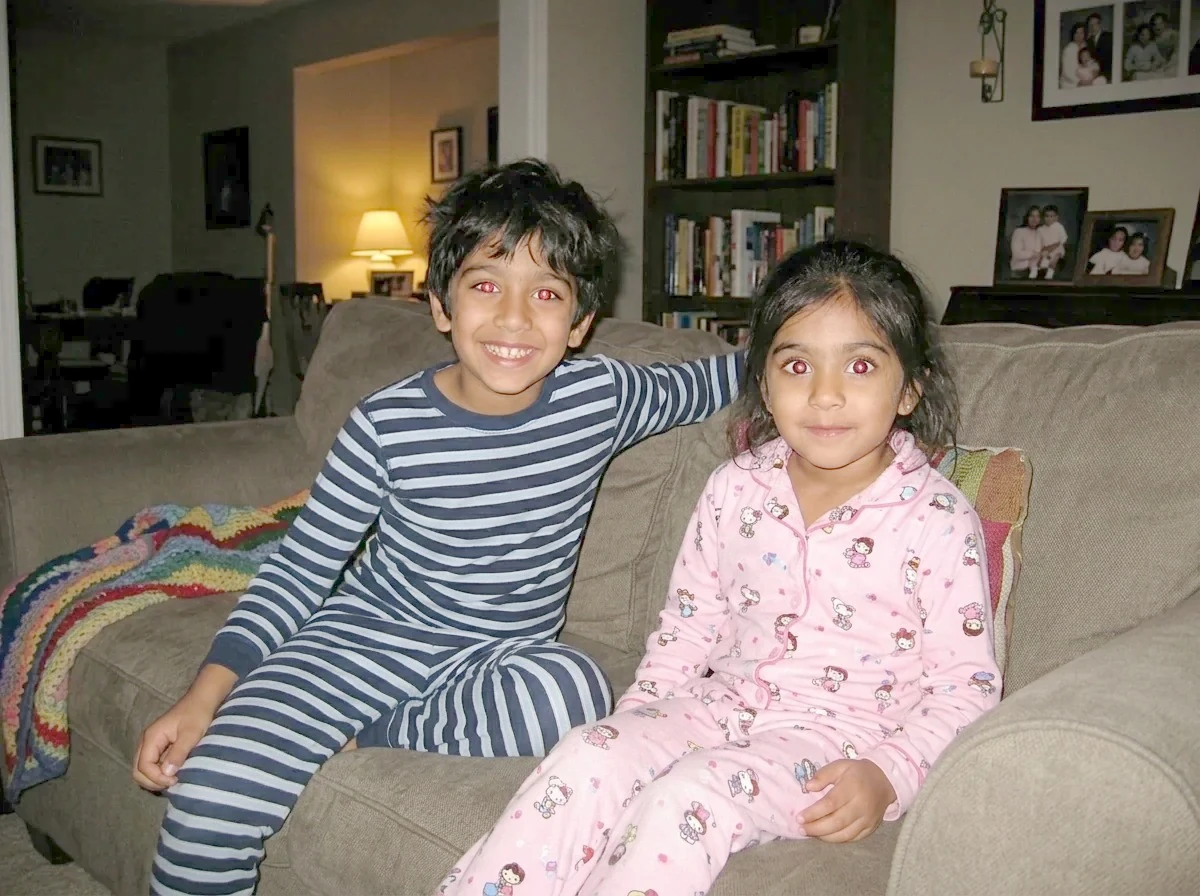
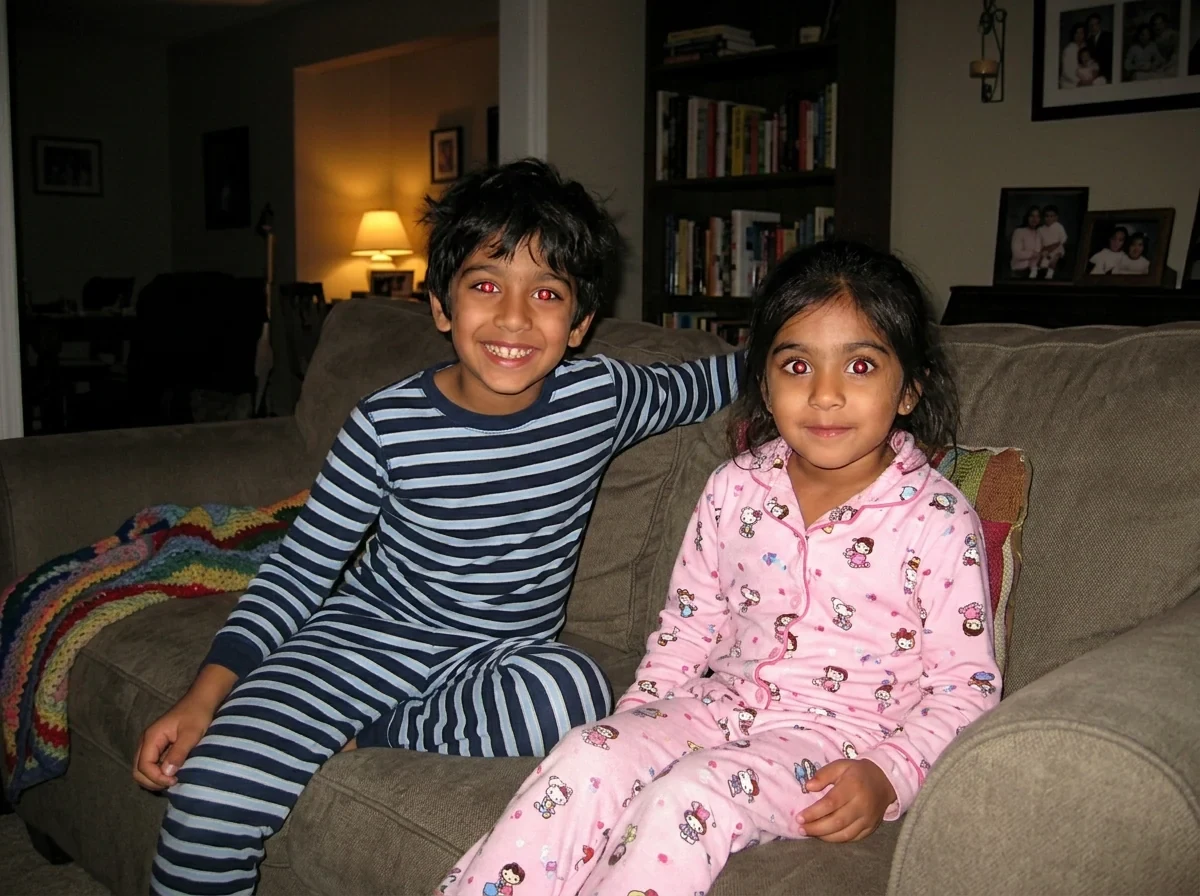
Brightness up
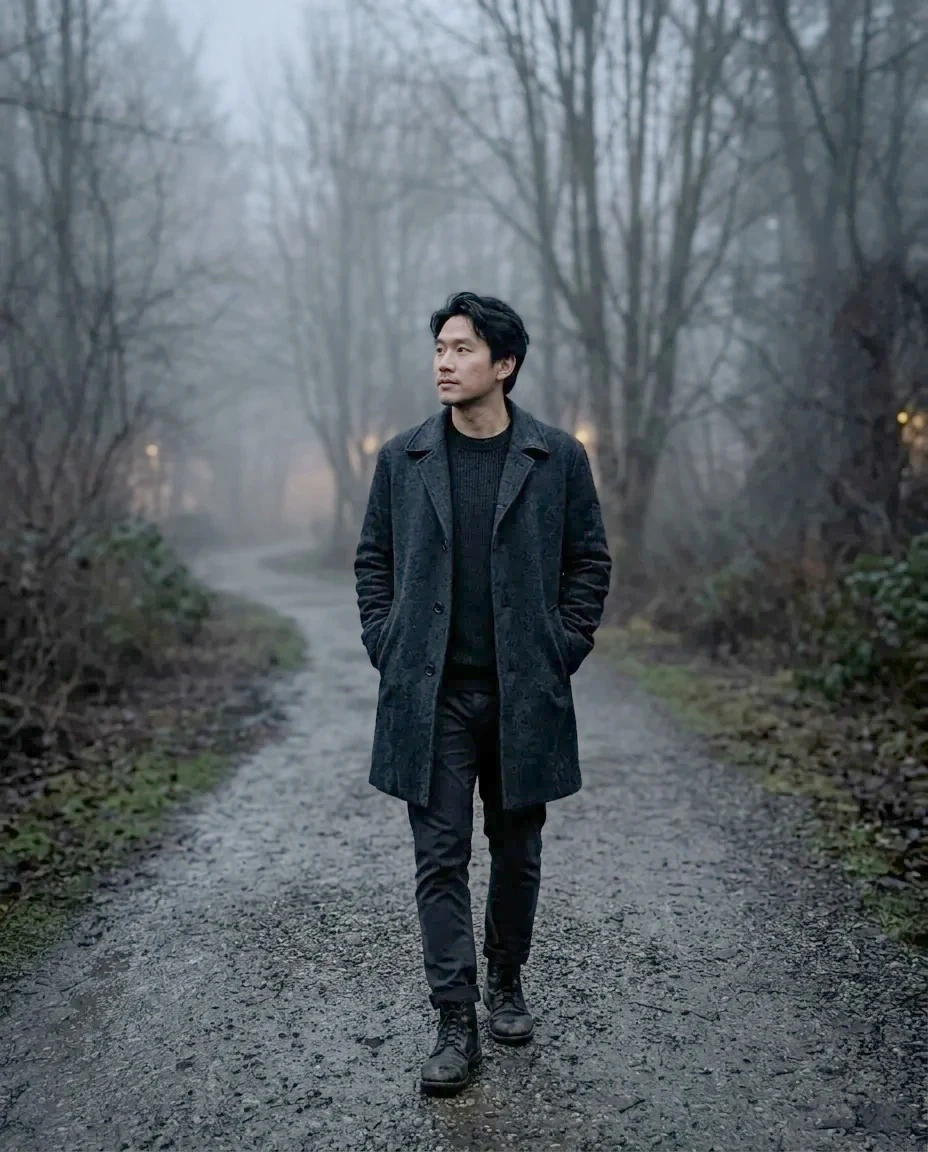
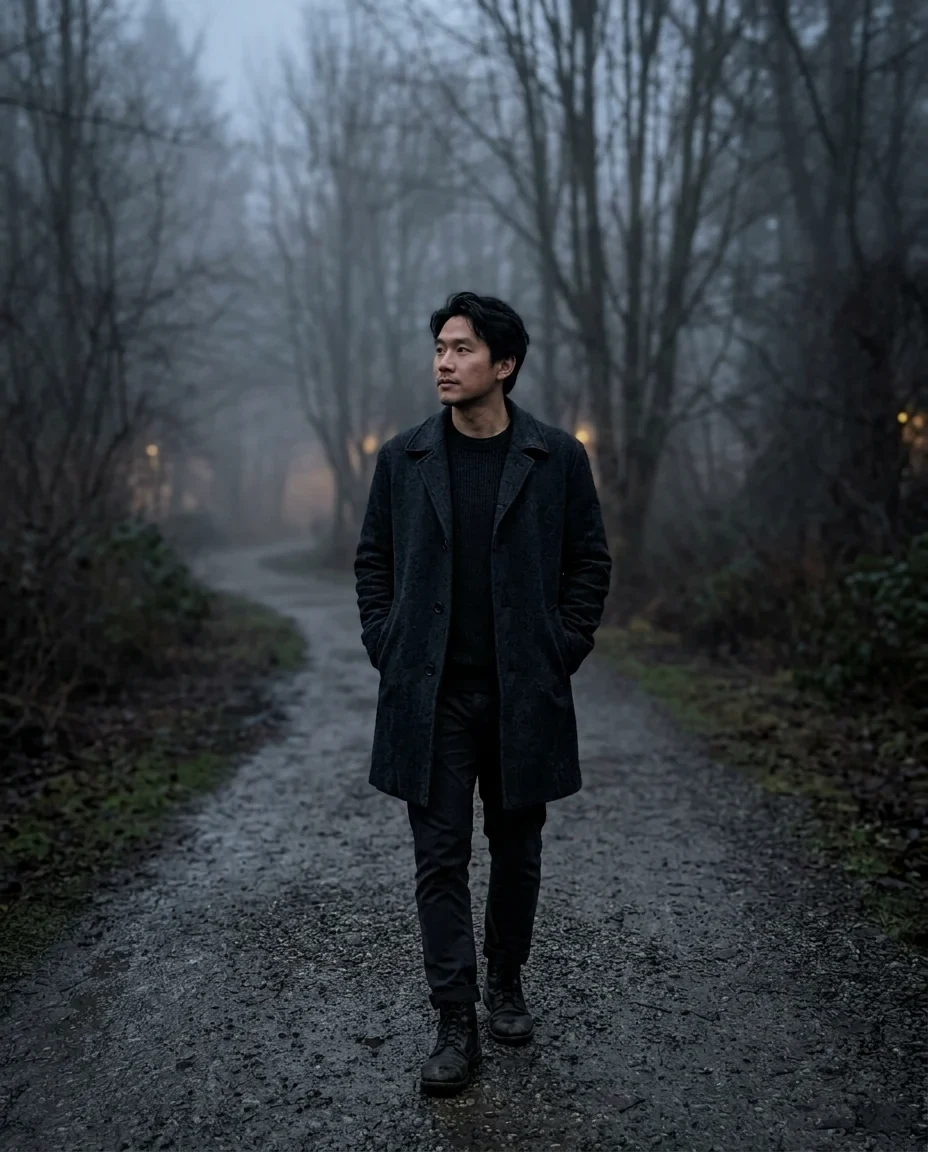
Shadows lifted
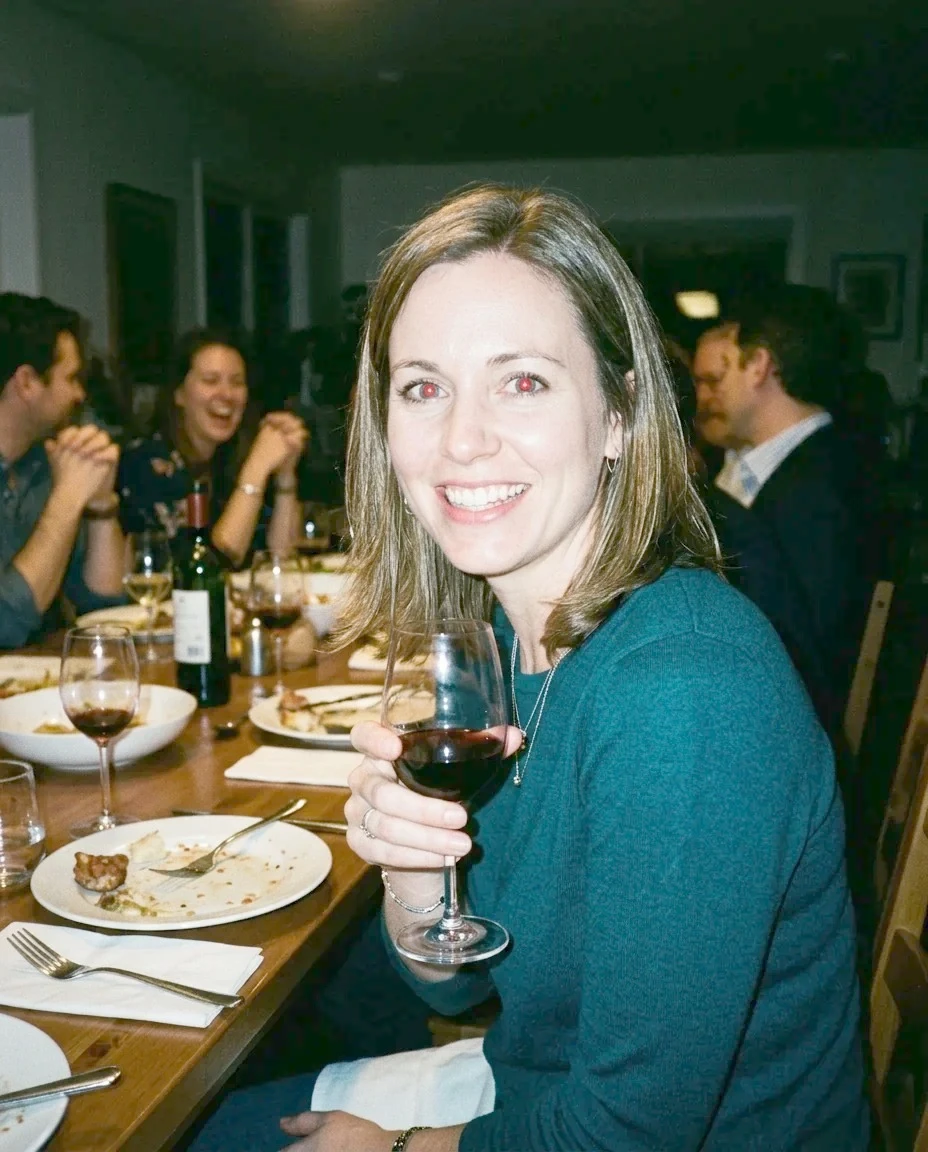
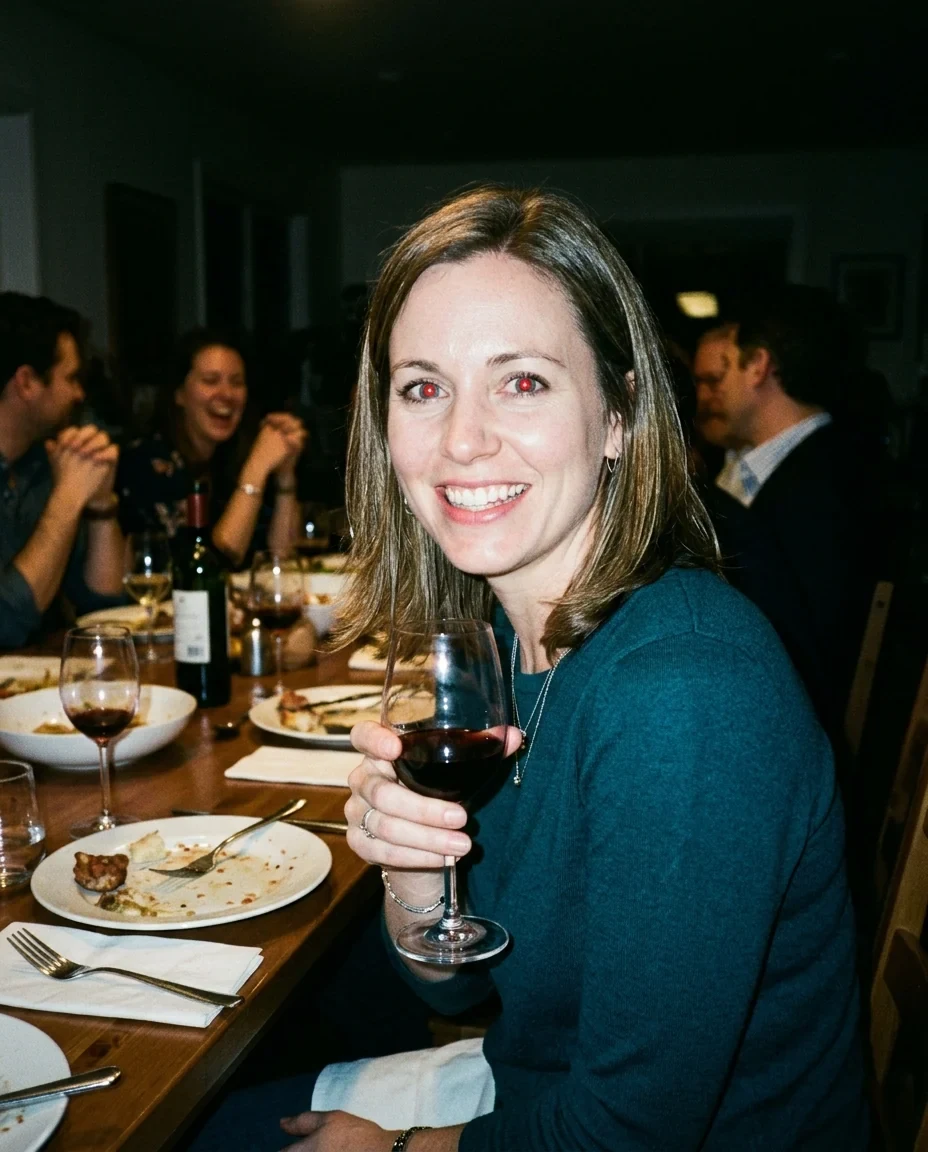
Auto
Brighten Image features.
Brightness, contrast, shadows
Three sliders with a live preview.
Auto
One click brings the photo to a balanced brightness.
Darken too
Slide left to darken an overexposed photo.
Brighten Image, step by step.
01
Drop a photo
Or try a sample.
02
Move the sliders or press Auto
Watch the preview.
03
Download
JPG or PNG.
Brighten Image use cases.
- Dark indoor photos
- Rescue party and restaurant shots.
- Backlit faces
- Lift the shadows on a face against a window.
- Overexposed photos
- Darken and add contrast.
Brighten Image: best photos and fixes.
Which slider to use
Brightness lifts the middle tones while keeping pure black and white in place, so the photo gets lighter without turning grey or washing out. Lift shadows works mostly on the darkest parts, good for faces in shade. Contrast spreads the tones apart (more punch) or brings them together (softer).
Backlit photos
A face against a bright window or sky is the classic case for Lift shadows: raise it to 40–70 and the face comes out of the dark while the sky stays as it was. Add a little contrast afterwards if the photo looks flat.
Very dark photos
Photos taken almost in the dark have little information in the shadows. Brightening reveals what's there but also the noise (grain). Moderate settings look better than extreme ones.
Auto
Auto sets the brightness so the photo's average tone sits near the middle. It's a quick starting point; fine-tune the other sliders after it.
Darkening
Slide Brightness left to darken an overexposed photo, then raise Contrast a little to bring back depth. Areas that were pure white in the original can't regain detail.
Compare
Press and hold Hold to see original under the photo to compare with what you started from, then download.
Brighten Image FAQ.
Can it darken a photo too?
Yes. Slide Brightness to the left.
Why does my brightened photo look grainy?
Dark photos hide noise in the shadows; brightening shows it. Moderate settings give a cleaner look.
Are my images uploaded?
No. The tool runs in your browser and the images never leave your device. Close the tab and they are gone.
Is it free?
Yes. Quick tools are free, need no sign-in and use no credits; your images stay in your browser. The AI tools linked below need an account.