



YouTube banner resizer
Make a 2560 by 1440 channel banner and see the safe area.
Drop images
or paste with ⌘V · JPG · PNG · WebP · HEIC · AVIF · SVG, up to 50 at once
No photo handy? Try one of ours.
2560 × 1440 px
The dashed box is the safe area (1546 × 423) every device shows: keep text and logos inside it.
Next, with AI
 Image extender →
 Background changer →
YouTube banner resizer examples.
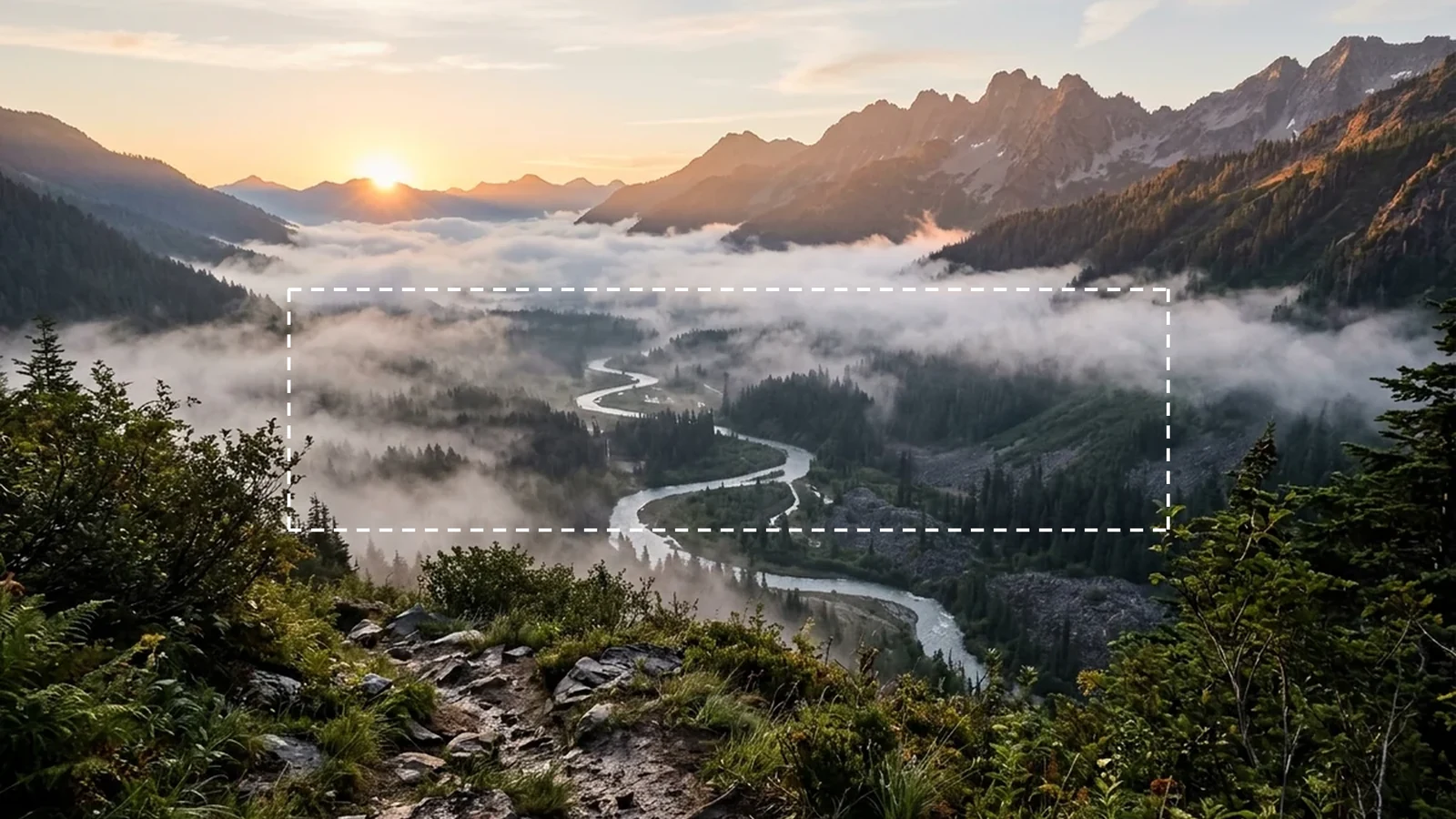
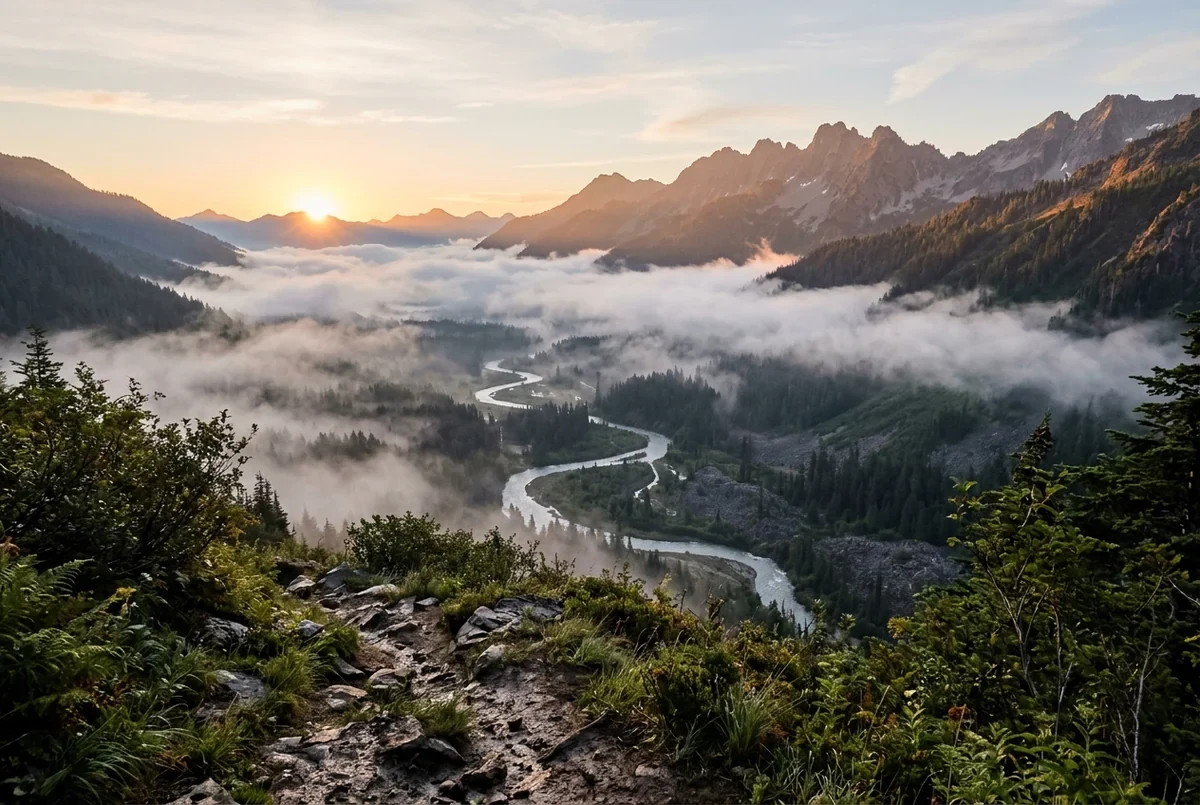
2560 × 1440, safe area shown
YouTube banner resizer features.
Banner size
Output is 2560 by 1440, the size YouTube asks for.
Safe area preview
The preview outlines the 1546 by 423 centre strip that is shown on every device.
Under 6 MB
JPG output is kept under the 6 MB banner limit automatically.
YouTube banner resizer, step by step.
01
Add your image
Drop, choose or paste your artwork or photo.
02
Fit and check
Choose Crop to fill or Fit whole, then keep the logo and text inside the outlined safe area.
03
Download
Save the JPG, or switch to PNG, and upload it as your banner.
YouTube banner resizer use cases.
- New channel banner
- Turn a photo or artwork into the right size for the first upload.
- Fixing a cropped banner
- See what the safe area shows and move key parts inside it.
- Refreshing the look
- Resize a new design for a rebrand or a season.
YouTube banner resizer: best photos and fixes.
The banner size
YouTube asks for a banner of 2560 by 1440 pixels, and the file must be under 6 MB. This tool outputs that size and keeps a JPG under the limit by lowering quality when needed. The whole image is large, but only part of it is shown on most screens.
What the safe area is
The safe area is the centre strip of 1546 by 423 pixels. It is shown on every device. Phones show only this strip, desktop shows a 2560 by 423 strip, and TV shows the full 2560 by 1440. Anything vital must sit inside the strip.
Where to place text and logos
Put your name, logo and tagline in the middle, inside the outlined area, with some space around them. Large text reads better than small. Keep decorative detail outside the strip, because it appears on TV and desktop but may be cut on phones.
A photo that is not wide enough
A narrow or vertical photo cannot fill a wide banner without cropping. Crop to fill trims heavily, and Fit whole keeps the full photo and fills the sides with white, black or a blurred copy. A blurred fill can look natural, as the colors match the photo.
Start with a big image
A banner is shown large on TV, so low resolution sources look soft. Use the biggest image you have. Large photos are scaled to at most 16 megapixels in the browser, and a 2560 by 1440 banner is under 4 megapixels, so a normal photo is fine.
Preview before you upload
The preview shows the safe area drawn over the result. Look at it as if you were on a phone and only saw the strip. If the subject is partly outside, change the fit or adjust the source image and try again.
YouTube banner resizer FAQ.
What size is a YouTube banner?
2560 by 1440 pixels. The file must be under 6 MB, and JPG output is kept under that.
What is the safe area?
The 1546 by 423 centre strip that is shown on every device. Phones show only this part.
What do other devices show?
TV shows the whole 2560 by 1440 image, and desktop shows a 2560 by 423 strip.
Where should my logo go?
Inside the outlined safe area, so it is visible on phones as well.
Can I use a vertical photo?
Yes, with Fit whole and a blurred background, but crop to fill will trim a lot.
Is it free?
Yes. It is free, needs no sign-in and uses no credits, and your photo never leaves your device.