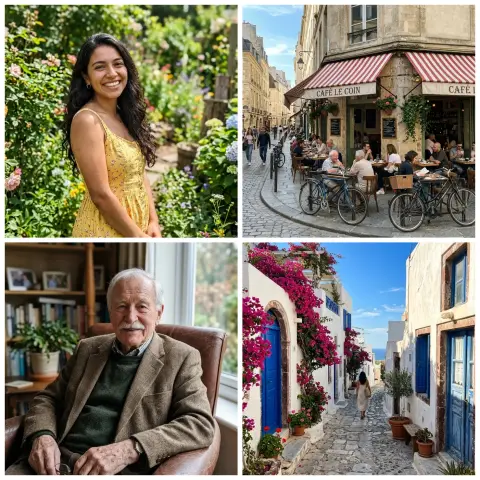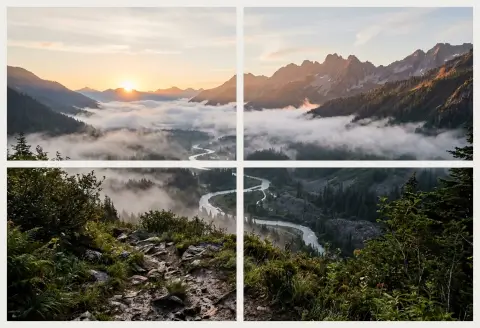






Stitch photos
Join several photos into one long image.
Drop images
or paste with ⌘V · JPG · PNG · WebP · HEIC · AVIF · SVG, up to 50 at once
No photo handy? Try one of ours.
 Image combiner →
 Image extender →
Stitch photos examples.
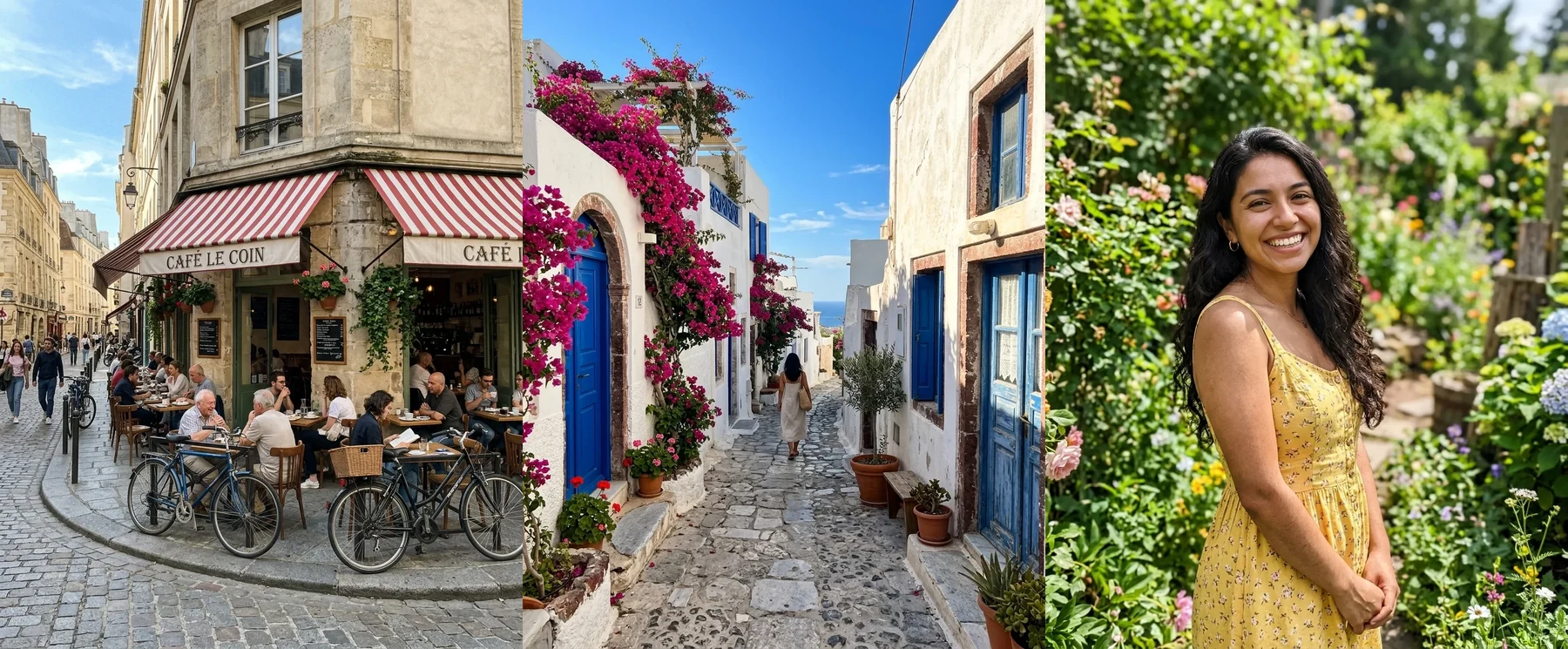
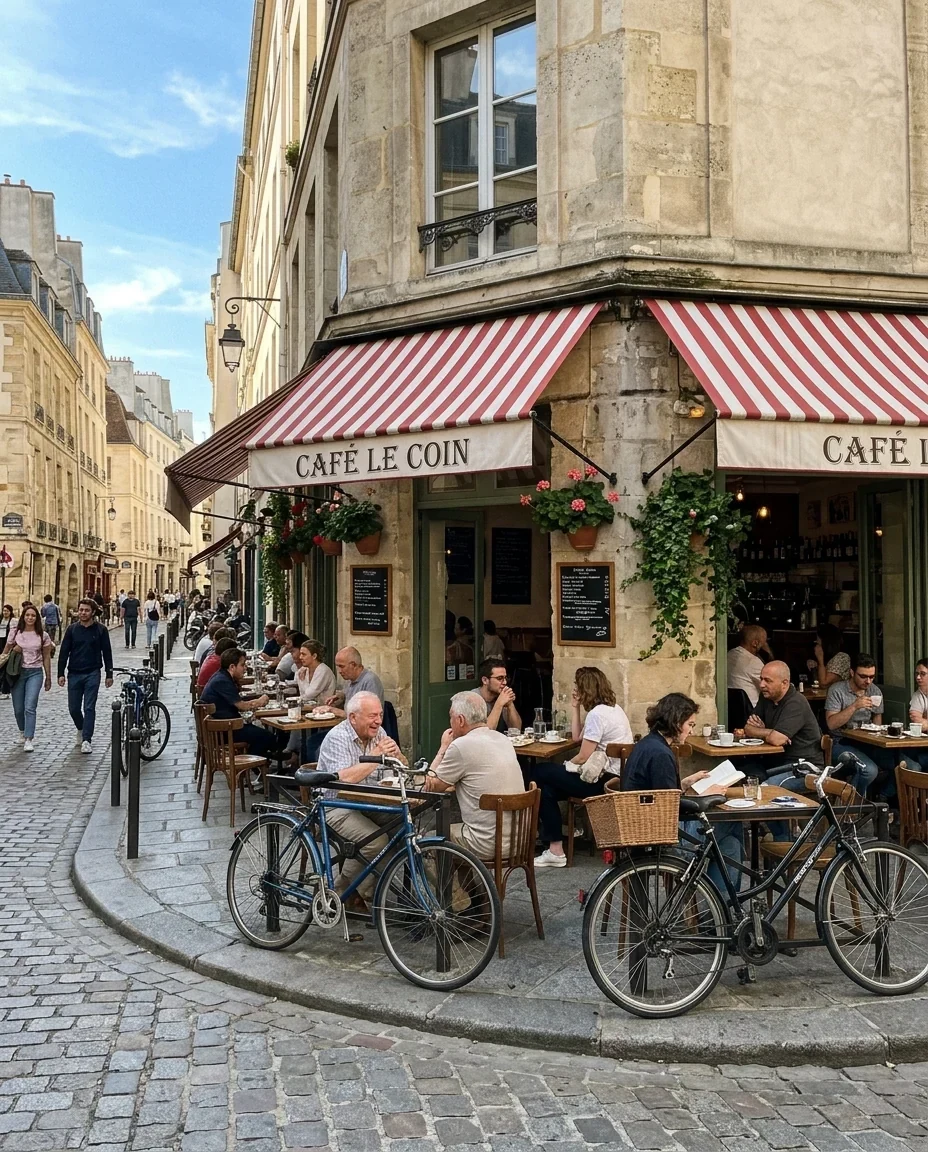
Side by side
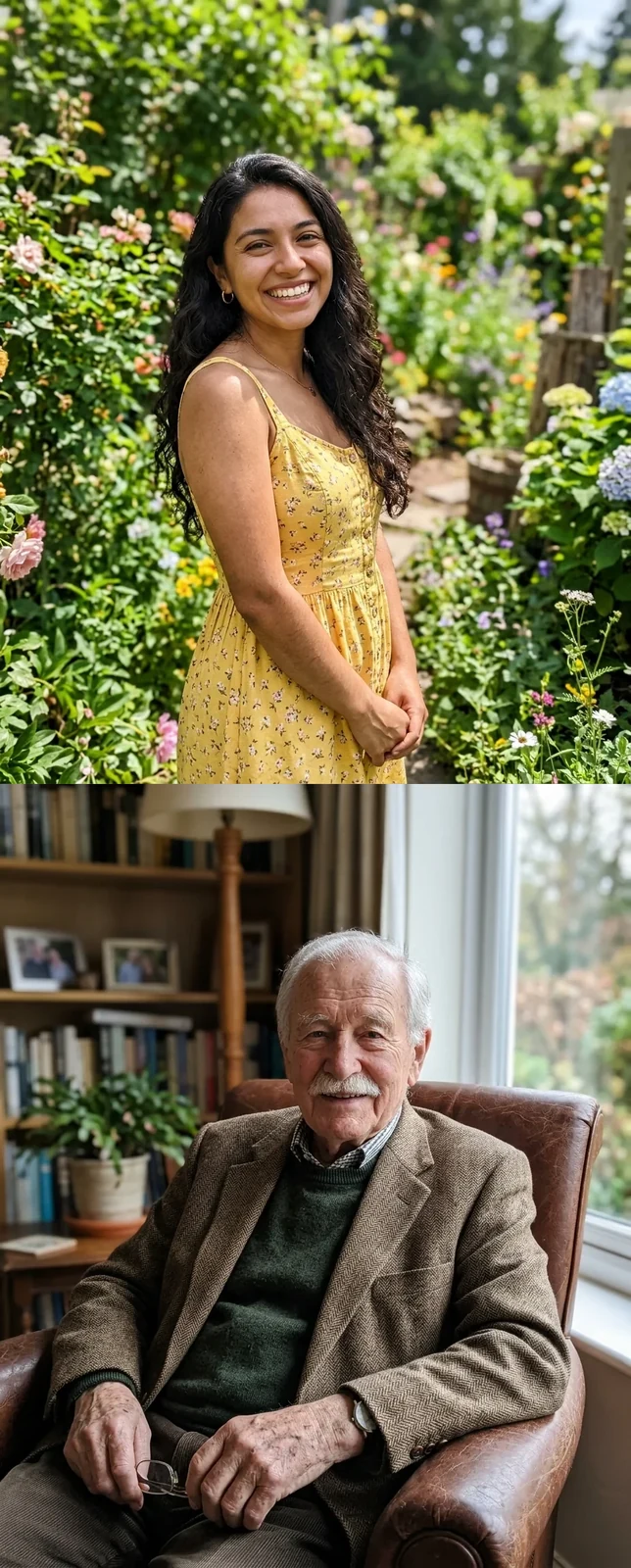
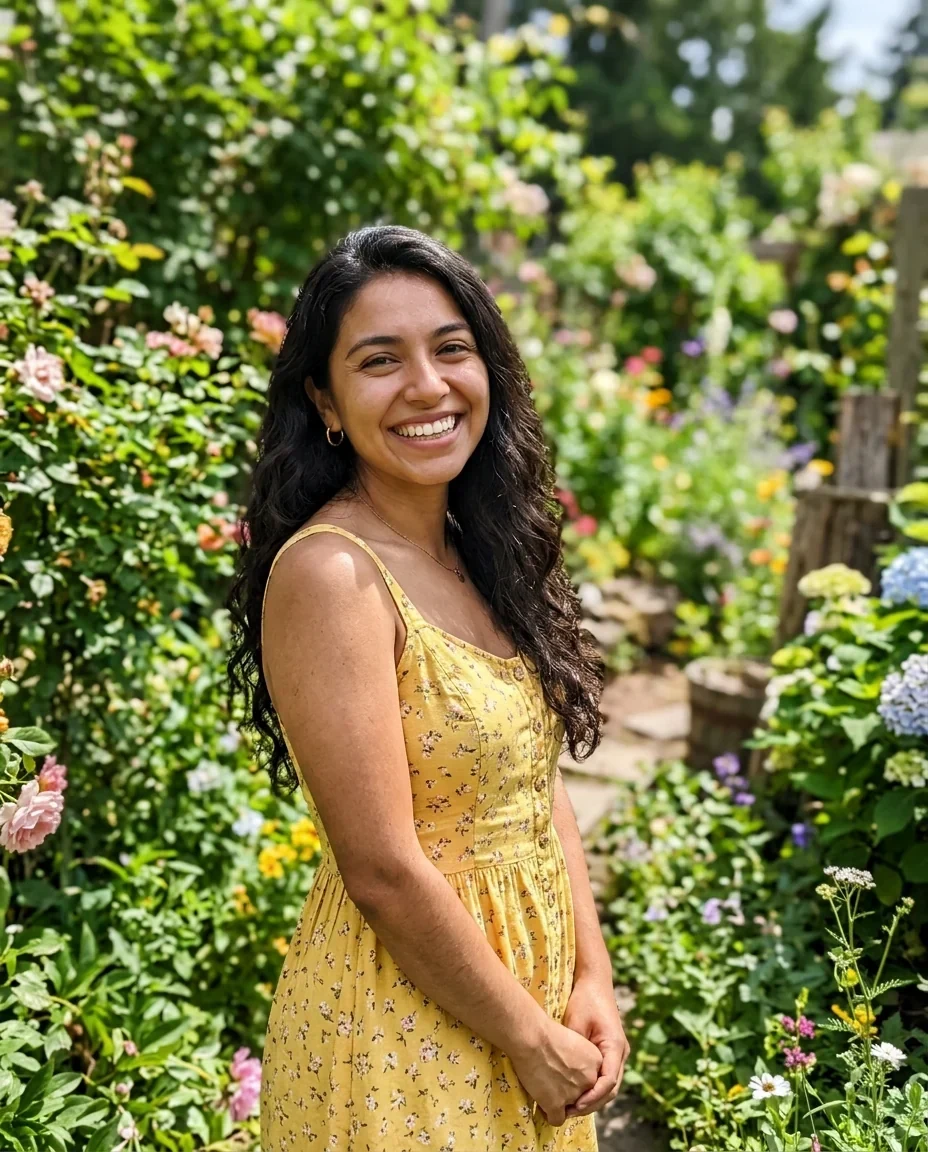
Stacked
Stitch photos features.
Side by side or stacked
Side by side scales every photo to the shortest one's height. Stacked scales to the narrowest width. Photos are never enlarged. A grid layout is there too.
2 to 50 photos, your order
Add up to 50 photos and use the arrows to put them in order.
Spacing and background
Set spacing from 0 to 10% (default 0, edge to edge) and a white, black or custom background.
Stitch photos, step by step.
01
Add your photos
Choose or drop at least two photos.
02
Order and layout
Use the arrows to reorder, then pick Side by side or Stacked and set the spacing.
03
Download
Save one JPG or PNG with everything joined.
Stitch photos use cases.
- Before and after pairs
- Put two photos next to each other in one image.
- Screenshot chains
- Stack several screenshots into a single tall picture.
- Photo strips
- Join a series of shots into one wide strip for a post or a message.
Stitch photos: best photos and fixes.
This is not a panorama stitcher
The tool joins photos edge to edge. It does not blend overlapping shots or find matching points, so a panorama made of overlapping frames will show repeated areas. Crop each shot to remove the overlap first, or use dedicated panorama software.
Side by side or stacked?
Use Side by side for photos you want in one row, such as a before and after. Use Stacked for tall content such as screenshots or receipts. The grid layout suits many photos of the same kind.
What scaling means for quality
In Side by side, every photo is scaled to the height of the shortest one. A small photo among large ones brings everything down in size. Photos are never enlarged, so nothing is blurred. Put similar-sized photos together.
Using spacing for a cleaner look
Leave spacing at 0 for a seamless strip. A small gap with a white background separates photos with similar edges, such as two skies. A black background suits photos with dark borders.
Keep the final size manageable
The result is kept within 16 MP and scaled down if the joined image would be larger. A strip of 20 phone photos can hit that quickly. For sharing, a JPG is easier to send than a large PNG.
Ordering with the arrows
The first photo is the left one, or the top one when stacked. Move photos with the arrows until the story reads correctly, then check the preview before you save.
Stitch photos FAQ.
How do I stitch photos together?
Add them, order them, choose Side by side or Stacked, and download the result.
Can it stitch a panorama?
Not in the sense of blending. It joins photos edge to edge and does not merge overlapping areas.
How many photos can I join?
From 2 to 50.
Are the photos resized?
Yes, to match. Side by side uses the shortest height and Stacked the narrowest width. Photos are never enlarged.
Can I add gaps between photos?
Yes. Spacing goes from 0 to 10%, with a white, black or custom background.
Is it free?
Yes. It is free, needs no sign-in and the photo never leaves your device.