







Split image
Cut one picture into a grid of equal pieces.
Drop a photo
or paste with ⌘V · JPG · PNG · WebP, stays on your device
No photo handy? Try one of ours.
 Image extender →
 Unblur image →
Split image examples.
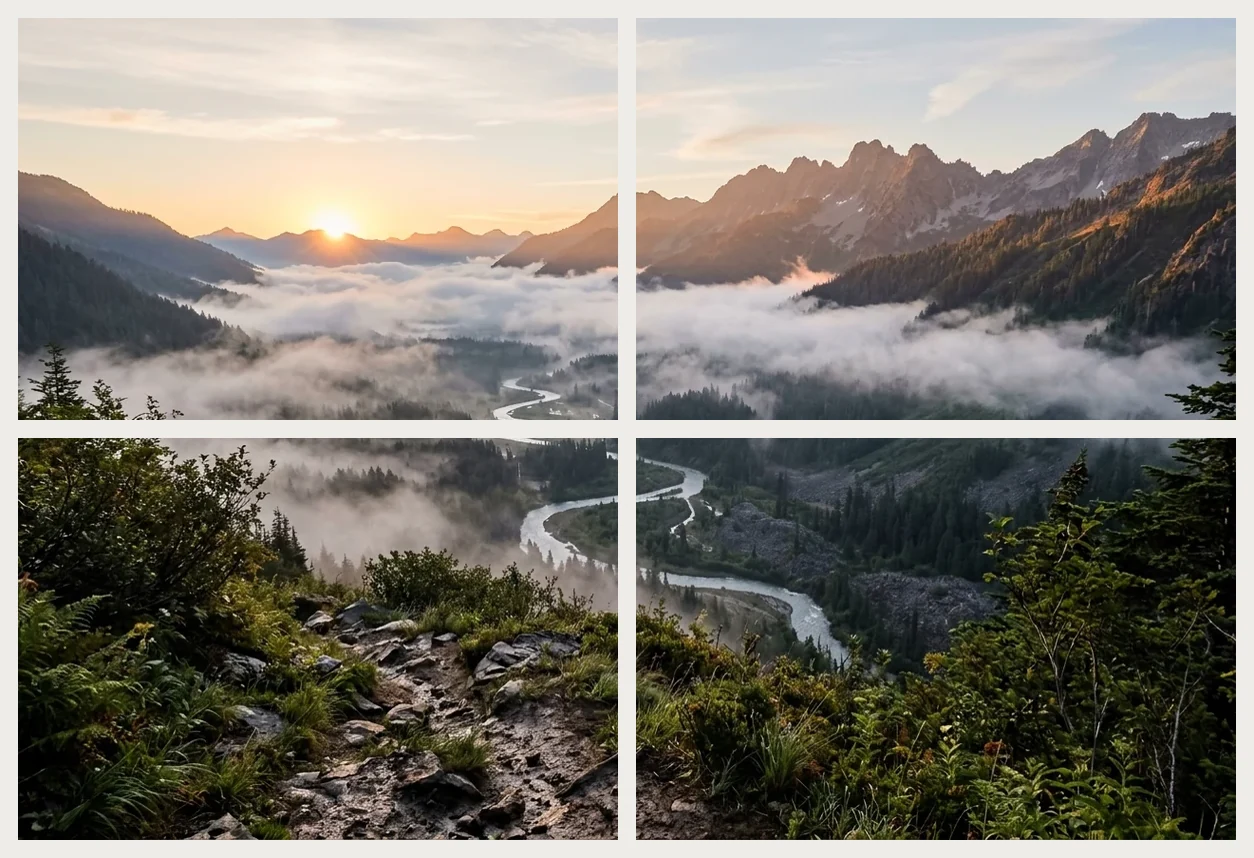
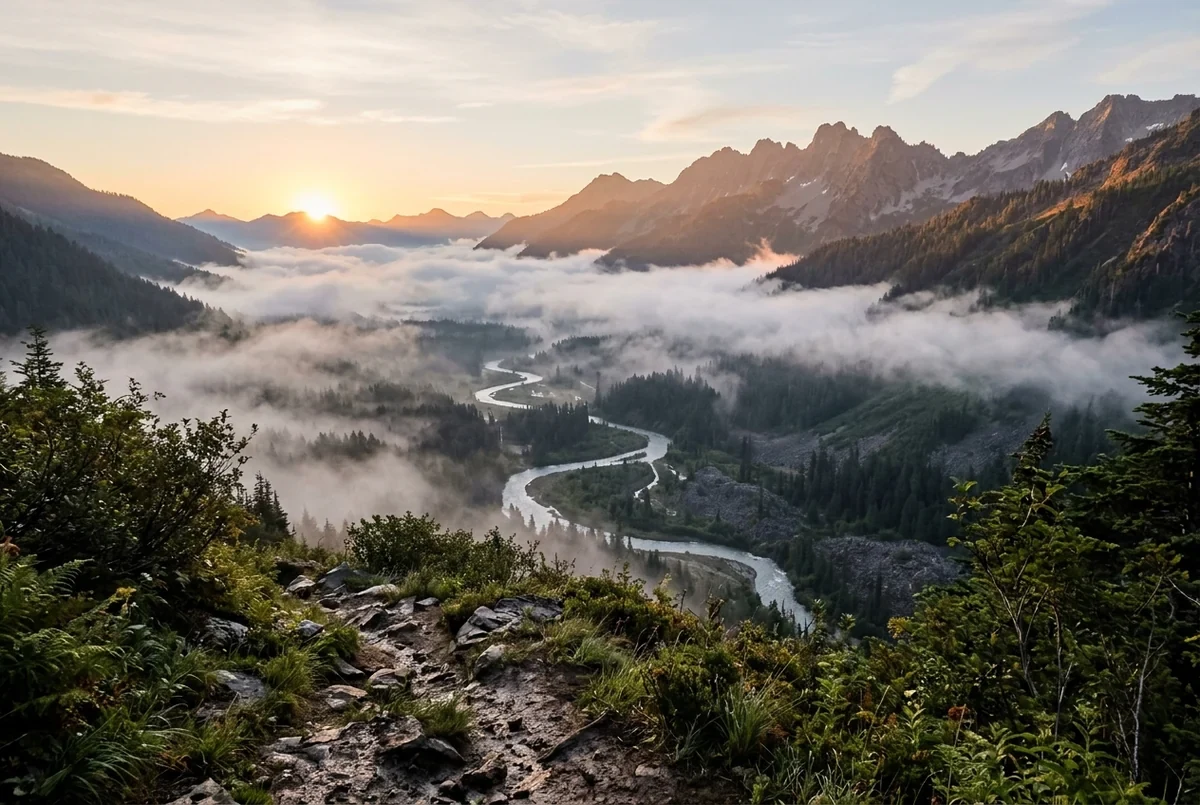
2 × 2 tiles
Split image features.
1 to 8 columns and rows
Two sliders set the grid. The default is 2 × 2, and you can go up to 8 × 8, which is 64 tiles at most.
Full resolution tiles
The whole image is divided into equal pieces at its full pixel size. Edges are rounded to whole pixels.
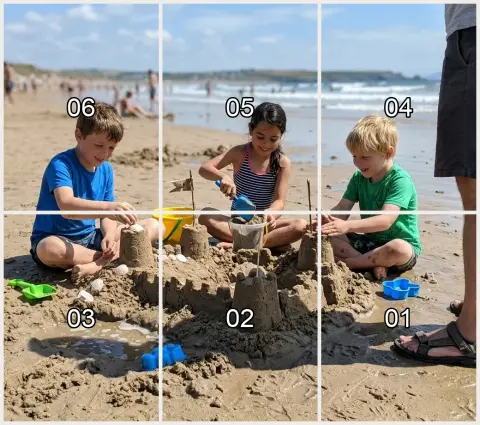
Numbered preview, one ZIP
The preview shows each tile with its number. Files are named name-row1-col1.jpg and so on, in a single ZIP, as JPG or PNG.
Split image, step by step.
01
Add your image
Paste, drop or choose the photo.
02
Set columns and rows
Move the sliders and check the numbered tiles in the preview.
03
Download the ZIP
Choose JPG or PNG and save all tiles in one ZIP.
Split image use cases.
- Panoramas
- Split a wide photo into equal parts for a carousel or a series.
- Posters and prints
- Cut a large picture into pieces you can print on normal paper and join.
- Screenshot strips
- Break a long screenshot into pages that are easier to share.
Split image: best photos and fixes.
Splitting a panorama for a carousel
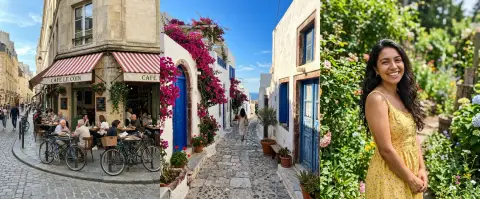
A wide photo split into 3 or 4 columns, with 1 row, gives a set of tiles that line up when viewed in order. Check the preview first. A key subject that falls on a cut line will be sliced, so adjust the grid or crop before you split.
Printing a poster in pieces
Split into 2 × 2 or 3 × 3, print each tile, then tape the sheets together. Because tiles are cut edge to edge, there is no overlap, so trim any printer margins carefully or print borderless.
Why tile sizes can differ by a pixel
If the width does not divide evenly by the number of columns, edges are rounded to whole pixels. Some tiles can be one pixel wider or taller than others. Joined back in order, they make the original picture.
Picking JPG or PNG
Use JPG for photos, as it keeps files small. Use PNG for screenshots, text and graphics, where JPG can soften sharp edges. PNG tiles are bigger.
Reading the file names
name-row1-col1.jpg is the top-left tile, name-row1-col2.jpg is its neighbour on the right, and name-row2-col1.jpg is the first tile of the second row. Sorting by name keeps them in reading order.
Very large photos
Photos larger than 16 MP are scaled down before they are cut, so every tile is a slice of that scaled picture. If you need exact original pixels, crop first and keep the source under that limit.
Split image FAQ.
How do I split an image into 4 equal parts?
Leave the sliders at 2 columns and 2 rows, then download the ZIP.
What is the maximum number of tiles?
64, which is 8 columns by 8 rows.
Are the tiles lower quality?
No. They are cut at full resolution, with no resizing. JPG output is re-encoded, so choose PNG if you want to avoid that.
Can I split into uneven parts?
No. Tiles are always equal. Crop the photo first if you need a different split.
Can I make an Instagram grid with it?
The Instagram grid maker is made for that. It crops to the grid's shape and numbers tiles in posting order.
Is it free?
Yes. It is free, needs no sign-in and the photo never leaves your device.