

Hue changer
Turn every color in a photo around the color wheel.
Drop a photo
or paste with ⌘V · JPG · PNG · WebP, stays on your device
No photo handy? Try one of ours.
 Recolor image →
 Clothes color changer →
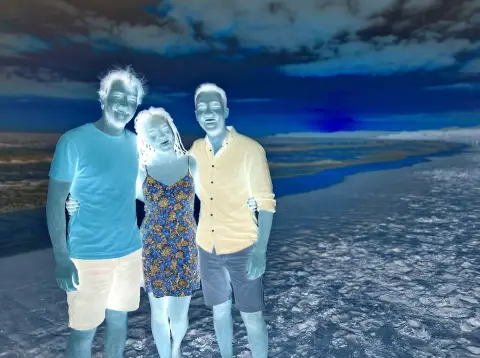
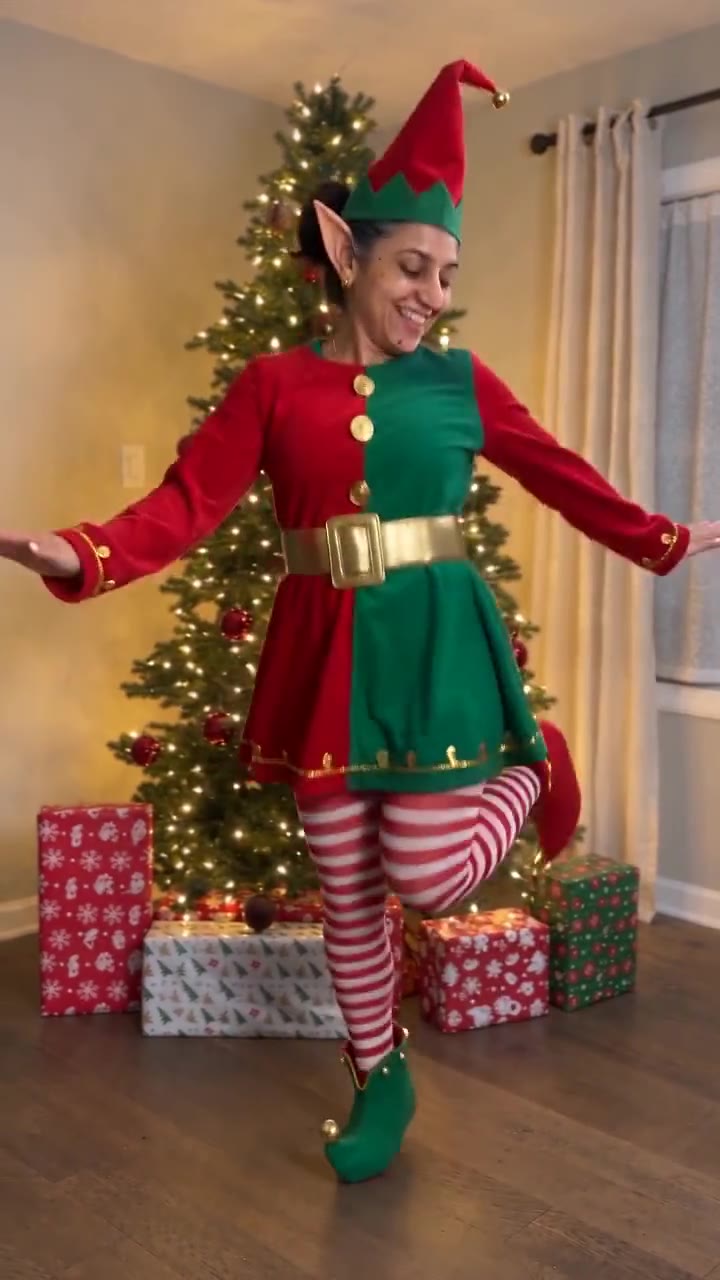
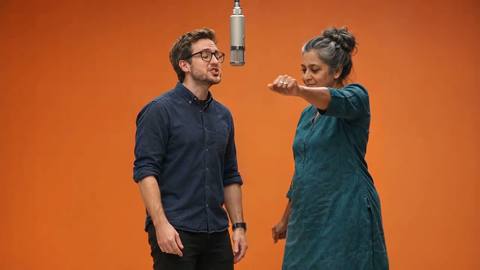
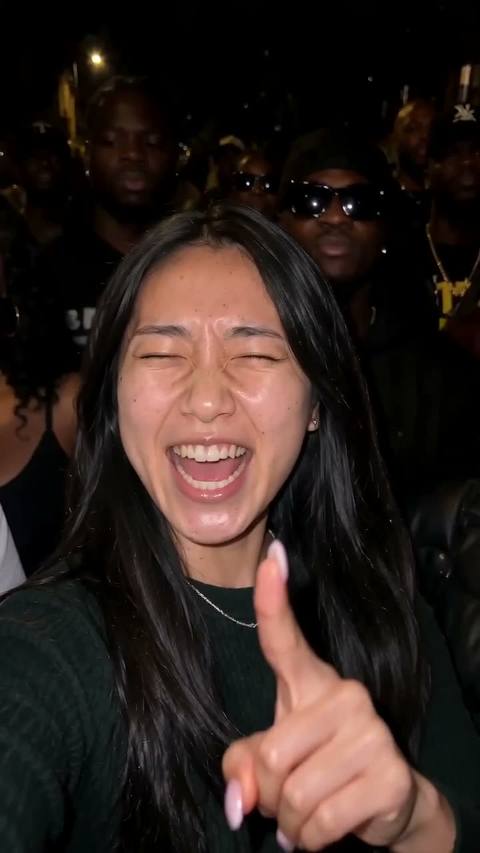
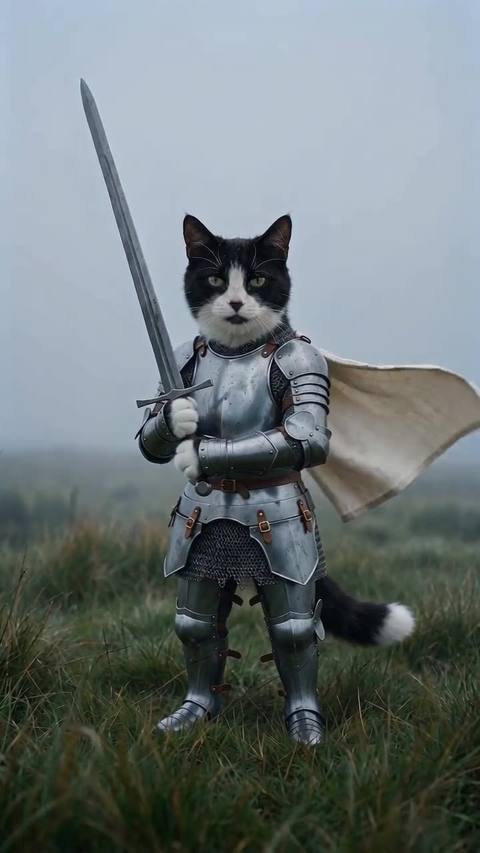
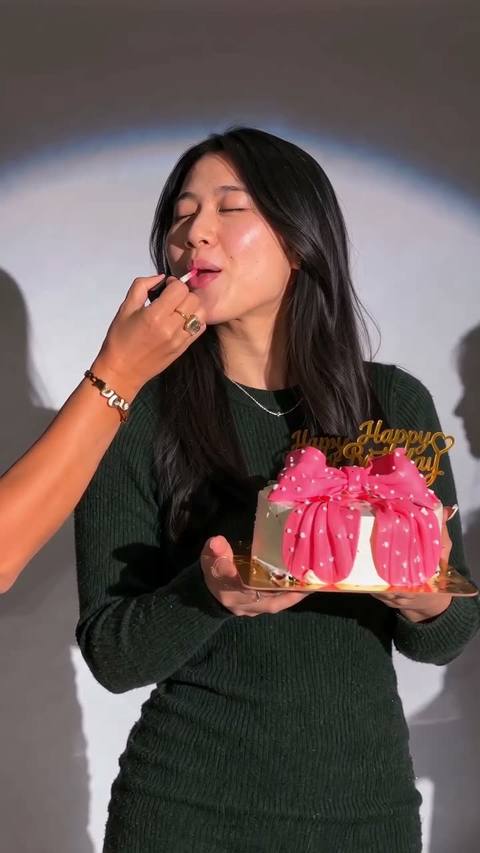
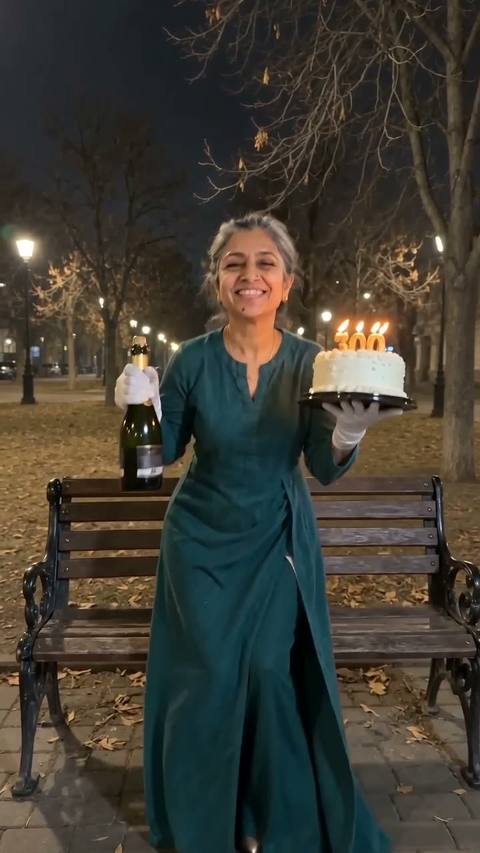
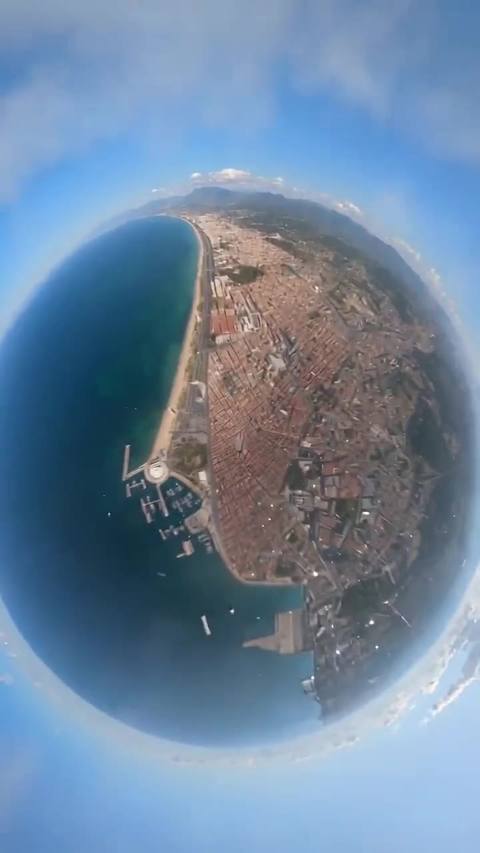
Hue changer examples.
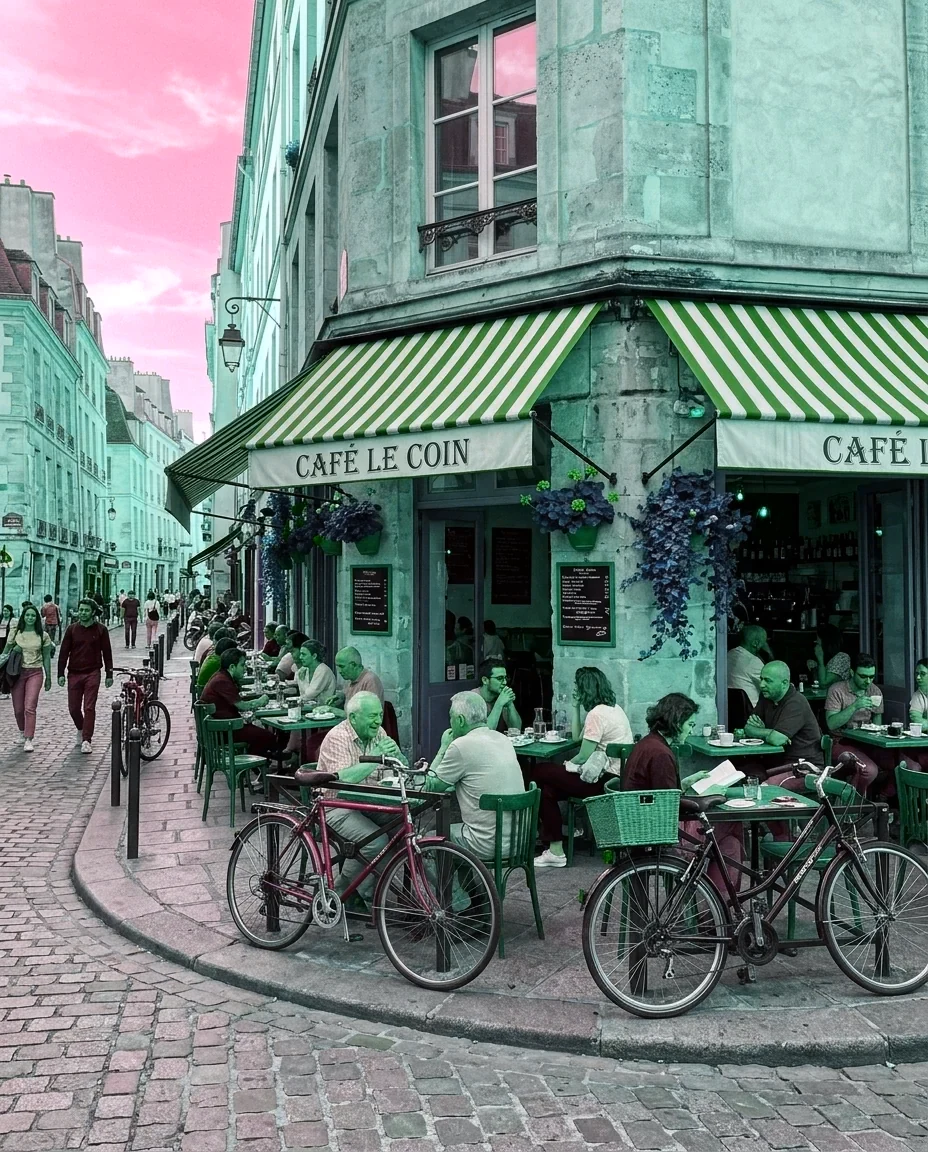
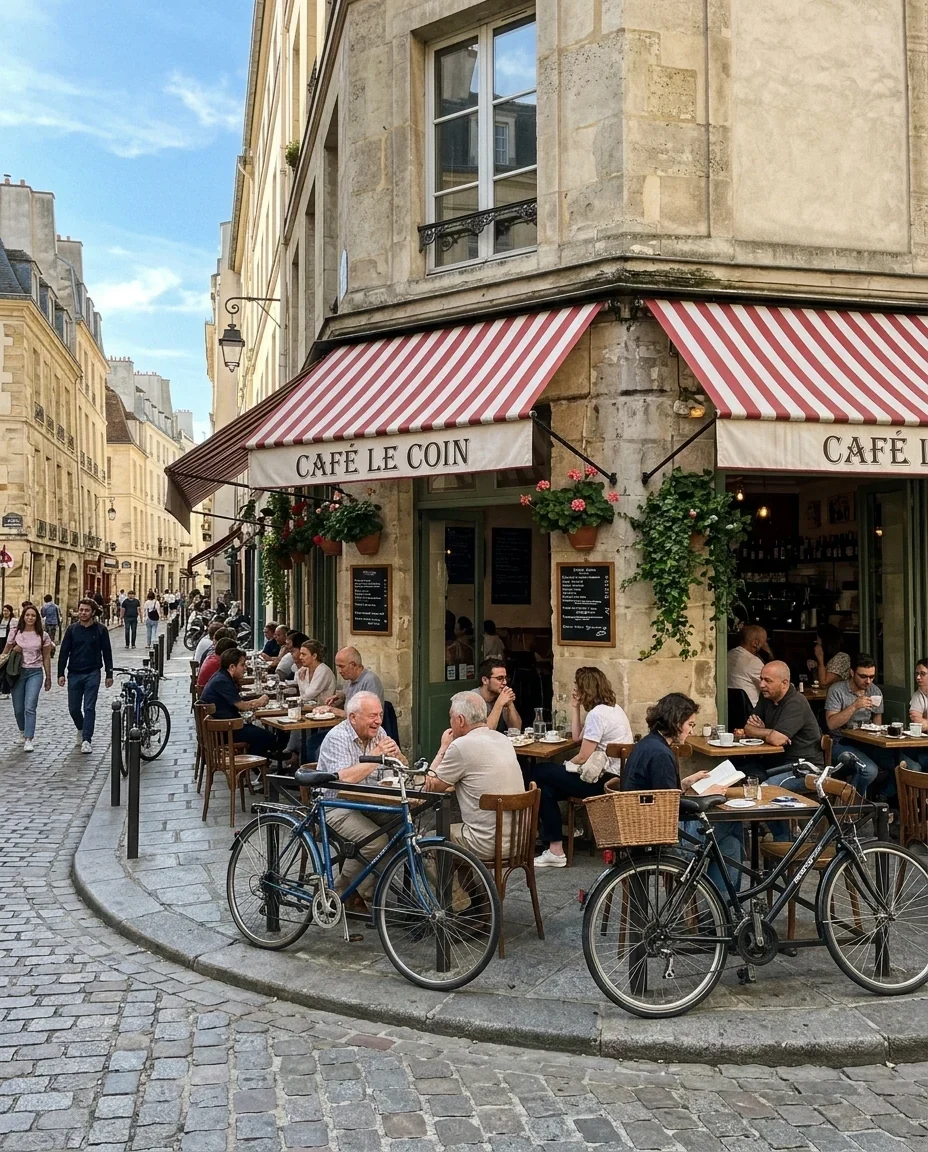
Hue +120°
Hue changer features.
Hue −180° to +180°
Turns every color around the wheel. The default is +120 degrees.
Saturation control
From −100, which makes the photo gray, to +100, which makes colors twice as vivid.
Brightness kept
Colors change but how light or dark each area is stays the same.
Hue changer, step by step.
01
Add your photo
Drop, choose or paste it.
02
Move the sliders
Drag Hue until the colors look right, and use Saturation to tone them down or push them up.
03
Download
Save the full-resolution JPG or PNG.
Hue changer use cases.
- Creative color shifts
- Turn a green scene to purple, or a blue sky to pink.
- Matching a palette
- Move the main colors of a picture toward a brand or theme color.
- Fixing a tint
- Nudge a slightly yellow or green photo a small step.
Hue changer: best photos and fixes.
What hue means
Hue is the position of a color on the color wheel: red, yellow, green, cyan, blue, magenta. Shifting hue rotates all the colors by the same amount. +120 degrees turns red into green, green into blue and blue into red. Shifting by 180 degrees gives opposite colors.
Positive and negative shifts
Plus values move the colors one way around the wheel, and minus values go the other. −180 and +180 land on the same result, so you can pick whichever direction is shorter to reach the color you want.
The Saturation slider
Saturation controls how strong the colors are. At −100 the photo is gray. At 0 it is unchanged, and at +100 colors are twice as vivid. A hue shift can make colors look more or less intense than before, so use this slider to tune it.
The whole image changes
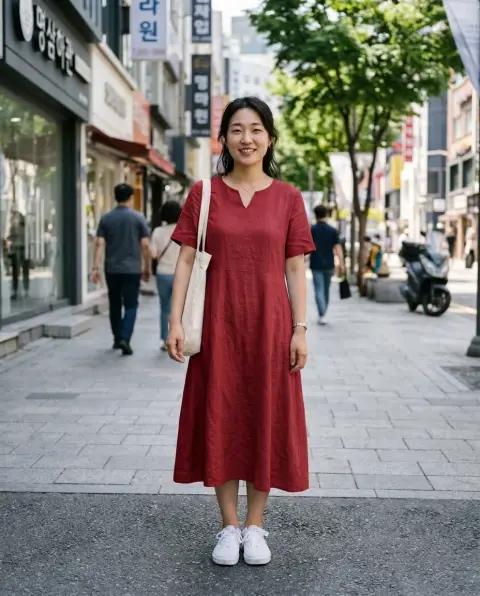
This tool changes every color in the picture at once. It cannot pick one object, such as a shirt or hair. For one object, use the AI recolor image, clothes color changer or hair color changer tools linked below.
What does not change
Grays, whites and blacks have no hue, so a hue shift leaves them alone. A foggy or monochrome photo barely changes. A colorful photo changes a lot. Try the Saturation slider when your picture is mostly neutral.
Realistic or bold
Skin tones are easy to break. A big hue shift on a portrait turns faces green or blue. For a natural result keep the shift small, and for an art effect on landscapes or objects go wide. Check the preview before saving.
Hue changer FAQ.
How do I change the hue of a photo?
Add the photo and drag the Hue slider. All colors move around the color wheel.
Can I change only one color or object?
No. This tool changes the whole picture. For one object, use the recolor image or clothes color changer tools.
Why did my gray areas not change?
Gray, white and black have no hue, so shifting the hue leaves them as they are.
What does saturation do?
It sets how vivid the colors are, from gray at −100 to twice as vivid at +100.
Does it change the brightness?
No. Brightness is kept, and only the color is shifted.
Is it free?
Yes. It is free, needs no sign-in and uses no credits, and your photo never leaves your device.