

Bulk image resizer
Resize up to 50 photos at once, then save them as a ZIP.
Drop images
or paste with ⌘V · JPG · PNG · WebP · HEIC · AVIF · SVG, up to 50 at once
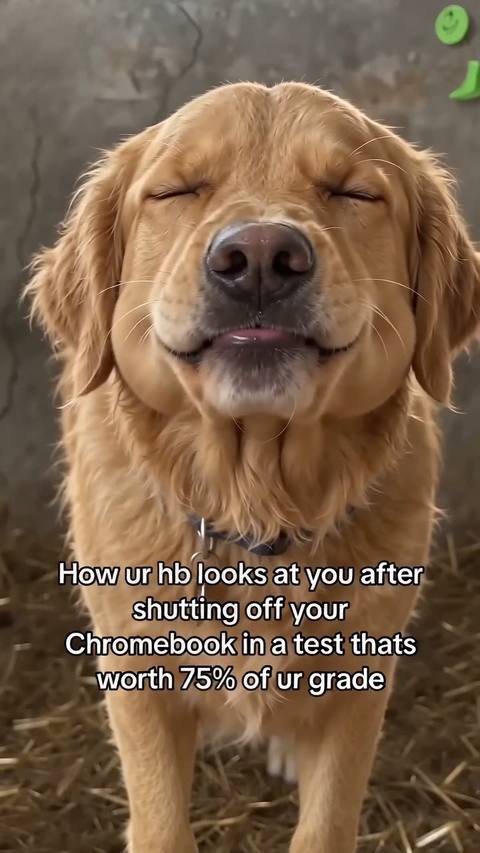
No photo handy? Try one of ours.
 Unblur image →
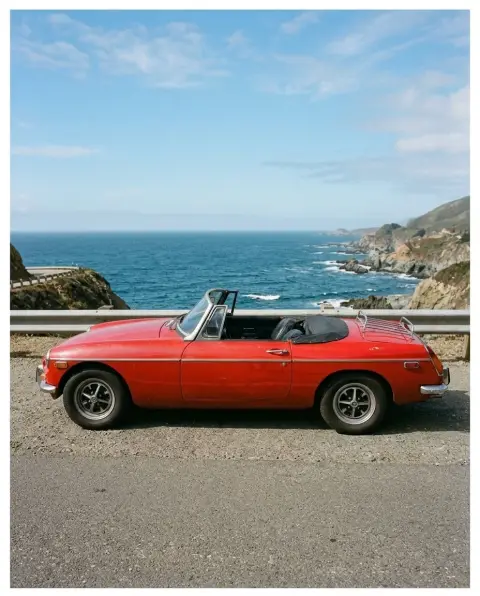 Image extender →
Bulk image resizer examples.
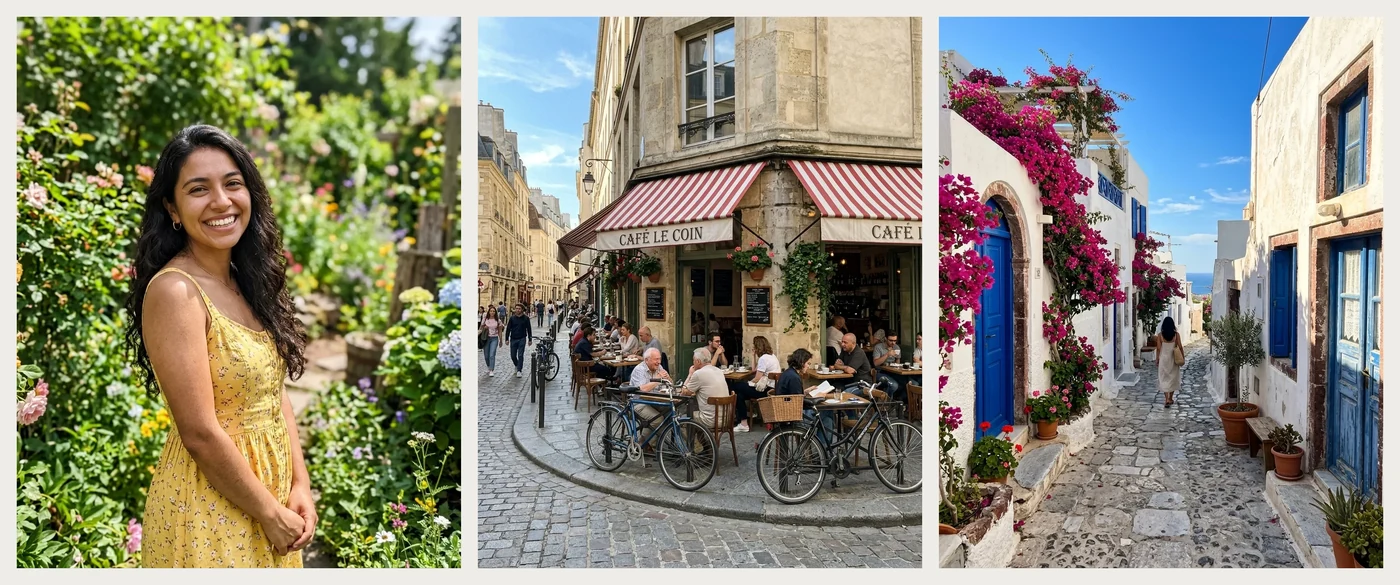
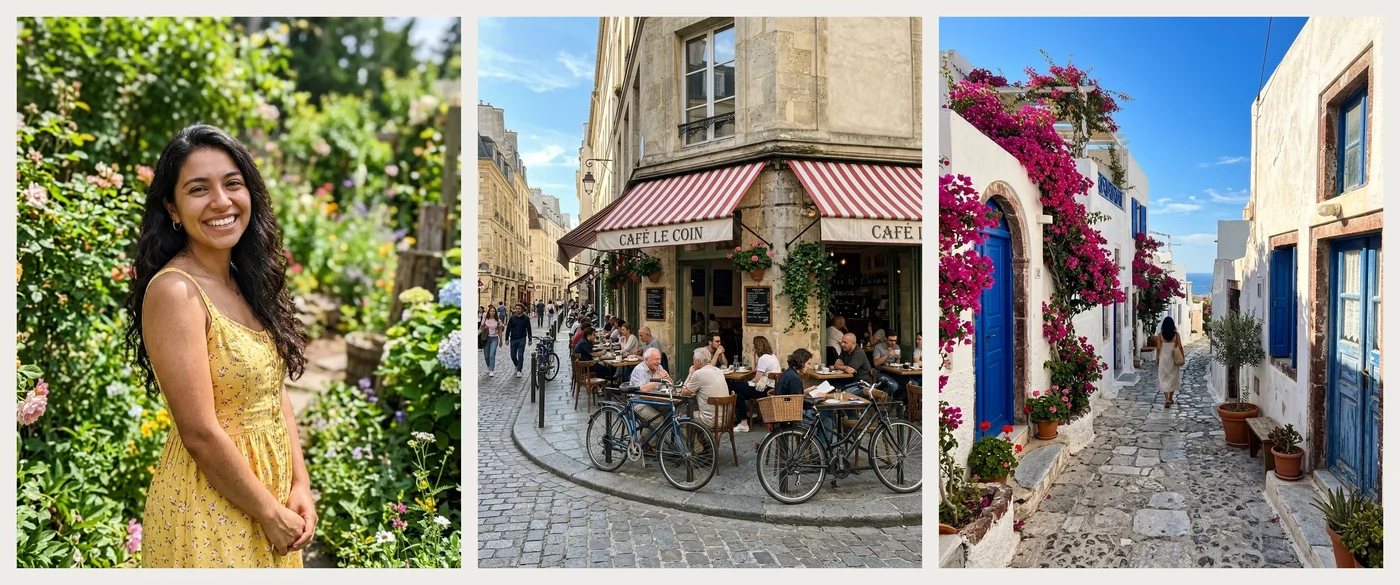
50% in one go
Bulk image resizer features.
Up to 50 images
Add a whole folder worth of photos and apply one setting to all of them.
Percent or pixels
Scale by 5 to 200 percent, or set a width and height, with proportions kept or an exact size.
Format and quality
Keep each original format or switch to JPG, PNG or WebP, and set the quality for JPG and WebP.
Bulk image resizer, step by step.
01
Add your photos
Drop, choose or paste up to 50 images, or send them from a phone with the QR code.
02
Choose the size
Pick Percent, or Pixels with a width and height. Turn Keep proportions off for an exact size and choose how to fit.
03
Download
Each file shows its new pixel size and file size. Save one, or take them all as a ZIP.
Bulk image resizer use cases.
- Shrinking a photo batch
- Make a folder of camera photos small enough to email or upload.
- Matching one size
- Give every product or listing photo the same width and height.
- Changing format in bulk
- Turn a set of PNG or HEIC photos into JPG at the same time.
Bulk image resizer: best photos and fixes.
Percent or pixels
Percent scales every photo by the same amount, so a 4000 pixel photo and a 2000 pixel photo both end up half as large at 50 percent. Pixels is better when a site asks for a width, because every photo then lands on that number whatever its starting size.
Keep proportions on
With Keep proportions on, each photo fits inside the width and height you typed and is never stretched. If you fill in only a width, the height follows each photo. Photos with different shapes will therefore have different heights, which is usually what you want for a mixed batch.
Exact size for every image
Turn Keep proportions off when all photos must be the same size. Crop to fill cuts the edges to match the shape. Fit whole keeps everything and pads with white, black or a blurred copy of the photo. Stretch forces the size and distorts the picture, so use it only for flat graphics.
Choosing a format
Same as original keeps each file as it is. JPG gives the smallest files for photos but has no transparency, so see-through areas become white. PNG keeps transparency and is lossless. WebP is small and good for web pages, and it is hidden in Safari because Safari cannot write it.
Quality and file size
For JPG and WebP the quality slider trades detail for size. Lower numbers give a smaller file and show more blocky noise in smooth areas such as sky. Try a middle value first and look at the size shown next to each file. Resizing down already saves most of the weight.
Very large photos
Output is never larger than 16 megapixels, which is 16 million pixels. A photo scaled up past that limit is held to it. That is plenty for screens and for most prints, so it only matters when you push a percent of 200 on an already large photo.
Bulk image resizer FAQ.
How many photos can I resize at once?
Up to 50. Add them together and the same settings apply to all.
How do I download all the resized photos?
Use the download all button to get one ZIP. You can also save any single file from the list.
Will the photos be stretched?
Not with Keep proportions on. Stretch only happens if you turn it off and pick Stretch.
Can I change the format as well?
Yes. Choose Same as original, JPG, PNG or WebP. WebP is not offered in Safari.
Can I make a photo bigger?
Yes, with a percent above 100 or larger pixel boxes. Enlarging adds no detail, so photos look softer, and output stops at 16 megapixels.
Is it free?
Yes. It is free, needs no sign-in and uses no credits, and your photo never leaves your device. You can resize a whole batch without an account.