





Rotate image
Turn a photo upright, or tilt it to any angle.
Drop a photo
or paste with ⌘V · JPG · PNG · WebP, stays on your device
No photo handy? Try one of ours.
JPG has no transparency: new corners are white.
Next, with AI
 Unblur image →
 Photo restoration →
Rotate image examples.
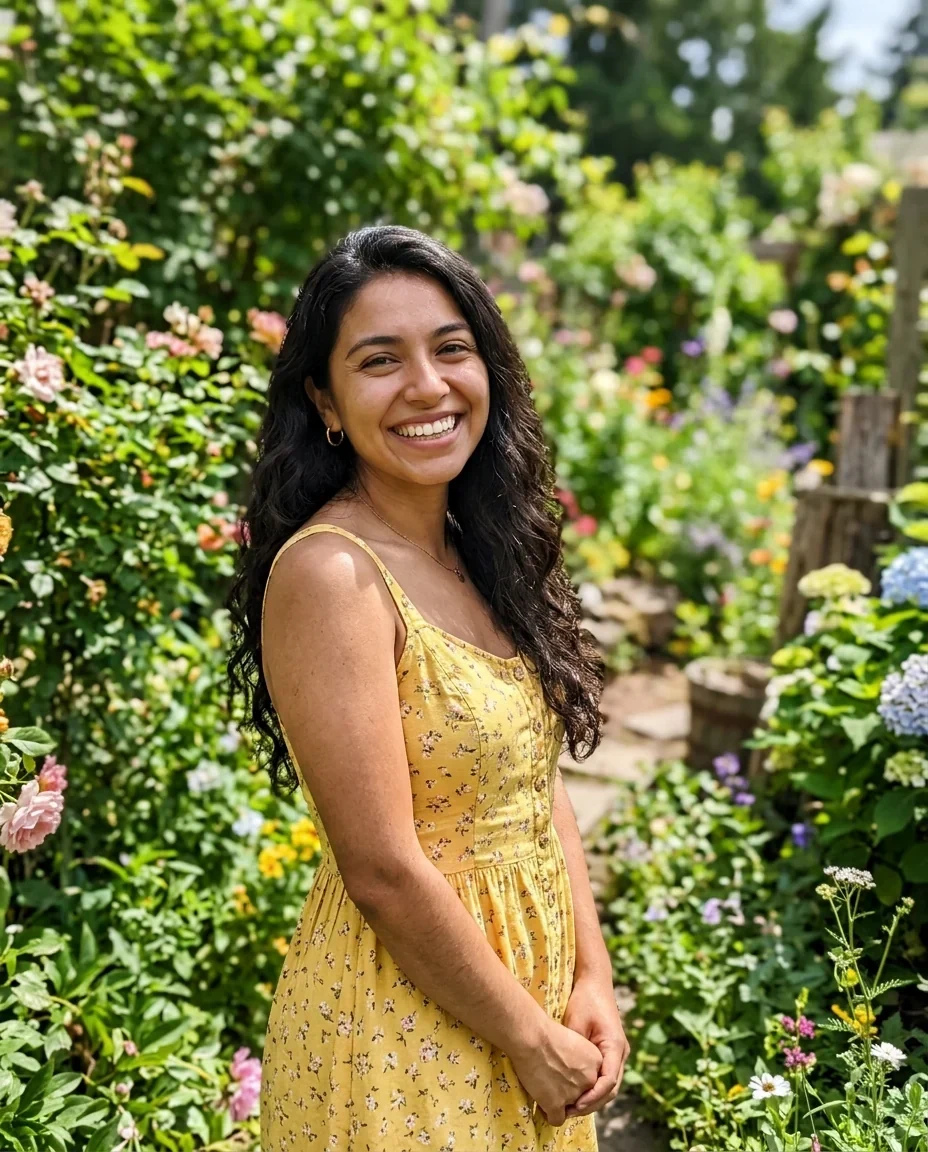
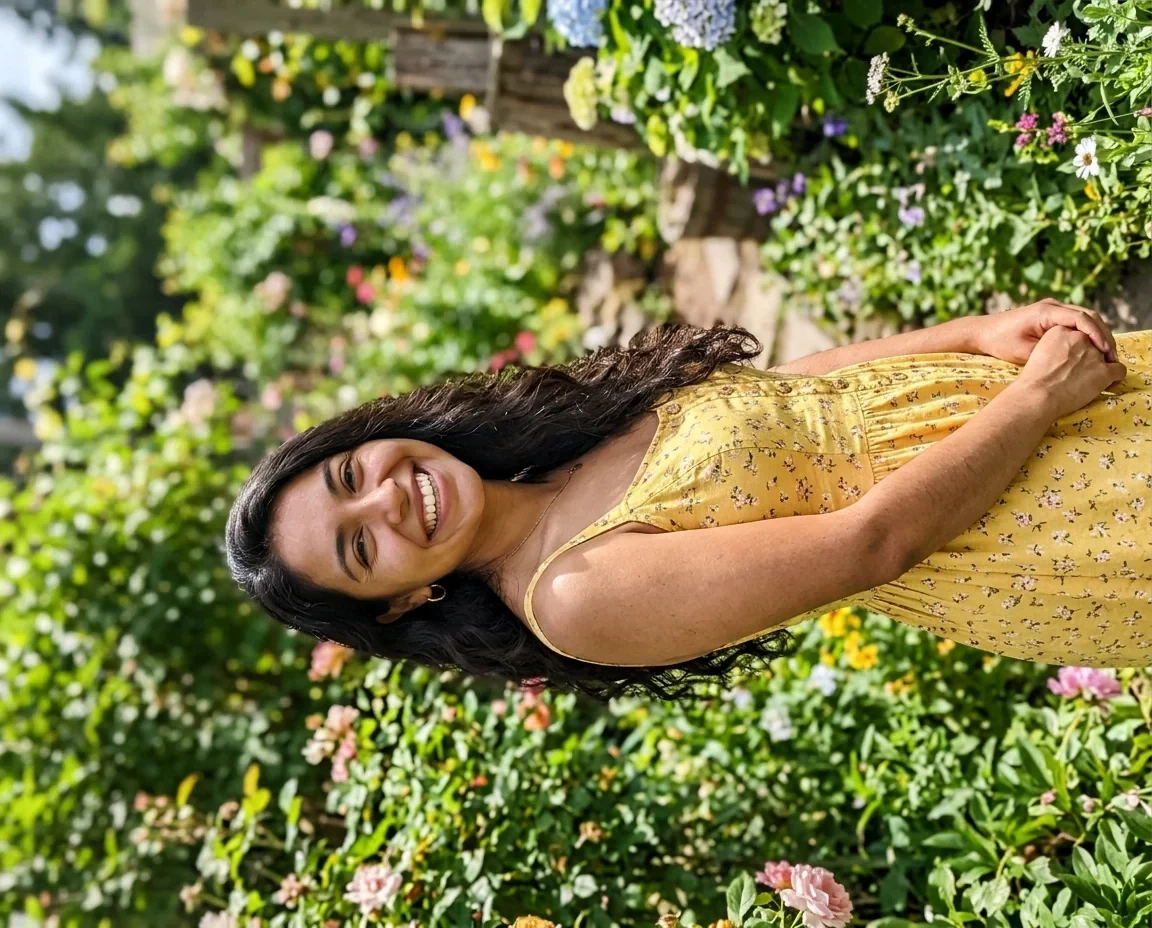
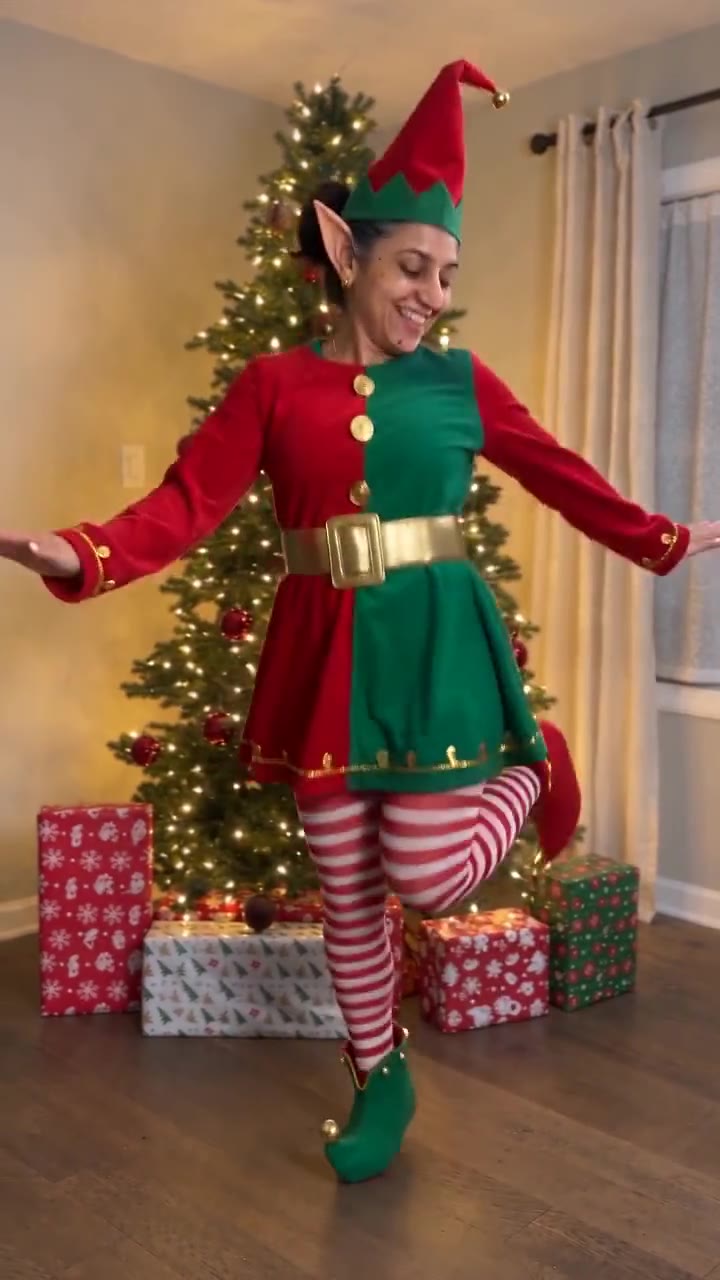
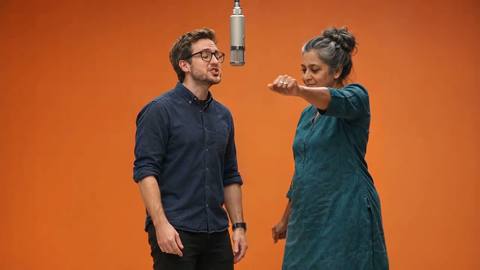
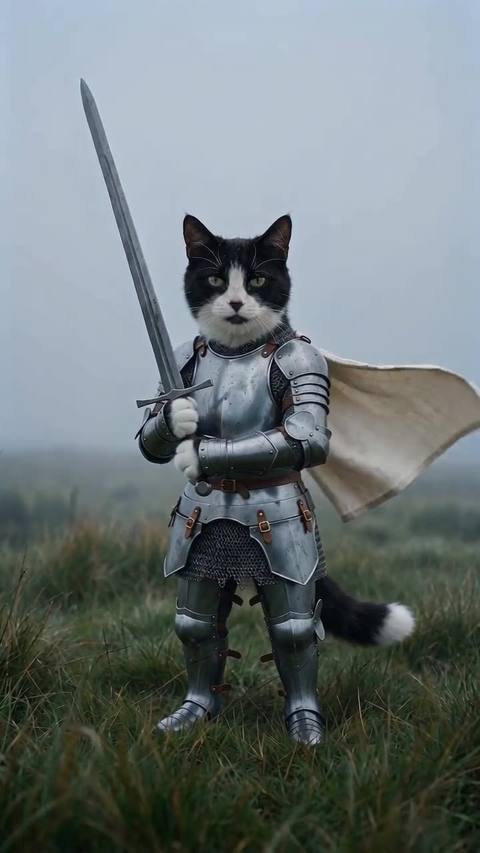
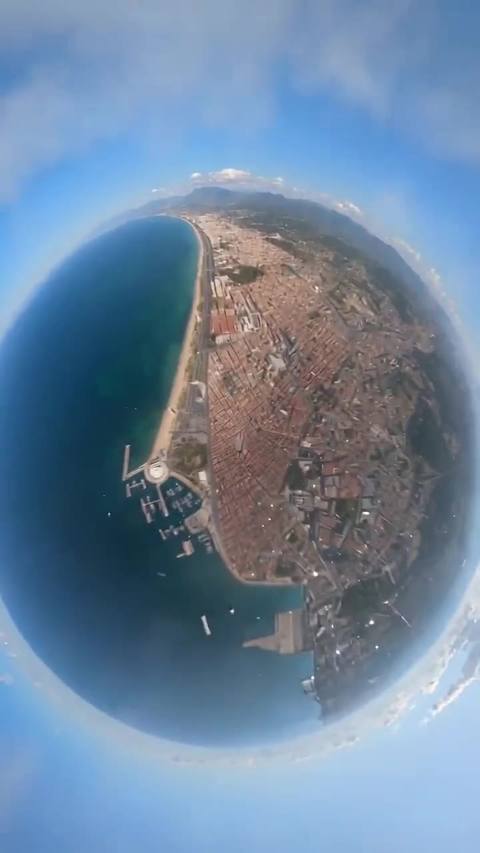
90° right
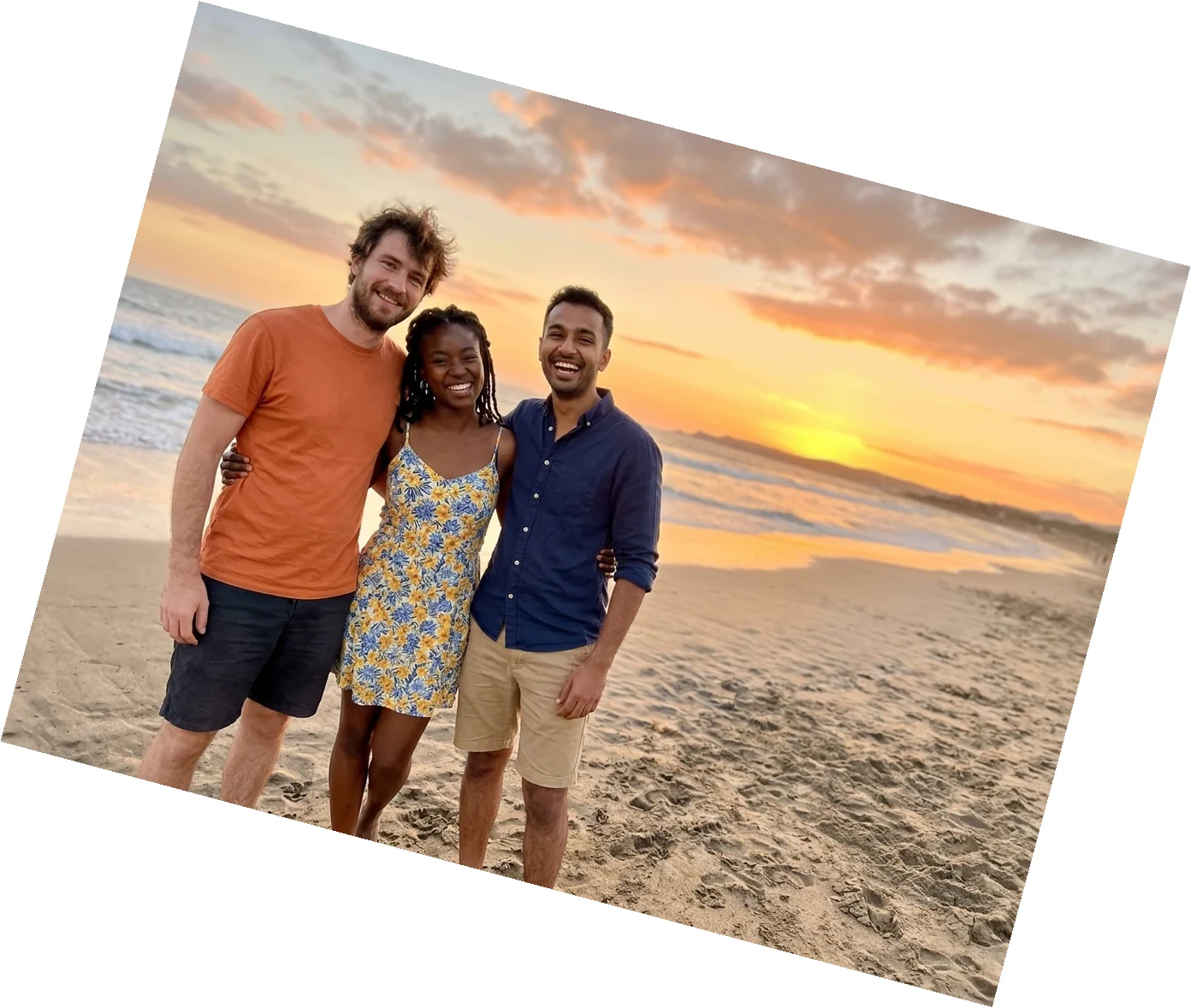
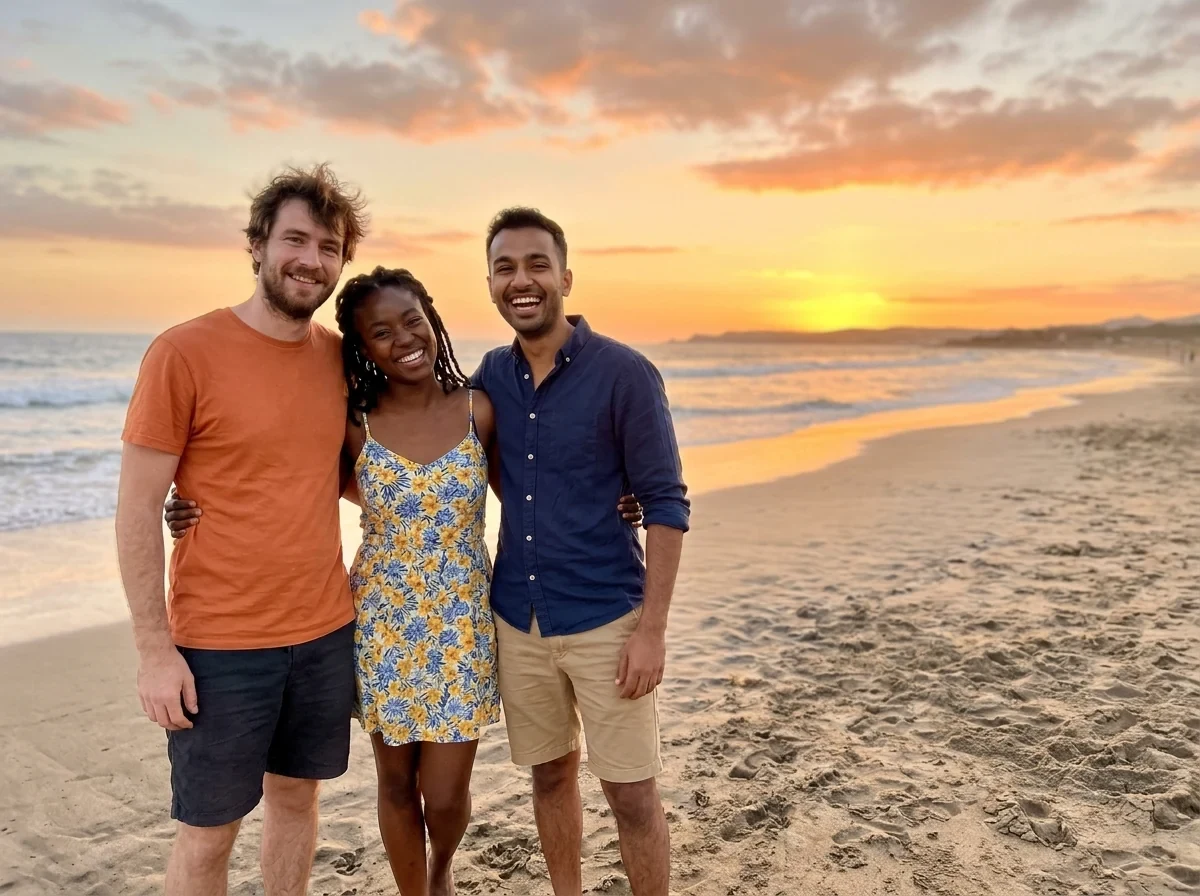
15°, nothing cropped
Rotate image features.
Quarter turns
Buttons for 90° left, 90° right and 180°. Width and height swap exactly.
Any angle in between
The Angle slider goes from −45° to +45° in 0.5° steps.
Nothing is cropped
The canvas grows to fit the turned photo. New corners are white in JPG and transparent in PNG.
Rotate image, step by step.
01
Add your photo
Paste, drop or choose a photo, or send it from your phone with the QR code.
02
Turn it
Press a rotate button, or drag the Angle slider. Use Reset to start over.
03
Download
Save a JPG or PNG.
Rotate image use cases.
- Fix a sideways photo
- Turn a picture that opened on its side, or a scan that went in the wrong way.
- Creative tilt
- Rotate a photo by a few degrees for a casual, off-angle look.
- Prepare for other tools
- Get a photo upright before you crop, resize or print it.
Rotate image: best photos and fixes.
Which way is left and right?
90° left turns the photo counter-clockwise, and 90° right turns it clockwise. A photo lying with its top at the right needs 90° left to stand upright. If you pick the wrong one, press the opposite button or Reset.
What you get with a small angle
Angles between quarter turns grow the canvas so every corner of your photo fits. The extra corners are white in JPG and transparent in PNG. You can fill or crop them later, or use the Straighten tool, which crops them for you.
Quarter turns and file size
The size swap is exact, so a 4000 by 3000 photo becomes 3000 by 4000. The file is saved again, so a JPG is re-encoded. Keep the original if you need the best quality.
Rotate or flip?
Rotate turns the photo around its centre. Flip mirrors it, so text reads backwards. If a photo looks reversed rather than turned, use the Flip tool.
Why a photo looks sideways
Phones record which way you held them in a hidden setting. Some programs ignore it and show the picture on its side. Turning it here and saving gives a file that is upright everywhere.
Rotating a scan
A scan that is only slightly crooked can be fixed with a small angle, in 0.5° steps. Check the edges against a straight line in the preview, then save. The corners that appear can be trimmed with a crop.
Rotate image FAQ.
How do I rotate an image 90 degrees?
Press 90° right or 90° left, then download the result.
Can I rotate by any angle?
Yes, between −45° and +45° with the slider. For larger turns, combine the buttons and the slider.
Does rotating crop my photo?
No. The canvas grows to fit. New corners are white in JPG and transparent in PNG.
What is the difference from Straighten?
Straighten crops the photo to remove the corners. Rotate keeps everything and adds corners.
Does the file size change?
Quarter turns swap width and height exactly. The file is saved again, so JPG is re-encoded.
Is it free?
Yes. It is free, needs no sign-in and the photo never leaves your device.