







Compress WebP
Make WebP images smaller for your site or uploads.
Drop images
or paste with ⌘V · JPG · PNG · WebP · HEIC · AVIF · SVG, up to 50 at once
No photo handy? Try one of ours.
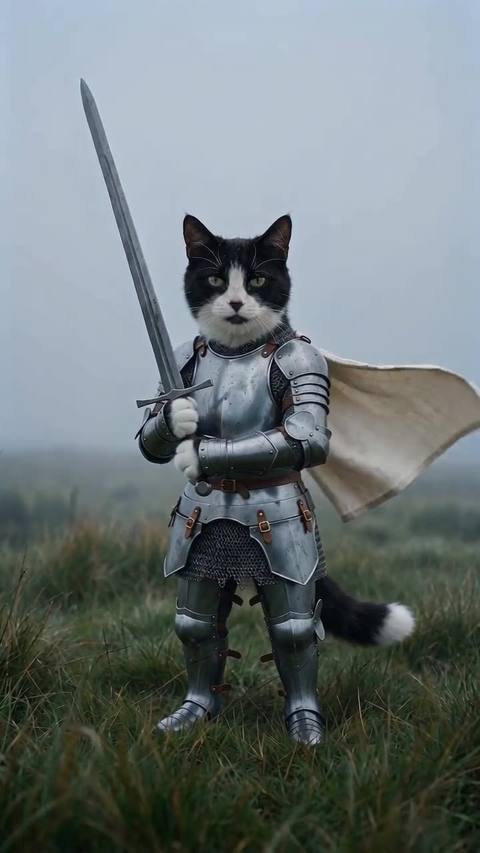
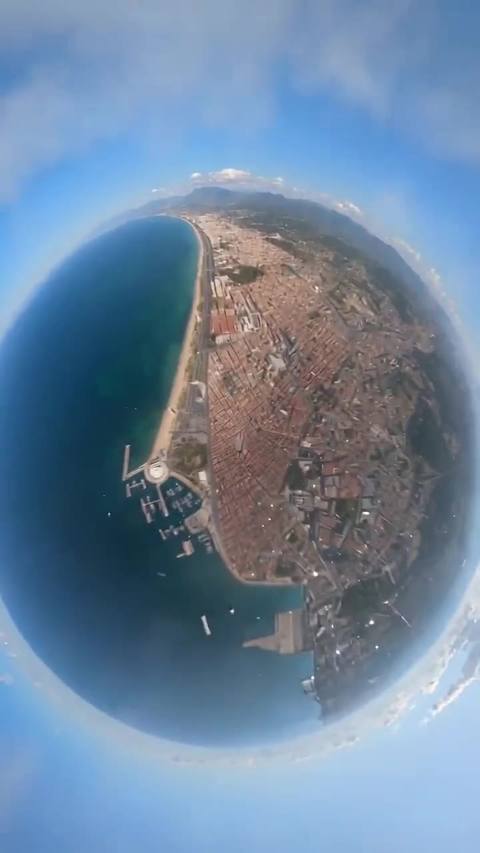
Compress WebP examples.


WebP, quality 75
Compress WebP features.
Quality or size limit
Set quality from 30 to 100, or a Max file size such as 100 KB.
Transparency kept
WebP files with see-through backgrounds stay transparent.
Resize option
Cap the long side at 2560, 1920 or 1280 px.
Compress WebP, step by step.
01
Add your WebP files
Drag in up to 50 images.
02
Set quality or limit
Keep quality 75, or choose a Max file size.
03
Download
Save one file or all of them as a ZIP.
Compress WebP use cases.
- Website images
- Trim hero images and product photos for a faster page.
- Uploads with limits
- Fit a CMS or store that caps image size.
Compress WebP: best photos and fixes.
Why a WebP can still be heavy
WebP is built to be smaller than JPG, but a high-resolution image saved at high quality can still be several megabytes. Large images on a page slow loading, especially on phones. Lowering quality and capping the pixel size are the two ways to cut it. The second often saves more than the first.
Quality 75 in WebP
WebP quality 75 gives a visually close copy for most photos at normal viewing size, at a much smaller file. WebP handles smooth gradients and skies better than JPG at the same number, so artifacts show up later. If you see blur on fine textures, raise the quality a few steps instead of removing the compression.
Using a size limit
Under Max file size, pick 1 MB, 500 KB, 200 KB, 100 KB or 50 KB. The tool finds the highest quality that fits, and only reduces the dimensions if quality 40 is still too big. This suits content systems and marketplaces that reject images over a fixed size, since you do not have to guess the quality.
Lossy and transparent images
The compression is lossy, so detail is traded for size, and recompressing an already compressed file adds a little more loss. Transparent WebP files keep their transparency in the output. Soft shadows and edges stay smooth, which makes this a good option for cut-outs and product images placed on different backgrounds.
When WebP is not the right output
Some older editors, email clients and upload forms still refuse WebP. If a place rejects your file, convert it to JPG, or PNG for transparency, with the WebP to JPG tool. You can also pick JPG or PNG as the output here. For your own website, WebP remains a good choice, supported by all current browsers.
Animation and metadata
The tool treats each file as a single image, so do not use it on animated WebP files if you want the animation. Compressing redraws the picture and removes camera metadata such as date and location. Everything runs in your browser and nothing is uploaded, so keep an original copy of anything you may need again.
Compress WebP FAQ.
How do I compress a WebP image?
Add the file, keep quality at 75 or set a Max file size, then download. Several can be done at once.
How do I get a WebP under 100 KB?
Set Max file size to 100 KB. The tool lowers quality to fit and only shrinks the dimensions if quality 40 is not enough.
Is WebP compression lossy?
Yes. Detail is traded for a smaller file. At quality 75 the loss is usually hard to see at normal size.
Does the WebP keep its transparent background?
Yes. Transparent areas are kept in WebP output.
Can I compress a WebP and save it as JPG?
Yes. Choose JPG as the output. JPG has no transparency, so transparent areas will not stay see-through.
Is it free?
Yes. Quick tools are free, need no sign-in and use no credits; your images stay in your browser. The AI tools linked below need an account.