






JPG to WebP
Convert JPG photos to WebP for lighter, faster web pages.
Drop images
or paste with ⌘V · JPG · PNG · WebP · HEIC · AVIF · SVG, up to 50 at once
No photo handy? Try one of ours.
 Unblur image →
 Photo restoration →
JPG to WebP examples.
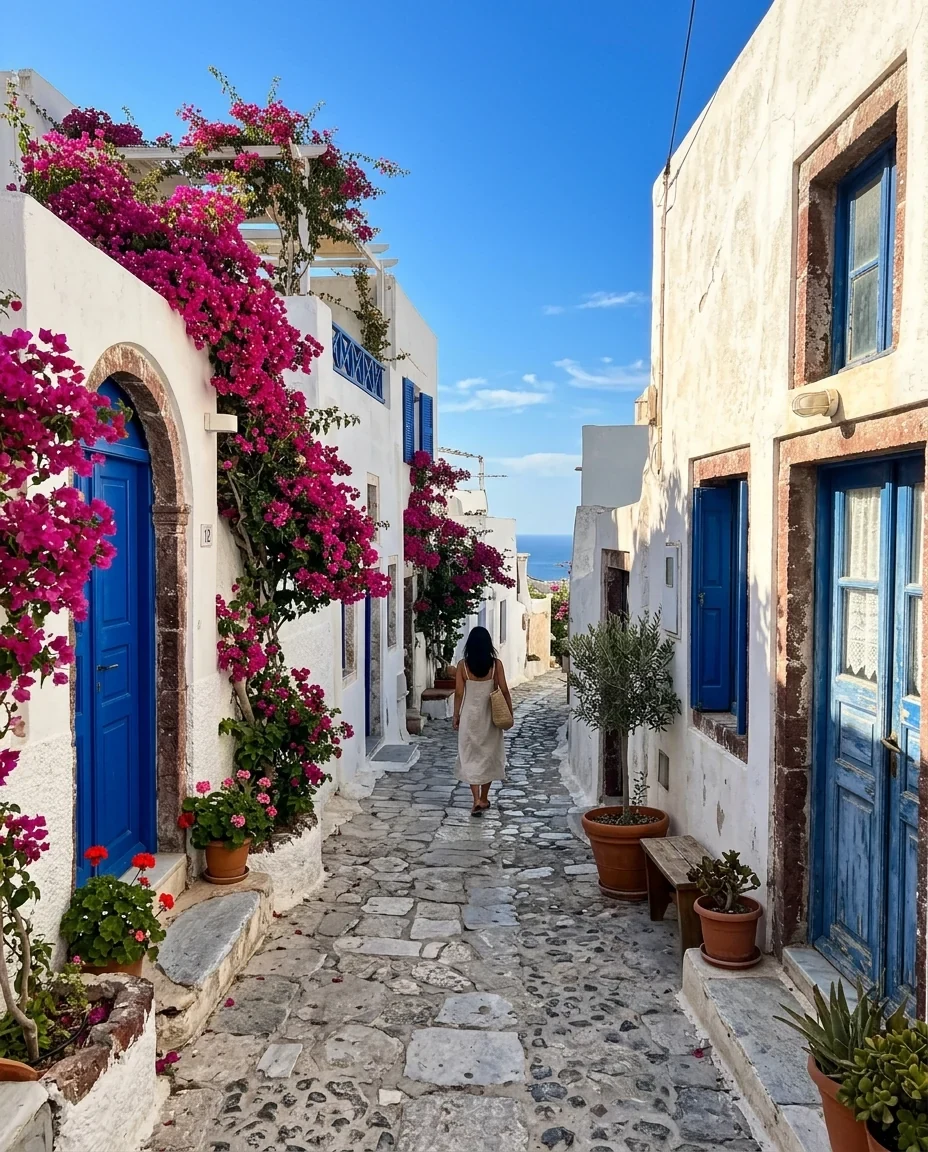
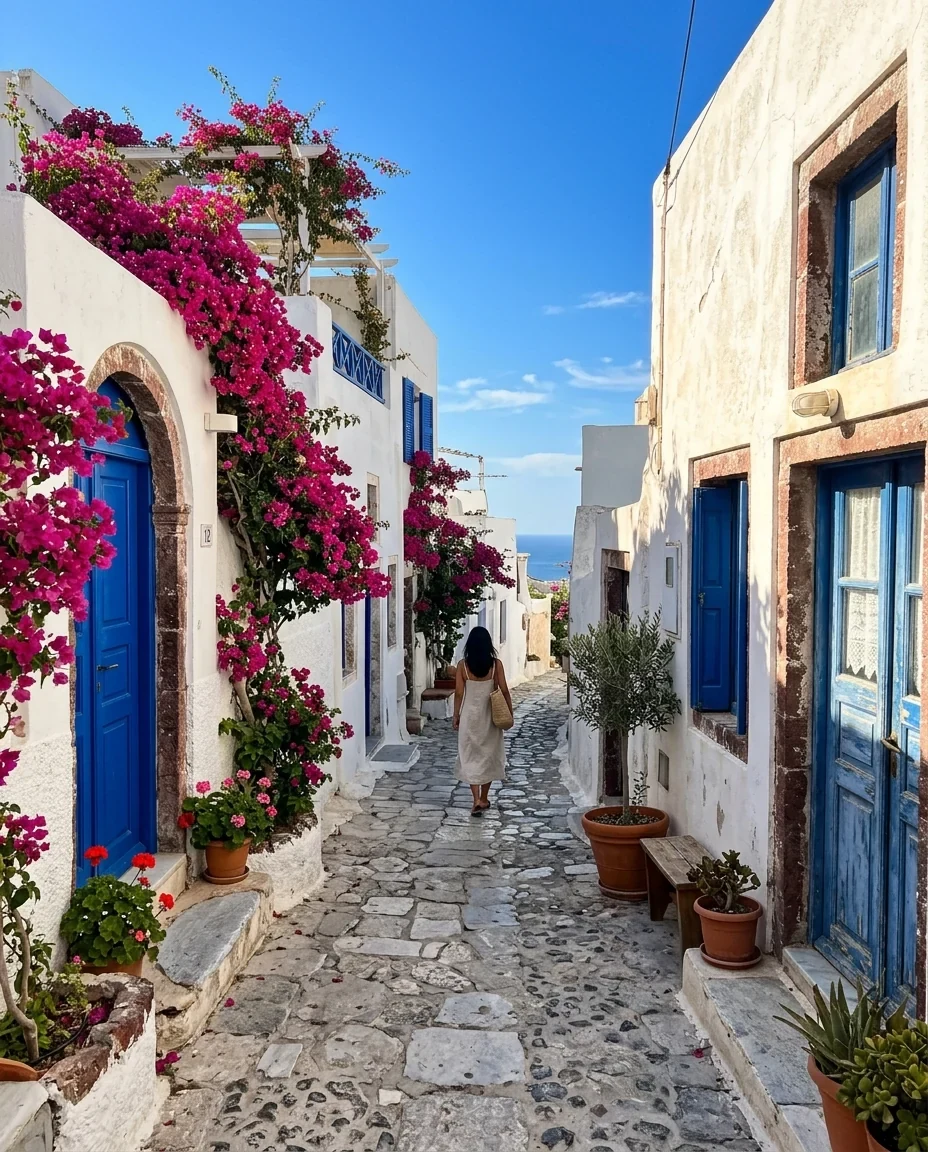
JPG → WebP
JPG to WebP features.
Quality slider
Choose 50 to 100, starting at 85, and match it to the image.
Up to 50 files at once
Convert a gallery or product folder and take one ZIP.
Private
Files are processed in your browser and are not uploaded.
JPG to WebP, step by step.
01
Add your JPG photos
Drag, paste or choose files from your device.
02
Set the quality
85 is a good starting point for photos on a web page.
03
Download
Save each WebP or the whole set as a ZIP.
JPG to WebP use cases.
- Speeding up a website
- Replace heavy JPG photos with lighter WebP versions.
- Product and blog images
- Keep image quality while cutting page weight.
- Sites that ask for WebP
- Some page speed tools and platforms recommend modern formats.
JPG to WebP: best photos and fixes.
What you gain
WebP usually makes a photo smaller than the equivalent JPG. Google, which created the format, reports savings in the range of a quarter to a third at similar visual quality. On a page with many photos, that adds up to faster loading, especially on phones and mobile data. It is one of the common fixes when a speed test flags images.
Re-compressing a JPG
A JPG is already compressed, and compressing it again as WebP adds a small second round of loss. At quality 80 to 90 this rarely shows. If you still have the original camera file or a high quality export, convert from that rather than from a small, heavily compressed JPG. Starting from a poor JPG does not give a good WebP.
Choosing a quality number
Start at 85 and compare. For large hero images and photography portfolios, 90 keeps fine detail. For small thumbnails and backgrounds, 75 to 80 is often fine. Look at faces, skies and text in the picture, since banding and blur appear there first. Settings below 60 start to show clear damage on most photos. Test one image first, then apply the same number to the batch.
Browser support
All current versions of Chrome, Edge, Firefox and Safari display WebP. Problems come from older software: some email programs, editors, print shops and CMS plugins. If a customer might open the file outside a browser, offer a JPG as well. For images embedded in a page, WebP is safe. When unsure who will open the file, keep a JPG copy next to the WebP.
Size before format
Format is only part of image weight. A 6000 pixel photo shown in a 900 pixel column is mostly wasted data in every format. Resize to about twice the display width for sharp screens, then convert. Doing both often cuts a photo to a small fraction of the original file size. Many website builders and image plugins will do the resizing for you, so check before doing it by hand.
Keep your originals
Save the JPG originals in a separate folder. WebP files made at reduced quality are for publishing, not archiving, and you cannot recover the lost detail from them. Camera information such as date and location is not copied into the WebP, which is useful for web photos, but another reason to keep originals. It also keeps your original uploads private, since nothing leaves the browser.
JPG to WebP FAQ.
Is WebP better than JPG?
For web pages, usually yes: smaller files at similar quality. JPG is still more widely accepted by older apps, forms and printers.
How much smaller is WebP than JPG?
Often around 25 to 35 percent at similar quality, though it varies by image.
Will converting JPG to WebP lower quality?
A little, since both are lossy. At quality 85 or higher the change is rarely visible.
Do all browsers support WebP?
Current Chrome, Edge, Firefox and Safari do. Some older apps and email clients do not.
Can I convert WebP back to JPG?
Yes, with the WebP to JPG page. Detail that was lost is not restored.
Is it free?
Yes. Quick tools are free, need no sign-in and use no credits; your images stay in your browser. The AI tools linked below need an account.