





AVIF to JPG
Turn AVIF images into JPG files that open in any app.
Drop images
or paste with ⌘V · JPG · PNG · WebP · HEIC · AVIF · SVG, up to 50 at once
No photo handy? Try one of ours.
 Unblur image →
 Photo restoration →
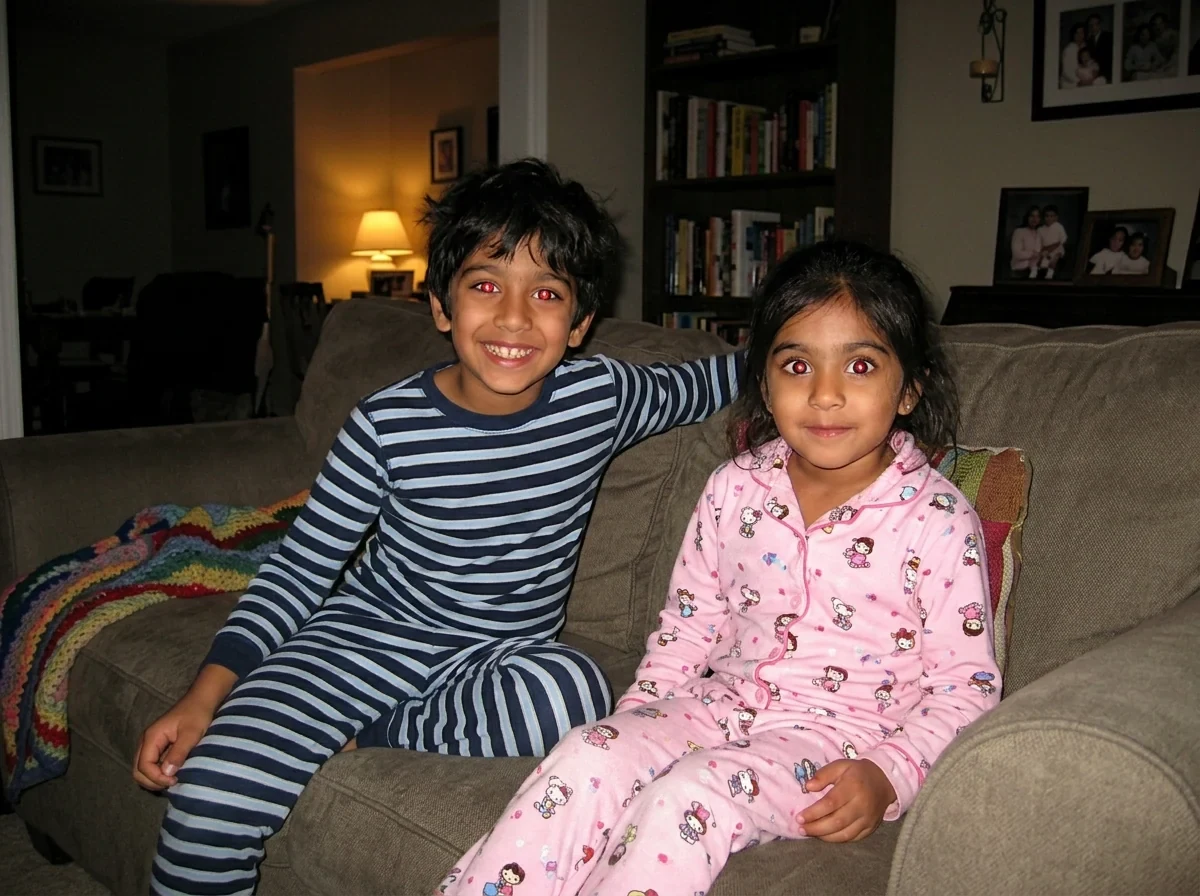
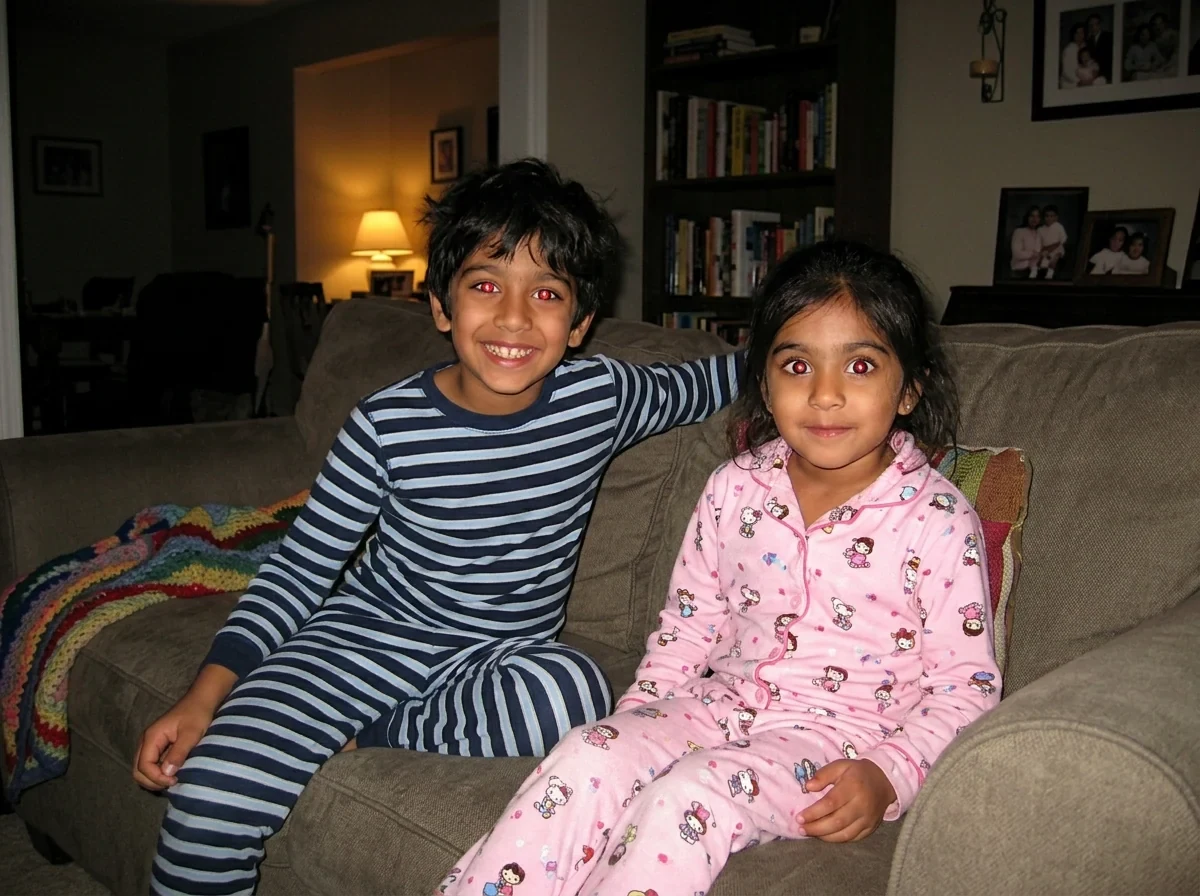
AVIF to JPG examples.
AVIF → JPG
AVIF to JPG features.
Up to 50 files at once
Drop a batch of AVIF files and download the JPGs as a ZIP.
Quality slider
Choose 50 to 100, starting at 85.
Fill for transparent areas
AVIF can be transparent, JPG cannot, so choose white, black or another color.
AVIF to JPG, step by step.
01
Add your AVIF files
Drag, paste or choose them. Your browser must be able to open AVIF.
02
Set quality and fill
Keep 85 and white for most images.
03
Download
Save a JPG or all of them as a ZIP.
AVIF to JPG use cases.
- Images saved from modern websites
- Some sites serve AVIF, and saving them gives a file many apps cannot open.
- Uploads and attachments
- Forms, chat apps and email programs that only take JPG.
- Editing and printing
- Older editors and print services that do not know AVIF.
AVIF to JPG: best photos and fixes.
What AVIF is
AVIF is a newer image format that gives very small files for good quality, which is why websites use it more and more. The problem is that desktop software is slower to adopt it. If you saved an image and Windows Photos, a photo editor or an upload form refuses it, the file is probably AVIF, even if it looked like a normal picture on the site.
Your browser does the opening
This page uses your browser to read the AVIF file, so it needs a browser that supports the format: current Chrome, Edge or Firefox, or Safari 16 or newer. If you see an error that a file cannot be opened, try another browser or update this one. HEIC is different; it works in any browser. If the page itself will not load, update the browser first.
Why the JPG is bigger
AVIF compresses more than JPG, so a JPG of the same picture is larger, often by half or more. If the result has to fit a size limit, lower the quality to around 75 to 80. At 85 and above, photos look the same to most eyes. Choose a higher number for prints or for images with fine detail. Sharp edges and text usually need the higher end.
Transparent AVIF images
AVIF supports transparency; JPG does not. Transparent areas are painted with the fill color you pick, white by default. That works for documents and most pages. If you need to keep the transparency, convert to PNG instead, since PNG keeps see-through areas. This tool can output PNG as well. Choose PNG in the format picker if the transparency matters, since JPG would flatten it.
What changes and what does not
The picture is decoded and redrawn as a JPG, so the pixels stay the same size and shape. Details like date, camera and location are not carried over, though images from websites rarely have them. Pictures over 16 megapixels are scaled down to 16 before conversion. Many AVIF files from websites come from a single source, so the converted JPG will be the same size in pixels as the one shown on the page.
Saving AVIF in a different way
Some sites let you choose a format in the download menu, and some browsers or extensions can save images as JPG directly. When neither is available, which is often, converting the file you already have is the quickest route. Keep the AVIF if you plan to place the image back on a website, as it is smaller. The files never leave your device.
AVIF to JPG FAQ.
Why can I not open my AVIF file?
AVIF is a newer format and many programs, including some versions of Windows Photos and photo editors, do not read it. A JPG opens nearly everywhere.
Which browsers can read AVIF?
Current Chrome, Edge and Firefox, and Safari 16 or newer. If yours cannot, this tool cannot open the file either.
Does converting AVIF to JPG lose quality?
A little, since JPG is lossy, but at quality 85 to 95 the difference is hard to see. Keep the AVIF if you want the original.
What happens to a transparent AVIF?
The transparent areas are filled with the color you pick, because JPG cannot be transparent.
Are my images uploaded?
No. Conversion runs in your browser and the images stay on your device.
Is it free?
Yes. Quick tools are free, need no sign-in and use no credits; your images stay in your browser. The AI tools linked below need an account.